The clearest signs your GPU is failing are visual artifacts that appear at stock settings (coloured squares, checkerboards, sparkling dots or lines), artifacts that show up even on the BIOS screen, crashes or black screens that happen only under graphics load, VRAM errors in a memory test, and fans or temperatures behaving abnormally. Before you replace anything, rule out drivers, heat, the power supply and the power connector, because those cause most “dying GPU” symptoms. This guide lists each warning sign, what it usually means, and the exact steps to confirm whether the card is really on its way out.
Our Top Picks
 ARCTIC TP-3: Premium Performance Thermal Pad120 x 20 x 1,0 mm (4 Pieces)4.7 x 0.8 x 0 inches0 PoundsCheck on Amazon


Top 3 picks at a glance
Verdict at a glance
- Strongest sign of a dying GPU: Artifacts at stock clocks after a clean driver install, especially if they appear before Windows loads.
- Most common false alarm: A weak or failing power supply, which causes black screens and restarts under load but does not produce artifacts.
- Best free diagnostic: OCCT’s GPU memory test, plus a long 3D stress test with temperatures logged.
- Most urgent warning: A burnt smell, discoloured plastic or a hot 16-pin power connector. Shut down immediately.
- What to do if confirmed: Check warranty and start an RMA before the card fails completely, keeping the serial number, photos and test logs.
The warning signs, ranked by how serious they are
| Symptom | Hardware failure likely? | Most common causes | First check |
|---|---|---|---|
| Artifacts on BIOS or boot screen | Very likely | Failing VRAM or GPU solder joints | Try another cable and monitor, then test VRAM |
| Artifacts only in games at stock clocks | Likely | VRAM errors, overheating, failing core | Clean driver install, temps, VRAM test |
| Artifacts only when overclocked | Unlikely | Unstable overclock | Return to stock |
| “Display driver stopped responding” errors | Possible | Driver, unstable power, failing chip | Clean driver install, PSU check |
| Black screen or reboot under heavy load, no artifacts | Sometimes | PSU, power connector, overheating | PSU and connector inspection |
| Blue screens during gaming | Possible | Driver, GPU, RAM or CPU instability | Read the stop code, test RAM and GPU separately |
| Fan grinding, knocking or stopping | Fan failure (repairable) | Worn bearings | Fan curve test, replace fan |
| High idle temperatures | Possible | Dust, dried thermal paste, fans, background load | Clean, check for background GPU use |
| Performance dropping over months | Rarely | Thermal throttling from dust or paste | Log clocks and temperatures |
| Burning smell or discoloured connector | Dangerous | Overheating power connector | Power off and inspect immediately |
| No display at all, fans spin | Possible | Card, cable, PCIe slot, BIOS settings | Test in another slot or PC |
| Coil whine | No | Inductor vibration under load | Usually harmless |
1. Visual artifacts
Artifacts are the most reliable sign of failing graphics hardware. They include coloured lines, checkerboard patterns, blocks of wrong pixels, “snow” and flickering textures. How-To Geek and CGDirector both describe a persistent grid of random coloured squares or sparkling dots at completely stock settings as a classic sign of failing video memory. Digital Trends notes that artifacts which survive a reboot point toward hardware rather than software.
Where the artifacts appear matters. If they show up on the motherboard’s BIOS screen or the Windows boot logo, no driver or game is involved, and the card itself is the prime suspect. If they appear only in one game, the cause is more likely a game bug, a mod or a driver issue.
The catch: A bad display cable or a loose connection can produce lines and flicker that look like artifacts. Swap the cable and try a different port or monitor before blaming the GPU.
2. Crashes, driver resets and black screens under load
Windows resets the graphics driver when the GPU stops responding for about two seconds, producing the “Display driver stopped responding and has recovered” message. That can come from a buggy driver, unstable power or a failing chip. Alphr and Digital Trends both list crashes and blue screens that occur only during graphics-heavy tasks as a warning sign.
The pattern is what separates failing hardware from everything else. A Tom’s Hardware forum thread on owners’ real experiences describes graphical glitches that gradually worsen as one of the clearest end-of-life signs: driver crashes turning into artifacts, then into black screens, over a few weeks.
3. Overheating and abnormal temperatures
How-To Geek flags GPU temperatures that stay high at idle, or climb sharply under light loads, as a warning sign. Most cards idle well below 60°C and run under 85°C in games, though hotspot and memory junction readings run higher. Clocks dropping steadily during a session indicate thermal throttling, which usually means dust buildup, dried thermal paste or pads, or a failing fan rather than a dying chip. Those problems are fixable, but running a card hot for months does shorten component life.
4. Fan noise and fan failure
Failing fans often start with a low-pitched whirr, grinding or a rhythmic knock, then begin stopping randomly. Note that many modern cards stop their fans at idle on purpose, so a still fan on the desktop is normal. A fan that will not spin under load, or makes noise when it does, needs replacing. Replacement fans are available for most popular models, and a fan failure alone does not mean the GPU is dying.
5. Physical damage
Power down, remove the card and inspect it. Bulging or leaking capacitors, burn marks, a cracked PCB, or a sagging card that has bent at the PCIe slot are all serious. Heavy cards without a support bracket can crack solder joints over time, which shows up as artifacts that come and go with temperature.
6. The 16-pin power connector warning signs
Modern high-end cards use the 16-pin 12VHPWR connector or its revised 12V-2×6 version, which carries up to 600W through a compact plug. Evetech’s guide lists warning signs: yellow or brown discolouration on the plug, warped plastic, pins at different depths, a connector too hot to touch after gaming, a faint burnt smell under load, and black screens or shutdowns that line up with heavy GPU use.
The 12V-2×6 revision shortened the sense pins so a poorly seated plug will not power the card. The connector is also rated for a limited number of mating cycles, often cited as around 30, so avoid repeatedly unplugging it. HWiNFO’s developer has added a feature aimed at detecting failing 16-pin connectors on supported cards, and third-party inline monitors can track current per pin.
If you see any melting: stop using the system, do not reuse the cable, photograph everything and contact both the GPU and power supply makers.
Problems that look like a dying GPU but are not
Power supply problems
A weak, ageing or undersized power supply is the most common impostor. Voltage sag during load spikes causes black screens and instant reboots that look exactly like GPU failure. The tell, as several troubleshooting guides note, is that PSU problems happen only in the heaviest scenes and do not create artifacts. Check that your PSU meets the card maker’s recommended wattage, that each PCIe power input uses its own cable where possible, and that the PSU is not many years old.
Driver problems
Drivers cause a large share of crashes, flicker and black screens. A clean driver installation with Display Driver Uninstaller in Safe Mode is the standard way to isolate software from hardware, as several diagnostic guides recommend. If problems vanish after a clean install, the hardware was not the issue.
Game-specific bugs
Many recent games crash because of shader cache corruption, frame generation bugs or anti-cheat issues. If only one game misbehaves while others and stress tests run fine, the card is almost certainly healthy.
Unstable CPU or RAM
An unstable memory overclock or a degraded CPU can produce crashes that look like GPU faults. Intel confirmed an instability issue on some 13th and 14th Gen desktop processors and released microcode updates through BIOS updates. Test system RAM separately and update your BIOS before blaming the graphics card.
Monitor and cable issues
Flicker, signal loss or “no signal” at high refresh rates often come from cables that cannot handle the bandwidth. Try a certified DisplayPort or Ultra High Speed HDMI cable.
How to confirm a failing GPU: step by step
- Return everything to stock. Remove GPU overclocks and undervolts in MSI Afterburner or the vendor’s software, and disable memory overclocks for testing.
- Clean-install the driver. Boot into Safe Mode, run Display Driver Uninstaller, then install the latest driver from NVIDIA, AMD or Intel.
- Check cables and display. Swap the display cable, use another port and, if possible, another monitor.
- Log temperatures. Use HWiNFO or GPU-Z to record core, hotspot and memory junction temperatures, clocks and power while gaming.
- Run a VRAM test. OCCT’s GPU memory test checks video memory for read and write errors. MAINGEAR’s support guide suggests running it for one hour. Any errors at stock settings are a strong sign of failing memory; one forum example showed hundreds of thousands of errors within two minutes on a failing card.
- Run a 3D stress test. Use OCCT’s 3D test with error detection, or a long run of Unigine Heaven or 3DMark loops. A healthy card should run for an hour or more without artifacts, crashes or runaway temperatures.
- Inspect the hardware. Check the power connector, capacitors, fans and PCB, and reseat the card in its slot.
- Swap test. If possible, try the card in another PC, or another known-good card in yours. This is the most definitive test.
The catch with test tools: OCCT’s developer once documented a VRAM test bug with certain AMD drivers, and a recent forum case on an RX 9070 traced test crashes to a dual-GPU setup with the integrated graphics enabled. If a test crashes rather than reporting errors, disable the iGPU and confirm with a second tool before concluding the card is bad.
Reading Windows’ own crash history
Windows keeps a record that helps separate a pattern from a one-off. Open Reliability Monitor by searching for “reliability history” in the Start menu, and look for repeated hardware errors or “Windows stopped working” events that line up with gaming sessions. In Event Viewer, under Windows Logs and System, display driver reset events point to timeouts. A cluster of these that grows over weeks, despite clean drivers and stock clocks, supports a hardware diagnosis; a single burst after a driver or game update points to software.
Keep notes as you test: date, game or tool, temperatures, and what happened. If you end up contacting the manufacturer, a short, dated log of symptoms and test results makes a warranty claim much smoother.
Diagnostic tools compared
| Tool | What it checks | Best for | Notes |
|---|---|---|---|
| OCCT GPU memory test | VRAM read and write errors | Suspected memory failure | Set VRAM use to about 95% on dedicated cards |
| OCCT 3D test | Core stability with error detection | Crashes and artifacts under load | Run after the memory test |
| Unigine Heaven / Superposition | Long rendering loop | Visual artifact spotting | Watch for sparkles and flicker |
| 3DMark stress tests | Frame-rate stability over loops | Throttling and stability | Reports a stability percentage |
| HWiNFO / GPU-Z | Temperatures, clocks, power, sensors | Overheating and throttling | Log during gaming sessions |
| Display Driver Uninstaller | Removes driver remnants | Ruling out software | Run in Safe Mode |
| Windows Event Viewer / Reliability Monitor | Crash and driver reset history | Spotting patterns over time | Look for display driver events |
What to do if your GPU is failing
If it is under warranty
Contact the card’s manufacturer, not just the retailer, and describe the symptoms with your test results. Keep screenshots of OCCT errors, photos of artifacts and the serial number. Many brands require the original cooler and warranty stickers intact, so do not disassemble the card before contacting them.
If it is out of warranty
- Fan failure: Replace the fan. This is a cheap, common repair.
- Overheating: Clean the heatsink and consider replacing thermal paste and pads, which often restores normal temperatures on older cards.
- VRAM errors: Lowering the memory clock slightly can sometimes buy time, but errors at stock usually get worse.
- Damaged power connector: Specialist repair shops can replace the socket, but treat any card with burn damage with caution.
- Artifacts at boot: Professional repair may be possible, but the cost often approaches that of a replacement.
How to make a GPU last longer
- Clean dust filters and fans every few months.
- Keep the case well ventilated, with intake and exhaust balanced.
- Use a quality power supply with headroom above the card’s recommended wattage.
- Support heavy cards with a bracket to prevent PCB bending.
- Seat 16-pin connectors fully, avoid tight bends near the plug and do not unplug them repeatedly.
- Consider a mild undervolt, which lowers heat and power with little performance loss on many modern cards.
Common mistakes
- Buying a new GPU before testing the PSU. Black screens without artifacts are often power related.
- Testing with an overclock active. Always return to stock first.
- Judging from one game. A single crashing title is usually a software problem.
- Ignoring the power connector. Heat damage there can spread to the card and cable.
- Opening the card before claiming warranty. It can void coverage.
Products Mentioned in This Guide
These are specific products for the repairs and preventive steps discussed above, from power supply headroom to fresh thermal paste and pads.
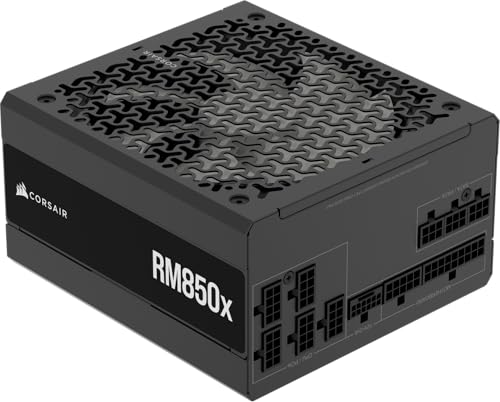
CORSAIR RM850x ATX 3.1 850W Fully Modular Power Supply
As an Amazon Associate we earn from qualifying purchases at no extra cost to you.

The guide’s most common false alarm is a weak or ageing power supply, and it recommends a quality unit with headroom above the card’s recommended wattage.
ARCTIC MX-6 Thermal Paste (4 g)

Replacing dried thermal paste is one of the easy out-of-warranty fixes that often restores normal temperatures on older cards.
ARCTIC TP-3 Thermal Pad, 120 x 20 x 1.0 mm (4 Pack)

Worn pads are the other half of that repair; check the pad thickness your card uses before buying.
nkomax Graphics Card GPU Brace Support
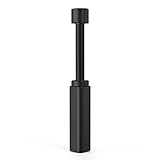
The guide advises supporting heavy cards with a bracket, since sag can bend the PCB and crack solder joints over time.
How we compared
We compiled these warning signs and tests from manufacturer guidance, tool documentation and independent guides from How-To Geek, CGDirector, Digital Trends, Alphr, SlashGear and Evetech, OCCT and MAINGEAR support documentation, HWiNFO’s forum, Intel’s public statements, and owner experiences on the Tom’s Hardware and Linus Tech Tips forums. We did not bench-test these cards ourselves. If you are unsure, a repair shop or the manufacturer’s support team can confirm a diagnosis.
Sources
- How-To Geek: Is Your GPU Dying? Warning signs
- CGDirector: How to Tell if Your Graphics Card Is Dying
- Digital Trends: How to tell if your GPU is dying
- Alphr: Signs your graphics card may be dying
- SlashGear: Warning signs that your GPU is dying
- Tom’s Hardware forums: owner experiences with dying GPUs
- OCCT documentation and MAINGEAR support: OCCT stress test guidance
- Linus Tech Tips and AMD community forums: OCCT VRAM test behaviour
- Evetech: 16-pin GPU power connector inspection guide
- HWiNFO forum: 16-pin connector detection feature
- Intel: 13th and 14th Gen desktop instability statements
Frequently Asked Questions
What does a dying GPU look like?
Typically coloured squares, checkerboards, sparkling dots, lines or flickering textures at stock settings, often getting worse over weeks, along with crashes or black screens under load.
Can a GPU die suddenly without warning?
Yes. Power delivery failures or connector damage can kill a card instantly. More often, though, VRAM and solder problems show warning signs such as intermittent artifacts first.
Is it my GPU or my power supply?
If you see artifacts, suspect the GPU. If the PC goes black or restarts only in demanding scenes with no artifacts, suspect the power supply or power connector first.
How do I test my GPU for problems for free?
Use OCCT’s GPU memory test and 3D test, log temperatures with HWiNFO or GPU-Z, and run a long Unigine Heaven loop. Do all of this at stock settings after a clean driver install.
Can a failing GPU be fixed?
Fans, thermal paste and pads are easy fixes. VRAM or core failures usually require professional repair or replacement, and warranty claims are the best route if the card is covered.
Do drivers cause artifacts?
They can cause flicker, corruption in specific games and black screens, but artifacts on the BIOS screen or across every application point to hardware.
Is coil whine a sign my GPU is dying?
No. Coil whine is vibration from components under load. It can be annoying, but it does not indicate failure.
How hot is too hot for a GPU?
Core temperatures above about 85 to 90°C during gaming, or high temperatures at idle, warrant cleaning and investigation. Memory junction and hotspot readings normally run higher than the core.