
For most streamers who capture a console or second PC at 1080p60, the Elgato HD60 X is the usual starting point in 2026 roundups, while anyone who needs 4K high-refresh passthrough or HDMI 2.1 should look at the Elgato 4K X or the AVerMedia Live Gamer lineup. If you want to record without a PC at all, the AVerMedia Live Gamer Portable 2 Plus is the standard option reviewers name.
As an Amazon Associate we earn from qualifying purchases at no extra cost to you.



Our Top Picks

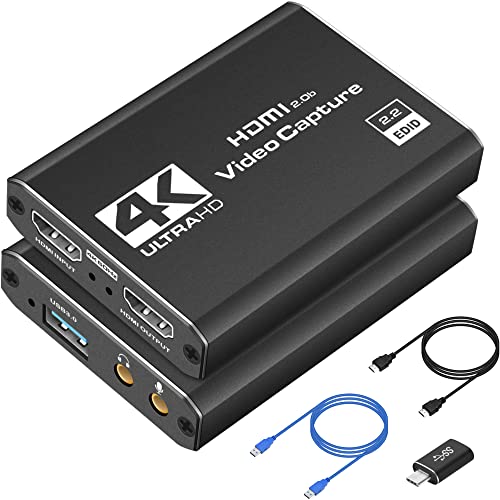


Top 3 picks at a glance
Capture Cards at a Glance
| Card | Type | Best for | Key stated specs | Limits |
|---|---|---|---|---|
| Elgato HD60 X | External USB | 1080p60 streaming from console or second PC | 1080p60 HDR10 capture, 4K60 passthrough, variable refresh passthrough (maker listing) | Does not capture at 4K |
| Elgato 4K X | External USB | High-refresh and 4K work | HDMI 2.1, 4K144 passthrough, 4K60 capture, 1080p240 capture (maker listing) | Needs a USB 3.0 or faster port and a capable PC |
| AVerMedia Live Gamer Ultra 2.1 (GC553G2) | External USB | PS5 Pro and Xbox owners | HDMI 2.1 passthrough, 5.1 audio, as described by reviewers | Software less polished than Elgato’s, per some outlets |
| AVerMedia Live Gamer Ultra S (GC553Pro) | External USB | 4K60 passthrough on a value basis | Runner-up in Smarter Ranking’s 2026 list | Older HDMI generation |
| AVerMedia Live Gamer 4K 2.1 (GC575) | Internal PCIe | Desktop streaming PCs | Described by reviewers as the 4K X’s main rival | Needs a free PCIe slot and a desktop |
| AVerMedia Live Gamer Portable 2 Plus | Standalone with SD slot | PC-free recording | Records to SD card; app-based features | Not a full streaming solution on its own |
Do You Even Need a Capture Card?
If you stream gameplay from the same PC you play on, you do not. OBS Studio can capture the screen directly, and modern GPU encoders such as NVENC and AMD’s encoder handle the load with a small hit to frame rate. Capture cards earn their place in three cases: streaming from a console, running a dual-PC setup where one machine games and another encodes, or bringing a camera into the PC.
For cameras, many mirrorless bodies output clean HDMI and can serve as a webcam through a capture card. Check that the camera supports clean HDMI output with no on-screen overlay and a long-running power option, since battery-only cameras and some models stop after a set time.
External or Internal?
External USB
External cards plug into USB 3.0 or faster and work with laptops and desktops alike. They are the most flexible option, and the one most reviewers suggest to beginners. Use a rear motherboard port rather than a front panel header or an unpowered hub, as bandwidth shortages cause dropped frames.
Internal PCIe
Internal cards such as the AVerMedia GC575 sit in a desktop PCIe slot and usually have the best bandwidth and lowest latency. They are only suitable for a desktop streaming PC, and the slot lane count should be checked before buying.
Standalone
Standalone recorders write straight to storage and do not need a PC. They are handy for archiving gameplay or for creators who edit later, but they cannot feed OBS live without extra hardware.
Specs That Matter
- Capture resolution and frame rate: 1080p60 is plenty for most Twitch and YouTube streams, since many platforms cap bitrate and effective quality. 4K60 capture is only worth it if you record for editing.
- Passthrough: This is what your monitor displays. A card with 4K144 passthrough lets you game on a high-refresh display while capturing a lower resolution.
- HDR and VRR: HDR10 capture and variable refresh rate passthrough matter for current consoles. The HD60 X and 4K X both list these features.
- Latency: The signal into your monitor should be effectively lag-free, while the PC-side preview may show a short delay. Use the monitor on the passthrough output rather than the preview window.
- Encoding: Most of these cards send uncompressed or lightly compressed video to the PC, so your CPU and GPU do the encoding. The card does not replace a decent processor.
Compatibility and Setup Notes
- HDMI 2.1 consoles, such as PS5 and Xbox Series X, can output 120Hz modes. A card without HDMI 2.1 passthrough will limit this, so match the card to the console.
- Some consoles apply HDCP copy protection to certain apps and menus. Capture cards cannot record protected content, and disabling HDCP in console settings is generally needed for gameplay capture.
- Nintendo Switch OLED and Switch 2 docks output HDMI, and both work with standard cards. Check that the card supports the resolution and refresh rate the console uses.
- Reviewers who use Mac report that Elgato and AVerMedia software support varies, so confirm macOS support on the maker’s page.
- For a dual-PC build, make sure the second PC has a fast CPU or a recent GPU encoder, since the capture PC does the heavy lifting.
Budget Tiers
| Tier | What to expect | Examples named by reviewers |
|---|---|---|
| Budget | 1080p60, USB 3.0, simple software | Elgato HD60 X, AVerMedia Ultra S, Elgato Game Capture Neo |
| Mid-range | 4K60 capture or HDMI 2.1 passthrough | AVerMedia Live Gamer Ultra 2.1, AVerMedia Portable 2 Plus |
| Premium | 4K high-refresh, internal PCIe, low latency | Elgato 4K X, AVerMedia Live Gamer 4K 2.1 |
Prices shifted through 2026, so compare current listings within the tier rather than relying on a headline number.
Pick X If…
| If you… | Pick | Reason |
|---|---|---|
| stream a console at 1080p60 with minimal fuss | Elgato HD60 X | TechRadar calls it the card to beat on Windows |
| game on a 4K 144Hz display and capture too | Elgato 4K X | 4K144 passthrough and HDMI 2.1 |
| own a PS5 Pro or Xbox and want 5.1 audio | AVerMedia Live Gamer Ultra 2.1 | HDMI 2.1 passthrough |
| build a desktop dual-PC streaming rig | AVerMedia Live Gamer 4K 2.1 | Internal PCIe bandwidth |
| want to record without turning on a PC | AVerMedia Portable 2 Plus | SD card recording |
Alternatives
- Direct screen capture in OBS: Free, good for single-PC streamers.
- Console built-in streaming: PS5 and Xbox can stream natively, with limited overlay control.
- HDMI-to-USB generic adapters: Inexpensive and usable for cameras, but typically limited to 1080p30 or compressed video, and the support is less consistent.
Sample Setups
Console to PC Streaming Setup
Connect the console’s HDMI output to the capture card’s input, then run a second HDMI cable from the card’s passthrough to your monitor or TV. Connect the card to the PC by USB, add it as a video capture device in OBS Studio, and set the resolution and frame rate to match what the card lists. Add the console audio through the card’s audio device, or use a separate mixer for chat and game sound.
Dual-PC Streaming Setup
The gaming PC sends its display through the card, and the streaming PC captures and encodes it. This setup protects frame rate on the gaming machine, because encoding and overlays run elsewhere. The streaming PC needs a modern GPU encoder or a strong processor, and a fast network connection if you also run alerts or chat tools there. Many streamers use an old gaming PC as the second machine.
Camera as a Webcam
A mirrorless camera with clean HDMI output connected to a capture card gives a far better image than most webcams, with a shallow depth of field if you use a fast lens. Use a dummy battery or power adapter so it does not shut off mid-stream, and set the camera to manual exposure with a fixed frame rate.
Troubleshooting Common Problems
- Dropped frames: Move the card to a rear USB port directly on the motherboard and avoid sharing a controller with heavy external drives.
- Audio out of sync: Add an audio delay in OBS until sound matches the picture, which usually needs only a few dozen milliseconds.
- Washed-out colors: This often comes from mismatched color space settings. Turn HDR off in the console if you are not streaming HDR, or enable HDR tone mapping in OBS.
- Preview lag: Play from the passthrough output rather than the preview window, since the preview includes encoding delay.
- Device not detected: Update the maker’s driver or software, try another cable, and confirm the port is USB 3.0 or faster.
Frequently Asked Questions
Which capture card is best for beginners?
Roundups most often name the Elgato HD60 X, because it combines 1080p60 capture with simple software and 4K60 passthrough. It suits a console or second PC.
Do I need a capture card to stream from a PS5 or Xbox?
Not always, since both consoles can stream directly to major platforms. A capture card gives you control over overlays, scene switching and recording quality in OBS.
Can a capture card lower my game performance?
An external card on a console adds no load to the console. On a single-PC setup, the main cost is the encoder, not the card, and most players see a small frame rate drop when using NVENC or AMD’s encoder.
Is 4K capture necessary for streaming?
For live streaming, no. Platforms limit bitrate, so 1080p60 usually looks as good. 4K capture matters more for recording content you will edit later.
Why is my capture showing a black screen?
The usual cause is HDCP protection on the console or app. Turn off HDCP in the console’s settings, and make sure the cable runs from the console to the card’s input, not the output.
Can I use a capture card with a laptop?
Yes, with an external USB model. Use a USB 3.0 or faster port directly on the laptop, and keep the laptop plugged in so it does not throttle the port.


