
Fortnite is deceptively demanding once buildings, foliage and effects pile up, and a low-end PC (roughly a 4-core CPU, 8GB RAM and an entry GPU) can swing from 90 FPS in the open to a stuttery 40 during a late-game build fight. The good news is Fortnite exposes enough granular options that you can reclaim a smooth, high-refresh experience without turning the game into mush. This guide walks through the settings that actually move the needle and the ones that only cost you clarity.
As an Amazon Associate we earn from qualifying purchases at no extra cost to you.



Our Top Picks
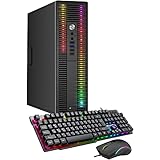
 Dell Gaming OptiPlex Desktop RGB Computer PCi7-16GB-512GB+GT1030+24 inch20 x 16 x 8 Inches25.3 PoundsCheck on Amazon


Top 3 picks at a glance
Pick the right rendering mode first
Fortnite offers Performance Mode, DirectX 11 and DirectX 12. On low-end hardware, Performance Mode is the single biggest win. It strips back lighting and textures but can nearly double your frame rate, often taking a 45-55 FPS system to a locked 100-120 FPS. Enable it under Settings then Video, and let the game restart so it can download the lower-resolution texture set (roughly 1-2GB).
If you dislike how flat Performance Mode looks, DirectX 11 is the next-best choice for older GPUs because it has lower driver overhead than DX12 on weak CPUs. Reserve DX12 for systems with 6 or more cores and a modern card, where it can improve 1% lows rather than hurt them.
The graphics settings that matter
View Distance can stay at Medium or High because it barely costs frames and helps you spot enemies. The expensive sliders are Shadows, Effects and Post Processing. Set Shadows to Off, Effects to Low and Post Processing to Low. Shadows alone can eat 15-25% of your frame rate in wooded areas.
Set 3D Resolution to 100% if you can hold your target frame rate; dropping it to 80-90% is a cleaner way to gain FPS than lowering textures because it preserves UI and edge clarity. Turn Anti-Aliasing to TAA or off, disable Motion Blur, and cap your frame rate a few frames below your monitor refresh (for a 144Hz panel, cap at 141) to keep input latency consistent.
| Setting | Low-end value | Why |
|---|---|---|
| Rendering Mode | Performance | Biggest FPS gain, near 2x |
| Shadows | Off | Frees 15-25% FPS |
| Effects / Post Processing | Low | Cuts late-game drops |
| 3D Resolution | 80-100% | Scales load cleanly |
| View Distance | Medium-High | Cheap, aids visibility |
| Frame Rate Limit | Refresh minus 3 | Stable input lag |
System-level tweaks that help Fortnite
Fortnite loves fast storage and RAM headroom. Install it on an SSD to cut the shader hitches that plague first matches, and close Chrome, Discord overlays and Epic background downloads before you queue. On 8GB systems, a background browser can push you into paging, which shows up as sudden freezes.
Update your GPU driver, enable Resizable BAR if your platform supports it, and make sure Windows Game Mode is on so the scheduler prioritizes the game. If you still see build-fight stutter, lower Effects before anything else, because particle-heavy explosions are the usual culprit.
Common low-end mistakes to avoid
The most common mistake is maxing View Distance to Epic thinking it helps spotting; it barely improves visibility over High while costing frames on a weak CPU. Another is leaving 3D Resolution at 100% when your GPU cannot hold your target, then blaming the game for stutter. Scale it to 85-90% first and you keep a sharp HUD while gaining a comfortable buffer of frames.
Players also forget that Fortnite runs an anti-cheat and the Epic launcher in the background, both of which take memory. On an 8GB machine, quitting the launcher after the game loads and closing browser tabs can be worth 10-15 FPS in the late game. Finally, do not chase an uncapped frame rate on a weak card; an uncapped menu can run hot and loud for no benefit, so cap a few frames under your refresh and let the card breathe.
Frequently Asked Questions
Does Performance Mode give a competitive advantage?
It gives a frame-rate and latency advantage that indirectly helps aim and building. It also makes foliage and cover easier to see through, so many competitive players prefer it despite the flatter look.
Why do my FPS tank only in the late game?
Late circles cram dozens of players, builds and effects into a small space, spiking CPU and particle load. Lowering Effects, Post Processing and View Distance, plus freeing RAM, smooths those moments the most.
Should I lower View Distance to boost FPS?
Only slightly. View Distance is cheap on the GPU and helps you see enemies, so keep it Medium to High. Spend your frame budget on Shadows, Effects and Post Processing instead, which cost far more.
Bottom line
On a low-end PC, enable Performance Mode, kill Shadows, keep Effects and Post Processing at Low, and cap your frame rate just under your refresh. Those four changes turn Fortnite from a stuttery mess into a consistent 100+ FPS shooter, and everything else is fine-tuning around your specific CPU and GPU balance.






