
Valorant runs on almost anything, but running it well for competitive play is a different goal: you want a high, stable frame rate, the lowest possible input latency, and clarity that helps you see enemies before they see you. A modest PC can push 200-300 FPS in Valorant, and that headroom directly lowers the end-to-end latency between your mouse and the screen. Here is how to configure the game and Windows around it.
As an Amazon Associate we earn from qualifying purchases at no extra cost to you.


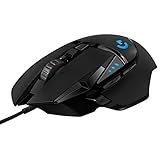

Our Top Picks


Top 3 picks at a glance
Video settings for maximum clarity and FPS
Play at your monitor native resolution in Fullscreen, not Borderless; exclusive fullscreen gives Valorant direct control of the display chain and the lowest latency. Set Material, Texture and Detail Quality to Low or Medium, UI Quality to Low, and turn Vignette, VSync, Bloom, Distortion and Cast Shadows off. Shadows off is both an FPS gain and a visibility gain.
Anti-Aliasing should be MSAA 2x on capable systems for clean edges without much cost, or off if you are chasing the last few frames. Anisotropic Filtering 1x to 2x is enough. Enhanced Gun Skin Visuals off saves a little GPU. Leave Improve Clarity off unless you personally prefer the sharpened look.
Frame rate, latency and the NVIDIA Reflex effect
Valorant has built-in NVIDIA Reflex. Turn it On plus Boost on GeForce cards; it aligns the CPU and GPU so the render queue stays short, cutting system latency by several milliseconds. Cap your frame rate using the in-game Max FPS options rather than an external limiter so Reflex stays effective.
A useful rule: aim for a frame rate at least double your refresh rate when possible. At 240 FPS on a 144Hz monitor, each displayed frame is fresher, which shows up as snappier flicks. If your GPU cannot sustain that, prioritize a stable cap over a high but jittery number.
| Setting | Competitive value | Effect |
|---|---|---|
| Display Mode | Fullscreen | Lowest latency |
| Cast Shadows | Off | FPS + visibility |
| VSync | Off | Removes buffer lag |
| NVIDIA Reflex | On + Boost | -5 to -10ms latency |
| Anti-Aliasing | MSAA 2x / Off | Clarity vs FPS |
| Max FPS | About 2x refresh | Fresher frames |
Windows and mouse settings that finish the job
Disable mouse acceleration in Windows (Enhance pointer precision off) so your muscle memory stays consistent, and set your mouse polling rate to 1000Hz. Use a per-game power plan or the Ultimate Performance plan so the CPU does not downclock between rounds.
Close Chrome and heavy overlays, keep the game on an SSD, and make sure your monitor is actually running at its rated refresh in Windows Display Settings, since a panel silently stuck at 60Hz is a common reason people feel sluggish despite high FPS.
Fine-tuning for consistency
Once the core settings are in, focus on consistency rather than peak numbers. A frame rate that swings from 300 to 150 during smokes and abilities feels worse than a steady 200, so if you see big dips, lower Material and Detail Quality a notch and make sure your GPU is not thermal throttling. Watch your 1% lows, not just the average, to judge whether the experience is genuinely smooth.
Your monitor setup matters as much as in-game settings. Confirm the panel is at its rated refresh in Windows, enable your G-Sync or FreeSync inside a frame cap a few frames below refresh for tear-free play, and keep your crosshair and sensitivity consistent so raw performance translates into better aim. Small, stable improvements compound into noticeably crisper gunfights over a session.
Frequently Asked Questions
What FPS should I target in Valorant?
Match at least your refresh rate, and ideally double it. A 144Hz player benefits from 240-300 FPS because frames are fresher and input latency drops, even though only 144 are displayed.
Does turning shadows off count as cheating?
No. Cast Shadows is a standard in-game option available to everyone, and disabling it is common in competitive play for both performance and visibility.
Is exclusive fullscreen really better than borderless in Valorant?
For competitive play, yes. Exclusive fullscreen gives the game direct control of the display chain for the lowest latency. Borderless is more convenient for alt-tabbing but adds a small amount of delay through the Windows compositor.
Bottom line
For competitive Valorant, run exclusive fullscreen at native resolution, drop the heavy visual options and shadows, enable NVIDIA Reflex On plus Boost, and cap FPS with the in-game limiter. Pair that with 1000Hz polling and no mouse acceleration, and you get the crisp, low-latency response that competitive play rewards.






