
The best gaming PC for kids from these six listings is the STGAubron Core i7 with an RX 580 8G if you want the strongest graphics for popular games on a monitor you already own, and the Dell Optiplex bundle if you need the monitor and a headset in the same box at a lower price tier. The other four are cheaper or smaller trade-offs, and two of them are renewed office-style desktops that carry a gaming label in the title more than in the hardware.
Buying a gaming computer for a child is a different problem from buying one for yourself. You are balancing performance against price, because kids grow out of hardware and games change fast, and against safety, because the machine needs to be set up so that a young person can use it without wandering into trouble. A PC that is a little slower but arrives with sensible accounts and limits will serve a family better than a faster one left wide open.
This page begins with what children of different ages actually play, compares the six listings, and then walks through a parental-control setup you can finish in roughly fifteen minutes. If the PC you buy is slow to start, our guide to speeding up startup time on a Windows 11 gaming PC is worth a read.
As an Amazon Associate we earn from qualifying purchases at no extra cost to you.

Our Top Picks
Start with the child, not the spec sheet

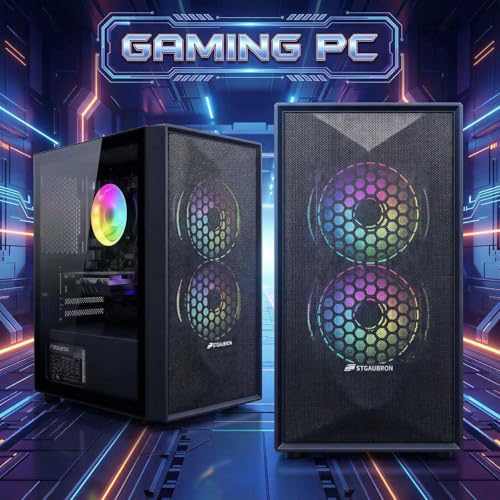
STGAubron Gaming PC Desktop,Core I5,RX 550 4G,16G RAM,512G SSD | Gaming Computer Tower for Streaming,Video Editing,Home,School,I5 up to 3.6G,ARGB Fan,WiFi 6,BT 5.0,4K DP,HDMI,Win11 Home



As an Amazon Associate we earn from qualifying purchases. Product prices and availability are accurate as of the date/time indicated.

STGAubron Gaming PC Desktop,Core I7,RX 580 8G,16G RAM,1T SSD | Gaming Computer Tower for Streaming,Video Editing,Home,School,I7 up to 3.9GHz,ARGB Fan,WiFi 6,BT 5.0,4K HDMI,Win11 Home


As an Amazon Associate we earn from qualifying purchases. Product prices and availability are accurate as of the date/time indicated.

OKAMUS Pre-Built PC, i5 CPU Up to 3.6GHz, Integrated Graphics Only, 256 GB M.2, 8 GB RAM Cheap Budget Gaming PC, RGB Fans x 3, Win 11 Home,WiFi 6 + BT 5.3, 400W PSU (i5+No GPU+8GB+256GB)


As an Amazon Associate we earn from qualifying purchases. Product prices and availability are accurate as of the date/time indicated.

HP ProDesk Desktop RGB Lights Computer Intel Core i5 6500 3.2 GHz 8GB RAM 256GB SSD Gaming PC Keyboard & Mouse, Windows 11 Pro (Renewed)


As an Amazon Associate we earn from qualifying purchases. Product prices and availability are accurate as of the date/time indicated.

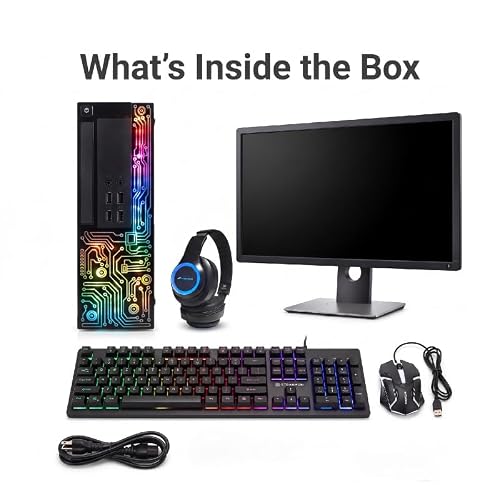
Dell Optiplex PC,Core i5,24'' Monitor,16G RAM,512G SSD(Renewed) | Gaming Desktop Computer PC, I5 up to 3.6G,HDMI, ARGB, Headset, Windows 11 Pro, Home or Office PC


As an Amazon Associate we earn from qualifying purchases. Product prices and availability are accurate as of the date/time indicated.

Mini Gaming PC, Intel Core I7-8750H with Nvidia GTX1050 3G GDDR5 RGB Lights Gaming Mini Compter, 16GB DDR4 512GB NVMe SSD, 2X HDMI + Type-C/WiFi6E/BT5.3/RJ-45, Windows 11 Pro, Pink


As an Amazon Associate we earn from qualifying purchases. Product prices and availability are accurate as of the date/time indicated.
The table below ties age bands to the kinds of games children commonly play and what each needs from a computer. The hardware notes are general estimates, since game requirements change and each game publishes its own. Use them to decide how much machine you need before you look at prices.
| Age band | Typical games | Hardware need (estimate) | Parent focus |
|---|---|---|---|
| Under 8 | Block-building, puzzle, learning and simple platform games | Light; integrated graphics is often enough | Supervised sessions, locked-down account, no store access |
| 8 to 12 | Sandbox worlds, kid-friendly online games, creative tools | Entry-level dedicated graphics helps; 16GB memory is comfortable | Chat settings, spending approvals, time limits |
| 13 to 15 | Competitive shooters, battle royale, larger online games | Mid-range dedicated graphics and a fast SSD | Content ratings, voice-chat settings, sleep boundaries |
| 16 and up | Newer action titles and creative software | More graphics power and room to upgrade | Shared responsibility, trust-based agreements |
A useful rule: buy for the games your child plays now and the ones they will ask for in the next year, not for a game they might want in three. Older children asking for demanding titles will have a different opinion of a machine with integrated graphics only.
All six listings at a glance
| Listing | Key spec from the title | Price tier | Best for |
|---|---|---|---|
| STGAubron Core i7, RX 580 8G | Core i7 up to 3.9GHz, RX 580 8G, 16G RAM, 1T SSD, Windows 11 Home | Premium | Strongest graphics in the set |
| STGAubron Core i5, RX 550 4G | Core i5 up to 3.6G, RX 550 4G, 16G RAM, 512G SSD, Windows 11 Home | Mid-range | Entry gaming for lighter titles |
| OKAMUS Pre-Built PC | Core i5 up to 3.6GHz, integrated graphics only, 8 GB RAM, 256 GB M.2, 400W PSU | Budget | Younger children, light games |
| HP ProDesk (Renewed) | Core i5 6500 3.2 GHz, 8GB RAM, 256GB SSD, keyboard and mouse, Windows 11 Pro | Budget | Cheapest start, schoolwork plus light play |
| Dell Optiplex (Renewed) | Core i5, 24-inch monitor, 16G RAM, 512G SSD, headset, Windows 11 Pro | Mid-range | Complete desk setup in one purchase |
| sinbun Mini Gaming PC | Core i7-8750H, GTX1050 3G, 16GB DDR4, 512GB NVMe, Windows 11 Pro, pink | Premium | Small desks and bedrooms |
Price tiers are relative within the six listings only. Check each listing for current price, condition and what is actually in the box.
The six machines
STGAubron Gaming PC, Core i7, RX 580 8G, 16G RAM, 1T SSD
This is the most capable listing in the group on paper. The title lists a Core i7 processor up to 3.9GHz, an RX 580 graphics card with 8G of video memory, 16G of RAM, a 1T SSD, ARGB fans, WiFi 6, Bluetooth 5.0, 4K-capable HDMI output and Windows 11 Home. The tower format leaves room for upgrades, though the title does not say how much.
The RX 580 is an older graphics card, and as an estimate it is commonly described as a 1080p card for lighter and older competitive games at moderate settings. That makes it a reasonable fit for popular kid-friendly titles such as sandbox and battle royale games at 1080p, but not for the newest demanding releases at high settings. The title does not name the Core i7 model or generation, which matters for performance and for Windows 11 support, so check the listing.
The 1T SSD is a benefit for a family PC: it holds several large games without constant uninstalling. The title mentions no monitor, keyboard or mouse, so budget for those. ARGB lighting is cosmetic; some children love it, and it can be switched off if you prefer a calmer desk. Windows 11 Home supports Microsoft family features, which is useful for the parental setup described below.
Pros
- Dedicated 8G graphics card and a 1T SSD in the title.
- 16G of memory is a comfortable level for current games.
- Wi-Fi 6 and Bluetooth 5.0 for wireless controllers and headsets.
Cons
- Premium tier for the set, with an older graphics card.
- Processor model and generation are not named; check the listing.
- No monitor or peripherals mentioned.
Who it’s for: families with a spare monitor and a child who plays popular online games, who want a machine that still feels capable in a couple of years.
STGAubron Gaming PC, Core i5, RX 550 4G, 16G RAM, 512G SSD
The smaller sibling lists a Core i5 up to 3.6G, an RX 550 with 4G, 16G of RAM, a 512G SSD, ARGB fans, WiFi 6, Bluetooth 5.0, 4K DisplayPort and HDMI outputs, and Windows 11 Home. It is marketed for streaming, video editing, home and school as well as gaming, which should be read as general-purpose language rather than a specific promise.
The RX 550 is an entry-level graphics card. As a rough estimate, it suits older and lighter games at 1080p with lower settings, and it will struggle with newer titles. For a younger child who plays sandbox and puzzle games, that is fine. For a teenager asking about the latest shooters, it will feel limiting quickly, and a discrete card upgrade would need to fit the power supply, which the title does not describe.
Sixteen gigabytes of memory is generous for the tier, and a 512G SSD is enough for a handful of games. The Mid-range tier in this set puts it in the middle: more capable than the integrated OKAMUS and the renewed office PCs, less capable than the RX 580 build. Compare the price difference between the two STGAubron machines carefully, because the stronger graphics card is the part that ages best. One sensible test is to ask what happens in two years: if your child outgrows the RX 550, will you replace the whole machine or add a card? The title does not give the power supply rating or free connectors, so that answer sits on the listing.
Pros
- Dedicated graphics card and 16G of RAM at a mid-tier price.
- DisplayPort and HDMI outputs listed.
- Windows 11 Home with family safety support.
Cons
- Entry-level graphics card limits newer titles.
- 512G storage fills quickly with large games.
- Power supply size and upgrade room are not stated.
Who it’s for: younger or beginner players who want a dedicated graphics card without paying for the strongest option.
OKAMUS Pre-Built PC with Integrated Graphics
The OKAMUS is the most candid listing: the title says “Integrated Graphics Only” and “i5+No GPU+8GB+256GB”. It lists a Core i5 up to 3.6GHz, 8 GB of RAM, a 256 GB M.2 drive, three RGB fans, Windows 11 Home, WiFi 6 and Bluetooth 5.3, and a 400W power supply. Despite the “Cheap Budget Gaming PC” wording, there is no graphics card in this configuration.
What does that mean for a child? Integrated graphics are built into the processor and share system memory. They handle browsing, video, schoolwork and very light games, such as simple 2D titles and some older games at low settings. Anything demanding will run poorly. If your child is under eight or plays mostly casual and educational games, that can be enough, and the low price keeps a mistake cheap.
The 400W power supply is a modest unit. If you add a graphics card later, check its power requirement against the supply and the connectors available, and have the work done by a qualified person if you are not comfortable, following the manufacturer’s instructions. Eight gigabytes of memory is the minimum for current Windows use and will limit multitasking and some games; the title does not say whether a second memory slot is free, so check the listing. Because the price is low, this is also the listing where the surrounding costs matter most: a monitor, keyboard, mouse and headset can add up to more than the saving over a bundle.
Pros
- Lowest cost among the new machines in the set.
- Honest title about having no graphics card.
- Windows 11 Home with family safety features, Wi-Fi 6 and Bluetooth 5.3.
Cons
- No dedicated graphics; not suited to demanding games.
- 8 GB memory and 256 GB storage are tight.
- “Gaming PC” wording overstates what integrated graphics can do.
Who it’s for: younger children, schoolwork and casual games, or a first PC where upgrading later is part of the plan.
HP ProDesk Desktop (Renewed), Core i5 6500, 8GB, 256GB SSD
This is a renewed business desktop with RGB lights added, listed with an Intel Core i5 6500 at 3.2 GHz, 8GB of RAM, a 256GB SSD, a keyboard and mouse, and Windows 11 Pro. It is the cheapest machine in the set, and the only one that says in the title that peripherals are included.
Two points matter. First, the Core i5 6500 is a processor from an older generation, and Microsoft publishes a list of supported processors for Windows 11. The title says Windows 11 Pro, but check the listing for how it is installed and licensed, and whether the machine meets Microsoft’s requirements for updates. Second, the title does not mention any graphics card, so assume integrated graphics unless the listing says otherwise.
Renewed means previously owned and restored by a seller. Check the listing for the renewal grade, the warranty length and the return policy, because those are the real protections. For a child, a renewed desktop can be a sensible starter if it is used for homework and light, older games, and the cost of a mistake is small. It is not a gaming PC in the sense the keyword implies, and the gaming label in the title is about the lights. If you do buy a renewed machine, power it on in the first days, check that it boots cleanly, that the drive reports as healthy in Windows, and that all ports work. Inside the return window is the time to find faults, not three months later.
Pros
- Lowest price tier, with keyboard and mouse included.
- 256GB SSD and Windows 11 Pro in the title.
- Business desktops are often built sturdily.
Cons
- Older processor generation; check Windows 11 support.
- 8GB RAM and no named graphics card limit gaming.
- Renewed condition: warranty and return terms vary.
Who it’s for: a homework-first computer for a child who plays light games, bought with a clear return plan.
Dell Optiplex PC (Renewed) with 24-inch Monitor, Core i5, 16G, 512G SSD
The Dell Optiplex bundle lists a Core i5 up to 3.6G, a 24-inch monitor, 16G of RAM, a 512G SSD, HDMI output, ARGB lighting, a headset and Windows 11 Pro, and is marked as renewed. Its big advantage is completeness: it is the only listing in the set that clearly includes a monitor and a headset, so a child could sit down and start once it is plugged in.
Like the HP, it is a repurposed office desktop. The title does not say which processor generation or which graphics hardware it has, so look for those on the listing. Without a dedicated card, expect integrated graphics, which suits homework, video and older or lighter games at lower settings. The 16G of RAM is better than the HP’s 8GB, and the 512G SSD is more storage than the OKAMUS.
Because the title packs in the monitor and headset, the price comparison with the other machines should include what you would otherwise spend on them. That is the sort of arithmetic the cost worksheet below is designed for. Check whether the included keyboard and mouse are mentioned, and check the renewal grade and warranty. A 24-inch monitor is a comfortable size for a child’s desk and is about right at 1080p, but the title does not give the resolution or refresh rate, so confirm both before assuming it suits fast games.
Pros
- 24-inch monitor and headset included according to the title.
- 16G of RAM and a 512G SSD at the mid tier.
- Windows 11 Pro installed.
Cons
- Renewed, so condition and warranty need checking.
- Graphics hardware and processor generation are not named.
- Gaming ability limited without a dedicated card.
Who it’s for: parents who want a single-box start with a screen and headset included and mostly lighter games.
sinbun Mini Gaming PC, Core i7-8750H, GTX1050 3G
The sinbun is a compact gaming computer in pink, listed with an Intel Core i7-8750H, an Nvidia GTX1050 with 3G of GDDR5, 16GB of DDR4, a 512GB NVMe SSD, two HDMI ports plus Type-C, WiFi 6E, Bluetooth 5.3, an RJ-45 network port and Windows 11 Pro. It is the most expensive listing by price, and the only small-form-factor machine with a dedicated graphics chip named.
The i7-8750H is a laptop-class processor, which means the machine is closer to a laptop internally than a tower. That brings small size and low noise potential, and it also usually means limited upgrade room and tight cooling. The GTX1050 is an entry-level graphics chip; as a rough estimate it handles older and lighter games at 1080p and will struggle with newer ones. Compare it with the RX 550 build above, which sits in a similar range, and with the RX 580 tower, which is generally considered a step up.
The appeal is the footprint. On a small desk or in a shared room, a mini PC can be tucked behind a monitor. Keep the vents clear, and check how the machine handles heat during long sessions. A child’s room can be warm and dusty, and a small chassis has less room to shed heat, so wipe dust from the vents outside the machine on a schedule and never cover them with bedding or papers. Our guide to checking PC temperature while gaming explains how to watch for throttling.
Pros
- Small size, dedicated graphics and a 512GB NVMe drive.
- Multiple video outputs and Wi-Fi 6E.
- Windows 11 Pro installed.
Cons
- Highest price tier for entry-level graphics.
- Laptop-class parts limit upgrades and cooling headroom.
- Pink finish is a matter of taste; check the listing for other colors.
Who it’s for: kids with limited desk space who play lighter games and whose parents value a small, tidy machine.
How we picked these
This article was prepared by the Editorial team using published specifications, manufacturer documentation and buyer reviews as the testbench. Nobody on the team used or measured these units. We repeat only what each title says, we flag everything else as a point to check on the listing, and we label any figure beyond the title as an estimate.
The six machines were supplied for this keyword, and we sorted them by features that matter to a parent: whether a dedicated graphics card is named, how much memory and storage the title lists, whether the machine is new or renewed, which Windows edition is installed, and whether a monitor or other peripherals are included. We deliberately avoided ranking by raw performance, since we have no measurements.
Two of the six are renewed office desktops and one is a laptop-class mini PC. We did not drop them; we described what they are. A listing that uses the word gaming in its title is not necessarily a gaming computer, and part of this guide’s job is to say so.
Parental controls and safety, in order
Do this before the child first sits down. Treat it as a single 15-minute session and keep the list handy.
Accounts
Set up the PC with your own administrator account first. Create a separate standard account for your child, ideally a Microsoft account added to a Microsoft family group. A standard account cannot install software or change system settings without your approval, which keeps a lot of problems from starting.
Time and content limits
In the family settings, set daily screen-time limits per device, filter web content, and enable app and game restrictions by age rating. Review the activity reports occasionally, and use them as a conversation starter rather than surveillance. Check the settings inside each game and store, since many have their own chat, friend and purchase controls.
Spending
Remove saved payment cards from the child’s accounts, and require approval for purchases. Prepaid gift cards with a fixed balance are one way to cap spending. Explain why in-game purchases can be tempting and how they work.
Online contact
Review voice chat and text chat settings for each game, and decide together who your child may talk to. Keep the PC in a shared space for younger children, and talk about what to do if something online makes them uncomfortable.
Physical setup
Place the PC on a stable surface with space around the vents. Keep drinks away from it. Use a surge protector. Keep young children away from open ports and cables, small parts and any inside of the case. Follow the maker’s instructions for setup, and do not open a plugged-in machine; have a qualified person handle any internal work, such as adding a graphics card.
Healthy habits
Agree on regular breaks, a fixed end time on school nights, and a rule that devices charge outside the bedroom. For guidance on screen time for a child’s specific age, ask a pediatrician.
The cost worksheet: what the whole setup really costs
The listing price is only part of it. Fill in the worksheet below for each candidate, using current prices, and compare totals rather than list prices.
| Item | Included in listing? | If not, add |
|---|---|---|
| Monitor | Only the Dell bundle names one | A monitor of your choice |
| Keyboard and mouse | Only the HP names them | A basic set |
| Headset | Only the Dell bundle names one | A child-friendly headset |
| Game controller | None name one | Optional, wireless works via Bluetooth |
| Surge protector | None name one | Recommended |
| Games and subscriptions | No | Your budget |
Running cost is small but not zero. As an illustration, assume the PC averages 120 watts while in use, for 2 hours a day, at 17 cents per kilowatt-hour. That is 0.24 kilowatt-hours a day, about 88 a year, or roughly 15 dollars annually. A mini PC averaging 50 watts would cost closer to 6 dollars on the same assumptions. These are estimates with assumed averages; actual use will vary.
If your child will use Bluetooth controllers or headphones, our guide to connecting Bluetooth headphones and controllers to a gaming PC covers the steps.
Can it run what my child plays?
These are general estimates, not measurements; check each game’s published requirements.
| Hardware class | Likely comfortable | Likely a stretch |
|---|---|---|
| Integrated graphics (OKAMUS, HP, Dell) | Homework, video, puzzle and 2D games, older titles at low settings | Newer 3D online games |
| RX 550 4G, GTX1050 3G | Sandbox and older competitive games at 1080p low to medium | Newest releases |
| RX 580 8G | Popular online games at 1080p medium | Heaviest new titles at high settings |
Mistakes parents make
Trusting the word gaming. Check the graphics card in the title. Two listings here have none named.
Skipping the monitor budget. Most listings do not include a screen.
Ignoring Windows 11 support. An older processor may not meet Microsoft’s requirements for updates.
Giving administrator access. A child on an admin account can change anything.
Forgetting returns. Renewed items depend on the seller’s warranty and return terms.
Setting controls once and never revisiting. As your child grows, review limits and chat settings.
Verdict
For popular online games, the STGAubron Core i7 with the RX 580 8G is the strongest pick in this set. For a complete desk with a monitor and headset, the Dell Optiplex bundle is the practical choice, with the caveat that it is renewed and its graphics are not named. For the lowest cost, the OKAMUS or the HP ProDesk start small, and for a tight space the sinbun mini PC fits. Whichever you choose, set up a standard account, family controls and spending approvals before the first game.
Frequently asked questions
What specs does a gaming PC for a child really need?
For popular kid-friendly games, a quad-core or better processor, 16GB of memory, an SSD and a dedicated graphics card are a comfortable target. Lighter games run on integrated graphics at low settings, but options narrow quickly. Two of the six listings here use older entry-level graphics cards, one has integrated graphics only, and two are renewed office-style desktops, so check what each game’s own requirements page asks for.
Is a renewed desktop a good idea for a child?
It can be, because older business desktops are sturdy and inexpensive, and a child’s first PC does not need to be new. The risks are age and support: check the processor generation against Microsoft’s published Windows 11 requirements, confirm what warranty and return window the seller offers, and verify whether the machine has any graphics card at all. Use a standard, non-administrator account for the child.
How do I set up parental controls on a Windows gaming PC?
Create a Microsoft account for your child and add it to a Microsoft family group from your own account, then use the family settings page to set screen-time limits, content filters and spending approvals. Keep the child on a standard account so they cannot change settings or install software without you. Also check the parental controls inside each game and any store or launcher the child will use.
Is a mini gaming PC safe to put in a child’s room?
A small PC is not unsafe in itself, but it needs ventilation, a stable surface and a proper power supply from the maker. Keep vents clear of bedding, do not place it where drinks can spill, and use a surge protector. Do not let children open the case or handle power cables while the machine is plugged in. Follow the manufacturer’s instructions and ask a qualified person for any internal work.
How many hours a day should a child play on a gaming PC?
This article cannot set a limit for your child, because the right amount depends on age, schedule, sleep, schoolwork and the games involved. A pediatrician or your child’s school can point you to current guidance for their age. A practical approach is to agree on time limits in advance, use the family safety tools to apply them, and keep the PC out of the bedroom at night.


