A GPU not detected almost always traces back to one of five causes: an unseated card, missing or insufficient power connections, a monitor cable plugged into the wrong output, a BIOS setting blocking the discrete GPU, or a genuine hardware fault in the card, motherboard, or PSU — and working through them in that order, cheapest and most common first, resolves the vast majority of cases without needing to replace anything.
I’m Owen Pritchard, Technical Guides Editor, and this is close to word-for-word the flow I’d run on a diagnostics bench with POST cards, spare parts for swap-testing and multiple OS images, refined from years running an IT repair bench where “GPU not detected” was one of the most frequent tickets, usually solved in under fifteen minutes once approached systematically rather than guessed at.
As an Amazon Associate we earn from qualifying purchases at no extra cost to you.



Our Top Picks


Top 3 picks at a glance
Confirming the Symptom
First distinguish between two different problems that both get described as “GPU not detected”: a completely blank screen with no signal at all, versus a system that boots into Windows or BIOS but doesn’t show the GPU in Device Manager or list it as an available display adapter.
A truly blank screen with no signal — monitor shows “no signal” or stays in standby — points toward a connection, power, or seating issue at the hardware level, since the system likely isn’t even reaching a point where software could recognize the card yet.
A system that boots and shows video (even a basic BIOS screen) but doesn’t list the GPU as available, or shows it with a yellow warning icon in Device Manager, points more toward a driver, BIOS configuration, or partial hardware fault rather than a completely dead connection.
Listen for POST beep codes if your motherboard has a speaker installed (many modern boards don’t include one by default, though a cheap standalone POST speaker can be added) — a specific beep pattern often indicates a GPU-related failure distinctly from a RAM or CPU failure, narrowing your troubleshooting immediately.
Check for a motherboard debug LED display or individual debug LEDs, present on many mid-range and higher-end boards, which show a code or light up a labeled section (CPU, DRAM, VGA, BOOT) corresponding to the stage where POST is failing — a VGA-stage failure specifically points you directly at this guide’s troubleshooting path rather than a RAM or CPU issue.
Reseating the GPU and Checking Power Connectors
Power down the system completely and unplug it from the wall before touching any internal components — this isn’t just a safety formality, since some motherboards retain a small standby voltage even when switched off at the PSU, and working on a live board risks both injury and component damage.
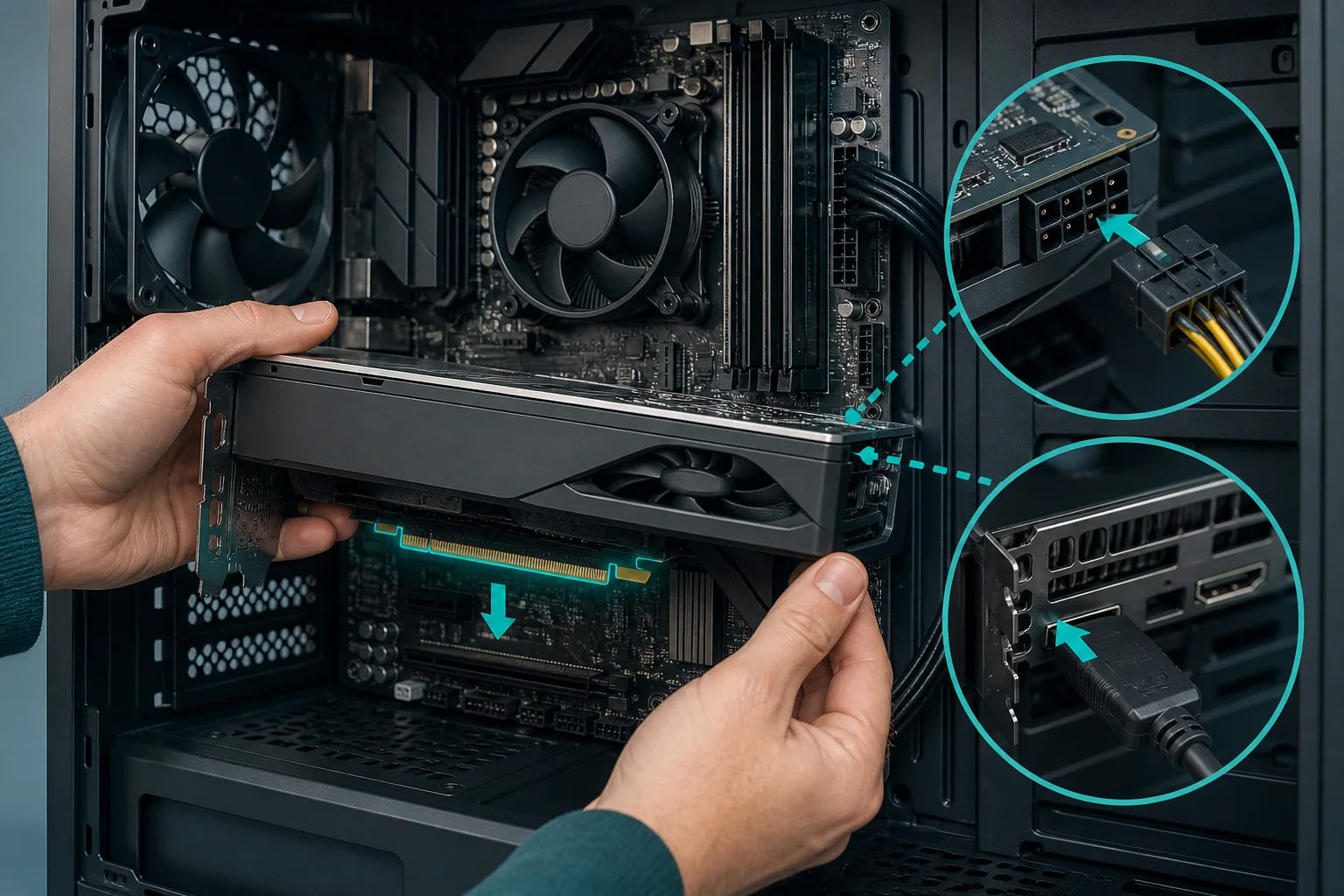
Release the PCIe slot’s retention latch, gently but firmly remove the GPU, then reinsert it, pressing straight down until it seats fully and the latch clicks closed on its own — a card that seems installed but isn’t fully seated is one of the single most common causes of a no-display issue with an otherwise functioning system.
Confirm the card’s bracket screws are actually securing it to the case, not just resting in the slot — a card that’s electrically seated but not physically secured can shift slightly during handling or transport, breaking the connection without being visually obvious.
Check every PCIe power connector required by your card — most mid-range and high-end GPUs need one or two 8-pin connectors, or a single 12VHPWR connector on many recent Nvidia cards — and confirm each is pushed in until it clicks, since a connector that looks seated but isn’t fully clicked in is a frequent, easy-to-miss cause of exactly this symptom.
If your card uses an 8-pin-to-12VHPWR adapter or a splitter cable from a modular PSU, inspect the adapter’s own connections at both ends, since an extra connection point is an extra place for a loose or partially-seated connector to cause the same power-starvation symptom as a missing connector entirely.
Checking PSU Capacity and Cables
Confirm your PSU’s rated wattage meets or exceeds your GPU manufacturer’s recommended system wattage, not just your GPU’s own power draw in isolation, since the recommendation already accounts for your CPU, drives, and other components sharing the same power budget.
| GPU tier (example) | Typical card power draw | Recommended system PSU |
|---|---|---|
| RTX 4060 / RX 7600 | 115-165W | 550-650W |
| RTX 4070 / RX 7800 XT | 200-263W | 650-750W |
| RTX 4080 / RX 7900 XTX | 285-355W | 750-850W |
Wattage alone doesn’t guarantee compatibility — confirm your PSU has the correct number and type of PCIe power connectors your GPU needs natively, since relying on multiple adapters or splitters to cobble together the required connectors from fewer native cables is both a compatibility risk and, in some cases, a genuine fire safety concern under sustained high load.
An aging PSU can degrade below its rated output over years of use even without an obvious failure, particularly cheaper units without high-quality capacitors — if your PSU is more than 5-7 years old and you’re installing a significantly more power-hungry GPU than it was originally paired with, testing with a known-good PSU (or replacing it outright) is a reasonable step even before other troubleshooting.
Modular PSU cables are not universally interchangeable between different PSU brands or even different models from the same brand — using a cable that physically fits but isn’t rated or wired identically for your specific PSU model is a known cause of intermittent power delivery issues and should be avoided in favor of the exact cables that shipped with your unit.
If you suspect the PSU itself, a dedicated PSU tester or a simple paperclip test (shorting the correct pins on the 24-pin connector to force the PSU on independent of the motherboard) confirms whether the unit powers on at all, though this only tests basic function, not whether it can sustain rated output under real GPU load — for that, swapping in a known-working PSU remains the more reliable test. Our best surge protector for gaming PC guide is also worth checking if repeated power issues coincide with an older or unprotected outlet setup.
BIOS Settings That Block GPU Detection
Check your BIOS’s “Primary Display” or “Initial Display Output” setting, sometimes buried under Advanced or Chipset settings — if this is set to iGPU (integrated graphics) rather than PCIe, the system may boot fine using onboard graphics while completely ignoring your discrete GPU, particularly on CPUs with built-in graphics.
Some motherboards, especially older ones, need the discrete GPU’s PCIe slot manually enabled or set to the correct lane configuration in BIOS if it’s been previously disabled or reconfigured for a different use (running multiple GPUs, an add-in storage card, or a capture card in a shared lane group).
Resizable BAR and Above 4G Decoding, two related BIOS settings, occasionally cause detection or boot issues on certain motherboard and GPU combinations if enabled inconsistently — if you’ve recently changed either setting and detection problems started around the same time, reverting them to test is a reasonable diagnostic step.
Loading BIOS optimized defaults (usually a dedicated menu option, distinct from a full reset) clears out accumulated custom settings that might be conflicting with a newly installed GPU, and is a low-risk step worth trying before assuming a hardware fault, since it takes under a minute and doesn’t affect stored data on your drives.
A BIOS update itself can resolve detection issues for genuinely new GPU releases on an older motherboard, since manufacturers periodically add improved support for newer PCIe generations or specific new card models — check your motherboard manufacturer’s support page for updates released around or after your GPU’s launch date.
Driver Conflicts and Clean Reinstalls
If the system detects the card in BIOS (visible in system information screens) but Windows shows it with a warning icon or doesn’t display it correctly, a corrupted or conflicting driver is a more likely cause than a hardware fault at this stage.
Use DDU (Display Driver Uninstaller), a free third-party tool specifically built for this purpose, run in Safe Mode, to fully remove all traces of your current GPU driver before reinstalling — a standard uninstall through Windows’ own Add or Remove Programs often leaves residual files and registry entries that a fresh install doesn’t fully overwrite.
After a clean removal with DDU, reinstall the latest driver directly from Nvidia, AMD, or Intel’s website rather than letting Windows Update install its own generic version automatically, since manufacturer drivers are more current and specifically tested against your exact card model.
If you recently swapped GPU brands (Nvidia to AMD or vice versa) without fully removing the previous manufacturer’s driver software first, leftover files and services from the old driver can conflict with the new one — this is a specific, known cause of detection or stability issues after a GPU brand swap and is resolved the same way, with a DDU clean removal before installing the new brand’s driver.
Check Device Manager for any other device showing a conflict or resource warning alongside the GPU, since in rare cases a genuine hardware resource conflict (typically involving an IRQ or memory address range) between the GPU and another installed card can produce symptoms that look driver-related but actually require reseating or relocating the conflicting device.
Testing in Another Slot or System
If your motherboard has more than one PCIe x16 slot, moving the GPU to a secondary slot isolates whether the issue is specific to the primary slot — bear in mind a secondary slot often runs at a reduced number of PCIe lanes, which won’t fix a detection issue but does confirm whether the slot itself, versus the card, is at fault.
Testing your GPU in a different, known-working PC is the most definitive single test available to a home troubleshooter — if the card works correctly in another system, the problem is isolated to your original motherboard, PSU, or another shared component rather than the card itself.
If you don’t have access to a second PC, testing a different, known-working GPU in your current system accomplishes the same isolation from the other direction — a different card working fine points to your original GPU as the likely fault, while a different card also failing points to the motherboard, PSU, or another shared component.
Borrowing a card from a friend, or using a local PC repair shop’s swap-testing service (many offer this for a small fee or free with an eventual repair), is a practical option if you don’t personally own spare parts to test with, and it’s worth the trip before assuming the more expensive component (usually the GPU) is definitely at fault.
Document which combinations you’ve tested as you go — it’s easy to lose track of what’s been ruled out across several reseat-and-retest cycles, and a simple written checklist prevents retesting the same configuration twice or skipping a step you assumed you’d already covered.
Motherboard Slot and PCIe Lane Issues
Physical damage to a PCIe slot — bent pins, a cracked slot housing from a heavy card installed without adequate support, or corrosion from moisture exposure — is a less common but real cause of intermittent or complete detection failure, worth a close visual inspection with the card removed and a flashlight.
GPU sag over time, especially with larger, heavier modern cards, can stress the PCIe slot’s solder joints on the motherboard itself, occasionally causing an intermittent connection that shows up as the card randomly dropping out of detection under vibration or thermal expansion during use rather than failing consistently every boot.
A GPU support bracket, either a purchased anti-sag brace or even a simple improvised support, prevents this stress from accumulating in the first place and is worth adding proactively to any build with a large, heavy card rather than only after symptoms appear.
PCIe lane sharing, where installing a card in a secondary slot or adding certain other expansion cards (some NVMe add-in cards, capture cards) reduces the lanes available to your primary GPU slot, is detailed in your motherboard’s manual — check this if you’ve recently added another expansion card around the same time detection problems started, since the two events may be directly related rather than coincidental.
Older motherboards with PCIe 3.0 slots generally run PCIe 4.0 or 5.0-rated cards without issue thanks to backward compatibility, but very old boards (PCIe 2.0 or earlier) can occasionally have compatibility quirks with modern high-power cards worth researching specifically for your exact motherboard and GPU combination if other troubleshooting hasn’t resolved the issue.
Diagnosing With POST Codes and Diagnostic Cards
A dedicated PCIe POST diagnostic card, which plugs into a spare PCIe slot and displays a two-digit hex code corresponding to the exact stage of the boot process where POST is failing, is one of the more reliable tools for pinpointing a GPU-specific failure versus a RAM, CPU, or other component issue without guesswork.
Cross-reference the displayed hex code against your motherboard manufacturer’s published code list (usually included in the manual or available on their support site), since codes are largely standardized across the BIOS vendor (AMI, Award, Phoenix) but can have manufacturer-specific variations worth confirming against your exact board.
Built-in debug LEDs, present on many current mid-range and higher motherboards without needing a separate diagnostic card, work similarly — a lit or blinking indicator labeled VGA specifically points to a GPU-stage POST failure, distinct from CPU, DRAM, or BOOT stage indicators on the same board.
A multimeter is useful for a more advanced check of whether your PSU is actually delivering correct voltage to the PCIe power connectors feeding the GPU — checking the 12V rail against its expected value (generally within about 5% of 12V) on the relevant PCIe power pins can confirm or rule out a PSU delivering out-of-spec voltage as the root cause.
For a properly equipped diagnostic setup rather than piecing together individual tools as issues come up, our best diagnostic tools for gaming PC guide covers POST cards, multimeters, and other bench essentials worth having on hand before the next hardware issue rather than after.
When It’s a Dead Card vs Dead Board
If your GPU fails to be detected in every system and slot you’ve tested it in, while other GPUs work fine in your original system, the evidence points clearly to a dead or failing card, and warranty or RMA (return merchandise authorization) with the manufacturer or retailer is the appropriate next step rather than continued troubleshooting.
If no GPU is detected in your system regardless of which card you test, the problem is more likely your motherboard’s PCIe slot, PSU, or in rare cases the CPU’s PCIe controller itself — worth confirming basic system function (does it boot at all using integrated graphics, if your CPU has it) before assuming the motherboard specifically is at fault.
Physical inspection for visible damage — burn marks, bulging or leaking capacitors on either the GPU or motherboard, a distinct burnt smell from a previous session — is a quick check that, if positive, confirms hardware failure definitively and ends the troubleshooting process in favor of repair or replacement.
Check both the GPU and motherboard’s warranty status before pursuing a repair route, since many current cards carry 3-4 year manufacturer warranties and a board this early in its life is very likely still covered, making an RMA claim the more cost-effective path than a paid repair or full replacement out of pocket.
If you’ve methodically worked through reseating, power, BIOS settings, driver reinstalls, and slot or system swap-testing without resolution, that thorough process itself is valuable documentation to provide when filing a warranty claim, since manufacturers and retailers generally process RMAs faster when basic troubleshooting steps are clearly documented as already completed.
Related guides
- How To Diagnose A Failing Power Supply
- How To Build A Gaming Pc Step By Step
- How To Update Graphics Drivers Safely
Frequently asked questions
Why does my PC boot but show no display with a new GPU installed?
The most common cause is a monitor cable plugged into the motherboard’s video output instead of the GPU’s, followed by an unseated card or missing PCIe power connectors. Reseat the card, confirm power cables are fully clicked in, and double-check the monitor cable is in the GPU’s port.
How do I know if my GPU is dead versus a setup problem?
Test the card in another known-working PC, or test your current PC with another known-working GPU. If your GPU fails in a different system, it’s likely the card; if a different GPU also fails in your system, the problem is your motherboard, PSU, or another shared component.
Can a PSU that’s technically powerful enough still fail to power a GPU?
Yes, wattage rating alone doesn’t guarantee enough power on the specific 12V rail or enough PCIe power connectors for your card. An aging PSU can also degrade below its rated output over years of use, causing GPU detection failures under load even if it powers the rest of the system fine.
Does a BIOS update ever fix a GPU not being detected?
Yes, particularly for newly released GPUs on an older motherboard, since BIOS updates often add or improve support for newer PCIe generations and specific card models. Check your motherboard manufacturer’s support page for a BIOS update matched to your GPU’s release timeframe.
What are POST beep codes and how do I read them?
POST beep codes are patterns of short and long beeps a motherboard speaker emits during startup, each pattern indicating a specific hardware failure stage. Codes vary by BIOS manufacturer (AMI, Award, Phoenix), so match your specific pattern against your motherboard manual or manufacturer’s published code list.