
Minecraft Java Edition is famous for running worse than its blocky graphics suggest, because it leans on the CPU, single-thread performance and the Java garbage collector rather than raw GPU power. The default settings and memory allocation leave huge gains on the table. With the right in-game options, a couple of well-known mods and sensible JVM arguments, you can turn a stuttery 60 FPS into a smooth several hundred.
As an Amazon Associate we earn from qualifying purchases at no extra cost to you.


Our Top Picks
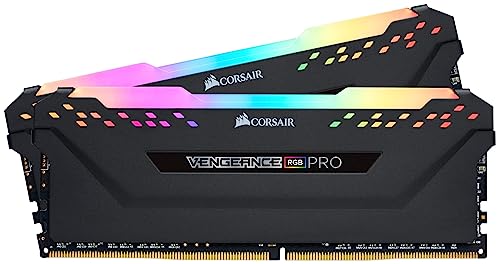
 CORSAIR Vengeance RGB DDR5 RAM 32GB32GB (2 x 16GB)5.43 x 0.27 x 1.77 inches0.11 PoundsCheck on Amazon
 CORSAIR Vengeance LPX DDR4 RAM 32GB2 count (pack of 1)5.32 x 0.28 x 1.32 Inches0 PoundsCheck on Amazon
Top 3 picks at a glance
In-game video settings
Render Distance is the biggest lever. Every extra chunk multiplies CPU work, so 8-12 chunks is a smooth sweet spot; 16 or more is for strong CPUs only. Set Graphics to Fast, Smooth Lighting to Off or Minimum, Clouds off, Particles Minimal, and Entity Distance to around 75%. Turn off VSync in-game and cap frames with a mod instead.
Enable a frame rate limit that matches your monitor to reduce fan noise and heat. Fancy grass and transparency cost more than they look, so Fast graphics alone often adds 30-50% FPS on weaker machines.
Performance mods and JVM arguments
The single biggest upgrade is installing Fabric with the Sodium rendering mod, plus Lithium and FerriumMC style optimizations. These rewrite the renderer and can double or triple frame rates while looking identical. They are the standard modern fix for Java performance.
Allocate memory sensibly: 4-6GB is ideal for most modpacks, and more is not better because a huge heap makes garbage-collection pauses longer, which you feel as stutter. A common argument set uses the G1 garbage collector with tuned pause targets so collection happens in small, frequent steps rather than one long freeze.
| Setting / Arg | Recommended | Effect |
|---|---|---|
| Render Distance | 8-12 chunks | Main CPU cost |
| Graphics | Fast | +30-50% FPS |
| Sodium mod | Installed | Doubles/triples FPS |
| RAM allocation | 4-6GB | Avoids long GC pauses |
| Garbage collector | G1GC, tuned pauses | Smoother frame times |
| VSync | Off, cap in mod | Lower input lag |
Why more RAM can hurt
Players often assign 16GB to Minecraft thinking it helps, then get worse stutter. A larger heap means the garbage collector has more to scan, so when it runs it pauses the game longer. Keeping the heap modest and using G1GC with small pause goals produces the smoothest experience for vanilla and light modpacks.
Heavy modpacks with hundreds of mods are the exception and may want 8-10GB. Match allocation to the pack, keep Java updated to a current long-term-support version, and store your worlds on an SSD to cut chunk-loading hitches while exploring.
Modpacks, distance and the sweet spot
Different setups need different tuning. Vanilla survival is happy on 4-6GB of RAM with Sodium and 10-12 chunk render distance, while a heavy 200-mod pack may genuinely need 8-10GB and will still stutter at very high render distances because chunk generation is CPU-bound. Match your allocation and render distance to the pack rather than copying someone else numbers blindly.
Simulation distance, separate from render distance, controls how far entities and redstone tick, and lowering it eases CPU load without shrinking your view much. Keep Java updated to a current long-term-support release, store worlds on an SSD, and if you host a local server, apply Lithium-style optimizations there too. These combined steps turn a stuttery world into a consistently smooth one even while exploring new terrain.
Frequently Asked Questions
How much RAM should I give Minecraft?
For vanilla and light packs, 4-6GB is ideal. More RAM lengthens garbage-collection pauses and can increase stutter. Only heavy modpacks benefit from 8-10GB.
What is the best single performance mod?
Sodium (with Fabric) is the standard choice. It rewrites the renderer for huge frame-rate gains with no visual downgrade, and pairs well with Lithium for server-side tick optimization.
What is the difference between render distance and simulation distance?
Render distance controls how many chunks are drawn, mainly a GPU and chunk-loading cost. Simulation distance controls how far entities and redstone actually tick, a CPU cost. Lowering simulation distance eases CPU load while keeping your view wide.
Bottom line
Minecraft Java runs smoothly when you respect its CPU-and-Java nature: keep render distance moderate, use Fast graphics, install Sodium, and allocate a modest 4-6GB with the G1 garbage collector tuned for short pauses. Resist the urge to over-allocate RAM, and your world will feel buttery even while exploring new chunks.






