
Overwatch 2 rewards fast reactions and clear target reading, so a high, stable frame rate and a clean image matter more than maxed-out eye candy. The game is well optimized and can hit very high frame rates on mid-range hardware, but the default Auto-Detect preset and a few heavy settings leave performance and clarity on the table. This guide dials Overwatch 2 in for competitive play.
As an Amazon Associate we earn from qualifying purchases at no extra cost to you.


Our Top Picks
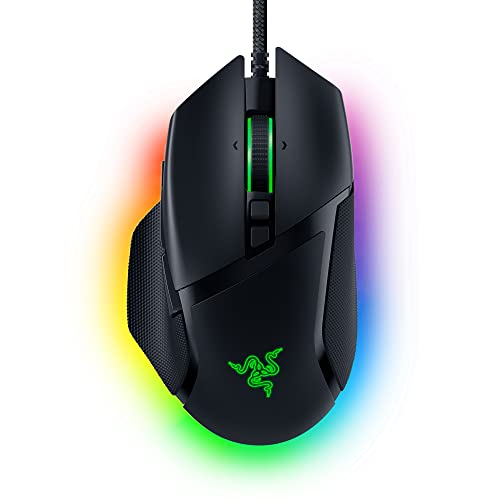 Razer Basilisk V3 Customizable RGB Wired Ergonomic GamingMouse2.96 x 5.12 x 1.67 Inches0.2 PoundsCheck on Amazon


Top 3 picks at a glance
Display and frame rate settings
Run in Fullscreen at native resolution and set the Display Refresh Rate to your monitor maximum. Overwatch 2 lets you cap frames; a common competitive choice is to cap a bit above your refresh or use its Reduce Buffering option, which shortens the render queue for lower input latency at a small FPS cost.
Enable NVIDIA Reflex or the equivalent low-latency option if your card supports it. Aiming for a frame rate comfortably above your refresh keeps displayed frames fresh, which helps flick accuracy on heroes like Widowmaker and Cassidy.
Graphics quality choices
Set Texture Quality Medium to High for target clarity, Texture Filtering to Medium, and the heavy hitters low: Shadow Detail Low, Model Detail Medium, Effects Detail Low, Lighting Quality Low, and Ambient Occlusion Off. Local Fog Detail and Screen Space Reflections should be Low or Off. These cuts keep team fights smooth without hiding enemies.
Dynamic Render Scale can hold a target frame rate automatically, but competitive players usually prefer a fixed 100% render scale for consistent clarity. Turn off any film-grain style post effects for a cleaner read on enemy outlines.
| Setting | Value | Why |
|---|---|---|
| Display Mode | Fullscreen | Lowest latency |
| Reduce Buffering / Reflex | On | Shorter render queue |
| Shadow Detail | Low | Big FPS gain |
| Effects / Lighting | Low | Smooth team fights |
| Texture Quality | Medium-High | Target clarity |
| Render Scale | 100% | Consistent clarity |
System tuning
Overwatch 2 is CPU-friendly but still benefits from closed background apps and 16GB RAM. Disable Windows mouse acceleration and use 1000Hz polling so your aim is consistent, and confirm your monitor runs at full refresh in Display Settings.
Keep the game on an SSD for faster loads, update your GPU driver, and use a high-performance power plan. If you play on a laptop, keep it plugged in so the GPU does not throttle mid-match, which shows up as sudden frame drops during ultimates.
Clarity and consistency for aim
Overwatch 2 is about reading a busy screen quickly, so clarity beats maxed effects. Keeping textures readable while dropping Effects, Lighting and Shadows to Low gives you both frames and a cleaner picture where enemy outlines stand out. Turn off any film-grain style post-processing, and keep render scale fixed at 100% so the image never softens mid-fight when it matters most.
Consistency of input is the other half. Disable Windows mouse acceleration, run 1000Hz polling, and confirm your monitor is at full refresh so your high frame rate actually reaches your eyes fresh. Enable Reduce Buffering or your GPU low-latency mode to shorten the render queue, and keep a plugged-in, high-performance power profile so the system never quietly downclocks between fights.
Frequently Asked Questions
Does Reduce Buffering help in Overwatch 2?
Yes, it shortens the render queue for lower input latency at a small frame-rate cost. Combined with a low-latency GPU option, it makes aiming feel more responsive.
Should I use Dynamic Render Scale?
For consistency, most competitive players keep a fixed 100% render scale. Dynamic scaling helps only if you cannot otherwise hold your target frame rate.
Should I cap my frame rate in Overwatch 2?
If you use G-Sync or FreeSync, cap a few frames below your refresh to stay in the sync range for tear-free, low-latency play. Otherwise, a stable cap your GPU always hits gives more consistent aim than an uncapped, spiky frame rate.
Bottom line
Overwatch 2 competitive tuning is straightforward: run fullscreen at your full refresh, enable Reduce Buffering or Reflex, keep textures readable while dropping Shadows, Effects and Lighting to Low, and lock render scale at 100%. Add clean mouse settings and a plugged-in, high-performance system, and your aim stays crisp through the busiest ultimates.






