
High ping on WiFi means the round-trip time between your gaming PC and a game server is longer or less steady over a wireless link than it would be over a cable. The usual culprits are interference, a weak signal, a crowded band, or a router that queues too much data, and in most homes plugging in an Ethernet cable is the fastest fix.
As an Amazon Associate we earn from qualifying purchases at no extra cost to you.


Our Top Picks
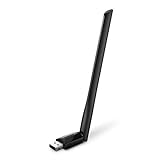
 TP-Link AC600 USB WiFi Adapter for Desktop PCAC600, WiFi 52.28 x 0.71 x 6.83 inches0.04 PoundsCheck on Amazon


Top 3 picks at a glance
What “Ping” Actually Measures
Ping is the time, in milliseconds, for a small data packet to travel from your PC to a server and back. Lower is better, because your inputs and the server’s updates reach each other sooner. A related number, jitter, is how much that ping bounces around from one packet to the next. Many players find that a steady 40 ms feels better than a connection that swings between 15 ms and 120 ms.
Ping is not the same as speed. A 1 Gbps plan can still deliver a poor ping, because bandwidth is how much data fits through per second, while ping is how long each packet takes. Online games send small packets constantly, so they care far more about delay and consistency than raw throughput.
Why WiFi Adds Delay
A cable gives your PC a private, point-to-point path to the router. WiFi shares open air with every other nearby network and device. Several things follow from that:
- Baseline overhead. Guides from networking and hardware sites commonly put WiFi at roughly 5 to 30 ms of extra latency compared with Ethernet. These are rough ranges from guide sites rather than controlled lab studies, so treat them as ballpark figures.
- Retransmissions. If a radio packet is corrupted by interference, it is sent again, and your game packet waits. This shows up as sudden spikes rather than a constant increase.
- Airtime sharing. Only one device can transmit on a channel at a time. A phone uploading photos or a TV streaming video takes turns with your PC.
- Signal strength. Walls, floors, and distance push the link to slower modulation rates, which lengthens every transmission.
- Power saving and roaming. Adapter power management and mesh nodes handing your PC between access points can create short freezes.
Which Band You Are On Matters
Modern routers broadcast on 2.4 GHz, 5 GHz, and, on WiFi 6E and WiFi 7 models, 6 GHz.
- 2.4 GHz reaches farthest but is crowded with neighbors, Bluetooth devices, and microwave ovens. It is the most common cause of jittery gaming connections.
- 5 GHz has more channels and less congestion, with a shorter range. It is the sensible minimum for gaming over WiFi.
- 6 GHz offers wide, clean channels and very few neighbors, but its signal is easily blocked by walls. It works best with a clear line of sight to the router, and it needs both a WiFi 6E or WiFi 7 router and a compatible adapter in the PC.
WiFi 7 brings features such as multi-link operation, which can help with reliability. Reviewers generally note that a newer router only improves gaming if your lag comes from local wireless problems. If the delay originates beyond your home, it will not change much.
Bufferbloat: The Hidden Cause
Bufferbloat happens when a router or modem holds too much data in its queue. When someone starts a big download, upload, or high-resolution stream, your game packets wait behind that traffic. The classic symptom is a good ping at idle that jumps sharply whenever other people use the connection. It affects Ethernet too, so it is worth ruling out before you blame the wireless link.
You can detect it with a loaded-latency test, which measures ping while the line is busy. Many routers offer a feature called SQM, smart queue management, or a QoS mode that reduces it. The exact menu name varies by maker, so check your router’s manual or support page. Setting the shaped speed slightly below your plan’s real speed is the commonly cited approach.
Quick-Reference Table
| Symptom | Likely cause | What to try |
|---|---|---|
| Ping is high all the time on WiFi, fine on Ethernet | Weak signal, congested band, distance | Move closer, switch to 5 GHz or 6 GHz, or use a cable |
| Random spikes while the average is fine | Interference, retransmissions, roaming | Change channel, reduce nearby clutter, lock to one access point |
| Ping spikes when others stream or download | Bufferbloat | Enable SQM or QoS on the router |
| Ping is high on every connection type | ISP routing, peak-hour congestion, far-away server | Pick a closer game region, contact your provider |
| Ping worsens after a Windows or driver update | Adapter driver or power setting | Update or roll back the WiFi driver, disable adapter power saving |
How to Check Your Own Connection
- Open a command prompt on the PC and run a continuous ping to your router’s address, which is usually printed on the router label. If this local ping is high or erratic, the wireless link itself is the problem.
- Ping a public server in the same way. If the router ping is clean but the outside ping is poor, the issue is beyond your home network.
- Compare with a cable. Borrow a long Ethernet cable and repeat the test. A big difference confirms WiFi is the cause.
- Run a loaded-latency test while another device downloads, to check for bufferbloat.
- Use the game’s own network overlay, if it has one, to see ping and packet loss during real play.
Settings and Fixes Worth Trying
- Use Ethernet where possible. It is the most predictable option for competitive play. If running a cable is hard, powerline or MoCA adapters are alternatives, though results depend on your home wiring.
- Join the 5 GHz or 6 GHz network and give it a distinct name from the 2.4 GHz network, so the PC does not slip back to the slower band.
- Reposition the router higher and more central, away from metal objects, and keep the PC’s antenna unobstructed. On desktop adapters, use the external antenna on a cradle or extension rather than leaving it behind the case.
- Pick a less crowded channel in the router’s settings if your area has many networks.
- Update the WiFi adapter driver from the adapter or motherboard maker’s support page.
- Restart the router occasionally. It clears queues and can resolve odd behavior caused by long uptimes.
Router firmware and adapter settings differ between makers. Changing advanced options can reduce stability, so adjust one item at a time and note the original value so you can undo it.
Common Misconceptions
- “Faster internet fixes ping.” A higher plan speed does not shorten the physical route or the wireless hop. It only helps if your line is saturated.
- “A WiFi 7 router guarantees low ping.” It can improve local wireless quality, but it cannot speed up the path to the game server.
- “Signal bars tell the whole story.” Full bars show strength, not how congested the channel is.
- “Mesh always beats a single router.” A well-placed single router can have lower latency than a mesh that hops traffic between nodes over a shared wireless backhaul. A wired backhaul avoids this.
When to Care and When to Ignore It
Fast-paced competitive shooters and fighting games expose latency and jitter quickly, so it is worth investing effort there. For turn-based games, single-player titles with online features, and most strategy or co-op games, a stable 60 to 80 ms is often perfectly playable. Cloud game streaming is more sensitive than it looks, since both video and input travel over the link, so a stable wired or 5 GHz connection is a common suggestion from the services themselves.
If ping stays poor even over a cable at different times of day and with different game servers, contact your internet provider with your test results rather than continuing to change PC settings.
Frequently Asked Questions
Is 50 ms ping on WiFi bad?
Not necessarily. For most games 50 ms is playable, and the stability of the number matters more than the number itself. If it jumps between 20 and 150 ms, you will feel it much more than a constant 50 ms.
Why is my ping fine on speed tests but bad in games?
Speed tests measure bandwidth and usually connect to nearby servers. Games depend on the route to a specific server and on jitter and packet loss, which a speed number does not capture.
Does 5 GHz always give lower ping than 2.4 GHz?
Usually, because it is less crowded, but it has less range. If your signal on 5 GHz is weak, a good 2.4 GHz link in a quiet area can still beat it, so test both from where you actually play.
Will a WiFi extender help my ping?
Often not. Many extenders repeat traffic on the same radio, which adds delay. A wired access point or a mesh system with a cabled backhaul is a better route if you cannot move the router.
Can the PC itself cause high ping on WiFi?
Yes. Background downloads, cloud sync, game launchers updating, or an outdated adapter driver can all add delay. Close other network-heavy programs and update the driver before changing hardware.
Should I buy a new adapter or router?
Only after testing with a cable and checking for bufferbloat. If the wired result is clean and WiFi is not, a router or adapter supporting 5 GHz or 6 GHz may help, but a cable remains the most reliable fix.


