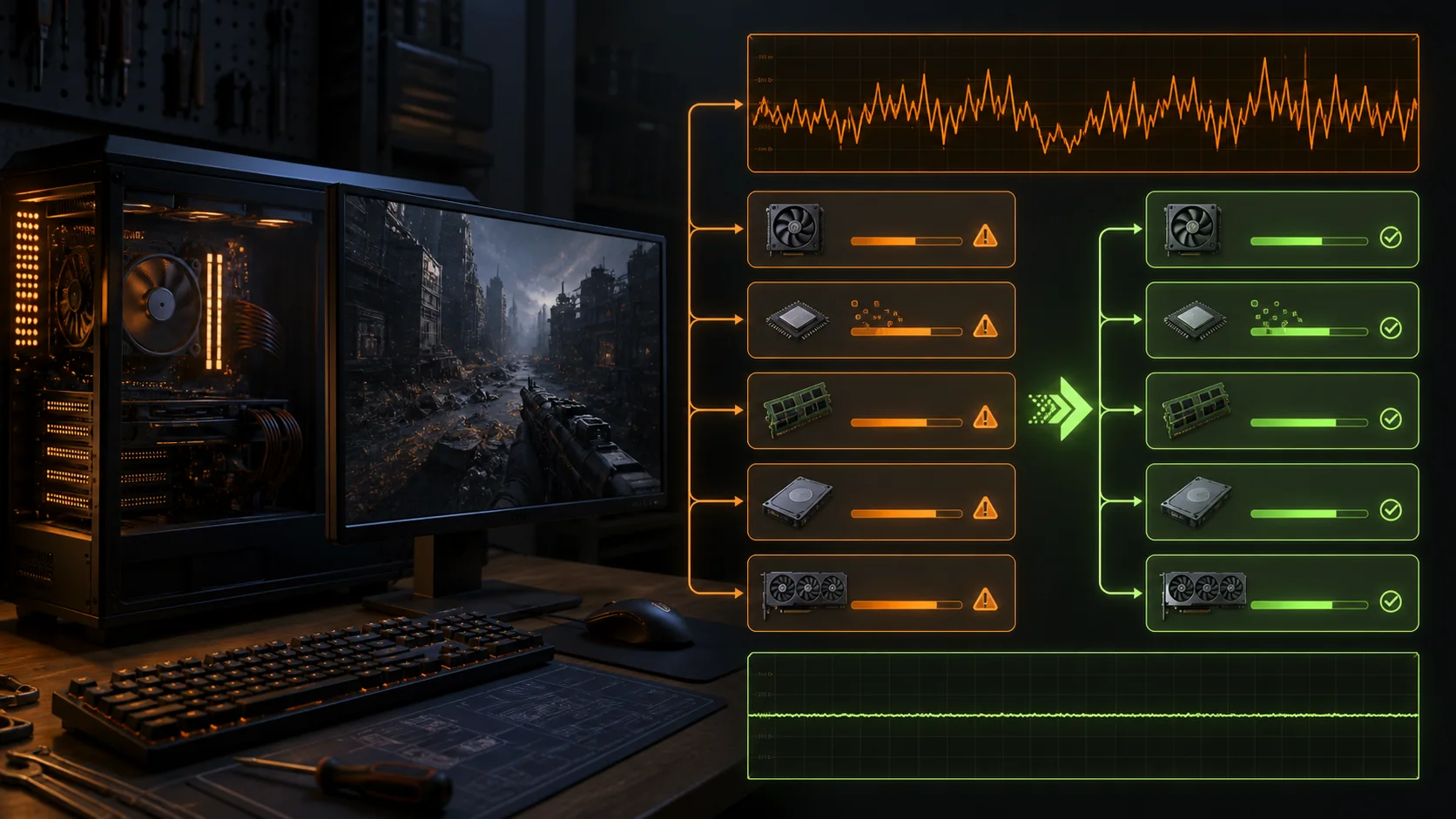
Fixing FPS drops in games starts with figuring out whether the bottleneck is your CPU, GPU, thermals, or something outside the game entirely like background processes or network conditions — because the fix for each is completely different, and guessing wrong wastes time reinstalling drivers when the real problem was a dusty heatsink or an auto-launching browser tab.
I’m Owen Pritchard, Technical Guides Editor, and this diagnostic order comes from a diagnostics bench with POST cards, spare parts for swap-testing and multiple OS images, built on years running an IT repair bench where “my FPS just dropped” was one of the most common tickets I’d see, almost always solvable by isolating the actual bottleneck rather than reinstalling the game.
As an Amazon Associate we earn from qualifying purchases at no extra cost to you.





Our Top Picks


Top 3 picks at a glance
Diagnosing Whether It’s CPU, GPU or Thermal
Open Task Manager’s Performance tab, or a dedicated overlay like MSI Afterburner or the free HWiNFO64, while the FPS drop is actively happening rather than after the fact — real-time monitoring during the actual drop is the only reliable way to see which component is maxed out at that moment.
If GPU usage sits at or near 99% consistently during the drop and frame rate is still low, your GPU is the limiting factor — this typically means either your settings are too demanding for the card, or the card itself is thermal throttling and can’t sustain its rated boost clock under the current load.
If GPU usage drops noticeably during the stutter while one or two CPU cores spike toward 100%, you’re CPU-bound, often caused by a single demanding background process, a poorly multithreaded game engine, or — in open-world titles specifically — the game’s own world-simulation thread hitting a temporary spike processing NPCs or physics.
Check both CPU and GPU temperatures simultaneously during this diagnosis, since a component that’s thermal throttling shows the telltale sign of usage percentage staying high while actual clock speed (visible in the same monitoring tools) drops below its rated boost — this looks different from a simple usage bottleneck and points specifically to a cooling issue rather than a settings or hardware ceiling problem.
For monitoring gear that tracks this more precisely across longer sessions than a one-off Task Manager check, our best diagnostic tools for gaming PC and PC overheating checks guides cover setups that log temperature and clock speed over time rather than a single snapshot.
Checking Temperatures and Throttling
Modern CPUs and GPUs throttle automatically once they hit a manufacturer-set temperature ceiling, typically around 95°C for many current Intel and AMD CPUs and 83-90°C for most GPUs, reducing clock speed specifically to stay under that limit rather than risking damage — this is a protective feature, not a malfunction, but it directly causes the frame drops you’re troubleshooting.
| Component | Normal load temp | Throttle point (typical) | Common cause if exceeded |
|---|---|---|---|
| CPU (air cooler) | 60-80°C | ~95°C | Dust, dried thermal paste, weak cooler for the chip |
| CPU (AIO liquid) | 50-70°C | ~95°C | Pump failure, airflow blocked radiator |
| GPU | 65-80°C | 83-90°C | Dust-clogged fans/heatsink, poor case airflow |
Dust buildup on heatsink fins and fan blades is the single most common cause of gradually worsening thermals over months of use, since dust acts as an insulating layer that reduces the heatsink’s ability to transfer heat into moving air, even when the fans themselves are spinning at full speed.
Compressed air, used on a fully powered-off system with fans held still (to avoid spinning them backward and generating a small reverse-voltage that can theoretically stress the fan motor), clears the majority of dust buildup in under ten minutes and should be a routine maintenance task every 3-6 months depending on your environment’s dust levels.
Dried-out thermal paste, typically after 2-4 years on air coolers or longer on quality liquid coolers, loses its ability to transfer heat efficiently between the CPU and cooler base — if temperatures have crept up gradually over a long ownership period despite regular dust cleaning, a paste reapplication is the next step worth trying.
Case airflow design matters as much as the cooler itself — a case with more exhaust fans than intake fans, or vice versa in extreme imbalance, creates either positive or negative pressure that can trap heat inside rather than moving it through efficiently, worth checking against your case manufacturer’s recommended fan configuration.
Updating and Rolling Back GPU Drivers
A recent GPU driver update is a common, often overlooked cause of a sudden FPS regression in a game that previously ran fine, since driver releases occasionally introduce a performance regression for a specific game or GPU generation even while improving performance broadly elsewhere.
Check your GPU manufacturer’s release notes for your current driver version against known issues — Nvidia, AMD, and Intel all publish changelogs listing known issues per release, and a quick search for your specific game plus “FPS drop” alongside your driver version number often surfaces whether it’s a widely reported issue rather than something unique to your system.
If a driver update coincides with the FPS drop starting, rolling back to the previous driver version (available through Nvidia’s or AMD’s driver download archive, or via Device Manager’s “Roll Back Driver” option if available) is a legitimate and often effective troubleshooting step rather than a last resort.
Perform a clean driver install when updating or rolling back — both Nvidia’s app and AMD’s software include a “clean install” or “factory reset” option during installation that removes old driver remnants and custom profile settings, which prevents conflicts between old and new driver files that a standard update sometimes leaves behind.
Game-specific driver profiles, which some GPU control panels apply automatically, can occasionally misconfigure settings for a specific title after an update — checking that your driver’s per-game settings match your intended in-game settings, rather than an auto-applied profile from a driver update, is worth a quick look if the drop is isolated to one specific game.
In-Game Settings That Cause Stutter
Certain individual settings cause disproportionate stutter relative to their visual impact, and identifying these specifically is more effective than a blanket “turn everything down” approach that sacrifices visual quality you didn’t need to give up.
Ray tracing and other advanced lighting features are the most demanding modern settings by a wide margin, and even a GPU that handles rasterized rendering comfortably can show significant frame drops with ray tracing enabled at high settings, since it fundamentally changes how the GPU calculates lighting rather than just adding more geometry detail.
Texture quality settings that exceed your GPU’s available VRAM cause a specific, severe form of stutter — not a smooth reduction in frame rate but sharp, repeated hitches as the game swaps textures in and out of a memory pool that’s too small for the setting selected, and this is fixable by simply lowering texture quality one tier without needing to touch any other setting.
Shadow quality and draw distance settings scale poorly on CPU-bound systems specifically, since increasing the number of objects being calculated for shadows or distant rendering adds CPU overhead in addition to GPU load, making these worth reducing first if your diagnosis in the earlier section pointed to a CPU bottleneck rather than a GPU one.
V-Sync and frame rate caps set incorrectly relative to your monitor’s refresh rate can cause perceived stutter that isn’t actually a performance drop — a frame rate capped above your monitor’s refresh rate with V-Sync off can cause screen tearing that feels like stutter, while V-Sync itself can introduce input lag and occasional stutter if your GPU can’t consistently hit the target frame rate it’s trying to lock to.
Background Processes and Windows Overhead
Open Task Manager’s Processes tab sorted by CPU or GPU usage before launching your game to identify anything unexpectedly consuming resources at idle — browser windows with multiple tabs, especially any playing video or running heavy web apps, are a commonly overlooked background drain that persists even when minimized.
Auto-launching software that starts with Windows — manufacturer utility apps, cloud sync clients, chat apps set to auto-start — accumulates over time as you install more software, and trimming these through Task Manager’s Startup tab reduces both boot time and ongoing background resource usage during gameplay.
Windows Update running an active download or installation in the background can cause noticeable, if temporary, FPS drops, particularly on systems with a single storage drive shared between the OS and games, since update processes compete for the same disk I/O the game needs for asset streaming.
Antivirus real-time scanning, including Windows Defender, can add CPU overhead when actively scanning newly written or accessed files — adding your game install directories as scan exclusions (a legitimate, commonly recommended practice for trusted, verified game folders specifically) removes this overhead without disabling protection broadly.
Recording or streaming software (OBS, Discord screen share, Nvidia’s own ShadowPlay) adds real GPU and CPU encoding overhead proportional to your chosen recording quality and codec — hardware encoding (NVENC on Nvidia cards) offloads most of this work to a dedicated encoder chip and causes far less FPS impact than software-based encoding running on the same cores as your game.
Storage and Shader Compilation Stutter
Shader compilation stutter — brief but noticeable hitches, most common in the first few minutes of a play session or the first time you encounter a new visual effect — happens because the game is compiling graphics shaders for your specific GPU on the fly rather than using pre-compiled ones, and it’s a known, common issue across many current game engines rather than a sign of a hardware problem.
Some games include a shader pre-compilation step during first launch or after a driver update specifically to reduce this in-game stutter — letting this process complete fully before playing, rather than skipping or interrupting it, meaningfully reduces stutter during your actual play session afterward.
Storage speed affects a related but distinct type of stutter: asset streaming hitches, where the game briefly pauses to load new textures or level geometry as you move through the world. This is far more pronounced on traditional hard drives or even SATA SSDs compared to NVMe drives, since NVMe’s much higher read speed keeps pace with modern open-world games’ streaming demands.
If shader or asset stutter is severe and consistent, checking your storage drive’s health (using a tool like CrystalDiskInfo) is worth doing, since a drive nearing the end of its usable life can show degraded read speeds well before outright failure, and this degradation shows up first as exactly this kind of intermittent stutter.
Moving your most frequently played, texture-heavy titles to your fastest available drive — even if that means juggling storage between an NVMe boot drive and a larger secondary SSD — is a practical fix that doesn’t require any hardware purchase if you already own faster storage that isn’t currently hosting the affected game.
Power Plan and BIOS Settings
Windows’ power plan setting, found in Control Panel’s Power Options, can silently limit CPU performance if set to Balanced or Power Saver on a desktop gaming PC where power consumption isn’t a concern — switching to High Performance, or the newer “Best Performance” slider in Windows 11’s updated power settings, removes conservative clock-speed throttling some default profiles apply.
BIOS-level power limits (PL1/PL2 on Intel, PPT on AMD) control how much sustained power your CPU is allowed to draw, and a motherboard set to a conservative default rather than the CPU manufacturer’s intended limits can cause a CPU to throttle well before it reaches its actual thermal limit, showing up as lower sustained performance during longer gaming sessions specifically.
Memory speed (XMP or EXPO profile) is frequently left disabled by default in BIOS even on systems with RAM rated well above the motherboard’s stock JEDEC speed, and enabling it is a free performance gain that specifically helps CPU-bound and 1% low frame rate consistency in many titles, since RAM bandwidth affects how quickly the CPU can feed data to the GPU.
Fan curve settings in BIOS, if set too conservatively for quiet operation, can allow temperatures to climb higher before fans ramp up meaningfully, contributing to the thermal throttling covered earlier — a more aggressive fan curve, even at the cost of some extra noise during demanding games, directly helps sustain performance during long sessions.
Resizable BAR (also called Smart Access Memory on AMD systems), a BIOS setting that lets your CPU access the GPU’s full VRAM more efficiently rather than in smaller blocks, provides a measurable frame rate improvement in supported titles on supported hardware combinations, and is worth confirming is enabled if your CPU, motherboard, and GPU all support it.
Network-Related Frame Drops in Online Games
What feels like an FPS drop in an online multiplayer game is sometimes actually a network issue rather than a rendering one — high ping or packet loss can cause visible stutter, rubber-banding, or perceived frame hitches that are unrelated to your CPU or GPU load at all.
Checking your in-game network overlay (most competitive titles include one, usually toggled through a settings menu) alongside your Task Manager performance monitoring during a drop helps distinguish the two — stable high FPS with visible ping spikes or packet loss points to a network cause rather than a hardware bottleneck.
A wired ethernet connection consistently outperforms Wi-Fi for online gaming stability, not necessarily raw speed but consistency — Wi-Fi is more prone to brief interference-related latency spikes from other household devices, neighboring networks, or even microwave usage, all of which are eliminated by a physical ethernet connection.
Router quality-of-service (QoS) settings, if your router supports them, let you prioritize gaming traffic over other household internet usage — useful if FPS-feeling stutter correlates with someone else in the household streaming video or downloading large files at the same time.
For a more permanent network reliability fix, especially in larger homes or homes with a router far from the gaming PC, our best ethernet cable for gaming and best network gear for gaming guides cover cable quality and router or adapter upgrades that reduce this specific category of frame-drop complaint.
When Upgrades Are the Real Fix
If your diagnosis consistently points to a GPU running at 99% usage with temperatures well within normal range (not throttling) at settings that should be reasonable for the card’s tier, the honest conclusion is that the card has reached its performance ceiling for that specific game at those settings, and no amount of software tuning will meaningfully change that.
Similarly, a CPU that’s consistently maxed on one or two cores while temperatures stay well controlled indicates either a genuinely CPU-limited game engine or a CPU that’s simply outdated relative to your GPU’s capability — a mismatch commonly called a CPU bottleneck, where a stronger GPU can’t be fully utilized because the CPU can’t feed it work fast enough.
Before assuming an upgrade is needed, confirm you’ve actually ruled out the cheaper fixes covered above — dust cleaning, driver rollback, background process trimming, and BIOS power settings collectively resolve a meaningful share of FPS complaints that initially look like they need new hardware.
If an upgrade genuinely is the answer, prioritize whichever component your diagnosis pointed to specifically rather than upgrading broadly — a GPU upgrade won’t help a CPU-bound stutter, and vice versa, so spending on the wrong component wastes money without fixing the actual reported symptom.
Benchmarking before and after any change, whether it’s a settings tweak or a hardware upgrade, confirms the fix actually worked rather than assuming based on a subjective feel — our tools for validating PC performance guide covers tools for tracking this consistently across sessions.
Frequently asked questions
What causes sudden FPS drops in the same game that ran fine before?
The most common causes are a recent driver update, thermal throttling from dust buildup, a background process that started auto-launching, or a game update that changed shader compilation behavior. Checking Task Manager and temperatures during the drop narrows it down faster than reinstalling anything.
Is it my CPU or GPU causing frame drops?
Open Task Manager or an overlay like MSI Afterburner during gameplay — if GPU usage sits near 99% during the drop, the GPU is the bottleneck; if GPU usage drops while CPU usage on one or two cores spikes near 100%, the CPU or a single-threaded process is limiting you instead.
Why does my game stutter only in certain areas or the first few minutes?
This is usually shader compilation stutter, where the game compiles graphics shaders for new visual effects the first time it encounters them, or asset streaming from a slower storage drive. Both are more common on non-NVMe drives and tend to smooth out on repeat playthroughs of the same area.
Can overheating cause FPS drops without a full shutdown?
Yes, this is thermal throttling, where the CPU or GPU automatically reduces clock speed to stay under its temperature limit rather than shutting down. It shows up as gradually worsening frame rate during long sessions rather than a sudden crash, and it’s fixable with better cooling or dust removal.
Do background apps like Discord actually reduce FPS?
A running Discord client alone has minimal impact, but screen sharing, video calls, or heavy overlay usage during a call adds real CPU and GPU encoding overhead. Browser tabs with video or heavy scripts open in the background are a more common and often overlooked FPS drain.