The quickest way to find your motherboard is to open System Information in Windows (press Win+R, type msinfo32, press Enter) and read the BaseBoard Manufacturer, Product and Version lines. If those come back blank, the next steps are a PowerShell command, the BIOS screen and, as a last resort, the board itself. Branded prebuilt PCs add a twist, since the system model matters more than the board label. The methods below run from the safest and fastest to the ones that need a screwdriver.
Before you start: what you are looking for
A motherboard has three identifiers worth writing down. The model name is the product line and chipset, such as a name ending in a chipset code. The revision tells you which hardware version you own. The BIOS version tells you which firmware is installed, and it is the number you compare against the maker’s download page.
Keep a note of all three. When you later look up memory support, a CPU upgrade list or a firmware file, the model and revision are the pieces the support page asks for. Software methods only need a few clicks and no tools, so try them in the order listed.
Method 1: System Information in Windows
- Press the Windows key and the R key together to open the Run box.
- Type
msinfo32and press Enter. - In the System Summary page, scroll down to the lines labeled BaseBoard Manufacturer, BaseBoard Product and BaseBoard Version.
- Note the BIOS Version/Date line directly above them as well.
On a retail board the Product line commonly carries the full model name. A prebuilt may instead show a short internal code. If the field says something like "Default string", the manufacturer did not fill it in, and you should move on to the next method.
Method 2: Command line and PowerShell
For a text answer you can copy, open a Command Prompt or PowerShell window. Older guides use the WMIC tool, with the line wmic baseboard get product,manufacturer,version. WMIC is deprecated and is missing from recent Windows 11 installations, so the PowerShell form is safer:
Get-CimInstance Win32_BaseBoard | Format-List Manufacturer,Product,Version,SerialNumber
The output lists the same fields as System Information. The systeminfo command in Command Prompt additionally prints a System Model line, which is the one to use for branded desktops. These commands only read data. They change nothing on the machine.
Method 3: The BIOS or UEFI screen
Restart the PC and tap the setup key as the logo appears. The key is commonly Delete or F2, but the boot screen or the manual names the right one. The first page of most setup utilities lists the board model and BIOS version, and gaming-oriented boards often show it in the title bar.
Look but do not change anything. Leave through the exit option and choose to discard changes, so you do not alter fan curves or memory settings by accident. This method is valuable when Windows will not boot, or when you have just installed a fresh operating system and the readout looks incomplete.
Method 4: Read the board itself
When the software readout is blank, the printed label is the final authority. Take these precautions first:
- Shut the PC down and switch the power supply off at its rear switch.
- Unplug the power cable from the wall or the PSU.
- Hold the power button for a few seconds to drain leftover charge.
- Touch an unpainted metal part of the case to discharge static, and avoid carpet.
- Remove the side panel and use a flashlight.
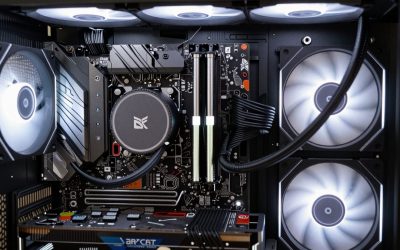
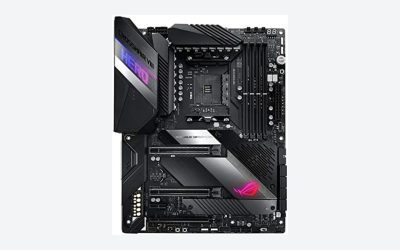
Boards commonly print the model name between the PCIe slots, near the CPU socket or beside the memory slots. A smaller label with a REV number and a serial sticker is often on the board edge or the back. Take a clear photo with your phone, and do not pull cables or force any connector while you look. Check the warranty terms before removing any tamper stickers.
Method 5: Linux and other systems
On Linux, open a terminal and read the firmware tables. The command sudo dmidecode -t baseboard prints the manufacturer, product name and version. A command that needs no elevated rights is cat /sys/class/dmi/id/board_name, with board_vendor in the same folder for the maker. The numbers come from the same firmware tables Windows reads, so the same blank-field caveat applies.
Which method fits which situation
| Method | Needs | Works if Windows will not start? | Weak spot |
|---|---|---|---|
| System Information | Windows running | No | Blank fields on some OEM systems |
| PowerShell or systeminfo | Windows running | No | Same firmware data as above |
| BIOS or UEFI screen | Restart and the setup key | Yes, if the board posts | Layout differs between makers |
| Printed board label | Open case, power off | Yes | Often hidden by a cooler or graphics card |
| Linux dmidecode | Terminal access | From a live USB, yes | Needs elevated rights |
If two methods disagree, trust the physical label for the model and the BIOS screen for the firmware version. Software readouts can lag behind a recent hardware swap on rare occasions, whereas printed silkscreen cannot.
Prebuilt and OEM systems that hide the board
Large PC brands often use boards built to their own design, so a retail name may not exist. Use the system model and serial or service tag instead, found on a sticker on the case and in the systeminfo output. The support page for that model usually lists the board, the BIOS downloads and any upgrade limits, such as locked power connectors or special front-panel plugs.
Standard parts may not fit these machines. Before planning a graphics card swap or a new case, check the guide on whether a USB-C front panel works with any motherboard, because proprietary headers are a common surprise.
Worked example: reading the results
Suppose System Information shows these (illustrative values, not a real product):
- BaseBoard Manufacturer: ExampleBoard Inc.
- BaseBoard Product: B550 EXAMPLE-GAMING
- BaseBoard Version: Rev 1.1
- BIOS Version/Date: version F13
Reading it left to right: the chipset is B550, which tells you the socket family and the memory generation. The revision (1.1) is the hardware version to match against downloads. The BIOS number is what you compare against the newest file listed on the maker’s page. Your next step is to open that page, find the CPU support list, and note which processors need a firmware newer than yours. If you are weighing a memory purchase, the page on DDR4 and AM5 compatibility shows how socket and memory type connect.
What can go wrong and when to stop
- Blank or generic fields: move to the BIOS screen or the physical label.
- Two different names: the product name and the chipset name are not the same thing, so record both.
- No label visible under a large cooler or graphics card: do not remove a cooler or a CPU just to read text. Use a phone camera, the invoice, or the PC maker’s support page.
- Stuck screws or tight connectors: stop. Forcing parts risks cracked traces.
If no method gives a clear answer, a support request with the case serial number is better than guessing.
Related guides
- Windows Macos Linux Gaming Performance Comparison Strengths Weaknesses
- Desktop Operating Systems Gaming Performance Strengths Weaknesses
- 5G Home Internet Wifi Modem Settings Low Latency Gaming
Frequently asked questions
Why does System Information show “To be filled by O.E.M.” instead of a board name?
Some manufacturers and small assemblers leave the baseboard fields in the firmware blank, so Windows has nothing to display. The model is then easiest to find by looking at the physical board, checking the boot splash or the BIOS screen, or reading the invoice and box. A CPU-Z style utility reads some of the same data, so it may show nothing better.
Is the motherboard model the same as the PC model?
Not in a prebuilt. The system model (for example a desktop line and number) names the whole computer, while the baseboard is a part inside it. Large brands sometimes use custom boards with an internal part number rather than a retail name. In that case, the system model or service tag is the key you use on the support site.
Can the motherboard model be found without opening the case?
Usually yes. System Information, a PowerShell command, the BIOS screen and the original box or invoice all work with the side panel closed. Opening the case is the fallback when the software readout is blank or generic. Only do that with the PC shut down and unplugged, and touch bare metal on the chassis first to discharge static.
Does the revision number on the board matter?
Often, yes. The same product name can ship in several hardware revisions, and each may need a different BIOS file or support a different set of processors. The revision is usually printed near the model name as REV followed by a number. Match it when you download a BIOS or driver, and keep a photo of the label.
Will a Windows update or driver change the motherboard name shown?
No. The baseboard details come from firmware tables written by the manufacturer, not from Windows drivers. They only change if the firmware itself is replaced, or if the board is swapped. A BIOS update can occasionally correct a missing or misspelled name, but it will not alter the actual hardware.