Getting a stable boost from Ryzen Master is less about chasing the highest possible clock and more about giving the CPU consistent power, thermal headroom, and voltage control so it can hold its boost without throttling or crashing. For an optimal Ryzen Master config for stable boost, prioritize stability over peak frequency: set realistic power limits, use Curve Optimizer carefully, keep Precision Boost Overdrive within your cooler’s capability, and lock in settings that survive reboots. As of early 2026, AMD’s Ryzen Master 2.14+ and AGESA updates have made per-core tuning more reliable, but the core principles remain the same.
This guide gives you concrete, actionable settings with exact menu paths and value ranges you can apply and revert safely. Every adjustment below is reversible and focused on long-term stability for gaming and productivity, not just short synthetic runs.
As an Amazon Associate we earn from qualifying purchases at no extra cost to you.

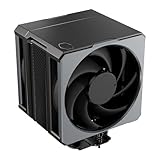
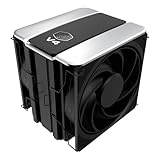
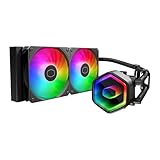
Our Top Picks

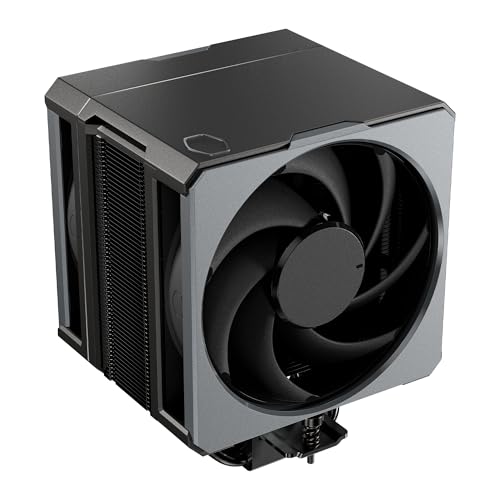
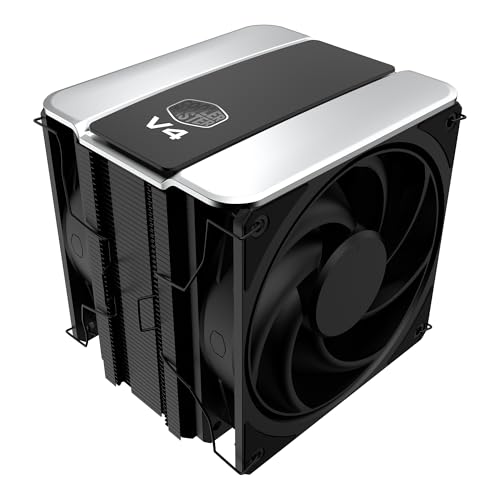
Top 3 picks at a glance
Quick Recommended Settings
| Setting | Recommended value | Why |
|---|---|---|
| Profile Mode | Manual or Precision Boost Overdrive (Advanced) | Provides full control over PPT/TDC/EDC and Curve Optimizer without auto-overclocking limits |
| PPT (Package Power Tracking) | 142W for 105W TDP CPUs, 88W for 65W TDP CPUs, 162W max for 170W TDP CPUs | Matches AMD spec while preventing motherboard from pushing excessive wattage |
| TDC (Thermal Design Current) | 95A for 105W TDP, 60A for 65W TDP, 120A for 170W TDP | Keeps sustained current within cooler and VRM capability |
| EDC (Electrical Design Current) | 140A for 105W TDP, 90A for 65W TDP, 180A for 170W TDP | Controls peak current spikes that cause transient crashes |
| Precision Boost Overdrive (PBO) | Advanced > Motherboard Limits = Disabled, use Manual PPT/TDC/EDC above | Avoids unlimited board limits that create heat and instability |
| PBO Boost Override | +0 MHz to +75 MHz | Small bump maintains stability; higher values require better cooling |
| Curve Optimizer | All Core -10 to -15, or Per Core -5 to -20 after testing | Negative offset lowers voltage at a given frequency, improving efficiency and boost duration |
| Scalar | 1X or Auto | Higher scalar increases voltage duration with minimal benefit and more heat |
| Thermal Throttle Limit | 85C to 90C | Provides safety margin below 95C TJMax to sustain boost longer |
| Memory Control | Leave on Auto / Follow BIOS EXPO/XMP | Changing fabric clock in Ryzen Master can destabilize boost |
Setting-by-Setting
1. Profile Selection: Creator Mode vs Manual
What causes it: Ryzen Master profiles apply different control levels. Creator Mode unlocks CCD/CCX control but can reset after reboot if not applied in BIOS. Auto modes hide PPT/TDC/EDC.
How to check: Open Ryzen Master > Left navigation > Home > Profile dropdown at top. If you see Basic View, click Advanced View at the bottom left to expose all controls. Path: Ryzen Master > Advanced View > Profile 1 or Profile 2.
What to do: Select Profile 1 > Choose Mode > Manual or Precision Boost Overdrive > Advanced. Set Control Mode to Manual to expose PPT, TDC, EDC sliders. Apply and test. For permanent settings, replicate these values in BIOS at Advanced > AMD Overclocking > Precision Boost Overdrive.
How to undo: Click Default at the top menu bar > Apply > Restart, or in Ryzen Master go to Profile > Reset Profile. File location to clear persisted settings if stuck: C:\Program Files\AMD\RyzenMaster\RyzenMaster.exe still loads defaults on reboot unless you saved BIOS changes.
2. PPT, TDC, EDC: Manual Power Limits
What causes it: With PBO set to Motherboard Limits, the board can push PPT to 1000W and EDC above 200A, which causes thermal throttling instead of stable boost. Clocks spike then collapse.
How to check: In Ryzen Master > Advanced View > Precision Boost Overdrive section, read Current PPT/TDC/EDC vs Limits. Run Cinebench R23 multi-core for 2 minutes and watch Limits turn red. Also check HWiNFO64 > Sensors > CPU PPT/TDC/EDC values.
What to do: Set PPT/TDC/EDC to Manual. Use recommended values from the table based on your CPU TDP. Path: Ryzen Master > Profile 1 > PBO Controls > PPT/TDC/EDC > Manual. Enter values: For Ryzen 7 7700X / 5800X / 7700 class use 142 / 95 / 140. For Ryzen 5 7600 / 5600 class use 88 / 60 / 90. For Ryzen 9 7950X / 7900X class use 162 / 120 / 180. Click Apply > Test.
How to undo: Toggle PPT/TDC/EDC back to Auto or click Default. In BIOS, path: Settings > AMD Overclocking > Precision Boost Overdrive > PPT Limit / TDC Limit / EDC Limit > Auto.
3. Precision Boost Overdrive and Boost Override
What causes it: PBO Enabled with +200 MHz override pushes frequency beyond what the silicon and cooler can sustain, causing WHEA errors and game crashes.
How to check: In Ryzen Master, find PBO > Advanced > Max CPU Boost Clock Override. If set above +100 MHz, it is likely too aggressive for air cooling. Press Ctrl + Shift + Esc to open Task Manager > Performance tab to watch boost behavior, or use Ryzen Master Histogram.
What to do: Set PBO to Advanced > PBO Limits: Manual (using values above). Set PBO Scalar to 1X. Set Max CPU Boost Clock Override to +0 MHz for maximum stability, or +25 MHz to +75 MHz if cooling is excellent. Value range: 0 to 200 MHz, safe stable range is 0 to 75 MHz. Apply > Run a 10-minute single-core stress with OCCT > CPU > Single Core.
How to undo: Set Boost Override back to 0 MHz and PBO to Auto or Disabled. BIOS path: Extreme Tweaker or OC > Precision Boost Overdrive > CPU Boost Clock Override > Auto.
4. Curve Optimizer: Per-Core Undervolting
What causes it: Factory voltage curve is conservative. Too much positive offset wastes heat; too much negative offset causes idle crashes and Core Performance Boost failures.
How to check: Ryzen Master > Curve Optimizer > Per Core or All Core toggle. Look for cores marked with gold star (best cores) and silver dot (second best). These need less negative offset. Run Ryzen Master built-in Curve Optimizer test or use CoreCycler with config file at C:\CoreCycler\config.ini for per-core validation.
What to do: Start with Curve Optimizer > All Core > Negative > 10 > Apply > Test. If stable for 30 minutes of OCCT, try All Core Negative 15. For per-core refinement: set best cores (usually Core 0 and 1) to Negative 5 to 10, remaining cores to Negative 15 to 20. Value range is Negative 30 to Positive 30 in steps of 1. Apply > Save Profile > Include in BIOS later under AMD Overclocking > Curve Optimizer > Per Core.
How to undo: Set Curve Optimizer to Disabled or All Core 0. If system will not boot, clear CMOS: power off, short CLR_CMOS pins on motherboard for 10 seconds, or hold power button with PSU off, then load BIOS defaults.
5. Thermal Limit and Platform Thermal Throttle
What causes it: Default 95C limit lets CPU ride the thermal ceiling, which drops sustained boost clocks as temperature oscillates. Lower limit gives more consistent boost.
How to check: Ryzen Master > Settings (gear icon) > Thermal Limit or in PBO section > Platform Thermal Throttle Limit. Use HWiNFO64 > CPU (Tctl/Tdie) to see if temperature is pinned at 95C during load.
What to do: Set Platform Thermal Throttle Limit to 85C or 90C. Path: Ryzen Master > Advanced View > PBO > Platform Thermal Throttle Limit > Manual > 85. This encourages earlier fan ramp and prevents hard throttling. Pair with BIOS fan curve at BIOS > Hardware Monitor > CPU Fan > Set 70% at 75C, 100% at 85C.
How to undo: Set Platform Thermal Throttle Limit back to Auto (95C) or 95 in Ryzen Master. Revert fan curve to Standard profile.
6. Scalar and Voltage Control
What causes it: Scalar multiplies how long the CPU holds high voltage for boost. Higher scalar (5X-10X) accelerates degradation and heat without meaningful stable boost.
How to check: In PBO Advanced section, locate PBO Scalar. If set to Auto on some boards it equals 1X, but manually set 10X is risky.
What to do: Keep Scalar at 1X or Auto. Do not use Manual VDDCR CPU Voltage override in Ryzen Master for boost stability; leave CPU Voltage on Auto. If you must set voltage, do it in BIOS > AMD Overclocking > Voltage Controls > VDDCR CPU Voltage > Auto.
How to undo: Set Scalar to Auto and voltage to Auto, then Apply and restart.
By Hardware Tier
Low Tier: Ryzen 5 5600, 5600G, 7600 with Stock or Single-Tower Air Cooler
What causes it: Limited cooler capacity and 65W TDP parts throttle quickly when PPT is uncapped. Small cases restrict airflow.
How to check: Check cooler height and TDP rating in case manual. Monitor Ryzen Master > Temperature > Peak Speed during gaming; if boost drops below base after 5 minutes, you are heat limited. Key combo to log: Ryzen Master > Settings > Logging > Enable CSV at C:\Users\YourName\Documents\AMD\RyzenMaster\Logs\.
What to do: Use PPT 88W, TDC 60A, EDC 90A, Curve Optimizer All Core Negative 10, Boost Override +0 MHz, Thermal Limit 85C. In BIOS, enable AMD Cool’n’Quiet and Global C-States to help idle stability. Do not enable PBO Motherboard Limits.
How to undo: Load BIOS defaults with F5 > Save with F10, and reset Ryzen Master profile to Default.
Mid Tier: Ryzen 7 5700X3D, 7700X, 7800X3D with Dual-Tower Air or 240mm AIO
What causes it: X3D parts are voltage-sensitive and should not use large boost overrides. Non-X3D mid-tier parts can handle moderate PBO but need per-core tuning for stable boost in games.
How to check: For X3D, verify CPU model in Ryzen Master > Home > CPU Info. If X3D, Curve Optimizer range is limited. Check PBO options – on X3D, Boost Override may be locked.
What to do: For 7700X/7700 non-X3D: PPT 142W, TDC 95A, EDC 140A, Curve Optimizer Per Core Negative 10 on best cores and Negative 15 on others, Boost Override +50 MHz, Scalar 1X, Thermal Limit 90C. For 5700X3D/7800X3D: Keep PPT on Auto, set Curve Optimizer All Core Negative 15 to Negative 20 if stable, leave Boost Override at 0 MHz, do not adjust scalar. Apply via BIOS path: Advanced > AMD CBS > X3D settings.
How to undo: For X3D, disable Curve Optimizer in BIOS > AMD Overclocking > Curve Optimizer > Disabled. For non-X3D, revert to table values or Auto.
High Tier: Ryzen 9 7900X, 7950X, 7900 with 280mm/360mm AIO or Custom Loop
What causes it: 12 and 16-core CCDs have two chiplets with different voltage-frequency curves. All-core negative offsets that are stable on CCD0 may crash CCD1.
How to check: In Ryzen Master > Advanced View, observe CCD0 vs CCD1 peak clocks. Use HWiNFO64 to see per-CCD temperatures. Best cores per CCD are marked separately.
What to do: Set PPT 162W, TDC 120A, EDC 180A, Curve Optimizer Per Core: CCD0 best cores Negative 5 to Negative 10, other CCD0 cores Negative 15, CCD1 all cores Negative 15 to Negative 20. Boost Override +25 MHz to +75 MHz, Thermal Limit 90C, Scalar 1X. In BIOS, set VDDCR SOC Voltage to Auto and enable Power Supply Idle Control > Low Current Idle for stability with large core counts. Save profile in Ryzen Master > Save Profile > File saved to C:\Users\YourName\AppData\Local\AMD\RyzenMaster\profiles\.
How to undo: Disable per-CCD Curve Optimizer and set PBO to Auto. If instability persists, set BIOS > Precision Boost Overdrive > Disabled.
Common Mistakes
Mistake 1: Saving Ryzen Master settings without applying in BIOS and expecting them after reboot. What causes it: Ryzen Master settings are applied at OS startup via the Ryzen Master Service, not at boot, so early boot boost behavior is still BIOS-controlled. How to check: Reboot and open Ryzen Master > Check if profile shows Applied or Not Applied. Check Task Scheduler > AMD > RyzenMasterSDKTask. What to do: After finding stable values in Ryzen Master, manually copy them to BIOS > Advanced > AMD Overclocking > Precision Boost Overdrive and Curve Optimizer > Save and Exit with F10. How to undo: In BIOS, set AMD Overclocking > Accept > Reset to Default and disable Ryzen Master autostart in Settings > General > Start minimized.
Mistake 2: Using Curve Optimizer Negative 30 on all cores immediately. What causes it: Aggressive undervolt passes short stress tests but fails idle and light loads where voltage is lowest. How to check: System freezes on desktop or shows WHEA Logger 18/19 in Event Viewer > Windows Logs > System. Path to check: Win + X > Event Viewer > System. What to do: Drop to All Core Negative 10, then test per core with CoreCycler overnight. Increase negative offset by 5 per stable cycle. How to undo: Boot to Safe Mode with F8, open Ryzen Master and set Curve Optimizer to 0, or clear CMOS.
Mistake 3: Leaving PBO Limits on Motherboard. What causes it: Motherboard limits remove PPT/TDC/EDC ceilings, causing EDC to spike and trigger FIT throttling. How to check: Ryzen Master histogram shows EDC at 100% constantly. HWiNFO64 shows EDC above 170A on 105W chips. What to do: Switch PBO Limits to Manual and enter the recommended PPT/TDC/EDC from the table. Path: Ryzen Master > PBO > PBO Limits > Manual. How to undo: Set PBO Limits back to Auto and Scalar to Auto.
Mistake 4: Changing memory or Infinity Fabric in Ryzen Master alongside boost tuning. What causes it: Coupled memory/fclk changes destabilize the CPU boost voltage curve, masking the real cause. How to check: In Ryzen Master > Memory Control and Infinity Fabric sections, see if values are not Auto. Check file C:\Program Files\AMD\RyzenMaster\AMDRyzenMasterDriver.sys logs for memory errors. What to do: Leave DDR and FCLK on Auto in Ryzen Master. Configure memory only in BIOS > OC > EXPO/XMP Profile and leave FCLK = MEMCLK/2 for DDR5. How to undo: Set Memory Control > Auto and FCLK > Auto, Apply, restart.
FAQ
Should I use Ryzen Master or BIOS for stable boost?
Use Ryzen Master for testing because it applies changes without a reboot and has a built-in stress test and per-core curve tester. Once stable, move settings to BIOS for persistence and more consistent boot behavior. To test: Ryzen Master > Creator Mode > Apply > Stability Test. To make permanent: BIOS > AMD Overclocking > Precision Boost Overdrive > Advanced > Enter same values > F10. To undo BIOS changes, press F5 in BIOS to load optimized defaults.
Why does my boost drop after a few minutes even at low temperature?
What causes it: PPT or EDC limit hit, or hidden Platform Thermal Throttle set too low.
How to check: Keep Ryzen Master open > Home > View Limits. If PPT/TDC/EDC hits 100% turn red, that limit is throttling. Press Ctrl + Shift + Esc to check background apps consuming power.
What to do: Raise the specific limit by 5 to 10% within safe ranges, for example PPT from 142W to 148W if cooler allows, or EDC from 140A to 145A. Keep Thermal Limit at 90C minimum.
How to undo: Return limits to the recommended table values and thermal limit to Auto.
Is Curve Optimizer safe for daily use?
What causes it: Negative offsets reduce voltage, which is safe if validated. Instability appears as random reboots, not hardware damage, when offset is too large.
How to check: Validate with Ryzen Master > Curve Optimizer > Start Optimizer Test, or run OCCT > CPU > Core Cycling > 1 hour. Check Event Viewer > Windows Logs > System for WHEA errors after 24 hours.
What to do: Keep offsets between Negative 10 and Negative 20 for daily use, per-core tuned. Set PBO Scalar to 1X to avoid extra voltage stress. Back up stable profile in Ryzen Master > Save Profile.
How to undo: Set Curve Optimizer to Disabled or 0 and restart. Profile files are stored locally and can be reloaded if needed.
How do I completely reset Ryzen Master if settings cause no-boot?
What causes it: Overly aggressive PBO or Curve Optimizer saved to BIOS via Ryzen Master’s Apply at startup can prevent POST.
How to check: System powers on but shows no display, or loops with DRAM/CPU LED on motherboard.
What to do: Power off > Unplug PSU > Clear CMOS via motherboard CLR_CMOS jumper for 10 seconds or remove coin cell battery for 60 seconds. Boot to BIOS > Press F5 > Load Optimized Defaults > F10 > Reinstall Ryzen Master if needed from C:\Program Files\AMD\RyzenMaster\ installer cache.
How to undo: After reset, do not auto-apply previous profile. Open Ryzen Master > Reset Profile to prevent reload, then re-enter stable values manually.