For gaming, prioritize stability over aggressive “optimization.” Windows virtual memory and the pagefile are safety nets: they give games, drivers, browsers, launchers, capture tools, and background services somewhere to place less-active memory when physical RAM is under pressure. A correctly configured pagefile helps prevent out-of-memory crashes, texture-streaming issues, failed shader compilation, and system instability during long sessions.
The best setting for most PCs in 2026 is still a pagefile on the fastest reliable internal SSD, with Windows managing its size. Manual sizing is useful when you need predictable disk usage, have a small system drive, troubleshoot a crash dump requirement, or use a lower-RAM machine. Do not confuse the Windows pagefile with GPU VRAM, shader cache, DirectX shader cache, or an SSD’s hardware cache; changing one does not increase the others.
As an Amazon Associate we earn from qualifying purchases at no extra cost to you.




Our Top Picks
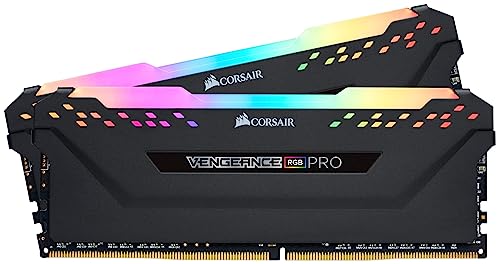
 CORSAIR Vengeance LPX DDR4 RAM 32GB2 count (pack of 1)5.32 x 0.28 x 1.32 Inches0 PoundsCheck on Amazon


Top 3 picks at a glance
Quick Recommended Settings
| Setting | Recommended value | Why |
|---|---|---|
| Virtual memory mode | Automatically manage paging file size for all drives: On | Windows can expand the pagefile when a game, mod, browser, or background task raises committed-memory demand. |
| Pagefile location | Fastest reliable internal NVMe or SATA SSD, usually C: | Internal SSD storage gives lower latency and better reliability than a mechanical drive, USB drive, or network location. |
| Primary-drive pagefile | System managed size | Best default for 16 GB or more of RAM and for PCs that need dependable crash-dump support. |
| Manual fixed size, if required | Initial size = Maximum size = 8 GB for 16 GB RAM; 12 GB for 32 GB RAM; 16 GB for 64 GB RAM | Reserves predictable space while retaining a meaningful fallback for unusually high memory commitment. |
| Free space on pagefile drive | Keep at least 20 GB free after accounting for the pagefile | Windows updates, shader caches, game patches, temp files, and pagefile growth need working space. |
| Pagefile on HDD | Avoid as the only pagefile when an SSD is available | It works, but sustained paging on a hard drive can cause severe hitching and long recovery times. |
| Disable pagefile | Off; do not select “No paging file” for a gaming PC | Disabling it can cause crashes or allocation failures even when Resource Monitor does not show RAM at 100%. |
| Shader cache cleanup | Only when troubleshooting; otherwise leave it alone | Clearing caches can fix corruption, but games may stutter while rebuilding shaders afterward. |
Setting-by-Setting
Windows Virtual Memory: Automatically Manage Paging File Size
Exact value: Enable Automatically manage paging file size for all drives.
What causes it: Games can fail when committed memory exceeds the combined capacity of physical RAM and the pagefile. This is especially common with heavily modded games, large open-world titles, browser tabs left open on a second monitor, game capture software, and background updaters. A manually capped pagefile can become too small after a game update or a change in your usual workload.
How to check: Press Ctrl+Shift+Esc to open Task Manager, select Performance, then select Memory. Check the Committed figure. The first number is current committed memory; the second number is the commit limit. If the first number repeatedly approaches the second during gaming, Windows needs more backing capacity. For a closer view, press Win+R, type resmon, press Enter, and open the Memory tab.
What to do: Press Win+R, type sysdm.cpl, and press Enter. Open Advanced > Performance > Settings > Advanced. Under Virtual memory, select Change. Check Automatically manage paging file size for all drives, select OK, and restart when Windows requests it.
How to undo: Return to the same Virtual Memory window, clear the automatic-management box, choose the relevant drive, and restore your previous custom size. Restart the PC.
Pagefile Drive Location
Exact value: Use System managed size on your fastest reliable internal SSD, normally C:. If C: is a small SSD and D: is a faster or equally fast internal SSD with ample free space, place the primary pagefile on D: instead.
What causes it: When Windows must page memory, storage latency matters. A pagefile on an old hard drive can turn a momentary memory shortage into long asset-streaming pauses. Conversely, a nearly full SSD can create update failures and leave too little room for temporary files.
How to check: Open Settings with Win+I, go to System > Storage, and verify free space. In Task Manager’s Performance tab, select each disk to identify whether it is an SSD or HDD. Avoid removable USB drives, SD cards, NAS shares, and encrypted or unstable external storage for the active pagefile.
What to do: In the Virtual Memory window, clear automatic management. Select the chosen SSD, choose System managed size, and click Set. Select drives that should not host a pagefile, choose No paging file, and click Set. Click OK through the dialogs and restart. Keep at least 20 GB free on the selected drive, more if it holds large games or frequent recordings.
How to undo: Re-enable automatic management for all drives. Windows will choose the placement and size again after restart.
Manual Fixed Pagefile Size
Exact value: Use this only if you need a fixed allocation. Set Initial size (MB) and Maximum size (MB) to the same value: 8192 MB with 16 GB RAM, 12288 MB with 32 GB RAM, or 16384 MB with 64 GB RAM. With 8 GB RAM, use 12288 MB.
What causes it: A fixed file is useful when a small boot drive is repeatedly running out of space or when you want a known reservation for troubleshooting. It is not inherently faster than a Windows-managed file. The supposed performance gain from a fixed pagefile is usually not noticeable in games.
How to check: First check Task Manager’s Committed reading during your normal gaming session. If your current committed-memory usage already exceeds or nearly reaches the proposed fixed limit once RAM is included, choose a larger value or return to system managed size. Also verify that the SSD has enough room for the file plus ordinary game updates.
What to do: Open sysdm.cpl > Advanced > Performance Settings > Advanced > Virtual memory. Clear automatic management, select the target SSD, choose Custom size, enter the same recommended number in both fields, select Set, then restart.
How to undo: Select the drive, choose System managed size, click Set, or re-enable automatic management globally. Restart.
Windows and GPU Shader Caches
Exact value: Leave shader caches enabled. Do not routinely clear them. For NVIDIA, use Shader Cache Size: Driver Default in the NVIDIA Control Panel. For AMD and Intel, retain the driver default unless a specific game-support instruction says otherwise.
What causes it: Corrupt or outdated shader cache data can contribute to unusual stutters, visual artifacts after a driver change, or a game that stalls on first launch. However, shader cache rebuilding also causes temporary stutter, so clearing it as routine maintenance often makes performance worse in the short term.
How to check: Consider a cache reset only when the problem began immediately after a GPU driver update, a game update, or repeated shader-compilation errors. Check the game’s own settings first; many games offer a shader-precompile option or display compilation progress.
What to do: For the Windows DirectX cache, open Settings > System > Storage > Temporary files, select DirectX Shader Cache, and choose Remove files. Then restart and launch the affected game once, allowing it to rebuild shaders without judging performance during that first run.
How to undo: There is no restore button for deleted shader cache files. Windows, the GPU driver, and the game rebuild them automatically. If a driver-level shader-cache setting was changed, return it to Driver Default.
By Hardware Tier
Low Tier: 8 GB RAM, Older Quad-Core CPUs, SATA SSDs, or HDD-Heavy Systems
What causes it: With 8 GB of RAM, Windows and background software can consume a substantial share before a game launches. Paging may occur regularly rather than only during unusual memory spikes.
How to check: Monitor Task Manager while gaming. If memory use remains above roughly 85% and the disk hosting the pagefile becomes very active during stutters, RAM pressure is likely involved.
What to do: Use a Windows-managed pagefile on an internal SSD. If manual sizing is necessary, set a fixed 12288 MB pagefile. Close browsers, RGB suites, launchers not required by the game, and recording tools before starting demanding games. If the pagefile currently sits on an HDD, moving it to even a SATA SSD is a meaningful quality-of-life improvement.
How to undo: Re-enable automatic management. If you closed startup apps, re-enable only the ones you genuinely need through Task Manager > Startup apps.
Mid Tier: 16 GB to 32 GB RAM and an NVMe SSD
What causes it: This tier usually has enough RAM for normal gaming, but mods, high-resolution texture packs, Discord streaming, browsers, and game capture can produce occasional high commit usage.
How to check: Look for crashes mentioning insufficient memory, sudden inability to alt-tab, or a Committed value near its limit rather than focusing only on the RAM percentage.
What to do: Leave Windows virtual memory fully automatic on the NVMe system drive. If space management requires a fixed file, use 8192 MB for 16 GB RAM or 12288 MB for 32 GB RAM. Keep shader caches enabled and avoid weekly cache cleaning.
How to undo: Select automatic management again. If a game’s issues began after a cache reset, simply play through its shader-rebuild process before changing additional settings.
High Tier: 64 GB or More RAM, Fast NVMe Storage, Heavy Multitasking
What causes it: High-RAM systems are less likely to page during ordinary play, but disabling the pagefile can still break applications that expect one, limit crash dumps, or cause rare allocation failures with editors, mod tools, virtual machines, and large creative workloads open beside a game.
How to check: Review Task Manager’s Committed value while running your heaviest real-world combination: game, browser, voice chat, capture software, and any mod manager or editor. Do not assume 64 GB makes virtual memory irrelevant.
What to do: Use system managed size, or use a fixed 16384 MB pagefile if you require predictable storage consumption. Keep it on the fastest internal SSD with sufficient space. Larger pagefiles are not a gaming-performance upgrade; use them only when your measured committed-memory workload or crash-dump needs justify them.
How to undo: Restore automatic management, then restart. If you created a fixed file only to reserve space, Windows will reclaim flexible control after the reboot.
Common Mistakes
What causes it: Many guides treat the pagefile as a speed setting instead of a capacity and stability setting. This leads to disabling it, placing it on poor storage, or choosing arbitrary massive values.
How to check: Review the Virtual Memory window drive by drive. Confirm that one reliable internal SSD has either System managed size or a sensible custom size, and that no important drive is critically low on free space.
What to do: Avoid these mistakes:
- Do not select No paging file just because you have 16 GB, 32 GB, or 64 GB of RAM.
- Do not set an enormous pagefile “equal to RAM” by default. A 64 GB fixed pagefile wastes SSD capacity for most gaming PCs.
- Do not put the only pagefile on a USB drive, external SSD, HDD, or network drive.
- Do not split small pagefiles across every drive expecting a gaming boost. Use one good SSD unless you have a specific administrative reason otherwise.
- Do not confuse clearing DirectX Shader Cache with increasing VRAM or fixing every stutter.
- Do not change pagefile settings and GPU drivers simultaneously when troubleshooting. Change one variable, restart, then test.
How to undo: The universal recovery option is Automatically manage paging file size for all drives, followed by a restart. If troubleshooting persists, check game files through its launcher and inspect Event Viewer with Win+R > eventvwr.msc for application or hardware errors rather than repeatedly resizing virtual memory.
FAQ
Should I disable the pagefile if I have 32 GB of RAM?
No. What causes it: the belief that pagefiles are only needed when RAM is physically full. How to check: look at Task Manager’s Committed limit during your typical workload. What to do: keep Windows-managed virtual memory enabled on an SSD. How to undo: if you already disabled it, re-enable automatic management and restart.
Is a fixed pagefile faster than system managed size?
Usually, no meaningful gaming advantage should be expected. What causes it: old advice about file fragmentation and resizing. How to check: compare actual stutters and committed-memory pressure, not synthetic assumptions. What to do: use system managed size unless you need predictable disk usage. How to undo: switch back to automatic management and restart.
Can I put the pagefile on a second SSD?
Yes. What causes it: a small or crowded C: drive. How to check: confirm the second drive is an internal SSD, healthy, and has at least 20 GB free after the pagefile reservation. What to do: set that SSD to System managed size and set C: to No paging file if space requires it. How to undo: return the pagefile to C: or re-enable automatic management.
Will clearing shader cache improve FPS?
Only when the existing cache is corrupted or incompatible after an update; it is not a routine FPS boost. What causes it: stale compiled shader data. How to check: identify whether the issue began after a driver or game update. What to do: clear DirectX Shader Cache once and let the game rebuild it. How to undo: play the game normally; the cache regenerates automatically.