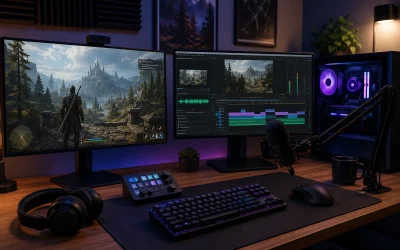
For gaming productivity, your dual-monitor setup needs to do two jobs without compromising either: deliver maximum frames and minimal latency on your primary gaming display, while keeping your secondary display stable, readable, and resource-efficient for chat, browsers, monitoring tools, and work apps. Prioritize refresh rate and response time on the gaming monitor, color and text clarity on the productivity monitor, and system-level settings in Windows that tell your GPU which monitor matters most. Done right, you get tear-free gaming on one screen and zero stutter or dimming on the other — without needing to unplug anything when you switch tasks. This guide walks through the exact settings that make that happen in 2026.
As an Amazon Associate we earn from qualifying purchases at no extra cost to you.


Our Top Picks


Top 3 picks at a glance
Quick Recommended Settings
| Setting | Recommended value | Why |
|---|---|---|
| Primary Display Assignment | Gaming monitor set as Main display in Windows | Ensures games launch on the high-refresh panel by default and get GPU priority |
| Display Mode | Extend these displays (Win + P) | Keeps both monitors independent; Duplicate mirrors resolution and refresh rate |
| Refresh Rate – Gaming Monitor | Native max (144Hz / 165Hz / 240Hz / 360Hz) | Lets the panel run at full speed; Windows defaults to 60Hz after driver updates |
| Refresh Rate – Secondary Monitor | Native max, typically 60Hz or 75Hz | Prevents desktop stutter when moving cursor between displays with mismatched rates |
| Resolution & Scaling | Native resolution; 100% scaling on gaming monitor, 100-125% on secondary | Avoids blur from non-native scaling and keeps text sharp for productivity |
| Adaptive Sync | G-SYNC Compatible / FreeSync On for gaming monitor only | Eliminates tearing without adding input lag to secondary display |
| Windows Graphics Preference | Game .exe set to High performance | Forces Windows to assign discrete GPU and max power to the game |
| Hardware Acceleration | Off in Discord/Chrome on secondary monitor if stuttering occurs | Stops browser and chat apps from competing for GPU resources while gaming |
| Cable Connection | DisplayPort 1.4 for gaming monitor, HDMI 2.0 or DisplayPort for secondary | DisplayPort guarantees full refresh rate + adaptive sync support |
Setting-by-Setting
1. Set Primary Display and Display Mode: Extend
Set this to Extend these displays and designate your fastest monitor as Main display. Value: Gaming monitor = Main display, Secondary = Extended.
Go to Settings > System > Display. Click Identify to see 1 and 2. Click the gaming monitor, scroll down and check Make this my main display. Then press Win + P and select Extend. Trade-off: Extend uses slightly more VRAM than Duplicate or Single Display because Windows renders two independent desktops, but it is the only mode that allows different resolutions and refresh rates. If you choose Duplicate, both monitors lock to the lower resolution and refresh rate.
2. Refresh Rate: Native Maximum Per Monitor
Set this to the highest listed rate for each monitor. For most gaming panels this is 144Hz, 165Hz, 240Hz, or 360Hz. For productivity panels this is 60Hz or 75Hz.
Path: Settings > System > Display > Advanced display. Select each display from the dropdown at the top, then set Choose a refresh rate to the max value. Alternative path in NVIDIA Control Panel: Display > Change resolution > Refresh rate. In AMD Software: Gaming > Display > Display Specs. Trade-off: Higher refresh increases GPU load on the desktop and power draw by 10-25 watts. If you notice idle temperature spikes, cap the secondary at 60Hz while leaving the primary at max.
3. Resolution and Scale: Native with Independent Scaling
Set this to native resolution
for both monitors
Path: Settings > System > Display > Scale & resolution. Set Scale first, then Display resolution. For NVIDIA, also check Display > Adjust desktop size and position > Scaling mode = No scaling, Perform scaling on: Display. Trade-off: 125% on a 27-inch 1440p secondary makes text and spreadsheets far more readable but can cause blurry legacy apps that do not handle per-monitor DPI. If an app looks fuzzy, right-click its .exe > Properties > Compatibility > Change high DPI settings > Check Override high DPI scaling behavior > Set to System (Enhanced).
4. Adaptive Sync: On for Gaming Monitor Only
Set this to G-SYNC Compatible or FreeSync = Enabled for gaming monitor, Disabled for secondary.
For NVIDIA: NVIDIA Control Panel > Display > Set up G-SYNC > Check Enable G-SYNC, G-SYNC Compatible > Select Enable for full screen mode or Enable for windowed and full screen mode > Check your gaming monitor only. For AMD: AMD Software: Adrenalin Edition > Gaming > Display > AMD FreeSync > Enabled. Also enable on the monitor OSD: Menu > Gaming > Adaptive Sync > On. Trade-off: Windowed G-SYNC can cause flicker on some secondary monitors when video plays. If you see flicker, limit G-SYNC to full screen mode only.
5. Windows Graphics and Game Mode
Set this to Game Mode = On, and per-game GPU preference = High performance.
Path: Settings > System > Display > Graphics. Turn on Game Mode at the top (Settings > Gaming > Game Mode). Below, click Add desktop app > Browse to your game .exe (e.g., C:\Program Files\Steam\steamapps\common\YourGame\Game.exe) > Options > High performance > Save. For laptops with hybrid graphics, this prevents Windows from assigning the game to integrated graphics on the secondary display. Trade-off: Game Mode can occasionally minimize background apps. If Discord or OBS loses focus priority, toggle Game Mode Off and manage GPU preference manually.
6. Taskbar, Alignment, and Window Management
Set this to Taskbar on both displays, Primary taskbar = main gaming monitor.
Path: Settings > Personalization > Taskbar > Taskbar behaviors > Show my taskbar on all displays = On. Set When using multiple displays, show my taskbar apps on = All taskbars or Main taskbar and taskbar where window is open. Use Win + Shift + Left/Right Arrow to move any window between monitors instantly. Use Win + Arrow keys to snap productivity apps to halves on the secondary monitor. Trade-off: Showing the taskbar on both screens uses a small amount of attention and can cause auto-hide conflicts in borderless games. If a game loses focus, set secondary taskbar to auto-hide: Taskbar behaviors > Automatically hide the taskbar.
7. Color Profile and HDR: Calibrate Separately
Set this to SDR calibrated per monitor; HDR On only if both monitors support HDR and you need it.
Path: Settings > System > Display > HDR (Windows HD Color settings). Set Use HDR per display. Calibrate via Settings > System > Display > Advanced display > Display adapter properties > Color Management > Advanced > Calibrate display. For NVIDIA: NVIDIA Control Panel > Display > Change resolution > Output color format = RGB, Output dynamic range = Full (for PC monitors). Trade-off: Enabling HDR on a secondary SDR monitor washes out colors and limits brightness control. Leave HDR Off on the secondary unless it is a true HDR600+ panel.
By Hardware Tier
Low Tier: Integrated Graphics or GTX 1650 / RX 6500 XT with 1080p 60-75Hz + 1080p Secondary
Prioritize stability over max refresh. Keep both monitors at 1080p, gaming monitor at 75Hz or 60Hz if the GPU cannot sustain higher. In Settings > System > Display > Graphics, set all games to High performance and set Background apps (Settings > Apps > Installed apps > Advanced options) to Never for non-essential apps. Use DisplayPort for the gaming monitor if available; otherwise HDMI 1.4 is fine at 1080p 75Hz. Close hardware-accelerated browsers on the secondary while gaming. If you see desktop lag, lower secondary scaling to 100% and disable transparency: Settings > Personalization > Colors > Transparency effects = Off.
Mid Tier: RTX 4060 / 4060 Ti / RX 7600 XT with 1440p 165Hz + 1080p or 1440p Secondary
This is the sweet spot for Extend mode with mixed refresh rates. Set gaming monitor to 2560×1440 at 165Hz via DisplayPort 1.4, secondary to native at 60Hz or 75Hz. Enable G-SYNC Compatible / FreeSync for the gaming monitor only. In NVIDIA Control Panel > Manage 3D settings > Global Settings, set Power management mode = Prefer maximum performance and Max Frame Rate = Off (cap in-game instead). Set in-game Display Mode to Fullscreen or Borderless Windowed; Borderless is better for fast mouse movement to the secondary, Fullscreen gives slightly lower latency. Use Win + P > PC screen only when playing competitive shooters to eliminate any secondary-monitor overhead, then Win + P > Extend to restore productivity.
High Tier: RTX 4070 Super and Above / RX 7800 XT and Above with 1440p 240Hz or 4K 144Hz + 1440p Secondary
Maximize bandwidth and keep both panels sharp. Connect gaming monitor via DisplayPort 1.4 with Display Stream Compression (DSC) enabled in monitor OSD if running 4K 144Hz, or HDMI 2.1 if the monitor prefers it. Enable 10-bit color: NVIDIA Control Panel > Change resolution > Output color depth = 10 bpc. Set secondary to 1440p 75Hz or higher if it supports it to reduce cursor judder between screens. In Windows Settings > System > Display > Advanced display, verify both show correct bit depth and refresh. For streaming or productivity multitasking, leave hardware acceleration On in Chrome/Discord (Settings > System > Use graphics acceleration) since the GPU has headroom, but monitor GPU usage with Task Manager > Performance > GPU.
Common Mistakes
Mistake 1: Game Opens on the Wrong Monitor
What causes it: Windows Main display is set to the secondary monitor, or the game remembers its last Window Position in its config file (e.g., GameUserSettings.ini or local.cfg).
How to check: Press Win + P and confirm it says Extend. Go to Settings > System > Display and see which monitor has the Make this my main display checkbox ticked. Launch the game and see if it appears on the non-gaming screen.
What to do: Set the gaming monitor as Main display. If the game still opens wrong, set the game to Borderless Windowed in its Video/Display settings, then press Win + Shift + Right Arrow to move it, close the game while on the correct monitor so it saves. For stubborn games, open the config file (e.g., %USERPROFILE%\Documents\My Games\GameName\Saved\Config\WindowsClient\GameUserSettings.ini) and set PreferredMonitor or LastMonitorIndex to 0 or 1 and save.
How to undo: Return to Settings > System > Display and re-check Make this my main display on the other monitor, or delete the edited line in the config file to revert to default.
Mistake 2: Secondary Monitor Causes Stutter or FPS Drops
What causes it: Hardware acceleration in browsers/Discord, mismatched refresh rates with G-SYNC set to windowed mode, or video playback on the secondary monitor competing for the GPU video decoder.
How to check: With the game running, open Task Manager > Performance > GPU and watch 3D and Video Decode usage while playing a YouTube video on the secondary. If GPU hits high utilization or the game micro-stutters when moving the mouse to the second screen, this is the cause.
What to do: In Chrome: Settings > System > Use hardware acceleration when available = Off (restart Chrome). In Discord: Settings > Advanced > Hardware Acceleration = Off. In NVIDIA Control Panel > Set up G-SYNC, select Enable for full screen mode only. Pause video or set YouTube to 1080p instead of 4K while gaming.
How to undo: Re-enable hardware acceleration in Chrome and Discord, and set G-SYNC back to Enable for windowed and full screen mode if stutter is gone and you prefer smoother windowed scrolling.
Mistake 3: Blurry Text or Wrong Scaling Between Monitors
What causes it: Windows applies one scale factor to both monitors after setup, or a non-native resolution is selected. This often happens after a GPU driver clean install resets scaling.
How to check: Go to Settings > System > Display. Click each monitor (1 and 2) and verify Scale and Display resolution independently. Look for text that is fuzzy on one monitor but sharp on the other.
What to do: Set each monitor to its Recommended resolution (native). Set Scale to 100% on the gaming monitor and 100% or 125% on the secondary. Click Advanced scaling and ensure Let Windows try to fix apps so they are not blurry = On. For blurry legacy apps, use the Compatibility > Change high DPI settings > Override high DPI scaling behavior fix described above.
How to undo: Set both monitors back to 100% scaling and re-enable automatic scaling, or reset the app compatibility override to Application controlled.
Mistake 4: Black Bars, No Signal, or Limited Refresh Rate Options
What causes it: Wrong cable or port. HDMI 1.4 or a low-quality DisplayPort cable cannot carry 1440p 165Hz or 4K 144Hz, and the monitor OSD may have DisplayPort 1.2 mode forced on.
How to check: Check Settings > System > Display > Advanced display to see the max refresh listed. If 165Hz or 240Hz is missing, inspect the cable and the monitor input. Open monitor OSD > Input or DisplayPort Version.
What to do: Use the cable that came with the gaming monitor or a certified DisplayPort 1.4 or HDMI 2.1 cable. Connect directly to the GPU, not the motherboard. In monitor OSD, set DisplayPort Version to 1.4 and Overclock/Overdrive to Off or Normal unless you need the OC mode. In NVIDIA Control Panel > Change resolution > Use NVIDIA color settings, verify refresh rate appears.
How to undo: Reconnect the old cable and set monitor OSD DisplayPort Version back to 1.2 if the new cable causes flicker and you need to roll back for testing.
FAQ
Should I use DisplayPort or HDMI for my gaming monitor?
Use DisplayPort 1.4 for the gaming monitor whenever possible. DisplayPort has native support for G-SYNC Compatible/FreeSync at high refresh rates and for Display Stream Compression at 4K 144Hz+. HDMI 2.1 is equally capable on newer monitors and GPUs, but many monitors only enable full refresh and 10-bit color over DisplayPort by default. Check your monitor manual: if the HDMI port is labeled HDMI 2.0, it will cap 4K at 60Hz, so DisplayPort is required. The secondary productivity monitor can use either HDMI or DisplayPort, as 60Hz to 75Hz needs little bandwidth.
Does a second monitor lower gaming FPS?
A second monitor at idle costs very little — typically 1 to 3 percent overhead for rendering the desktop and a few watts of power. The FPS drop comes from what you run on it: 4K video, animated wallpapers (Wallpaper Engine), or many Chrome tabs with hardware acceleration can raise GPU video decode and VRAM use enough to cause stutter. To keep FPS stable, pause video on the secondary, set Wallpaper Engine to Pause per Settings > General > Playback, and close unnecessary browser windows before competitive matches. Use Task Manager > Processes sorted by GPU to find the culprit.
How do I stop games from minimizing when I click the second monitor?
The game is running in Exclusive Fullscreen, which loses focus when you click outside. Switch the game to Borderless Windowed or Windowed Fullscreen in its Video > Display Mode settings. This keeps the game visible while you interact with the secondary monitor and prevents minimizing. If you need the lowest latency for esports, keep Exclusive Fullscreen and use Alt + Tab or Win + Tab to switch, or use Win + P > PC screen only to temporarily disable the secondary so clicks cannot leave the game window.
How do I align monitors with different sizes so the mouse moves naturally?
Go to Settings > System > Display. Drag the monitor rectangles (1 and 2) up or down so their bottom or top edges align with how they sit on your desk. This changes where the cursor crosses over. For example, if your secondary is smaller and sits lower, drag it slightly lower in the diagram so the mouse does not get stuck at the corner. Click Apply. You can also set different orientations: select the secondary monitor > Display orientation > Landscape or Portrait if you use a vertical productivity panel for documents and chat.