
An all-in-one desktop under 500 dollars is a furniture decision as much as a computing one. The screen, the computer, and the speakers collapse into a single object, and the cable nest behind a tower simply disappears. The catch is that this budget forces a fork in the road. One path leads to a new machine with an entry-level processor, a fresh SSD, and Wi-Fi 6. The other leads to a renewed or older business-class unit with a faster, previous-generation Core i5, a sturdier chassis, and sometimes a smaller or slower drive.
This guide is for households, students, home offices, and shared reception or kitchen desks that want a tidy workstation for browsing, documents, video calls, and streaming. It is not a gaming list. Based on the listed specs, the nine models below span 21.5-inch to 27-inch panels, 4-core to 8-core processor listings, and 8GB to 16GB of memory. Read the Quick Picks first, then the individual reviews, and keep one 2026 reality in mind: an SSD and at least 8GB of RAM are the floor now, not a bonus.
Our Top Picks


Top 3 picks at a glance
Quick Picks
As an Amazon Associate we earn from qualifying purchases at no extra cost to you.


| Product | Best for | Key spec from the title |
|---|---|---|
| Lenovo IdeaCentre 24-inch (4-core) | Simple family desk | 8GB RAM, 512GB SSD, 24-inch FHD IPS, Wi-Fi 6 |
| Lenovo IdeaCentre 24-inch (Core i3-N305) | Home office multitasking | 8-core, 8-thread, 3.8GHz, 8GB RAM, 512GB SSD |
| Fusion5 23.8-inch | Memory headroom | 16GB RAM, 512GB SSD, i3-1215U 6-core, Windows 11 |
| Dell OptiPlex 7450 Touch | Touch workstation, tight budget | Core i5-7500, 8GB DDR4, 500GB hard drive |
| suevery 21.5-inch | Compact desk with webcam | Core i5, 16GB RAM, 512GB SSD, HD webcam, WiFi 6 |
| Lenovo ThinkCentre M820z | Ready-to-use office bundle | Core i5-8400, 8GB DDR4, 256GB SSD, mouse and keyboard |
| HP ProOne 600 G2 (Renewed) | Lowest-cost business unit | Core i5-6500, 8GB RAM, 256GB SSD, Windows 11 Pro |
| Dell OptiPlex 7470 (Renewed) | Six-core renewed value | Six-core i5-9500, 8GB RAM, 256GB SSD, 23.8-inch FHD |
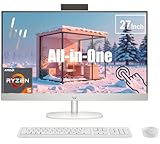
| HP 27-inch Touchscreen | Largest screen | Ryzen 5 7520U, 8GB DDR5, 256GB SSD, 27-inch FHD IPS |
The 9 Best Options
Lenovo IdeaCentre 24-Inch All-in-One (4-Core)
This is the plain, no-surprises pick for buyers who want a new machine with a modern wireless stack and generous storage. The listing describes an Intel 4-core processor, 8GB of RAM, a 512GB SSD, and a 24-inch Full HD anti-glare IPS display, with Wi-Fi 6 and Bluetooth 5.2 for connectivity. It fits a family-room desk, a homework station, or a front-office terminal where the daily load is browsers, documents, and streaming video. Nothing about it is exotic, and that is the appeal: it is the one to choose when you want the least amount of thinking.
- The 512GB SSD gives far more breathing room than the 256GB drives on several rivals.
- An anti-glare IPS panel is kinder to eyes in bright rooms and keeps colors consistent from the side.
- Wi-Fi 6 and Bluetooth 5.2 mean fewer dongles and steadier connections.
- The title does not name the exact processor model, so buyers should confirm it on the product page.
- Only 8GB of RAM is listed, which is fine for light work but leaves little margin for many browser tabs plus video calls.
Skip it if you routinely keep dozens of tabs open or run accounting software alongside a video meeting; the 16GB listings below are safer. Compared with the next pick, which is the Core i3-N305 model from the same family, this one trades a higher stated core count for simplicity, so the decision comes down to how much multitasking you expect.
Lenovo IdeaCentre 24-Inch All-in-One (Core i3-N305)
The second IdeaCentre listing is more specific about its processor, naming an Intel Core i3-N305 with 8 cores, 8 threads, and a 3.8GHz figure. It pairs that with 8GB of RAM and a 512GB SSD in a 24-inch frame, and the title positions it for home offices and students. Of the new machines in this roundup, it is the one that most clearly advertises its core count, which helps when you are comparing similar-looking all-in-ones that otherwise hide their processors behind a generic label.
- Eight cores and eight threads are listed, a good fit for background apps, cloud storage sync, and a browser running together.
- The 512GB SSD is roomy enough for a school year of documents and downloaded media.
- It is clearly aimed at everyday home and study use, so the feature set avoids unneeded extras.
- Memory stays at 8GB, the same as the cheaper IdeaCentre, so the extra cores can be limited by RAM under heavy tab use.
- The title shows no webcam or port details, so buyers should check the listing for those.
Skip it if you want 16GB out of the box or a larger display. Against the Fusion5 that follows, the trade is eight efficient cores here versus a six-core Core i3-1215U with double the memory there, so ask yourself whether you are more often limited by processor threads or by the number of applications open at once.
Fusion5 23.8-Inch Full HD All-in-One
Fusion5 is the memory-first choice. The title lists 16GB of RAM, a 512GB SSD, an Intel Core i3-1215U with 6 cores and a boost figure up to 4.40GHz, Windows 11, a 23.8-inch Full HD display, and HDMI plus USB 3.0 connections. Doubling the memory of most competitors at this budget is the single most practical advantage in the group, because memory pressure is what makes a cheap desktop feel sluggish after a few months of real use. On paper it is also the only new-in-box listing here that pairs 16GB with a 6-core chip, which makes it the easiest fit for a household that has outgrown a slow laptop and wants one dependable desk machine for the next several years.
- 16GB of RAM handles tab-heavy browsing and a video call at once more comfortably than 8GB models.
- The 512GB SSD matches the roomiest drives on the list.
- HDMI is listed, which can turn the machine into a pass-through display for a laptop or console in a pinch.
- Fusion5 is a less familiar name than Lenovo, Dell, or HP, so buyers should read the warranty and return terms closely.
- Six cores is fewer than the eight-core Lenovo, which may matter for long export jobs.
Skip it if brand-backed business support matters more to you than memory. It sits between the budget-leaning Lenovos and the more business-style suevery listing, which also advertises 16GB but in a smaller 21.5-inch body with an unnamed Core i5 generation.
Dell OptiPlex 7450 All-in-One with Touch
This is among the oldest platforms in the group, and the listing says so plainly: a Core i5-7500, 8GB of DDR4, a 500GB hard drive, Windows 10 Pro, and a touch display in black. Business-line Dell all-in-ones are built for desks that get used all day, and a touchscreen is a rarity at this budget. It makes sense for point-of-sale style work, a family kiosk, a kitchen counter, or a shared sign-in desk where tapping beats typing.
- Touch input is built in, which is useful for kiosks, kitchens, and kids.
- Core i5-7500 is a quad-core class of chip with enough speed for office work.
- Dell business hardware is typically straightforward to service and find parts for.
- A 500GB hard drive, not an SSD, will feel noticeably slower on boot and app launches.
- Windows 10 Pro is an older operating system, which may complicate long-term support plans.
Skip it if you want a snappy everyday computer; the SSD models around it will feel quicker. Its closest comparison is the HP ProOne 600 G2 further down, a similarly aged business all-in-one, but the Dell offers touch while the HP ships already on Windows 11 Pro and an SSD. For the next pick, suevery, the contrast is old business hardware versus a newer-looking consumer box. Buyers who remember older Dell desks fondly will find the familiar business styling here, and those who care more about speed than character should lean toward the SSD-equipped listings.
suevery 21.5-Inch Core i5 All-in-One
The suevery listing is built around a compact 21.5-inch 1080P display and ships with a Core i5 processor, 16GB of RAM, a 512GB SSD, an HD webcam, and Wi-Fi 6. It is pitched at business and home-office use. For a small desk, a bedroom workspace, or a counter where space is at a premium, a 21.5-inch footprint with a webcam already in the frame is practical, and the memory and storage figures are generous for the size of the machine.
- 16GB RAM and a 512GB SSD are listed together, a rare pairing in a small body.
- An integrated HD webcam covers video calls without extra hardware.
- Wi-Fi 6 supports fast, stable wireless connections.
- The title says only Core i5 and does not name the generation or model, so performance expectations are hard to pin down.
- Suevery is a lesser-known brand, so service and warranty details deserve careful reading.
Skip it if the missing processor model makes you uneasy; the Dell and Lenovo ThinkCentre listings name theirs exactly. Compared with the Fusion5 earlier, you get a smaller screen and a webcam called out in the title, in exchange for the Fusion5’s clearer processor identification. The ThinkCentre that follows reverses the trade: a named chip, less memory. If you can tolerate 8GB for now and plan to add more later, that swap is reasonable; if you cannot, stay with the suevery.
Lenovo ThinkCentre M820z 21.5-Inch
The ThinkCentre M820z is a business-line all-in-one with a Core i5-8400 listed at up to 4.0GHz, 8GB of DDR4, a 256GB SSD, and a 21.5-inch Full HD screen. It arrives with a mouse, keyboard, and USB Wi-Fi adapter according to the title, so you can plug it in and begin without separate purchases. That bundle makes it a sound pick for a spare-room office, a rental unit, or a hand-me-down computer for a relative who just needs email and video chat.
- The Core i5-8400 is a six-core class of chip, giving more headroom than older quad-core i5s.
- Mouse, keyboard, and Wi-Fi adapter are included, which reduces setup friction.
- ThinkCentre is Lenovo’s business line, built with office durability in mind.
- 256GB of SSD storage fills quickly once Windows updates and a few programs are installed.
- The need for a USB Wi-Fi adapter hints that integrated wireless may be missing, and the adapter occupies a port.
Skip it if you store large photo or video libraries locally. It sits one generation ahead of the HP ProOne 600 G2 that follows and one behind the Dell OptiPlex 7470, so it is the middle step in the renewed-business ladder for buyers weighing cost against processor age. Its bundled accessories are also a quiet advantage for anyone setting up a first home office from scratch, because nothing else needs to be bought before the first login.
HP ProOne 600 G2 21.5-Inch (Renewed)
This renewed HP business all-in-one is the oldest-silicon option with a modern operating system. The title lists a 21.5-inch Full HD display, a Core i5-6500 running 3.2GHz to 3.6GHz, 8GB of RAM, a 256GB SSD, and Windows 11 Pro. For basic accounting, email, and web forms in an office that values low cost over speed, it is a workable tool, especially where several identical stations are needed at once.
- Windows 11 Pro is listed, which suits small offices that want business management features.
- The SSD keeps boot times and app launches far snappier than a mechanical drive.
- Renewed business machines are generally the cheapest way to get a real full-size desktop screen.
- Core i5-6500 is the oldest processor in this roundup, so it will feel slow with heavy multitasking.
- Renewed condition varies by seller, and cosmetic wear or shorter coverage is possible.
Skip it if you plan to keep the computer for many years; a newer generation will age better. Compared with the next pick, the OptiPlex 7470 with a six-core i5-9500, the HP is the cheaper-class machine and the Dell is the clear performance step up for people who can afford the difference. If your work is mostly typing and web forms, though, the extra cores may sit idle, and the lower-cost HP is the more sensible spend. Check the seller’s return window either way.
Dell OptiPlex 7470 23.8-Inch (Renewed)
The OptiPlex 7470 is the strongest renewed-business option on paper. The listing names a six-core Intel Core i5-9500, 8GB of RAM, a 256GB SSD, a 23.8-inch Full HD display, a keyboard and mouse, and Windows 11 Pro. Six physical cores on a business platform is a lot of capability for a budget machine, and a 23.8-inch screen is comfortable for side-by-side windows, such as a spreadsheet next to an email client.
- Six cores handle spreadsheets, browsers, and background tasks without strain.
- A 23.8-inch display is a size step above the 21.5-inch units.
- Keyboard and mouse are included, and Windows 11 Pro is listed.
- 256GB of storage is modest, and 8GB of RAM will be the first thing you want to upgrade.
- Renewed condition and warranty terms vary, so the seller’s policy matters.
Skip it if you want a new-in-box machine with a fresh manufacturer warranty. Against the HP 27-inch that closes the list, the Dell wins on core count, while the HP wins on screen size, touch input, and newer DDR5 memory, so the choice is about priorities rather than a clear winner. It also pairs a 23.8-inch panel that still fits comfortably on a normal desk with an included keyboard and mouse, so a complete workstation arrives in one box. Those two points make it an easy default for an office with a handful of identical desks.
HP 27-Inch All-in-One Touchscreen
The biggest screen in the group belongs to the HP 27-inch, which lists an AMD Ryzen 5 7520U with 8 cores and an up-to-4.3GHz figure, 8GB of DDR5 memory, a 256GB SSD, and a Full HD IPS touch display. A 27-inch panel makes a real difference for older users, for shared family use, and for anyone who likes two windows side by side. It is the most living-room-friendly pick in the roundup.
- The 27-inch Full HD IPS screen is the largest here and supports touch input.
- DDR5 memory is a more current standard than the DDR4 on the business models.
- A newer Ryzen 5 platform suggests better efficiency than the older Intel generations listed.
- 256GB of storage is small for a machine with such a large display, and fills quickly with media.
- A bigger screen stretches Full HD, so text and images appear less crisp than on a smaller panel.
Skip it if desk space is tight or you need more than 256GB of local storage. As the last pick, it is the natural step up from the Dell renewed models for anyone who values screen size and touch above raw core count, and the first place to look if the household includes someone who struggles with small text. Buyers should still weigh the modest drive, and plan an external disk if photos and videos will live on the machine.
Who Needs an All-in-One at This Budget
An all-in-one makes the most sense when the room, not the workload, is the constraint. A small apartment, a bedroom corner, or a clinic reception desk benefits from one power cord and no tower. Buyers who need only office software and streaming get a complete setup with fewer parts to fail, and a single box is easier to move, wipe down, and store when the desk is needed for something else.
Households and shared spaces
Families that share one computer in a hallway or kitchen get the most from a bigger panel and touch input. The 27-inch HP or the touch-equipped Dell fit that profile, while the 24-inch Lenovos are a calmer, quieter fit for homework and bill paying. Shared machines also benefit from an SSD, since several user accounts mean more background activity.
Students and home offices
For coursework, a 512GB SSD and 16GB of RAM are the specs that keep the machine pleasant through long semesters. The Fusion5 and suevery listings lean that way, and the i3-N305 Lenovo works well when the load is many small tasks at once, such as a document, a video lecture, and a chat window.
Who should look elsewhere
Buyers who want modern games, video editing, or any upgradable graphics should look at a small tower or mini PC instead, because all-in-ones at this price have integrated graphics and limited internal access. Photo editors who need accurate color should also budget for a dedicated monitor, and anyone planning to run virtual machines should aim higher than this tier.
How to Choose
Processor: cores and generation
For smooth everyday use, look for at least 4 cores, and 6 cores or more if you multitask heavily. Generation matters as much as the model number: a Core i5-6500 from several years ago will feel slower than a newer entry-level Core i3 with 6 to 8 cores, despite the higher “i5” label. Prefer listings that name the exact processor, since vague titles hide the real performance tier. Be wary of low-power suffixes such as U or N, which signal efficiency-focused chips that trade peak speed for lower heat and quieter fans. That trade is fine for office work, but it explains why an older full-power Core i5 can still keep pace. As a rule of thumb, a quad-core is acceptable for a single-user browsing desk, six cores suit a busy office, and eight cores suit someone who leaves many programs open all day.
Memory: capacity and type
Treat 8GB as the minimum and 16GB as the comfortable target for browsers, video calls, and office files at once. DDR5 is the newer standard and DDR4 is still perfectly adequate for this kind of work. Ask whether the memory is soldered or user-replaceable, because many all-in-ones make upgrades awkward, and a model that ships with 8GB may be stuck there for its whole life. Dual-channel configurations, meaning two matched modules, generally perform better than a single module of the same total size. Do not pay extra for memory speed claims in the title when the processor is the real limit; capacity matters far more than a faster clock for office work.
Storage: SSD first, capacity second
Insist on an SSD; a mechanical drive makes the whole machine feel slow no matter how fast the processor is. A 256GB drive is workable for light users, while 512GB gives space for years of documents, photos, and updates. Windows updates alone can consume a large share of a small drive, so anything under 256GB is a false economy. Cloud storage can fill gaps, but local space prevents constant file juggling. NVMe and SATA SSDs both feel fast for this kind of use, so do not pay extra to chase the interface. What matters is that the main drive is solid state, that it has at least 20 percent free space for updates, and that the listing states the capacity honestly rather than hiding it behind vague wording.
Display: size, panel, and finish
Full HD at 21.5 to 24 inches looks sharp, while at 27 inches the same resolution looks softer. IPS panels offer wider viewing angles than cheaper alternatives, which matters when two people share the screen, and an anti-glare finish helps near windows. If touch matters, confirm it in the title, since many similar models lack it. Ignore claims about contrast or brightness that come without numbers. Resolution beyond Full HD is rare at this budget, and on a 21.5 to 24 inch panel it would add little. Sit-and-stand tilt adjustment is more valuable than a marginally brighter screen, so look for a stand that tilts and, ideally, adjusts in height.
Ports, wireless, and webcam
Look for Wi-Fi 6 or better, Bluetooth, at least three USB ports, and HDMI if you want to reuse the display with another device. Integrated webcams are common but vary in quality, and a missing one is easy to overlook. A listing that requires a USB Wi-Fi adapter may be using a port you want for something else, and may not be as stable as built-in wireless. Because many all-in-ones place ports on the back or side, picture how you will plug in a printer, a headset, and a card reader before you buy. A USB-C port is a bonus for charging phones or connecting a modern dock, but it is uncommon at this budget.
Condition, warranty, and where corners are cut
New budget units often cut corners on memory, storage speed, and speakers. Renewed units cut corners on warranty length and cosmetic condition, so read the seller’s policy and confirm a return window. Ignore marketing phrases about speed and focus on exact processor models, memory size, and drive type. Also look past the box contents: a bundled keyboard and mouse save money, but they are usually basic. Speakers are another common cut, so a cheap headset or desktop speaker pair is a worthwhile add-on. Also check that the operating system is activated and not a trial, since a renewed machine may need a license confirmation after reinstalling.
New Entry-Level Chip or Renewed Core i5
The real decision at this budget is not brand but vintage. New machines such as the IdeaCentre and Fusion5 bring newer, efficient processors, larger SSDs, and Wi-Fi 6. Renewed business machines such as the OptiPlex 7470 and ThinkCentre M820z bring older but more powerful Core i5 chips and stronger build quality. The table summarizes what the listings in this roundup tend to show, though individual units can differ.
| Factor | New entry-level models | Renewed business Core i5 |
|---|---|---|
| Typical processor | Core i3 or 4-core, Ryzen 5 7520U | Core i5-6500 to i5-9500 |
| Storage in listings | 512GB SSD common | 256GB SSD common |
| Wireless | Wi-Fi 6 listed | Often needs an adapter or older Wi-Fi |
| Warranty | Manufacturer or seller coverage | Varies by renewal program |
| Build | Consumer plastic | Office-grade chassis |
When new makes sense
Choose new if you want the largest SSD, built-in Wi-Fi 6, a fresher warranty, and low power draw. It suits students and families who value quiet, consistent everyday use over peak speed, and anyone who dislikes the uncertainty of a previously owned device. The tradeoff is that the processors in new budget machines are built for low power draw, so long editing or compression jobs will take longer than on a full-power older Core i5.
When renewed makes sense
Choose renewed if raw processor power for the money matters most, such as running several office programs at once. The six-core i5-9500 and i5-8400 listings give stronger multitasking, as long as you accept shorter coverage and are willing to add an SSD or extra RAM later if needed. Offices buying several identical stations also like the consistency of business models, since identical hardware simplifies imaging, spare parts, and support. The tradeoff is age: an older chip may lose software support sooner, and a renewed chassis can carry visible scuffs.
Setup, Compatibility and Upgrade Tips
What to check before buying
Confirm the exact processor model, memory type, drive type, and operating system in the listing. Look at the number of USB ports, whether HDMI is input or output, and whether a webcam is included. Measure your desk, since a 27-inch all-in-one is wider than many people expect, and leave room behind it for ventilation. Check the power brick or cord length too, as some units use external adapters. Read the return policy before opening the box, and photograph the packaging if a renewed unit arrives damaged. If the listing mentions a stand, confirm whether tilt or height adjustment is included, since a fixed stand can leave the screen too low.
What to upgrade first
Memory and storage are the usual upgrades, in that order. If the machine has 8GB, moving to 16GB gives the biggest day-to-day improvement. Where a model uses a hard drive, swapping to an SSD changes the experience more than any other change. External USB drives are a simple stopgap for extra storage, and a decent wireless keyboard and mouse can improve comfort more than a processor bump would. Updating the BIOS and drivers right after setup also removes many small annoyances, such as flaky wireless or screen flicker, before they turn into support tickets.
Common compatibility traps
Many all-in-ones use laptop-style SODIMM memory, so desktop RAM will not fit. Some have soldered memory with no upgrade path. Renewed units may need a fresh operating-system install and driver updates, and older models might not meet every Windows 11 requirement, so confirm what the listing shows. Finally, VESA mounting is not guaranteed on every model, so check before planning a wall or arm mount. Another trap is assuming a touch display works with every operating system image; if you reinstall Windows, keep the touch driver handy. Last, confirm the display is not glossy if your desk faces a window, since reflections are hard to fix later.
Which One Fits Your Situation
A student on a shared desk
The Fusion5 23.8-inch is the sensible pick, with 16GB of RAM and a 512GB SSD for notes, tabs, and video classes. It leaves room to grow and does not punish you for opening one tab too many.
A small office on a strict budget
The Dell OptiPlex 7470 (Renewed) delivers six cores, Windows 11 Pro, and business-class durability, making it a dependable choice for staff who live in spreadsheets, email, and web portals all day.
A family hallway computer
The HP 27-inch Touchscreen offers the largest display, touch input, and DDR5 memory for casual use by everyone, from grandparents reading recipes to kids doing homework.
A reception or counter kiosk
The Dell OptiPlex 7450 Touch brings built-in touch and a business chassis, as long as you can live with the hard drive and the older operating system.
Common Mistakes
- Buying a model with a mechanical hard drive when an SSD version costs similar money.
- Ignoring the processor generation and judging only by the “i5” label.
- Assuming memory is upgradeable without checking the listing.
- Forgetting that a USB Wi-Fi adapter takes up a port and may be less stable than built-in wireless.
- Choosing a 27-inch screen without measuring the desk.
- Skipping the renewed seller’s return and warranty policy before ordering.
Related guides
- Windows Macos Linux Gaming Performance Comparison Strengths Weaknesses
- Desktop Operating Systems Gaming Performance Strengths Weaknesses
- 5G Home Internet Wifi Modem Settings Low Latency Gaming
Frequently Asked Questions
Can an all-in-one under 500 dollars handle video calls?
Yes, for typical meetings. Models with 8GB or 16GB of RAM and an SSD, plus a webcam, handle video calls alongside a browser and documents. Check the listing for a webcam, since not every title mentions one, and use a headset for better audio.
Is 8GB of RAM enough?
It is enough for light use such as web, email, and streaming. Heavy tab users and people who keep several applications open will benefit from 16GB, as found on the Fusion5 and suevery listings. Upgradeability varies by model.
Are renewed all-in-ones worth it?
They can be, especially business models with six-core processors. Look for a clear return window and warranty, and expect some cosmetic wear. They suit buyers who prioritize performance per dollar over a brand-new warranty.
Can I play games on these?
Only light, older, or casual titles. These models rely on integrated graphics and are not meant for modern 3D gaming, so a small gaming tower is a better fit for that. Browser games and classic titles are fine.
Does touch matter?
It matters for kiosks, kitchens, and shared family use, but many people never touch the screen on a desktop. Only the Dell OptiPlex 7450 and the HP 27-inch list touch in their titles here, so confirm it if you need it.
Which operating system should I expect?
Several listings advertise Windows 11 or Windows 11 Pro, while the OptiPlex 7450 lists Windows 10 Pro. Confirm what the specific listing shows before buying, and ask whether the license is included with a renewed unit.
Final Words
For most buyers shopping for an all-in-one under 500 dollars, the answer is the Fusion5 for memory, an IdeaCentre for simplicity, or the renewed OptiPlex 7470 for processor strength. The HP 27-inch is the choice when screen size and touch matter most. Whichever you pick, favor an SSD, a named processor model, and clear warranty terms, then plan on a memory upgrade if the listing allows it. A tidy single-cable desk is worth more than a few extra points on a spec sheet that you will never notice in daily office use. Keep the shortlist short, and let the work you actually do decide.
Related guides
- Best Budget HP Laptops: Ten Listings Decoded by Processor, RAM and Reseller Tags: 10 Compared (2026)
- 10 Best Gaming Laptops for Singapore: Twelve Widely Sold Options and an Import Checklist (2026)
- Ryzen Threadripper 1900X for Gaming: Specs and Is It Worth It?
- Ryzen 3 PRO 4350G Review for Gaming in 2026: Specs and Verdict


