Choosing the wrong display cable is the most common reason a powerful gaming PC or console never hits its advertised refresh rate. You can buy a 240Hz or 360Hz monitor and a GPU that can push the frames, then lose it all to a cable that caps you at 60Hz, adds black screens, or flickers the moment you enable G-Sync or FreeSync. The two biggest mistakes buyers make with how to choose display cable for high refresh gaming are assuming all modern cables perform the same, and buying on length or price alone without checking bandwidth and version numbers. A cable might say “8K” on the package but only support 8K at 30Hz, not the 4K 240Hz or 1440p 360Hz you actually need. As of 2026, the gap between DisplayPort 1.4, HDMI 2.1, and DisplayPort 2.1 is wider than ever, and picking the right spec up front saves you returns, wasted troubleshooting, and a lot of lost performance.
Our Top Picks


Top 3 picks at a glance
Decide These 3 Things First
Before you compare brands, lock in these three decisions. They narrow the field from hundreds of listings to two or three real options.
As an Amazon Associate we earn from qualifying purchases at no extra cost to you.


1. Your target resolution and refresh rate. Be specific. Are you aiming for 1080p at 360Hz for competitive shooters, 1440p at 240Hz for balanced AAA gaming, or 4K at 144Hz or 240Hz for high-end rigs? Each combination requires a different minimum bandwidth. 1080p 240Hz needs about 12-14 Gbps with 8-bit color, while 4K 240Hz with 10-bit color and HDR needs more than 40 Gbps without compression.
2. Your ports on both ends. Check the exact outputs on your GPU and inputs on your monitor. Most gaming GPUs from the last three generations have DisplayPort 1.4a and HDMI 2.1, while many newer cards and monitors now include DisplayPort 2.1. If your monitor is DisplayPort-only for high refresh and your laptop is HDMI-only, you will need an active adapter or a uni-directional cable, which comes with limits. Write down the version numbers printed near the ports or listed in the manual.
3. Your required length. Measure the actual run from GPU to monitor, including slack for desk movement and cable management. Under 6 feet (2 meters) gives you the most headroom for peak bandwidth. Runs over 10 feet (3 meters) often require thicker gauge, fiber-optic hybrid construction, or accepting Display Stream Compression to stay stable at high refresh.
Bandwidth First: Match the Cable to Your Resolution and Refresh Rate
Bandwidth, measured in gigabits per second (Gbps), is the decisive number for high refresh gaming. It determines how much video data the cable can carry per second.
- DisplayPort 1.4 (HBR3): 32.4 Gbps maximum. Handles up to 4K 120Hz at 10-bit color natively, or 4K 240Hz, 1440p 360Hz, and 8K 60Hz using Display Stream Compression (DSC). This is the current sweet spot for most gamers and covers 1440p 240Hz easily. Example cables in this class often cost $12 to $18 for a 6 to 10-foot length and weigh about 3 to 5 ounces.
- DisplayPort 2.1 (UHBR13.5 / UHBR20): 40 Gbps to 80 Gbps. UHBR13.5 supports 40 Gbps and UHBR20 supports 80 Gbps. Needed for uncompressed 4K 240Hz, 8K 120Hz, or 16K 30Hz without DSC. Overkill for 1080p or 1440p today, but essential if you own a native DP 2.1 monitor and GPU and want future-proofing.
- HDMI 2.1 (48 Gbps): Supports 4K 144Hz to 240Hz and 8K 60Hz. Common on TVs and gaming consoles. Note that many HDMI cables labeled “High Speed” are only 18 Gbps (HDMI 2.0) and will cap you at 4K 60Hz.
- HDMI 2.0 / DisplayPort 1.2: 18 Gbps and 21.6 Gbps respectively. Fine for 1080p 144Hz or 1440p 144Hz at 8-bit, but insufficient for 240Hz at 1440p or higher without chroma subsampling.
Always check the refresh rate at your specific resolution. A cable that does 8K 30Hz (around 24 Gbps) will not automatically do 4K 240Hz (over 50 Gbps uncompressed). Look for the full list: e.g., “4K 240Hz / 1440p 360Hz / 1080p 480Hz supported.”
Cable Standard: DisplayPort vs. HDMI vs. Adapter Cables
The connector type affects not just compatibility but also which high refresh features work reliably.
DisplayPort to DisplayPort (DP to DP) is the preferred choice for PC gaming on a high refresh monitor. It natively supports higher refresh rates, Adaptive Sync (FreeSync and G-Sync Compatible), and DSC on almost all gaming monitors. If both devices have DisplayPort, choose this. A 6.6-foot VESA Certified DP 1.4 cable typically measures about 0.24 inches (6 mm) in diameter and uses latching connectors that are 0.8 x 0.6 inches to prevent accidental pull-out.
HDMI to HDMI is required for PlayStation 5, Xbox Series X, and most 4K TVs. For PC-to-TV gaming at 4K 120Hz or higher, you need an Ultra High Speed HDMI cable certified for 48 Gbps. Length matters more here; passive HDMI 2.1 cables over 10 feet (3 meters) often drop to 24 Gbps unless they use active or fiber construction.
DisplayPort to HDMI (and vice versa) is uni-directional and is a frequent source of refresh rate loss. A Highwings-style 6.6-foot DP to HDMI cable for $8 to $12 will convert a DP output to an HDMI input, but most are limited to 4K 60Hz or 4K 120Hz at best, and many do not support VRR. They are useful for connecting a PC to a TV or projector, not for pushing 240Hz on a competition monitor. Never use a bidirectional adapter claim at face value; check the arrow on the connector housing and confirm the maximum refresh at your resolution.
Length, Gauge, and Construction: What Holds Up at High Speed
Signal integrity drops as cables get longer. At 40 Gbps and above, even a few extra feet can be the difference between stable 240Hz and intermittent signal loss.
- Keep it short when possible. For uncompressed 4K 240Hz or 1440p 360Hz, stay at 3.3 feet (1 meter) to 6.6 feet (2 meters) for passive copper cables. A 3.3-foot braided 40 Gbps DP cable around $9 will often be more stable at peak bandwidth than a 10-foot version of the same model.
- Check the build. Look for 28 AWG to 30 AWG copper conductors for short runs, with triple shielding (foil + braid + foil), gold-plated connectors, and molded strain relief rated for at least 5,000 bends. Braided nylon jackets add abrasion resistance and help the cable hold a bend radius of 1.2 to 1.5 inches without kinking, which matters behind a monitor arm.
- Long runs need different tech. If you must run 10 feet (3 meters) to 15 feet (4.5 meters) at 40 Gbps or more, consider a fiber-optic hybrid DP or HDMI cable. These are thinner (0.18 inches / 4.5 mm), lighter (2 to 3 ounces vs. 5 ounces for copper), and draw 0.2 to 0.5 watts from the port for their active conversion chips. They are directional and cost $25 to $45.
- Connector fit. Low-profile or 90-degree connectors can help in tight spaces but add an extra failure point. For most desks, standard straight latching DP connectors are more reliable.
Do Not Overlook VRR, HDR, and Color Depth
High refresh is not just about Hz. The settings you enable in Windows or on your console directly increase bandwidth requirements and can cause a cable that “works” at 240Hz to fail once you turn everything on.
Adaptive Sync: FreeSync and G-Sync Compatible both run over DisplayPort and HDMI 2.1, but DisplayPort has far broader and more stable VRR support on PC monitors. If you play at fluctuating frame rates, prioritize a DP to DP connection and confirm the cable lists “AdaptiveSync / VRR” support.
HDR and bit depth: Enabling 10-bit color instead of 8-bit adds about 25% more bandwidth. Adding HDR10 at 4K 144Hz can push a 32.4 Gbps DP 1.4 link to its limit, requiring DSC. If you want HDR at 240Hz, you need either DSC support on both monitor and GPU (common since 2020) or a full 40 to 80 Gbps DP 2.1 pipeline.
Chroma subsampling: Some cables or adapters cheat by dropping from 4:4:4 to 4:2:0 to hit a higher refresh. Text and HUD elements will look blurry. A good listing will explicitly state “4:4:4, 10-bit, DSC 1.2a support” rather than hiding reduced chroma in the fine print.
Price Tiers: What You Should Pay and What You Get
Price is not a reliable indicator of quality, but there are clear tiers for display cables that hit high refresh reliably.
Budget ($7 to $12): 4K 60Hz to 4K 120Hz capable, usually DP 1.2 to DP 1.4 without independent certification or HDMI 2.0 level. Good for 1080p 240Hz or 1440p 144Hz on a tight budget. Expect basic PVC jackets, non-braided, 1 to 2-year warranty. The around $8 DP to HDMI cables live here; fine for secondary displays, not ideal as a primary 240Hz link.
Mid-range ($13 to $22): The best value for high refresh gaming. This includes VESA Certified DP 1.4 cables at 32.4 Gbps in 6 to 10-foot lengths ($15 to $18) and braided 40 Gbps DP cables at 3.3 feet (around $9 to $14). You get proper shielding, latching connectors, and support for DSC, FreeSync/G-Sync, and HDR. Most gamers should buy here.
Premium ($20 to $40): VESA Certified DP 2.1 cables at 80 Gbps in 6.6-foot / 2-meter lengths ($20 to $30) and certified Ultra High Speed HDMI 2.1 fiber cables. You are paying for guaranteed UHBR20 performance, stricter factory testing, and longer warranties (often 3 years). Worth it for 4K 240Hz OLED monitors or 360Hz 1440p esports panels where stability at the limit matters.
Avoid paying over $40 for a sub-6-foot copper cable unless it is a certified fiber-optic model for a long run.
Certification, Warranty, and Delivery Details
Certification is the easiest way to avoid counterfeit specs. For DisplayPort, look for “VESA Certified” with a certification ID you can verify in the VESA database; this guarantees the cable passed 80 Gbps or 32.4 Gbps compliance testing at its labeled length. For HDMI 2.1, look for “Ultra High Speed Certified” with a QR code hologram for 48 Gbps.
Warranty tells you how much the manufacturer trusts its build. Budget cables offer 12 months, mid-range typically offers 18 to 24 months, and premium certified cables often include lifetime or 36-month warranties with replacement. Keep the packaging until you have tested 240Hz + HDR + VRR for at least an hour.
Delivery and assembly are simple for cables, but check the small details: cable weight of 2.5 to 5.5 ounces will not stress a monitor arm, and a flexible jacket with a bend radius under 1.5 inches prevents strain on wall-mounted setups. Some braided cables are stiffer and need an extra 2 inches of clearance behind the monitor.
Spec Checklist
Use this table to match your target performance to the cable tier you need. Confirm all specs at your exact resolution, not just the headline number.
| Spec | Budget | Mid | Premium |
|---|---|---|---|
| Bandwidth | 18 to 21.6 Gbps | 32.4 to 40 Gbps | 48 to 80 Gbps |
| Typical Standard | HDMI 2.0 / DP 1.2-1.4 (uncertified) | VESA Certified DP 1.4 / DP 2.1 UHBR13.5 / HDMI 2.1 | VESA Certified DP 2.1 UHBR20 / Certified HDMI 2.1 |
| Max High Refresh Example | 1080p 240Hz, 1440p 144Hz | 1440p 240-360Hz, 4K 144-240Hz (with DSC) | 4K 240Hz uncompressed, 8K 120Hz, 1440p 360Hz+ |
| Best Length (Passive) | 3.3 to 6 feet (1-1.8m) | 3.3 to 10 feet (1-3m) | 3.3 to 6.6 feet (1-2m) copper; up to 15 feet fiber |
| Features | Basic HDR, no guaranteed VRR | 10-bit, HDR10, DSC 1.2a, FreeSync/G-Sync | 10/12-bit, HDR10+, DSC, VRR, FEC, LTTPR support |
| Construction | PVC, 30 AWG, single shielding | Braided nylon, 28-30 AWG, triple shielding, latching DP | Braided/fiber hybrid, 28 AWG, full metal shell, active chip |
| Price Range | $7 to $12 | $13 to $22 | $20 to $40 |
| Warranty | 12 months | 18 to 24 months | 36 months to lifetime |
Red Flags
- Vague bandwidth claims. “Supports 8K” without listing Gbps or the refresh rate at that resolution (8K 30Hz vs. 8K 120Hz is a 4x difference). Always demand a number like 32.4Gbps, 40Gbps, or 80Gbps.
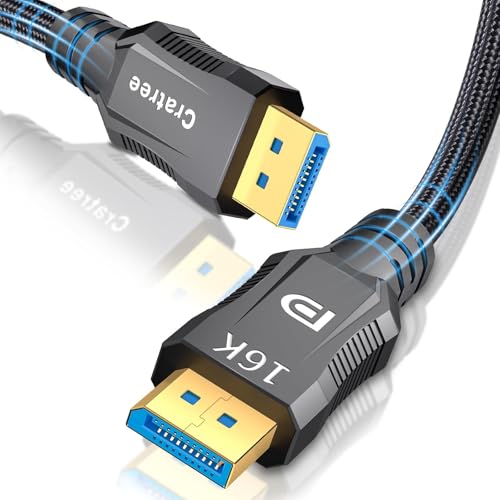
- Version numbers that do not match. A cable labeled “DP 1.4 16K” but priced at 3.3 feet for around $9 with no VESA ID may be a DP 1.4 cable with misleading marketing. 16K requires 40 to 80 Gbps; verify certification.
- Uni-directional cables sold as bidirectional. DP to HDMI cables only work one way. If the listing does not show an arrow or state “source: DP, display: HDMI,” expect no signal when reversed and no VRR support.
- Missing DSC or color info. If a 32.4 Gbps cable claims 4K 240Hz without mentioning DSC 1.2a or 4:4:4, it is likely dropping to 4:2:0 chroma or 8-bit color to cheat the number.
- Overly long passive cables at high bandwidth. Any passive copper cable claiming 80 Gbps at 10 feet (3 meters) without fiber or active circuitry should be treated as suspect. Signal loss over that distance is too high for reliable high refresh.
- No certification where it should exist. At $17 to $21, a DP cable should be VESA Certified. Lack of a verifiable certification ID at that price often means the factory skipped compliance testing.
- Reviews mentioning flicker or black screens at high refresh. A few reports of intermittent dropouts at 240Hz are more telling than a 4.8-star average built on 60Hz users.
FAQ
Do I need DisplayPort 2.1 for 1440p 240Hz gaming?
No. DisplayPort 1.4 at 32.4 Gbps is more than enough for 1440p 240Hz, even with 10-bit color and HDR using DSC, which is visually lossless for gaming. You only need the 40 to 80 Gbps of DP 2.1 if you are targeting 4K 240Hz without DSC, 8K 120Hz, or future 1440p 360Hz+ monitors with uncompressed 10-bit HDR. For most setups, a VESA Certified 32.4 Gbps cable in a 6 to 6.6-foot length is the sensible buy.
Is a cheap 16K 40Gbps braided cable for around $9 enough for 4K 240Hz?
It can be, but only at short length and with DSC. A 3.3-foot (1-meter) 40 Gbps cable is well-suited for 4K 240Hz via DSC on a DP 1.4 system and is a great value. For uncompressed 4K 240Hz at 10-bit 4:4:4, you need a true 80 Gbps UHBR20 cable, which that price tier rarely provides. Check that the listing explicitly states 4K 240Hz and DSC support, not just 16K 30Hz, and keep the run under 6.6 feet for stability.
Why am I stuck at 60Hz or 120Hz after buying a new cable?
Three common causes: 1) The cable bandwidth is too low for your resolution, so the GPU falls back to a lower refresh. 2) You are using a DP to HDMI adapter cable that caps at 4K 60Hz. 3) The monitor’s input is set to HDMI 1.4 or DP 1.2 mode in its on-screen display. Fix it by confirming the port version, setting the monitor to DP 1.4 or HDMI 2.1 mode, and selecting the correct refresh in Windows Display Settings under Advanced display and in your GPU control panel. Also enable DSC if offered.
Does cable length really affect high refresh stability?
Yes, significantly at high bandwidth. Passive copper cables lose signal integrity as length increases. A cable that is flawless at 3.3 feet may flicker at 10 feet at the same 40 Gbps load. As a rule, stay under 6.6 feet for 32.4 to 80 Gbps gaming. If you need 10 feet or more, choose an active fiber-optic hybrid cable rated for your exact bandwidth, confirm it is directional, and allow a gentle bend radius of at least 1.5 inches behind the desk to avoid damaging the fiber core.