When designing a modern home media center or a dedicated workspace, the display you choose acts as both a visual anchor and the primary interface for your entertainment. Yet, when shopping for a new screen, many homeowners and design enthusiasts fall into a common trap: they focus entirely on resolution or screen size while ignoring the engine that drives motion fluidity—the refresh rate. Understanding how to choose refresh rate for gaming is essential to preventing costly purchasing mistakes that can leave your setup feeling sluggish or mismatched.
The most frequent mistake buyers make is purchasing a high-refresh-rate screen (such as 240Hz or 280Hz) without verifying that their source hardware—whether a gaming console or a custom-built PC—can actually output that many frames per second. A screen cannot display frames it does not receive; hook up a standard console to an ultra-fast monitor, and you may find yourself locked at 60Hz, rendering your expensive upgrade useless. Another common error is prioritizing raw speed over color accuracy and panel construction, resulting in a blisteringly fast display that washes out your room’s aesthetic with poor viewing angles and dull contrast. To build a space that is both beautiful and high-performing, you must balance technical speed with physical integration.
As an Amazon Associate we earn from qualifying purchases at no extra cost to you.



Our Top Picks
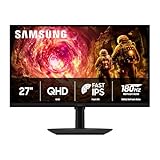
 AOC 27 Inch Curved Gaming Monitor FHD 280Hz27" 280Hz FHD9.43 x 24.07 x 20.33 inches12 PoundsCheck on Amazon
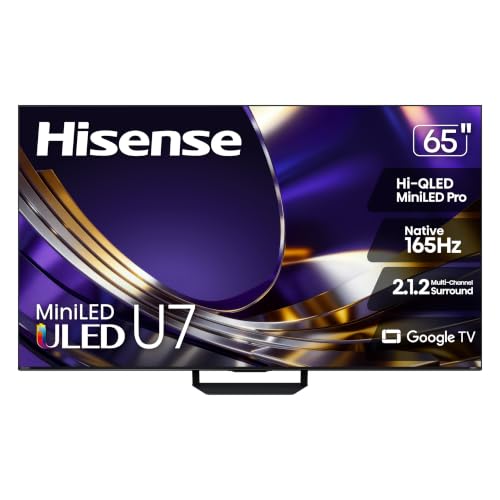

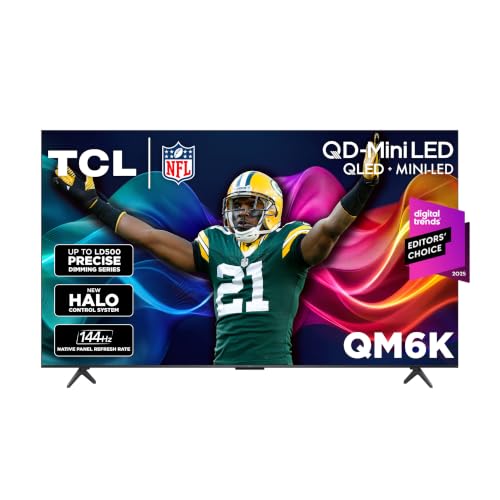
Top 3 picks at a glance
Decide These 3 Things First
Before diving into spec sheets and physical dimensions, you must establish the foundation of your entertainment space. Setting these three parameters early will prevent analysis paralysis and narrow your options down to displays that fit your actual lifestyle.
- Your Primary Content and Hardware: Identify what you play or watch most. Modern consoles like the PlayStation 5 and Xbox Series X max out at 120Hz at 4K resolution. If you are primarily a console gamer, buying a 280Hz screen is an expensive waste of bandwidth. Conversely, competitive PC gamers playing fast-paced shooters will benefit immensely from speeds of 165Hz, 240Hz, or higher.
- The Physical Form Factor (Monitor vs. TV): Decide whether this display will live on a dedicated writing desk or serve as the focal point of a living room media console. Desktop monitors (typically 27 to 32 inches) prioritize raw speed and near-field ergonomics, while gaming televisions (55 to 65 inches and up) focus on wide viewing angles, room-filling audio, and high-brightness HDR performance.
- Your Ambient Lighting Environment: Assess the natural and artificial light in your room. A space with floor-to-ceiling windows demands a high-brightness panel (such as a Mini-LED display with over 1,000 nits of peak brightness) to fight glare, whereas a light-controlled basement theater can leverage the deep blacks of a VA or OLED panel without needing extreme backlight wattage.
Screen Size, Placement, and Viewing Distance
From an interior design perspective, scale is everything. A screen that is too small forces you to lean forward, ruining your posture, while an oversized display in a tight room causes eye strain and neck fatigue. For a dedicated desk setup, a 27-inch display like the Samsung Odyssey G5 (G50F) or the curved AOC C27G4ZH represents the ergonomic sweet spot. A 27-inch monitor requires a desk depth of at least 24 to 30 inches to allow your eyes to naturally track the entire screen without constant head movement.
For living rooms, the scale shifts dramatically. A 55-inch display like the TCL QM6K Series fits comfortably on media consoles that are at least 50 inches wide, requiring a viewing distance of approximately 5.5 to 8 feet. If you step up to a premium 65-inch display, such as the Hisense 65″ U7 Mini-LED (65U7SG), your media cabinet should be at least 58 inches wide to avoid unsightly overhang, and your seating should be positioned 6.5 to 9 feet away. Always check the physical weight of these larger units; a 65-inch television can weigh between 45 and 55 pounds without its stand. If you plan to wall-mount, ensure your mount is rated for the weight and that you anchor it directly into wooden studs or solid masonry.
Panel Material and Display Technology
The physical materials that make up your screen dictate how light, color, and motion are rendered. The three dominant panel technologies on the market today are Vertical Alignment (VA), In-Plane Switching (IPS), and Mini-LED/QLED hybrids. Each material offers a distinct compromise between motion performance and visual fidelity.
VA panels, found in displays like the AOC C27G4ZH, utilize liquid crystals aligned vertically to block backlight leakage. This construction yields excellent contrast ratios (often 3,000:1 to 4,000:1), producing deep, rich blacks that look spectacular in dimly lit rooms. However, older or budget VA panels can suffer from “dark smearing” during rapid motion. IPS panels, by contrast, align liquid crystals horizontally, offering exceptional color accuracy and wide 178-degree viewing angles, though their contrast ratios are typically limited to 1,000:1.
For the ultimate living room experience, modern displays utilize Mini-LED backlighting paired with Quantum Dot (QLED) films. The Hisense 65U7SG and the TCL 55QM6K leverage thousands of microscopic LEDs grouped into hundreds of local dimming zones. This allows the display to turn off the backlight completely in dark areas of the screen while pushing brightness levels past 1,000 nits in bright highlights. This material engineering gives you the best of both worlds: the deep contrast of VA with the vibrant, high-brightness colors required for modern HDR content.
Construction, Bezel Design, and Ergonomics
A display is a physical piece of furniture that must harmonize with your room’s aesthetic. High-quality construction is characterized by thin bezels, robust materials, and cable management features that keep your space clutter-free. Modern premium displays feature “bezel-less” or three-sided micro-bezel designs, which minimize the plastic border around the glass to create a floating-image effect. This is particularly beneficial for multi-monitor desk setups where you want to minimize the gap between screens.
The design of the stand is another critical structural element. Budget monitors often feature simple, tilt-only plastic stands that can wobble when you type or move your desk. Premium models include heavy-duty steel or die-cast aluminum stands with height, tilt, swivel, and pivot adjustments. A sturdy stand prevents screen vibration and allows you to position the top third of the screen at eye level, preventing neck strain. Pay close attention to the stand’s footprint; wide, V-shaped feet can consume valuable desk real estate, sometimes requiring up to 10 inches of depth. If desk space is limited, look for displays with standard VESA 70x70mm or 100x100mm mounting patterns, allowing you to mount the screen to an adjustable mechanical arm.
Visual Comfort, Motion Handling, and Sync Performance
This is where the target keyword—how to choose refresh rate for gaming—comes to the forefront of your buying decision. The refresh rate, measured in Hertz (Hz), indicates how many times per second the screen redraws the image. A standard office monitor refreshes at 60Hz (60 times per second), which can feel choppy during fast motion. Upgrading to a 120Hz or 144Hz screen cuts the frame delivery time from 16.6 milliseconds to just 8.3 or 6.9 milliseconds, resulting in a massive reduction in motion blur and eye strain.
For competitive gaming, extreme speeds like the 280Hz offered by the AOC C27G4ZH provide ultra-crisp motion tracking, but they require immense computer processing power to utilize fully. For most home users and console gamers, a native 120Hz to 165Hz display—such as the Samsung Odyssey G5 or the Hisense 65U7SG (which boasts a native 165Hz panel and up to 330Hz Variable Refresh Rate under specific modes)—strikes the perfect balance between fluid motion and realistic hardware demands.
To ensure this motion looks smooth, your display must feature Variable Refresh Rate (VRR) technology, such as AMD FreeSync or NVIDIA G-Sync. VRR dynamically matches the display’s refresh rate to the fluctuating frame rate output of your console or PC. Without VRR, you will experience “screen tearing” (where parts of two different frames are shown at once) or stuttering, both of which ruin visual immersion.
Price Tiers and Real-World Value
Setting a realistic budget is crucial when building out your entertainment space. Displays generally fall into three distinct price tiers, each offering a specific balance of features, materials, and performance.
- Budget ($100 – $200): This tier is dominated by high-speed 24-inch and 27-inch monitors. Displays like the AOC C27G4ZH (around $130) and the Samsung Odyssey G5 (around $180) offer incredible speed (165Hz to 280Hz) and fast response times (down to 0.3ms) for desk setups. The trade-offs in this tier are usually plastic construction, basic stands, and SDR color performance with lower peak brightness (around 250 to 300 nits).
- Mid-Range ($200 – $600): Here, you transition into larger screens, higher resolutions (QHD and entry-level 4K), and superior backlight technologies. The TCL 55QM6K (around $500) fits perfectly here, offering a 55-inch Mini-LED display with a 120Hz-144Hz refresh rate, robust Dolby Atmos audio, and smart TV capabilities. Construction quality improves with thinner bezels, metal accents, and better local dimming.
- Premium ($600 – $1,000+): Looking ahead to the 2026 lineup of home entertainment systems, this premium tier delivers uncompromising performance. The Hisense 65″ U7 Mini-LED (65U7SG), priced at around $850, showcases what is possible in this class: a massive 65-inch native 165Hz screen, advanced VRR up to 330Hz, built-in 2.1.2 channel Dolby Atmos audio, and premium anti-reflection screen coatings that preserve contrast even in sunlit rooms.
Warranty, Lifespan, and Brand Support
A high-quality display is a long-term investment in your home. When evaluating models, look past the raw specs and examine the manufacturer’s warranty and structural reliability. Most budget displays carry a standard 1-year parts and labor warranty, while premium models often extend this to 2 or 3 years of coverage.
Pay close attention to the manufacturer’s “dead pixel policy.” Because modern screens contain millions of individual pixels (over 8 million in a 4K display), it is structurally possible for a few pixels to arrive dead or stuck. Premium brands often guarantee a replacement if even a single bright pixel is defective, whereas budget brands may require five or more dead pixels before authorizing a return. Additionally, check the rated lifespan of the backlight. A quality Mini-LED or LED backlight is typically rated for 30,000 to 50,000 hours of use, which translates to over a decade of typical daily viewing. Look for brands with responsive customer service and easy-to-access firmware updates, which can resolve software bugs and improve console compatibility over time.
Spec Checklist
| Spec Category | Budget Tier | Mid-Range Tier | Premium Tier |
|---|---|---|---|
| Refresh Rate | 144Hz – 240Hz (FHD) | 120Hz – 165Hz (QHD / 4K) | 165Hz – 360Hz+ (4K / Native) |
| Panel Type | Standard VA or IPS | Advanced IPS or Entry Mini-LED | Premium Mini-LED / QLED / OLED |
| Peak Brightness | 250 – 350 nits | 400 – 600 nits | 1,000 – 1,500+ nits |
| Typical Screen Size | 24″ – 27″ (Desktop) | 27″ – 32″ (Desk) / 50″ – 55″ (TV) | 32″ (Desk) / 65″ – 85″ (TV) |
| Audio Integration | Basic 2W Stereo / None | Standard Stereo (10W – 20W) | Multi-Channel (e.g., 2.1.2 Ch with Atmos) |
Red Flags to Avoid When Shopping
When searching for the perfect display, keep an eye out for these technical and structural warning signs that indicate a poor user experience:
- “Fake” High Refresh Rates: Watch out for cheap displays that advertise “120Hz Effective Refresh Rate” or “Motion Rate 120” but actually use a native 60Hz panel paired with aggressive backlight blinking. Always look for the word “Native” (e.g., Native 120Hz or Native 165Hz) in the technical specifications.
- Extreme Response Times with “Overshoot”: Be cautious of budget monitors claiming “0.5ms or 1ms response times” that only achieve this speed by turning on an aggressive “Overdrive” setting in the menu. This often causes “coronas” or bright ghosting trails behind moving objects, ruining the visual quality.
- Wobbly, Lightweight Plastic Stands: If you touch the corner of a display on a showroom floor and it continues to wobble for more than two seconds, the stand’s internal mounting bracket is poorly constructed. This wobble will be amplified on your home desk or media console.
- Loud, Active Cooling Fans: Some high-end, high-brightness displays require internal cooling fans to manage heat. In a quiet home office or bedroom, a constant whirring fan inside your monitor can be incredibly distracting. Opt for passively cooled designs whenever possible.
FAQ
Is a 144Hz refresh rate enough for casual gaming?
Yes, 144Hz is the absolute sweet spot for the vast majority of players. It offers a massive, instantly noticeable leap in smoothness over standard 60Hz screens, reducing eye strain and making fast-paced camera movements feel incredibly fluid. It is highly compatible with modern mid-range graphic cards and current-generation gaming consoles.
Can my HDMI cable support high refresh rates like 120Hz or 165Hz?
To run high refresh rates at high resolutions, you must use the correct cable version. For 4K resolution at 120Hz or 144Hz, you require an HDMI 2.1 cable (labeled “Ultra High Speed”). Older HDMI 2.0 cables are limited to 4K at 60Hz, though they can handle 1080p resolution at 120Hz or 144Hz.
What is the difference between native refresh rate and motion interpolation?
Native refresh rate is the speed at which the physical panel can change its pixels to show a new frame of true data from your device. Motion interpolation (often called the “soap opera effect” or “smooth motion”) is a processing trick where the TV’s internal computer inserts artificial, guessed frames between real ones. For interactive media, motion interpolation should always be turned off because it introduces massive input lag.
Does a higher refresh rate increase power consumption and heat?
Yes, running a display at higher refresh rates causes both the display’s internal scalar processor and your connected graphics hardware to work harder, which increases power draw and heat dissipation. For example, a 27-inch monitor may draw 30 watts at 60Hz but jump to 45 watts when running at 165Hz or higher. Ensure your media cabinet has adequate ventilation to prevent heat buildup.