Our Top Picks



Top 3 picks at a glance
The Short Answer
For the vast majority of desktop computers, the sweet spot for optimal cooling is two to three case fans. A standard setup utilizing one intake fan at the front of the chassis to pull in cool air, combined with one exhaust fan at the rear or top to expel warm air, is sufficient for basic daily tasks and entry-level gaming.
If you run a dedicated gaming rig or a creative workstation with power-hungry components, increasing this setup to three or four fans (typically two or three intake fans at the front and one exhaust fan at the rear) provides the best balance of thermal performance, noise control, and component longevity. While some specialized PC cases can accommodate up to ten or more fans, adding more than four fans yields diminishing returns, where the extra cost and noise outweigh the minor temperature drops.
As an Amazon Associate we earn from qualifying purchases at no extra cost to you.


Standard Sizes
Computer case fans are measured by the length of one of their outer square edges in millimeters. Choosing the correct size is crucial because mounting holes on computer cases are pre-drilled to match these standard dimensions. The two most common sizes found in modern home offices and gaming setups are 120mm and 140mm, though smaller and larger specialty sizes exist.
| Fan Nominal Size (mm) | Dimensions in Inches (H x W x D) | Dimensions in Centimeters (H x W x D) | Common Use Cases |
|---|---|---|---|
| 80mm | 3.15 x 3.15 x 0.98 in | 8.0 x 8.0 x 2.5 cm | Compact Home Theater PCs (HTPCs), legacy office desktops, server racks. |
| 120mm | 4.72 x 4.72 x 0.98 in | 12.0 x 12.0 x 2.5 cm | Universal standard; fits almost all mid-tower and full-tower computer cases. |
| 140mm | 5.51 x 5.51 x 0.98 in | 14.0 x 14.0 x 2.5 cm | High-airflow setups, silent builds, liquid cooling radiators. |
| 200mm | 7.87 x 7.87 x 1.18 in | 20.0 x 20.0 x 3.0 cm | Ultra-wide specialty gaming cases, maximum airflow at low noise levels. |
How to Measure Your Space
Before buying additional cooling hardware, you must verify the physical limitations of your computer case. Installing fans that are too large or too thick can block critical motherboard connections, collide with your graphics card, or prevent the case panels from closing.
- Consult the Case Manual: The easiest way to determine compatibility is to look up your specific case model online. Manufacturers list the exact fan configurations supported at the front, top, rear, and bottom of the chassis. For example, a mid-tower case like the CORSAIR 4000D RS ARGB (around $89) explicitly states support for up to six 120mm or four 140mm fans.
- Measure the Screw Hole Spacing: If you do not have the manual, measure the distance between the existing mounting screw holes on the case frame. Note that the nominal size of a fan (e.g., 120mm) refers to its outer frame, not the distance between the screw holes. For a standard 120mm fan, the mounting holes are spaced exactly 105mm (4.13 inches) apart. For a 140mm fan, the holes are spaced 125mm (4.92 inches) apart.
- Check Component Clearance: Measure the distance between your top mounting bracket and the top edge of your motherboard. Standard case fans are 25mm (0.98 inches) thick. If you have tall RAM modules or large motherboard heatsinks, you may need slim 15mm fans, or you must mount your fans closer to the front panel.
- Assess Graphics Card (GPU) Length: If you plan to install thick front-mounted intake fans or a liquid-cooling radiator with fans attached, measure your graphics card from the rear bracket to the front tip. Ensure there is at least 30mm to 50mm of clearance remaining so the fan frame does not press against the delicate circuit board of your GPU.
By Room or Use Case
The ideal number of fans and their overall noise profile depend heavily on where the computer is situated in your home and how you intend to use it. As we look toward hardware demands in 2026, modern graphics cards and multi-core processors continue to push thermal limits, making tailored cooling more important than ever.
Home Office & Daily Productivity
For computers located in quiet home offices, study spaces, or writing nooks, the primary objective is silent operation. These machines are typically used for word processing, web browsing, and video calls, generating minimal heat (usually under 150 watts of total system power).
For this environment, one or two case fans are plenty. A single high-quality, quiet 120mm fan, such as the be quiet! Pure Wings 3 120mm Silent PWM (around $11), set as a rear exhaust, will gently pull warm air away from the CPU heatsink without creating distracting background hums. Operating at lower RPMs (rotations per minute), this setup keeps your workspace peaceful and productive.
Dedicated Gaming Room & High-Performance Studios
Gaming PCs and creative workstations running heavy video-rendering software generate substantial thermal energy, often reaching between 350 and 650 watts. When housed in a dedicated gaming room or creative studio, these systems require robust, consistent airflow to prevent thermal throttling (where components automatically slow down to protect themselves from melting).
For these demanding spaces, three to five case fans are highly recommended. A great configuration is utilizing a high-airflow case pre-installed with three front intake fans, complemented by one or two aftermarket exhaust fans at the back and top. To keep costs manageable while maximizing airflow, builders frequently use value-oriented multi-packs like the Thermalright 5 Pack TL-C12C-S 120mm ARGB (around $20). This ensures complete, balanced coverage across the entire internal chamber, bathing your components in cool air while adding customizable lighting to your gaming aesthetic.
Living Room Home Theater PCs (HTPCs)
Computers integrated into living room media centers or television consoles present unique challenges. They must remain incredibly quiet so they do not interrupt movies or music, yet they are often confined inside wooden cabinets with restricted natural ventilation.
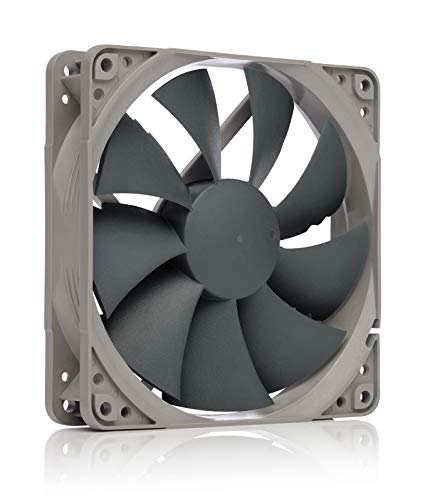
In this scenario, two larger 140mm fans are superior to multiple small fans. Larger fans move the same volume of air (measured in cubic feet per minute, or CFM) at much lower rotational speeds, making them nearly silent. Using premium, pressure-optimized options like the Noctua NF-P12 redux-1700 PWM 120mm (around $16) at moderate speeds ensures your media center stays cool within its cabinet without emitting any high-pitched whines that could spoil your home theater experience.
Common Sizing Mistakes
- Mixing Fan Directions Randomly: One of the most common mistakes is installing fans without checking their orientation. Almost all computer fans blow air toward the side with the plastic structural grille or frame supports. If you install all your fans as intake, or all as exhaust, you create pocketed zones of trapped, stagnant hot air.
- Ignoring Static Pressure vs. Airflow Designs: Standard airflow fans are designed to move air freely through open spaces. However, if you are pushing air through tight spaces, such as a dust filter, a dense hard drive cage, or a liquid cooling radiator, you need high-static-pressure fans. Using a standard airflow fan in these restricted areas results in poor performance and higher temperatures.
- Mismatched Fan Sizes: Do not assume a case that fits three 120mm fans will automatically fit three 140mm fans. Always verify the mounting rails. Many mid-tower cases can fit three 120mm fans at the front, but only two 140mm fans due to the physical height limits of the chassis.
- Creating Extreme Negative Air Pressure: Having significantly more exhaust fans than intake fans creates a vacuum inside the computer case. This negative pressure pulls air—and dust—through every un-filtered crack and seam in the chassis, rapidly coating your expensive hardware in dust. Aim for a neutral or slightly positive pressure setup (slightly more intake than exhaust) to keep dust out.
FAQ
Does having more case fans make the computer louder?
Not necessarily. While adding more motors technically increases potential noise, having more fans actually allows you to run each individual fan at a much lower speed (RPM) to achieve the same cooling effect. A system with four fans running quietly at 800 RPM is often much quieter than a system with only two fans screaming at 1,800 RPM to keep temperatures stable.
Can I mix 120mm and 140mm fans in the same computer case?
Yes, absolutely. Many builders mix sizes to optimize their airflow. A common configuration is to mount two larger 140mm fans at the front panel to pull in massive amounts of air quietly, while using a standard 120mm fan at the rear exhaust where clearance around the motherboard is tighter.
How do I know which way the air flows through a case fan?
Virtually all modern case fans have two small arrows embossed on the outer plastic frame. One arrow points in the direction of the blade rotation, and the other arrow points in the direction of the airflow. If you cannot find the arrows, a reliable rule of thumb is that air flows from the open, unobstructed side (the front) toward the side with the plastic frame arms and motor hub (the back).
Do I need to buy expensive fans to get good airflow?
No. While premium fans offer advanced bearing designs, longer lifespans, and quieter operation, budget-friendly options work exceptionally well. Multi-packs of basic 120mm fans can cool a system just as effectively as premium models, though they may run slightly louder or lack advanced features like daisy-chain cabling or addressable RGB lighting.