Reducing ping and latency comes down to controlling four things in order of impact: getting off Wi-Fi onto a wired connection, eliminating bandwidth contention from other devices and applications, choosing the closest available game server, and confirming your router isn’t introducing its own delay through outdated firmware or an overloaded processor. Most players chasing lower ping skip the first two, which deliver the largest gains, and jump straight to router replacement or VPN tricks that address a much smaller slice of the problem.
Owen Pritchard runs every network fix on this list through his own diagnostics bench before recommending it, using continuous ping logging to separate real fixes from placebo changes that feel like they help but don’t move the actual numbers. This guide walks through what ping and latency measure, the highest-impact fixes in priority order, and how to diagnose the specific cause when a spike shows up mid-session.
As an Amazon Associate we earn from qualifying purchases at no extra cost to you.






Our Top Picks
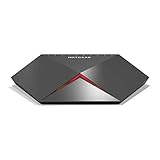
 Lag Gamer Identity Ping Rage Online Multiplayer Frustration8.25 x 0.6 x 5 Inches0.77 PoundsCheck on Amazon


Top 3 picks at a glance
What Ping And Latency Actually Measure
Ping, technically the round-trip time (RTT) for a small data packet to travel from your PC to a server and back, is measured in milliseconds and reported as a single number, but that number is really an average of many individual packet trips that can vary meaningfully from one moment to the next. Latency is the broader, more accurate term for the same underlying concept: the delay between an action (a mouse click, a movement key press) and the game server registering it.
Jitter, a separate but related metric, measures how much your ping varies from packet to packet rather than the average value itself. A connection with 40ms average ping and low jitter feels more consistent and predictable than a connection with the same 40ms average but high jitter, where individual packets might swing between 20ms and 80ms unpredictably, since inconsistent delay is harder for both the game’s netcode and your own reflexes to compensate for than a stable, even if slightly higher, baseline.
Packet loss, the percentage of data packets that never arrive at all and require retransmission, compounds both ping and jitter problems, since a lost packet forces the game client to either wait for retransmission (adding real delay) or extrapolate what likely happened (introducing visible rubber-banding or teleporting behavior when the extrapolation guesses wrong). Even 1-2 percent packet loss is enough to produce noticeably poor gameplay in a fast-paced competitive title.
These three metrics interact with a fourth factor that’s often confused with them: frame rate. A PC running a smooth 144fps with terrible network latency will still feel laggy and unresponsive in multiplayer specifically because the network delay, not the rendering pipeline, determines how quickly your inputs reach the server and how quickly other players’ actions reach your screen. Diagnosing which of the four (ping, jitter, packet loss, or frame rate) is actually the problem is the necessary first step before applying any specific fix.
Understanding this distinction matters because the fixes for each are different: a frame rate problem is solved with in-game settings or hardware upgrades, while ping, jitter, and packet loss problems are solved through the network-focused changes covered in the rest of this guide, and applying the wrong category of fix wastes time without addressing the actual symptom you’re experiencing.
Wired Versus Wireless: The Single Biggest Factor Most Players Skip
Switching from Wi-Fi to a wired Ethernet connection is consistently the highest-impact single change available to any player still on wireless, because Wi-Fi introduces latency and, more critically, jitter and packet loss through mechanisms a wired connection simply doesn’t have to deal with. Even a strong, uncongested 5GHz Wi-Fi signal typically adds 5-15ms of baseline latency compared to Ethernet, and that gap widens substantially under interference or with multiple devices competing for airtime on the same network.
The bigger problem with Wi-Fi isn’t the baseline latency addition, it’s the variability. Wi-Fi is a shared medium where every device on the network, plus neighboring networks on overlapping channels, competes for the same limited radio spectrum, which produces the jitter and occasional packet loss spikes that feel far worse in gameplay than a slightly higher but stable ping ever would. This is why players sometimes report “my ping looks fine in the network overlay but the game still feels laggy,” a classic symptom of jitter and micro-packet-loss that an average ping number doesn’t fully capture.
For players who genuinely cannot run an Ethernet cable to their gaming PC due to distance or building layout, a wired backhaul alternative like a powerline adapter or a dedicated mesh Wi-Fi node positioned close to the gaming PC substantially closes the gap compared to relying on a distant router’s Wi-Fi signal alone. Neither fully matches a direct Ethernet run, but both meaningfully reduce the interference and distance-related variability that causes the worst symptoms.
Where a direct cable run isn’t feasible at all, a modern Wi-Fi 6 or Wi-Fi 6E adapter, positioned with a clear line of sight to the router and on the 5GHz or 6GHz band rather than 2.4GHz, minimizes the gap as much as wireless technology currently allows. The 2.4GHz band specifically should be avoided for gaming whenever a 5GHz or 6GHz option is available, since 2.4GHz is more crowded with competing devices (microwaves, Bluetooth peripherals, neighboring networks) and has structurally higher latency characteristics than the higher bands.
The practical recommendation is straightforward: if a cable can physically reach from the router to the gaming PC, even through a somewhat inconvenient route along a baseboard or under a rug with a flat cable, that single change will outperform nearly every other fix on this list combined, and should be the first thing tried before spending money on any hardware upgrade.
Router And Network Configuration: QoS And Traffic Prioritization
Quality of Service (QoS) settings, available on most routers manufactured in the last several years, let you prioritize gaming traffic over other traffic on the same network, which matters specifically when other devices in the household are streaming video, downloading large files, or running video calls simultaneously with your gaming session. Without QoS, a large download on another device can saturate available bandwidth and cause your game traffic to queue behind it, producing latency spikes that have nothing to do with your ISP’s actual routing performance.
Modern router QoS implementations vary in sophistication. Basic QoS lets you set a device or application as high priority, ensuring its packets get processed first when the network is under load. More advanced implementations, sometimes branded as “gaming mode” or similar on gaming-focused routers, use deep packet inspection to automatically identify and prioritize game traffic without manual configuration, though manually setting your gaming PC’s specific IP or MAC address as top priority is usually more reliable than automatic detection.
Router placement and firmware also matter independently of QoS. A router positioned in a closet, behind metal objects, or on outdated firmware missing recent stability and performance patches can introduce its own processing delay before traffic even leaves your home network. Checking for and installing current firmware, a five-minute task most players never do, occasionally resolves latency issues that have nothing to do with anything downstream of the router.
For households with many connected devices, particularly smart home devices that maintain constant low-level network chatter, a dedicated network segment or VLAN for gaming devices, available on more advanced routers, isolates gaming traffic from the broader household network’s background activity entirely. This is a more involved setup than basic QoS but delivers the most consistent results for households with heavy simultaneous network usage.
Double NAT situations, common when an ISP-provided modem/router combo device sits in front of a separate personal router, can add measurable latency and occasionally cause connectivity problems with specific games or matchmaking services. Setting the ISP device to bridge mode, which disables its own routing function and passes the connection directly to your personal router, resolves this and is worth checking if you have both an ISP-provided gateway and your own router installed.
ISP And Route-Level Factors: What You Can And Can’t Control
The physical distance and network path between your home and a game’s server infrastructure sets a hard floor on achievable latency that no local configuration change can overcome; light itself takes roughly 4.3ms to travel 1,300km through fiber, meaning a player 3,000km from the nearest server is going to see at least 20-25ms of unavoidable round-trip latency purely from physical distance, before any other factor is considered.
Your ISP’s peering arrangements, the agreements determining how traffic from your ISP’s network reaches other networks (including the data centers hosting game servers), can add meaningful latency independent of raw distance if your ISP doesn’t have an efficient direct route to a specific game publisher’s infrastructure. This is visible in a traceroute as extra hops or a route that seems to travel through an inefficient geographic path before reaching the destination.
Time-of-day congestion at the ISP level, particularly during peak evening hours when many households in the same area are streaming and gaming simultaneously, can degrade latency and increase packet loss even when your home network itself is configured correctly. This is largely outside individual control beyond choosing an ISP with adequate local infrastructure capacity, though it’s useful to recognize as the cause rather than assuming a local configuration problem when latency degrades specifically during predictable peak hours.
Data caps and traffic shaping, where some ISPs deliberately throttle or deprioritize certain traffic types during high-usage periods, can also masquerade as a latency problem when it’s really a bandwidth policy issue. Checking your ISP’s terms for any mention of traffic management policies, and testing at different times of day, helps distinguish this from a technical latency problem you could otherwise fix.
When ISP-level routing genuinely is the bottleneck, options are limited: switching ISPs where an alternative is available, testing whether a VPN with better peering to the specific game server’s network improves the route (covered in the FAQ), or in some cases contacting the ISP’s support with specific traceroute evidence to request investigation, since some ISPs can adjust routing on their end when shown clear evidence of an inefficient path.
In-Game Settings That Affect Perceived And Actual Latency
V-sync, which synchronizes your GPU’s frame output to your monitor’s refresh rate, adds input latency as a side effect of its buffering mechanism, typically 1-3 frames worth of delay depending on implementation. For competitive multiplayer gaming, leaving V-sync disabled and instead using a frame rate cap slightly below your monitor’s maximum refresh rate (through the game’s own limiter or a tool like RTSS) achieves similar screen tearing prevention without the input delay penalty V-sync introduces.
Network buffer or interpolation settings, exposed in some games’ advanced network options, control how much the client smooths out incoming server data to compensate for minor packet timing variation. Lower buffer settings reduce perceived input delay but can introduce more visible stutter if your connection has real jitter, while higher buffer settings smooth out that stutter at the cost of added delay; the right setting depends on your actual connection quality rather than a universal best value.
Region and server selection within a game’s own settings, separate from your network configuration entirely, directly determines the baseline latency floor discussed in the ISP section above. Many games default to an automatically selected “best” server, but manually selecting the closest geographic server, and confirming it against an in-game ping display before joining a match, sometimes reveals the automatic selection wasn’t actually the lowest-latency option available.
Frame rate itself indirectly affects perceived responsiveness even when it’s not the same thing as network latency, since a higher, more stable frame rate reduces the time between when the game engine processes an input and when that input’s visual result appears on screen, compounding with network latency rather than replacing it. Players troubleshooting “laggy” gameplay should check both frame rate stability and network latency separately, since the fixes for each don’t overlap.
Some competitive titles include a network diagnostics or debug overlay showing real-time ping, jitter, and packet loss directly during gameplay, distinct from a basic FPS counter; enabling this while testing changes from earlier sections of this guide gives immediate, in-context feedback on whether a given fix actually improved your specific connection to that specific game’s servers, rather than relying on generic ping tests to unrelated targets.
Background Applications And Bandwidth Contention
Applications running in the background during a gaming session, even ones that seem unrelated to networking, frequently consume bandwidth and processing resources in ways that indirectly affect latency. Cloud sync clients (OneDrive, Dropbox, Google Drive), automatic game launcher updates, and streaming services left open in another window or on another device on the same network are the most common culprits behind latency spikes that seem to appear randomly during a session.
Windows Update and game platform auto-updates (Steam, Epic, Battle.net, Xbox app) are particularly disruptive because they can begin large background downloads without obvious warning, consuming available bandwidth exactly when you’re mid-session. Setting active hours in Windows Update settings and disabling automatic updates in game launchers, enabling manual update checks instead, prevents this specific and surprisingly common cause of sudden latency spikes.
Other devices on the same network matter as much as background processes on your own PC. A household member starting a 4K video stream, a large cloud backup running on another computer, or a smart TV downloading a firmware update all compete for the same upstream and downstream bandwidth, and without QoS prioritization configured as described earlier, this contention shows up as latency spikes on your gaming PC even though the actual cause is a completely separate device.
VPN clients and certain security software, when left running unnecessarily, can add processing overhead to every packet passing through your network stack, contributing a small but measurable latency tax even when not actively needed for privacy or access purposes during a gaming session. Closing or pausing VPN clients not specifically being used to improve routing to a game server, per the earlier ISP section, is a reasonable default during competitive play.
Antivirus and firewall software with real-time deep packet inspection enabled can add processing delay to network traffic as a side effect of scanning it, and while disabling security software entirely isn’t advisable, checking for a gaming-specific exception or reduced-inspection mode within your specific security software’s settings sometimes resolves latency contributed by this layer without meaningfully compromising protection.
Hardware Upgrades: NICs, Modems And Connection Type Comparisons
Network interface card (NIC) quality has a smaller but nonzero effect on latency and, more importantly, on consistency under load. Higher-end motherboards and dedicated add-in NICs, particularly those using Intel’s networking chipsets over cheaper Realtek implementations, generally show lower CPU overhead and more consistent packet timing under heavy simultaneous network load, a difference that matters more for players running demanding background tasks like streaming alongside gaming than for typical single-purpose gaming sessions.
The table below summarizes typical latency characteristics across common connection types, useful for setting realistic expectations when choosing or troubleshooting a connection method.
| Connection Type | Typical Added Latency | Jitter Risk | Best Use Case |
|---|---|---|---|
| Direct Ethernet cable | Under 1ms | Very low | Primary recommendation for any gaming PC |
| Powerline adapter (wired backhaul) | 1-5ms | Low, varies by home wiring quality | When Ethernet cable run isn’t feasible |
| Mesh Wi-Fi node (5GHz/6GHz, close range) | 3-10ms | Low to moderate | Wireless-only setups with a nearby node |
| Standard router Wi-Fi (5GHz, moderate distance) | 5-20ms | Moderate | Acceptable for casual, not ideal for competitive |
| 2.4GHz Wi-Fi or long-distance connection | 15-40ms+ | High | Avoid for gaming where alternatives exist |
Modem quality matters most for cable internet connections, where an outdated or underpowered modem can become a bottleneck independent of your subscribed speed tier, particularly during connection renegotiation events that briefly spike latency. Fiber connections are less sensitive to modem/ONT quality since the underlying medium has substantially more consistent characteristics than cable’s shared-node architecture.
Router CPU and RAM specifications matter more than most buyers expect for households with many connected devices or when QoS and traffic shaping features are actively processing rules on every packet; a budget router under heavy load can itself become a source of added latency and jitter, distinct from anything happening upstream at the ISP level, making router hardware quality a legitimate upgrade consideration for larger or more complex home networks.
Regional Server Selection And Matchmaking Behavior
Most modern multiplayer games use regional server infrastructure and either automatically assign or let players manually select a preferred region, and the choice directly interacts with the physical distance latency floor discussed earlier. Manually confirming your selected region matches the actual closest server cluster, rather than trusting a default automatic selection, is worth doing explicitly in each game’s network or region settings menu.
Cross-region play, where matchmaking pulls in players from a broader area to fill lobbies faster during off-peak hours, can quietly increase your effective ping even when your own region setting hasn’t changed, since the actual server hosting a specific match might not be your nearest one if the matchmaker prioritized fill speed over latency. Games that expose a maximum acceptable ping setting in matchmaking preferences let you cap this trade-off explicitly rather than accepting whatever the automatic system selects.
Server browser-based games, less common now than automated matchmaking but still present in some genres, give the most direct control since you can see each available server’s live ping before joining and select accordingly, a level of transparency automated matchmaking systems in most modern titles don’t expose to the same degree.
For players who travel or use a laptop across multiple locations, remembering to re-check and potentially reselect region settings after a location change prevents inadvertently staying connected to a now-distant region’s servers out of habit, a surprisingly common and easily fixed cause of unexpectedly high ping after moving.
Troubleshooting: Diagnosing A Sudden Ping Spike Step By Step
When ping or latency suddenly worsens compared to a previously stable baseline, work through these checks in order rather than jumping to conclusions, since the fastest fixes address the most common causes first.
First, check whether the spike is isolated to one specific game or affects your connection broadly, by running a continuous ping test (using the command prompt’s “ping -t” toward a stable public target, or a dedicated network monitoring tool) alongside the game session. If only the game is affected, the problem is likely on the game server or matchmaking side rather than your local connection, and switching regions or waiting is the practical remedy.
Second, if the spike affects your connection broadly, check for other devices or background applications on your network competing for bandwidth, per the earlier section on background contention, since this is the most common cause of sudden, session-specific spikes that weren’t present in previous sessions under otherwise identical conditions.
Third, restart your router and modem if the issue persists across a full session rather than being a brief, isolated spike, since both devices can occasionally enter a degraded state requiring a power cycle to clear, particularly after extended uptime without a reboot, which is worth doing periodically as routine maintenance rather than only when problems appear.
Fourth, run a traceroute (using the “tracert” command on Windows) to the game server’s IP or hostname where available, and compare it against a known-good previous traceroute if you have one, looking specifically for a new hop showing unusually high latency, which points to an ISP or upstream routing issue rather than anything on your home network.
Finally, if the problem persists after ruling out local network, device, and routing causes, check the game’s official status page or community channels for reported server-side issues, since widespread latency problems affecting many players simultaneously are frequently a server infrastructure issue on the publisher’s side that no amount of local troubleshooting will resolve.
Frequently Asked Questions
What ping is actually good enough for competitive gaming?
Under 30ms is excellent and effectively unnoticeable, 30-60ms is solid and fine for nearly all genres including shooters, 60-100ms is playable but noticeable in fast-twitch games, and anything above 100ms starts causing visible hit registration and input delay problems in competitive titles.
Does switching from Wi-Fi to Ethernet really make that much difference?
Yes, a typical dual-band Wi-Fi connection adds 5 to 30ms of latency and, more importantly, introduces jitter and packet loss under interference that a wired connection essentially eliminates, making it usually the single highest-impact change available to any player still on wireless.
Will a gaming-branded router actually lower my ping?
A gaming router won’t reduce the baseline latency to a game server, since that’s determined by your ISP’s routing path, but its QoS and traffic prioritization features can prevent other devices on your network from causing latency spikes during your gaming sessions.
Why does my ping spike randomly even on a wired connection?
Random spikes on wired connections are usually caused by bandwidth contention from another device or background process, a temporary ISP routing change, or in rarer cases a failing cable or NIC, and working through each in order using a continuous ping test isolates which one applies.
Does a VPN ever lower ping instead of raising it?
Occasionally, if your ISP’s default route to a specific game server is inefficient and a VPN provider has a more direct peering path to that server’s network, but this is the exception rather than the rule and should be tested case by case rather than assumed.
For the wired upgrade discussed throughout this guide, see our picks for the best Ethernet cable for gaming and broader best network gear for gaming roundup covering routers and switches. If a full cable run isn’t possible, our best wifi adapter for gaming PC guide covers the strongest wireless alternative. For confirming which fix actually worked, our best diagnostic tools for gaming PC roundup covers monitoring software referenced throughout this guide.