Buying fast RAM is only half the job. Out of the box, most memory kits run at a conservative default profile (often DDR4-2133 or DDR5-4800), which means you are leaving real, measurable frame rate performance on the table — especially at 1080p, where games are more CPU-bound. The right frequency and timing configuration costs nothing but ten minutes in your motherboard’s UEFI, and it is one of the few free upgrades in PC gaming.
Here is the priority order to keep in mind: frequency first, primary timings second, and subtimings third. Modern engines (and increasingly, DirectStorage titles) are hungry for memory bandwidth, so capacity-matched kits at higher frequencies tend to beat tighter timings at lower frequencies. DDR5 adds a wrinkle: its looser nominal timings are offset by higher clocks, and its on-die PMIC and dual 32-bit subchannels reward kits that run in gear-appropriate modes with a stable memory controller. If you can only tune one thing, enable the correct XMP/EXPO profile. If you can tune two, do that and then tighten the primary timings and tREFI.
As an Amazon Associate we earn from qualifying purchases at no extra cost to you.


Our Top Picks
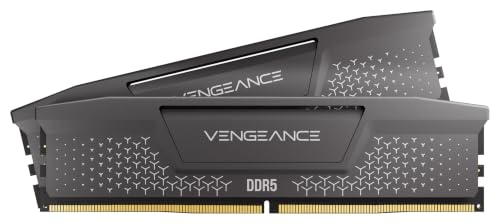
 CORSAIR Vengeance RGB DDR5 RAM 32GB32GB (2 x 16GB)5.43 x 0.27 x 1.77 inches0.11 PoundsCheck on Amazon


Top 3 picks at a glance
Quick Recommended Settings
| Setting | Recommended value | Why |
|---|---|---|
| Memory Profile (XMP 3.0 / EXPO) | Enabled — Profile 1 | Applies the kit’s rated frequency and timings in one step. This alone is the biggest jump from stock. |
| Frequency (DDR4) | 3200–3600 MT/s | The sweet spot where the memory controller (IMC) stays in 1:1 gear mode on Ryzen; beyond this, latency penalties outweigh bandwidth. |
| Frequency (DDR5 AMD) | 6000 MT/s (1:1) | The current 1:1 ceiling for most Ryzen 7000/9000 IMCs; 1:1 mode minimizes latency. |
| Frequency (DDR5 Intel) | 6400–7200 MT/s | Intel’s controller tolerates higher clocks; Gear 1 up to ~6400–6800, Gear 2 acceptable above that. |
| Primary Timings (DDR4) | 16-18-18-38 at 1.35–1.38 V | A realistic tightened profile for B-die or equivalent 3200/3600 CL16–18 kits. |
| Primary Timings (DDR5) | 30-38-38-96 or 34-40-40-96 at 1.35–1.40 V | CL30–34 is the current enthusiast target for 6000–6400 MT/s kits. |
| tREFI (Refresh Interval) | 65535 (with temp monitoring) | Reduces refresh stalls, one of the most impactful subtiming changes for 1% lows. Leave stock if your DIMMs run hot. |
| Command Rate / Gear Mode | 1N / Gear 1 (DDR4: 1T; DDR5 AMD: auto 1:1) | Half-timing (2N/Gear 2) adds noticeable latency in CPU-bound games. |
| Memory Context Restore (AM5) | Enabled | Cuts boot times dramatically with high-frequency DDR5; disable only if you get instability during resume. |
Setting-by-Setting
Memory Profile (XMP/EXPO): Always Enable First
Exact value: Enabled, Profile 1 (or the profile matching your kit’s rated spec). Found under AI Tweaker → DRAM Profile Configuration on ASUS boards, OC → Extreme Memory Profile (XMP) on MSI, Tweaker → Advanced Memory Settings → Extreme Memory Profile on Gigabyte, or OC Tweaker → DRAM Profile Configuration → XMP 3.0 Profile 1 on ASRock.
Trade-off: Rated profiles run at higher voltage than JEDEC default (typically 1.35–1.40 V for DDR5, 1.35 V for DDR4) and generate more heat. On some AM5 boards, early BIOS revisions trained memory slowly at XMP — update your BIOS to the latest stable release first. If the system fails to POST, the board usually retries and falls back after a few reboots; use the Clear CMOS jumper or short the CLR_CMOS pins per your manual to reset.
Frequency: Higher Isn’t Automatically Better
Exact value: DDR4 on Ryzen — 3600 MT/s with the fabric clock (FCLK) at 1800 MHz for a 1:1 ratio (set under AMD Overclocking → Accept → DDR and Infinity Fab-tick Frequency or your board’s equivalent; FCLK is usually labeled Infinity Fabric Frequency). DDR4 on Intel — 3600–4000 MT/s in Gear 1 where the board allows. DDR5 on Ryzen — 6000 MT/s with FCLK at 2000–2133 MHz. DDR5 on Intel — 6400–7200 MT/s; beyond ~7200 most boards force Gear 2, where each clock tick delivers double data but adds latency.
Trade-off: On AMD, pushing DRAM frequency past the 1:1 point (e.g., 6800 MT/s while the fabric drops to half-rate) often lowers real-world game latency even though synthetic bandwidth scores climb. On Intel, Gear 2 above ~7000 MT/s is usually a net win for bandwidth-heavy titles but can slightly hurt latency-sensitive strategy games. Test both if you are chasing the last few percent.
Primary Timings: CL, tRCD, tRP, tRAS
Exact value: DDR4 target — 16-18-18-38 at 3600 MT/s (stress-test with TestMem5 using the anta777 Extreme profile, or Karhu RAM Test at 10000%+ coverage). DDR5 target — 30-38-38-96 at 6000–6400 MT/s; a very common stable tightened point for Hynix A-die/M-die kits is 30-40-40-96 with tRFC dropped to 480–560 ns (from a stock ~750 ns).
Trade-off: Each step tighter (e.g., CL36 → CL34 → CL32 on DDR5) requires more voltage or more trial-and-error. Voltage beyond 1.40 V daily on DDR5 shortens nothing immediately but increases heat; keep DIMM temperatures under ~50 °C — a $10 thermal probe on the heatspreader tells you more than any software sensor. If a timing fails stability, loosen tRCD first (it is usually the hardest to tighten on DDR5), then CL.
tRFC: The Hidden Gem
Exact value: DDR5 — set tRFC in nanoseconds if your board allows (ASUS and MSI expose both ns and clocks): 480–560 ns is a strong daily target on Hynix dies; 620 ns is safe for Micron. DDR4 — 350–550 ns depending on die (Samsung B-die: ~350 ns; Hynix CJR: ~500 ns).
Trade-off: Too aggressive tRFC causes memory errors that may not crash the system immediately — corrupted saves, stutter in asset-streaming games, or a failed TM5 test hours in. Always validate for at least one full pass of your chosen test.
Command Rate and Gear Mode
Exact value: DDR4 — Command Rate 1T (sometimes labeled 1N, or GDM “Gear Down Mode” enabled on Ryzen, which is effectively 1T behavior with relaxed cadence). DDR5 on AM5 — leave gear mode on Auto; the board will select 1:1 at or below your controller’s limit. Intel — Gear 1 through ~6400–6800 MT/s, Gear 2 above.
Trade-off: 2N command rate is easier to stabilize but adds roughly one full cycle of latency to every access. If you cannot POST at 1T after tightening, back the frequency down one step before reverting to 2N.
By Hardware Tier
Low-End Systems (DDR4-era budgets, older Ryzen 3000/5000, 10th–12th gen Intel)
Your RAM may not have an XMP profile at all, or only a modest one. Enable XMP if available; if not, manually set 3200 MT/s with 18-22-22-42 at 1.35 V, which most Micron E-die and Hynix CJR 16 GB sticks handle. On Ryzen 3000/5000, set FCLK to 1600–1800 MHz to match. Enable Resizable BAR in the UEFI (Settings → Advanced → PCI Subsystem Settings → Re-Size BAR Support → Auto/Enabled on MSI; Above 4G Decoding must also be on) — it compounds with memory tuning. If you only have 8 GB, upgrade capacity before chasing timings; swapping to a paging file costs far more frames than any timing gain.
Mid-Range Systems (Ryzen 7000, 12th–14th gen Intel, mainstream DDR5)
Enable EXPO/XMP Profile 1. On AM5, update the BIOS to the latest AGESA available for your board, enable Memory Context Restore (AMD CBS → NBIO Options → Memory Context Restore → Enabled) to fix multi-minute boot times, and set FCLK to 2000 MHz alongside 6000 MT/s. On Intel, run 6400 MT/s in Gear 1 if your board allows, otherwise 6800–7200 in Gear 2. Tighten tRFC to 560 ns and test. A 2×16 GB dual-rank-free configuration in slots A2/B2 (check your manual — it is always the second and fourth slots from the CPU) keeps signal integrity clean.
High-End Systems (Ryzen 9000 X3D, Core Ultra 200, tuned 6000+ MT/s kits)
Push 6400 MT/s 1:1 on AM5 with FCLK at 2133 MHz, timings around 28-36-36-96 at 1.40–1.45 V, tRFC 480 ns, and tREFI 65535 with a temperature watch. On Intel, 7200–8000 MT/s in Gear 2 with tuned secondaries (tRDWR, tWRRD delay settling around 8–16 depending on the board’s auto values) is the current enthusiast target. Validate with Karhu overnight plus a two-hour OCCT memory pass. Above ~8000 MT/s on Intel you enter diminishing returns and board-dependent territory; the gains are real in synthetic tests but marginal in games.
Common Mistakes
Mixing kits across channels. What causes it: buying a second matching-looking pair months later. How to check: CPU-Z → SPD tab — if part numbers or die revisions differ between slots, you have mixed silicon. What to do: tune to the slower kit’s rated spec, expect to lose some headroom, and validate heavily. How to undo: return to the original pair, or set everything back to XMP defaults before troubleshooting anything else.
Chasing frequency past the 1:1 point on AMD. What causes it: assuming bigger numbers always win. How to check: in HWiNFO64, look at Fabric Clock vs Memory Clock (real) — if fabric is half of half the DRAM rate, you are in 1:2 mode. What to do: drop DRAM frequency until 1:1 holds. How to undo: restore the Auto FCLK setting if you want the board to manage it again.
Skipping stability testing. What causes it: system POSTs, so it must be fine. How to check: run TM5’s anta777 Extreme config for one full cycle, or Karhu at 5000%+ coverage; errors show as red lines. What to do: loosen the failing timing one step (usually tRCD or tRFC) and retest. How to undo: revert to your last known-stable profile — write it down, including voltage, before every change.
Disabling Memory Context Restore to fix instability that was actually voltage-related. What causes it: conflating boot problems with runtime crashes. How to check: does the crash happen at idle or only under memory load? What to do: keep MCR enabled, and instead test +0.01 V steps on VDD/VDDQ up to 1.40 V. How to undo: set MCR back to Auto if enabled mode causes resume-from-sleep instability on your specific board.
Ignoring DIMM slot placement. What causes it: populating slots 1 and 3 instead of 2 and 4. How to check: your motherboard manual’s “recommended memory population” diagram. What to do: move the modules to A2/B2. How to undo: n/a — this is simply the correct configuration.
FAQ
Do RAM timings actually matter for gaming, or is frequency everything?
Both matter, and the balance shifts by platform. Frequency sets the ceiling on bandwidth; timings determine how quickly the memory responds once addressed. In CPU-limited scenarios — high refresh rate esports titles, simulation games, large open worlds — latency (timings) often shows up more clearly in 1% lows than average FPS. Frequency tends to win in average-frame-rate measurements. Tuning both in modest steps beats maximizing either one.
Is 6000 MT/s CL30 DDR5 worth the premium over 5600 CL36?
For AM5 platforms, yes — 6000 MT/s at CL30 is effectively the “matched” native speed for the fabric clock, and the tighter CAS latency improves responsiveness measurably. On Intel platforms the gap is smaller because the memory controller is more forgiving, but the price difference has shrunk enough that CL30 kits are generally the better buy for a system you intend to keep for several years.
What does Gear 1 vs Gear 2 actually mean?
Gear modes describe the ratio between the memory controller’s clock and the DRAM’s clock. Gear 1 means the controller runs at the same rate as the memory, minimizing latency but demanding more from the silicon. Gear 2 means the controller runs at half rate, which costs latency but lets the memory frequency climb higher than the controller could otherwise handle. AMD’s equivalent concept is the Infinity Fabric ratio (1:1 vs 1:2). Prefer Gear 1/1:1 at or below your platform’s sweet spot frequency; accept Gear 2 only when the bandwidth gain at higher clocks outweighs the latency penalty.
Will faster RAM increase my FPS if I have a GPU-bound system?
Probably not by much. When the graphics card is the bottleneck, CPU and memory improvements mostly show up in 1% lows and frame time consistency rather than average frame rate. Memory tuning is most valuable at 1080p high refresh, in CPU-heavy titles, and on systems using integrated graphics, where shared memory bandwidth is a direct constraint. If you game at 4K with a high-end GPU, spend the effort on enabling Resizable BAR and ensuring XMP is on, then stop there.