Dust buildup can make a gaming PC louder, hotter, and less reliable. Fans have to work harder to move air through clogged filters, heatsinks, and graphics card fins, which can lead to higher temperatures, thermal throttling, random shutdowns, and shortened fan life. Cleaning a computer carelessly can create different problems: static discharge can damage sensitive components, a freely spinning fan can send current back into the motherboard, and a household vacuum can create static electricity. The safe approach is simple—shut down fully, work in a dry area, use controlled bursts of air, and hold fan blades still while cleaning.
A basic cleaning session usually takes 20 to 40 minutes. If it has been more than a year, expect closer to an hour for a careful job.
As an Amazon Associate we earn from qualifying purchases at no extra cost to you.

Our Top Picks
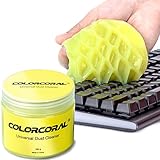
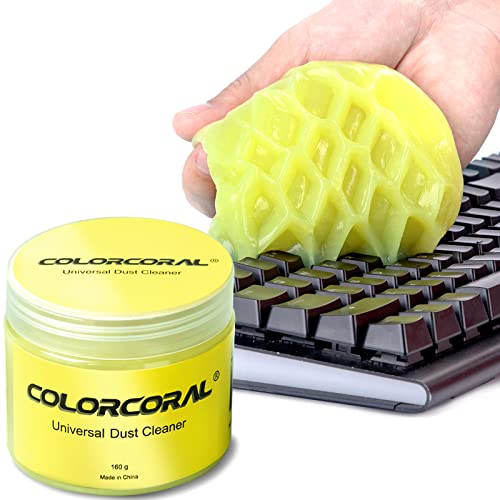 ColorCoral Cleaning Gel Universal Dust Cleaner for PC5.6 Ounce (Pack of 1)2.69 x 2.69 x 2.35 inches0.35 poundsCheck on Amazon

What You Need
| Item | Why | Optional? |
|---|---|---|
| Compressed-air can or electric air duster | Blows loose dust from filters, fan blades, heatsinks, and crevices. Use short bursts. | No |
| Soft anti-static brush or clean 1-inch paintbrush | Loosens packed dust without scratching fan blades or circuit boards. | Recommended |
| Microfiber cloth | Wipes the case exterior, glass panel, and removable dust filters. | No |
| Small screwdriver set | Removes side panels, fan grilles, or filters secured with screws. Most cases use Phillips #2 screws. | Usually |
| Wooden stick, cotton swab, or clean finger | Holds each fan blade in place while air is applied. | No |
| Isopropyl alcohol, 90% or higher | Useful only for sticky residue or a careful fan-blade wipe. Apply to a cloth or swab, never directly to components. | Optional |
| Dust cover sized for your case | Helps reduce surface dust while the PC is powered off. A mid-tower cover around 10 inches wide by 27.5 inches deep by 20 inches high fits many, but not all, desktop cases. | Optional |
For routine cleaning, a 10-ounce to 14-ounce compressed-air can is usually enough for one desktop. An electric duster can be more economical if you clean several systems, but choose one with adjustable airflow rather than an excessively powerful fixed blast. Avoid using cleaning gel inside the PC. A gel product such as ColorCoral Cleaning Gel, typically around $8 for a 160-gram container, may be useful for a keyboard exterior or desk accessories, but it can leave residue and should not touch internal PC components, fan hubs, ports, or circuit boards.
Step-by-Step
1. Shut down, unplug, and move the PC to a suitable area (5 minutes)
Shut down the computer through the operating system, then switch off the power supply at the rear if it has an “I/O” rocker switch. Unplug the power cable and all connected peripherals. Press and hold the case power button for 10 seconds after unplugging to help discharge remaining power.
Move the PC to a dry, well-ventilated space with good lighting. A garage, covered patio, or worktable is ideal. Do not clean on carpet if possible, since carpet increases static risk and traps the dust you are trying to remove. Keep drinks, pets, and children away from the work area.
2. Ground yourself and remove the side panel (5 minutes)
Touch an unpainted metal part of the PC case before reaching inside. Repeat this periodically as you work. An anti-static wrist strap is useful but not essential for basic dusting if you stay grounded and avoid shuffling across carpet.
Most gaming PCs have a tempered-glass or metal side panel secured by two thumbscrews at the rear. Support the panel with one hand while removing the screws, especially if it is glass. Lay the panel flat on a towel or soft surface, not upright against a wall where it can tip over.
3. Remove and clean dust filters first (5 to 10 minutes)
Check the front intake, top panel, bottom power-supply intake, and side vents for removable filters. Many filters slide out; others lift free magnetically. Take a quick photo before removing parts if the layout is unfamiliar.
Use a microfiber cloth or soft brush to remove loose dust. If a filter is heavily coated, rinse it with lukewarm water only, then let it air-dry completely before reinstalling. Do not return a damp filter to the case. Even a small amount of moisture near powered electronics is a risk.
4. Blow out the case interior in a controlled order (10 to 15 minutes)
Hold the air can upright. Tilting or shaking it can release cold liquid propellant, which may leave moisture or cause thermal shock on components. Use one- to two-second bursts from about 3 to 6 inches away. Start near the top of the case and work downward so dust exits rather than resettles.
Clean the case intake and exhaust fans, then the CPU cooler, graphics card fans and heatsink, motherboard area, RAM slots, and power-supply exterior grille. Keep the nozzle moving; do not concentrate air in one spot for long.
Hold each fan blade still before blowing air through it. This includes front fans, rear fans, top fans, CPU cooler fans, and GPU fans. Letting fans spin at high speed can damage bearings or generate unwanted electrical current. Do not push tools into the fan motor hub or bend the blades.
5. Handle the CPU cooler and graphics card carefully (5 to 10 minutes)
The CPU cooler and graphics card usually collect the most dust because their tightly packed metal fins act like filters. Use the brush gently to loosen dust from the fin edges, then use short air bursts to push it outward. Keep a finger or wooden stick on the fan blades to stop rotation.
Do not remove the CPU cooler or graphics card just to clean routine dust unless access is impossible. Removing a CPU cooler means replacing thermal paste correctly, and removing a graphics card can stress cables or require reseating hardware. For most owners, cleaning around these parts is safer and sufficient.
6. Clean the exterior and reassemble (5 to 10 minutes)
Wipe the case exterior with a dry microfiber cloth. For smudges on a glass panel, lightly dampen a cloth with water or use a small amount of 90% isopropyl alcohol on the cloth—not on the panel or components directly. Avoid spraying cleaners into vents, USB ports, audio jacks, or buttons.
Reinstall every dust filter and confirm that each one is completely dry. Replace the side panel, tighten thumbscrews until snug rather than overtight, reconnect cables, and turn the power supply switch back on. Start the PC and listen for unusual rattling. Check that case and CPU fans are spinning normally.
Mistakes to Avoid
- Using a household vacuum inside the case: Vacuum nozzles can generate static electricity and can snag small cables or components. Use air and a soft brush instead.
- Blasting fans without holding them: Overspinning can wear bearings or create electrical feedback.
- Spraying liquid cleaner directly into the PC: Liquids can travel under components and into ports. Apply any cleaner to a cloth first.
- Using a hair dryer: Heat can damage plastics and components, while the airflow may carry static. A cool-air electric duster designed for electronics is the better choice.
- Cleaning while the computer is plugged in: Even if the PC is off, standby power may still be present. Disconnect it completely.
- Forcing connectors or removing parts unnecessarily: Routine cleaning should not require dismantling the power supply, opening the GPU shroud, or removing the CPU cooler.
- Covering the PC while it is running: A dust cover is for a powered-off, cooled-down computer only. Never block ventilation during use.
How Often
For most homes, clean filters every two to three months and clean the interior every six months. In homes with pets, smokers, frequent open windows, construction dust, or carpeted floors, inspect filters monthly and clean the interior every three to four months.
If the PC sits on the floor, move it onto a desk, stand, or shelf at least 4 inches above the floor. This reduces the amount of pet hair and dust drawn into the intake fans. When the computer is off for extended periods, an anti-static, waterproof case cover can help reduce surface dust. A mid-tower cover around $12 is a practical option, but measure your case—including feet, top-mounted radiators, and handles—before buying.
When to Call a Pro or Replace
Call a qualified repair technician if you see corrosion, liquid residue, swollen capacitors, burnt areas, melted connectors, or a strong electrical smell. Also get help if a fan rattles after cleaning, the PC will not start after reassembly, or temperatures remain unusually high despite clear filters and heatsinks.
Replace a fan if it makes grinding noises, wobbles, fails to start consistently, or has cracked blades. Replace dust filters if their mesh is torn or no longer stays in place. If the power supply is dusty, clean only its outside grille with air; never open the power-supply housing. Its internal capacitors can retain dangerous electrical charge even when unplugged.
FAQ
Can I use compressed air on a gaming PC?
Yes. Use short bursts, hold the can upright, and keep the nozzle about 3 to 6 inches from components. Always hold fan blades still while cleaning them.
Is it safe to use a vacuum around my PC?
A vacuum can be used nearby to collect dust that has already been blown onto the floor or work surface, but do not put the nozzle inside the computer. The static and suction risks are not worth it.
Should I remove the graphics card to clean underneath it?
Usually no. Blow dust out from accessible angles and clean the card’s fans and heatsink fins carefully. Remove the GPU only if you are comfortable disconnecting its power cables and reseating it correctly, or if a technician recommends it.
Why is my PC still loud after cleaning?
Check that all filters are reinstalled correctly, fans are connected, and no cable is touching a fan blade. Persistent noise may come from a worn fan, high CPU or GPU temperatures, aggressive fan settings, or a failing liquid-cooler pump. Monitor temperatures and seek service if the noise is new or severe.