Upgrading a gaming setup is a lot like designing a high-end custom kitchen. You can purchase the most expensive range on the market, but if your countertops are cramped and your pantry is disorganized, the entire cooking experience falls flat. In the world of PC gaming, your storage drive is the foundation of your digital workspace. Upgrading to a Non-Volatile Memory Express (NVMe) Solid State Drive (SSD) is the single most impactful change you can make to eliminate sluggish boot times, stuttering textures, and agonizingly long loading screens.
Yet, many gamers approach this purchase with the wrong set of priorities. They fall victim to the “speed trap,” paying a massive premium for astronomical sequential write speeds that only matter if you are transferring 100-gigabyte video files all day. Others overlook the physical dimensions and thermal realities of their systems, purchasing bulky, heatsink-clad drives that physically clash with their motherboards or graphics card coolers. To make a smart investment, you must bypass the marketing hype and focus on the practical specs that actually dictate real-world gaming performance.
As an Amazon Associate we earn from qualifying purchases at no extra cost to you.


Our Top Picks



Top 3 picks at a glance
Decide These 3 Things First
Before diving into the granular specifications of flash memory and controller chips, you must establish three baseline parameters for your build. Answering these three questions immediately narrows your options and prevents costly compatibility errors.
- Your Motherboard’s PCIe Generation: Check your motherboard manual to see if it supports PCIe 3.0, 4.0, or 5.0. While PCIe generations are backward and forward compatible, buying a cutting-edge PCIe 5.0 drive for a PCIe 3.0 motherboard is a waste of money, as the drive will be bottlenecked to PCIe 3.0 speeds.
- Your Target Capacity: Decide if this drive will serve as your primary operating system boot drive or a secondary “games-only” vault. Modern AAA games regularly exceed 100GB to 150GB in size, meaning a small drive will fill up almost instantly.
- Your Thermal Constraints: Look at your motherboard’s physical layout. Does it feature built-in metal thermal shields for M.2 drives, or will you need an SSD that comes with its own integrated heatsink? If you are upgrading a thin gaming laptop or a PlayStation 5, clearance is measured in millimeters, and a drive that is too thick simply will not fit.
1. Storage Capacity: Finding the Sweet Spot
When it comes to solid-state storage, physical capacity directly influences both utility and long-term drive health. Operating systems require at least 10% to 15% of free space on a drive to perform background maintenance, wear leveling, and temporary file caching. If you pack a drive to its absolute limit, performance will plummet.
Entry-level drives, such as 500GB models (typically priced around $80 to $110, like the Sandisk Optimus 5100 500GB), are increasingly difficult to recommend for primary gaming setups. After installing your operating system and essential launcher programs, you are left with roughly 380GB of usable space. That is barely enough room for three modern AAA titles.
The absolute sweet spot for a dedicated gaming drive is 2TB, while 1TB serves as a budget-conscious alternative. A 1TB drive (ranging from $130 to $240, depending on performance tiers) offers approximately 931GB of actual formatted capacity. A 2TB drive (ranging from $250 to $390) provides 1,862GB of usable space. This larger capacity allows you to keep a robust library of games installed simultaneously without constantly playing “storage tetris” and deleting old titles to make room for new patches.
2. Thermal Materials and Heatsink Engineering
NVMe SSDs are incredibly dense micro-appliances. Under heavy read and write loads, the controller chip—the “brain” of the SSD—can quickly reach temperatures exceeding 80°C (176°F). When silicon gets this hot, it triggers “thermal throttling,” intentionally slowing down transfer speeds to prevent permanent physical damage.
To combat this, manufacturers utilize various cooling methods. High-end drives often feature pre-installed aluminum heatsinks. A quality heatsink can reduce operating temperatures by 15°C to 20°C, ensuring sustained peak performance during long gaming sessions. For example, some specialized gaming drives, like the SIX NVME M.2 SSD 1TB, come equipped with thick, multi-finned aluminum heatsinks designed to maximize surface area contact with passing case airflow.
However, you must measure your space. A bare M.2 SSD is incredibly thin, measuring about 2.23mm in height. Once you add a beefy metal heatsink, that height can balloon to 11mm or even 15mm. If your motherboard has its own decorative metal heat shields (often found on mid-to-high-end motherboards), a drive with a pre-installed heatsink will not fit underneath them. In this scenario, you should purchase a “bare” drive and rely on your motherboard’s built-in cooling system.
3. Physical Dimensions and Form Factors
Not all M.2 slots are created equal. The physical size of an NVMe SSD is designated by a four- or five-digit code that indicates its width and length in millimeters. The absolute standard for desktop PCs and the PlayStation 5 is the M.2 2280 form factor. This translates to 22mm wide by 80mm long.
If you are shopping for a handheld gaming console (like a Steam Deck or ROG Ally) or an ultra-thin notebook, you will likely need a smaller form factor, such as the M.2 2230 (22mm wide by 30mm long) or M.2 2242 (22mm wide by 42mm long). Always verify your device’s physical requirements before buying. Installing a 2280 drive into a slot designed for a 2230 is physically impossible without dangerous aftermarket modifications.
4. Performance Speeds: Sequential vs. Random IOPS
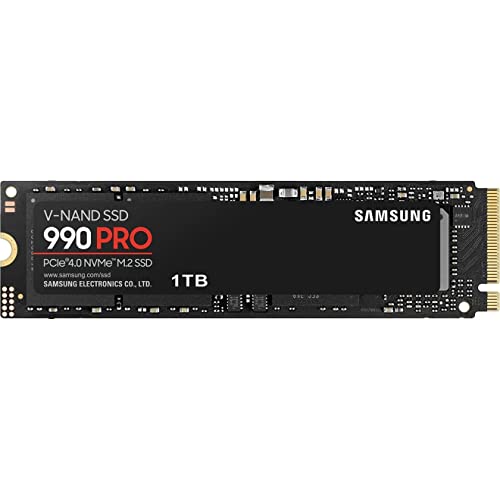
SSD marketing materials love to highlight sequential read and write speeds. You will see bold claims of “Up to 7,450 MB/s” on premium drives like the Samsung SSD 990 PRO. While these speeds are impressive, they only occur when reading or writing single, massive, contiguous files (like a 4K movie).
Games do not load this way. A game loading screen requires the drive to fetch thousands of tiny, scattered files—textures, audio clips, 3D models, and physics data—simultaneously. This is where Random Read/Write performance, measured in IOPS (Input/Output Operations Per Second), becomes the critical metric.
For an elite gaming experience, look for drives that offer high random read speeds (ideally above 800,000 IOPS). Additionally, pay attention to the presence of a DRAM Cache. Premium drives feature a dedicated physical DRAM chip on the SSD itself, which acts as a high-speed map of where your files are stored. DRAM-less drives are cheaper but must rely on slower system memory (Host Memory Buffer, or HMB) to find files, which can cause minor micro-stutters during heavy asset-streaming gameplay.
5. Price Tiers and Value Mapping
Storage pricing fluctuates based on global silicon supply, but drives generally fall into three distinct market tiers. Understanding these brackets helps you allocate your budget effectively without overpaying for features you will never notice.
- Budget Tier ($60 – $110): Typically consists of PCIe 3.0 or entry-level PCIe 4.0 drives in 500GB to 1TB capacities. These are often DRAM-less designs. They are excellent for secondary game storage or budget builds where every dollar counts.
- Mid-Range Tier ($120 – $190): The sweet spot for most gamers. Here you will find robust PCIe 4.0 1TB drives (such as the SIX NVME 1TB with Heatsink) that offer speeds around 5,000 to 7,300 MB/s. These drives often include basic heatsinks and reliable controllers, making them perfect for console storage expansions.
- Premium Tier ($200 – $390+): Home to elite PCIe 4.0 and emerging PCIe 5.0 drives in 1TB and 2TB capacities. Drives like the Samsung SSD 990 PRO 2TB sit comfortably here, boasting dedicated DRAM, top-tier controllers, massive random read IOPS, and sophisticated management software. These are designed for enthusiast rigs where maximum performance is non-negotiable.
6. Durability, Warranty, and TBW Ratings
Solid-state memory cells degrade slightly every time data is written to them and erased. To quantify how long a drive will last, manufacturers use a metric called TBW (Terabytes Written). This represents the total amount of data you can write to the drive before the flash memory begins to wear out.
For a standard 1TB gaming drive, a typical TBW rating is 600TB. For a 2TB drive, it is usually 1,200TB. To put this into perspective, if you download, delete, and reinstall 100GB of games every single day, it would take you over 16 years to wear out a 600 TBW drive. For peace of mind, pair a high TBW rating with a manufacturer’s warranty of at least 5 years. Avoid unbranded or generic drives that offer warranties shorter than 3 years, as they often use lower-grade binned silicon that is prone to early failure.
7. Installation and System Integration
Unlike bulky 3.5-inch mechanical hard drives that require SATA data cables and power connectors running from your power supply, an NVMe SSD slots directly onto your motherboard. It is an incredibly clean, cable-free installation process.
A bare M.2 drive is featherlight, weighing only about 6 to 8 grams. Even with a pre-installed aluminum heatsink, the weight rarely exceeds 45 to 50 grams, meaning it puts zero physical strain on your motherboard’s delicate PCIe slots. Under load, these drives draw very little power—typically between 3 and 9 Watts. You do not need to worry about upgrading your power supply to accommodate a new SSD. However, you will need a tiny, specific screw (typically an M2x3mm screw) to secure the drive to your motherboard’s standoff. Many motherboards now feature toolless plastic rotating latches, which make installation even simpler.
Spec Checklist
Use this convenient checklist to compare the hardware specifications across different market segments when shopping for your upgrade:
| Specification | Budget Tier | Mid-Range Tier | Premium Tier |
|---|---|---|---|
| Capacity Range | 500GB – 1TB | 1TB – 2TB | 2TB – 4TB |
| PCIe Generation | PCIe 3.0 or PCIe 4.0 | PCIe 4.0 | PCIe 4.0 or PCIe 5.0 |
| Seq. Read Speed | 2,500 – 3,500 MB/s | 5,000 – 7,000 MB/s | 7,000 – 14,000+ MB/s |
| DRAM Cache | None (DRAM-less / HMB) | Optional (HMB or 1GB LPDDR4) | Dedicated (2GB – 4GB LPDDR4/LPDDR5) |
| Warranty & Endurance | 3 Years (approx. 200-400 TBW) | 5 Years (approx. 600 TBW) | 5 Years (1,200+ TBW) |
| Cooling Solution | Bare drive / Thin copper label | Optional basic aluminum heatsink | Advanced multi-tiered heatsink or active fan |
Red Flags to Avoid
When browsing online marketplaces, look out for these common warning signs that indicate a sub-par or potentially unreliable storage drive:
- Extremely Low TBW Ratings: If a 1TB drive has a TBW rating below 300TB, it likely uses cheap QLC (Quad-Level Cell) flash memory with poor endurance and slow sustained write speeds.
- No Mention of DRAM or HMB: Completely DRAM-less drives that do not support Host Memory Buffer (HMB) will stutter heavily when used as your primary operating system boot drive.
- Oversized, Non-Removable Heatsinks: Some cheap drives use permanent thermal glue to attach bulky heatsinks. If you cannot remove the heatsink, you will not be able to use the drive in a laptop, PlayStation 5, or under a motherboard’s integrated thermal armor.
- Unbelievably Cheap “No-Name” Brands: If you see a 4TB NVMe SSD advertised for $50, it is a scam. These drives often use hacked controllers that trick your operating system into displaying a false capacity, resulting in immediate data corruption once you write more than a few gigabytes to the drive.
FAQ
Do I need a heatsink for my gaming NVMe SSD?
If you are installing a high-speed PCIe 4.0 or PCIe 5.0 drive, a heatsink is highly recommended to prevent thermal throttling during extended gaming sessions. However, if your motherboard already features built-in metal cooling shields, you should buy a bare SSD and use those instead of a pre-installed heatsink.
What is the difference between PCIe 3.0, 4.0, and 5.0 for gaming?
The primary difference is the maximum bandwidth ceiling. PCIe 3.0 tops out around 3,500 MB/s, PCIe 4.0 reaches up to 7,500 MB/s, and PCIe 5.0 can exceed 14,000 MB/s. While these differences sound massive, the real-world difference in game loading times between a PCIe 3.0 and PCIe 5.0 drive is often less than two seconds, because current game engines are limited by CPU decompression speeds.
Is 1TB enough storage for a gaming PC in 2026?
While 1TB is still a viable entry-point budget option, game installation sizes have grown so rapidly that 1TB can feel incredibly restrictive. With major releases frequently demanding over 130GB of space before factoring in DLCs and high-resolution texture packs, a 2TB drive is rapidly becoming the recommended baseline for dedicated gaming systems.
Can I use any M.2 NVMe SSD in my PlayStation 5?
No. Sony has strict physical and performance requirements for PS5 storage expansion. The drive must be a PCIe 4.0 x4 NVMe SSD with a sequential read speed of at least 5,500 MB/s. It must also have a compatible heatsink installed, and the total physical dimensions (including the heatsink) cannot exceed 110mm long, 25mm wide, and 11.25mm thick.