Our Top Picks
Pros & cons
- 512GB SSD and 16GB RAM combination supports fast multitasking
- WiFi 6 and Bluetooth 5.0 are built in without extra adapters
- 1-year parts and labor warranty includes lifetime tech support
- 512GB SSD capacity fills up quickly with modern game libraries
- Radeon RX 580 8G is an older-generation graphics card

The Short Answer
Yes, Windows 11 is worth it for PC gaming, but with one major condition: your system must natively support it without relying on complex registry workarounds. If you are building a modern gaming rig or purchasing a prebuilt computer equipped with up-to-date processors, Windows 11 is the optimal choice. It offers superior thread scheduling, faster storage handling, and native visual enhancements. However, if your current setup relies on older hardware that lacks TPM 2.0 support, forcing the upgrade is not worth the potential stability risks.
What You Actually Get
When you transition your gaming workspace to Windows 11, you are not just getting a cosmetic face-lift for your desktop. Under the hood, Microsoft has integrated several API-level improvements designed specifically to streamline how games interact with your graphics card, processor, and solid-state drive.
As an Amazon Associate we earn from qualifying purchases at no extra cost to you.


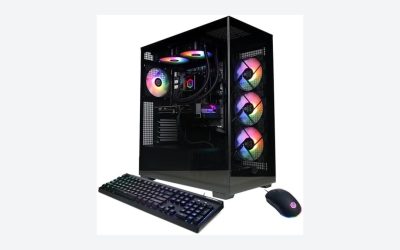
One of the most significant upgrades is DirectStorage. This technology allows your graphics card to bypass the CPU and decompress game assets directly from your high-speed NVMe SSD. For this to work, you need an SSD capable of at least 2,500 MB/s to 5,000 MB/s read speeds. In games optimized for DirectStorage, load times drop from twenty seconds down to less than two, completely transforming how open-world environments render. This is particularly noticeable on modern mid-to-high-tier systems, such as the KOTIN Gaming PC Desktop ($1399.99), which pairs a powerful Ryzen 7 8700F processor with an RTX 5060 Ti 8GB graphics card and a fast 1TB SSD. Systems of this caliber leverage these advanced storage paths effortlessly.
Another prominent feature is Auto HDR. If you own a gaming monitor with decent high-dynamic-range capabilities—ideally with a peak brightness of 400 to 1,000 nits—Auto HDR uses machine learning to convert standard dynamic range (SDR) games into HDR. This injects vibrant colors and deeper contrast into older DirectX 11 and DirectX 12 titles without requiring game developers to patch their software. Additionally, Windows 11 introduces optimizations for windowed gaming, reducing input lag and latency when running games in borderless windowed mode, making it feel just as responsive as traditional exclusive fullscreen mode.
Finally, the operating system features an improved CPU thread scheduler. If you are running a modern processor with a hybrid architecture (combining performance cores and efficiency cores), Windows 11 works in tandem with the hardware to ensure your games run on the fastest cores while background tasks like Discord or web browsers are relegated to the low-wattage efficiency cores.
Pros
- Auto HDR Integration: Automatically upgrades the visual depth of hundreds of older SDR games, bringing new life to your existing library without performance overhead.
- DirectStorage Compatibility: Drastically cuts loading screens and texture pop-in when paired with modern PCIe Gen 3 or Gen 4 NVMe SSDs.
- Optimized Hybrid CPU Scheduling: Ensures that background home-office tasks do not steal processing power from your active games on multi-core processors.
- Reduced Windowed Latency: Brings the low-latency performance of exclusive fullscreen mode to borderless windowed mode, making multitasking on dual-monitor setups much smoother.
- Future-Proof Security: Hardened security features like TPM 2.0 and Secure Boot protect your system from malicious attacks, ensuring your gaming setup remains secure and fully supported heading into 2026.
Cons
- Strict Hardware Requirements: Requires a minimum of an 8th Generation Intel Core processor or an AMD Ryzen 2000 series processor, locking out older budget rigs.
- Virtualization-Based Security (VBS) Overhead: When enabled by default on prebuilt systems, VBS can cause a minor performance drop of 2% to 5% in certain CPU-bound games.
- Slightly Higher Idle Resource Usage: Windows 11 typically consumes between 3.5GB and 4.5GB of RAM just sitting at the desktop, which can put a strain on older systems with only 8GB of total memory.
- Interface Learning Curve: The centered taskbar, simplified context menus, and redesigned settings app may feel frustrating to users accustomed to older desktop layouts.
Who Should Buy It
You should choose Windows 11 if you are purchasing a new gaming desktop or building one from scratch. Systems like the KOTIN Gaming PC Desktop ($1399.99), which features 16GB of DDR5 RAM and a highly efficient 1TB SSD, are designed specifically to run this operating system at peak performance. It is also essential for processors with hybrid architectures and for gamers who own high-quality HDR monitors and want a seamless, system-wide HDR experience without manual tweaking.
Who Should Skip It
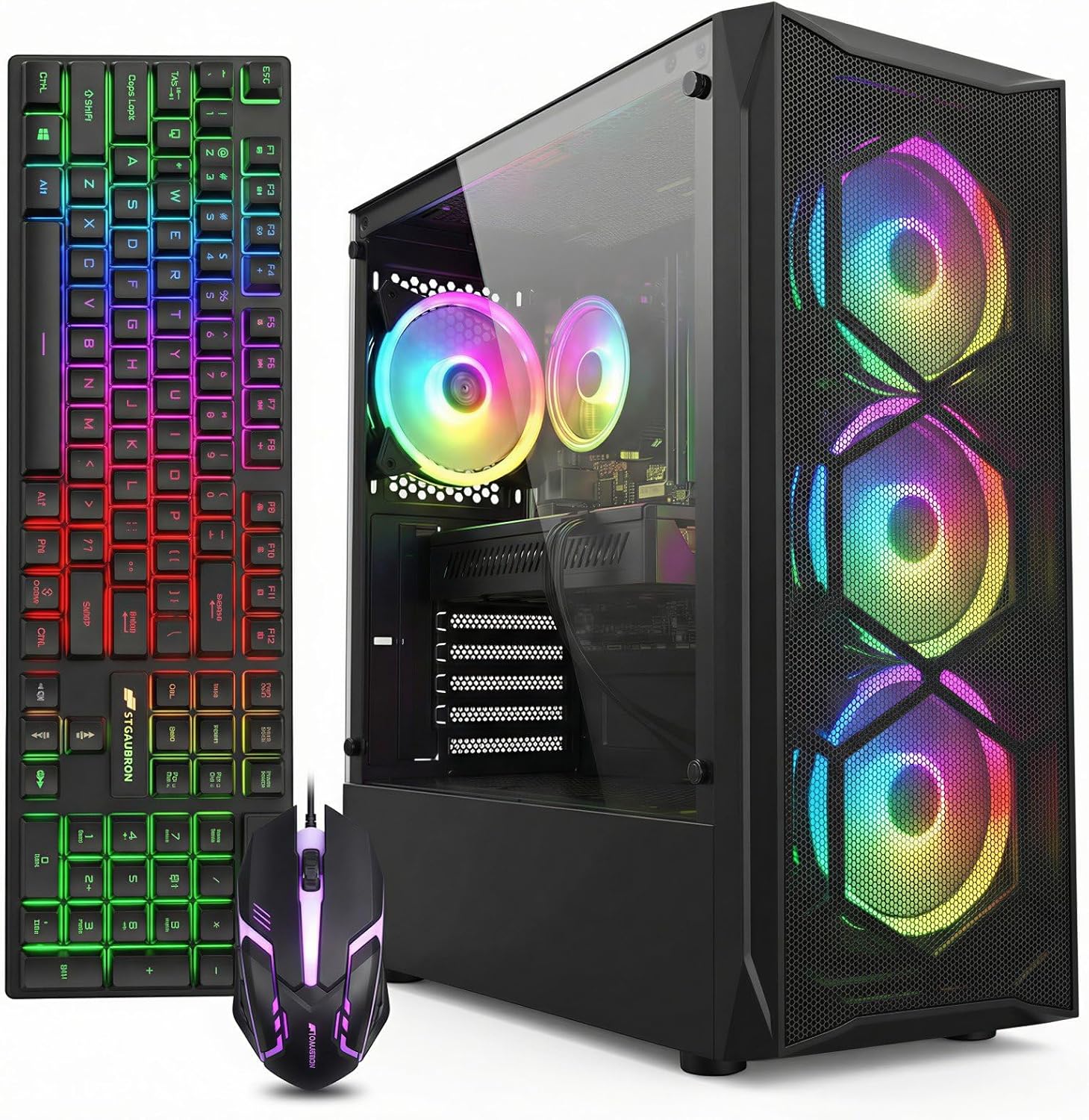
You should skip Windows 11 if you are currently gaming on a budget system that relies on older legacy components. For instance, entry-level options like the STGAubron Gaming PC Desktop (around $460)—which utilizes an older Core i7 processor and an RX 580 8GB graphics card—may not natively meet the strict TPM 2.0 security requirements. While you can bypass these requirements using third-party software or registry edits, doing so can lead to stability issues, missing security updates, and potential crashes. If your current rig works perfectly on older software and has less than 16GB of RAM, staying put is the wiser choice for consistent frame rates.
Cheaper Alternatives
If you are looking to optimize your gaming setup without spending money on a brand-new operating system license or upgrading your physical components, consider the following alternatives:
| Option | Cost | Trade-off |
|---|---|---|
| Retain Older Windows Versions | $0 | Misses out on Auto HDR, DirectStorage, and optimized hybrid CPU scheduling; security support will eventually phase out. |
| SteamOS / Linux (Proton) | $0 | Excellent performance and lightweight footprint, but incompatible with games that require kernel-level anti-cheat software. |
| Budget Hardware Optimization | $400 – $600 | Investing in budget-friendly hardware configurations (like the STGAubron Gaming PC at around $460) keeps initial costs low, but limits future upgrade paths and native OS compatibility. |
FAQ
Does Windows 11 improve FPS in gaming?
For most standard games, Windows 11 does not provide a massive, immediate boost to raw frames per second (FPS). You can expect performance to remain within 1% to 3% of older operating systems. However, systems with hybrid CPUs or high-speed NVMe storage will experience smoother frame pacing and fewer micro-stutters, which makes the overall gaming experience feel significantly more fluid.
Can I run Windows 11 on an older gaming PC?
Only if your motherboard supports Secure Boot and has a TPM 2.0 chip (either physical or firmware-based, like Intel PTT or AMD fTPM). If your processor is older than an Intel 8th Gen or AMD Ryzen 2000 series, Microsoft does not officially support it. While bypasses exist, they are not recommended for stable, daily gaming machines.
Should I turn off Virtualization-Based Security (VBS) for gaming?
If you are struggling to maintain stable frame rates on a mid-range system, disabling VBS (specifically Memory Integrity) can reclaim about 2% to 5% of your CPU performance. However, this reduces your system’s defense against malware. For modern setups with power to spare, it is generally safer to leave it enabled.
Does Auto HDR work on all monitors?
No, Auto HDR requires a monitor that supports High Dynamic Range. For a noticeable visual improvement, your monitor should have a peak brightness of at least 400 nits (VESA DisplayHDR 400), though 600 to 1,000 nits with local dimming will yield the best results. On standard SDR monitors, the option will be unavailable or ineffective.
Related guides
- Best Gaming PC for Overwatch 2: Ten Prebuilts Matched to Your Monitor (2026)
- Best Gaming PC for Baldur’s Gate 3: Matching CPU, VRAM and Storage to the Game (2026)
- Best Gaming PC for Apex Legends: Which Listings Fit a High-Refresh Setup (2026)
- Best RTX 3060 Gaming PCs: Eight Prebuilt Listings Compared by CPU, RAM and Cooling (2026)