Skytech and CyberPowerPC are both US prebuilt gaming PC brands sold widely through Amazon, and neither one wins across the board. Each sells dozens of configurations built from mainstream parts, so a given listing’s graphics card, power supply, memory, storage and warranty terms say more than the logo on the case. Use this page as a framework for comparing two specific listings: a short verdict, a side-by-side table, picks by situation, and a checklist to run before you order. Specifications and bundled extras change often, so check current specifications on each listing.
Short verdict
If two listings from these brands share the same processor, graphics card, memory and storage, they are close to interchangeable on raw performance. The differences that remain are the parts nobody advertises loudly: the power supply brand, the motherboard tier, the case airflow, the RAM configuration and the warranty paperwork.
So the practical answer is to pick the listing, not the brand. Whichever name sits on the better-documented configuration, with named power supply and motherboard models and a clear warranty period, is the safer buy. A listing that hides those details deserves a lower score no matter which logo is attached.
Where the two brands look alike
Both companies assemble systems around mainstream Intel or AMD processors and NVIDIA or AMD graphics cards, usually in tempered-glass cases with RGB lighting. Both offer entry-level, midrange and enthusiast tiers, and both ship pre-installed Windows. That overlap is why a brand-level verdict is weak.
| Factor | What both brands commonly do | What to verify on the listing |
|---|---|---|
| Core parts | Branded CPU and GPU from the big chip makers | Exact model names, not just a product tier |
| Power supply | Wattage is usually stated | Maker, model and efficiency rating |
| Memory | Capacity and speed are listed | One stick or two, and whether the rated speed is enabled |
| Storage | Solid-state drive in most current builds | NVMe or SATA, capacity, any extra hard drive |
| Case and cooling | Glass panels, several fans | Mesh or solid front, CPU cooler type |
| Warranty | Limited warranty on parts and labor | Length, who services it, shipping cost to you |
The components that decide the real difference
Graphics card first. It drives most of the frame rate, so a listing with a stronger GPU and a modest processor usually outperforms the reverse in games. Confirm the exact card model and its memory size in the title or specifications table.
Power supply second. Prebuilts sometimes list only a wattage, which says nothing about quality. An 80 Plus label describes efficiency, not build quality, so look for a named maker and model you can search. A power supply with some headroom over the combined processor and graphics draw leaves room for a later GPU upgrade.
Memory third. Two matched sticks run in dual-channel mode and generally behave better than a single stick of the same total size. Memory often defaults to a slower speed until you switch on its rated profile in the firmware, which our guide to opening UEFI BIOS on Windows 11 walks through.
Storage and motherboard finish the list. Some entry boards offer few expansion slots and limited fan headers, which matters if you plan to add a second drive or more cooling later.
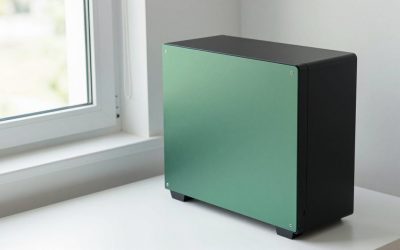
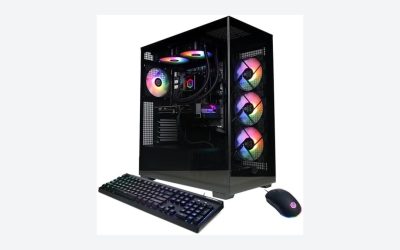
Cooling and case airflow deserve a quick look too. A solid glass front can trap heat, while a mesh front lets fans pull air straight in. Listings often show the case from the front, so the photos usually answer the question. A processor cooler that is only a small air unit may run louder under load than a larger tower or liquid unit, so read the cooler description instead of assuming.
Picks by situation
- Tight budget: choose the listing with the best graphics card, even if the case is plain and the RGB is minimal. Avoid spending on lighting.
- Plans to upgrade in two or three years: favor standard-size parts, a named power supply with spare connectors and a board with open slots.
- Buying for a young player: prioritize a clear warranty and quiet cooling, then see our gaming PC for kids setup checklist.
- Wants it to work out of the box: choose the listing with the simplest, best-documented configuration and a seller who handles returns.
Warranty, support and returns
Warranty terms differ by model and by seller, so read them on the individual listing rather than assuming a brand-wide policy. Look for the length of coverage for parts and for labor, whether you pay to ship a failed system, and whether the warranty stays valid if you open the case to add a drive or memory. Manufacturers’ documentation normally states this, and the Amazon listing may add its own return window on top.
It also helps to know that individual components such as the graphics card and power supply carry their own manufacturer warranties, which can matter if the system builder’s support is slow.
Finally, keep documentation. Save the order page, the listed specifications and the serial numbers once the system arrives, and check that the delivered parts match the listing. If something differs, contact the seller promptly, since return windows are limited and a mismatch is far easier to resolve in the first few days than months later.
Worked example: spotting the weaker listing
Assume two hypothetical listings with the same processor and graphics card. Listing A names a 750 watt power supply from a recognizable maker, shows two 16 GB memory sticks, and an NVMe drive. Listing B says only “high-performance power supply,” a single 32 GB stick, and a SATA drive.
On a spec sheet they look equal, yet Listing A is the better buy. Its dual-channel memory typically gives smoother frame rates in memory-sensitive games, its power supply can be verified, and its drive loads games faster. Listing B might still be fine, but you would be guessing. The brand name never entered the decision, and that is the point.
Checklist before you order
- Find the exact CPU and GPU model names.
- Confirm the power supply maker, wattage and efficiency rating.
- Confirm two memory sticks and the stated speed.
- Check the storage type and capacity.
- Look at photos of the case front for mesh airflow.
- Read the warranty length and shipping terms.
- Plan to trim startup programs afterward, using our startup time guide for Windows 11.
Common myths about prebuilt brands
One myth says prebuilts always use proprietary parts. Many boutique builders use standard ATX components, but some models do cut corners, so check photos and part names. Another says a bigger wattage number means a better power supply; quality depends on design and components. A third says RGB equals premium, when lighting says nothing about the hardware that does the work. A fourth myth is that a prebuilt arrives perfectly tuned. Systems are often shipped with preinstalled trial software, default memory speeds and generic fan curves, so an hour of cleanup and firmware settings after unboxing is normal and worthwhile. None of this is unique to one brand; it is simply what to expect from any assembled system.
Related guides
- Windows Macos Linux Gaming Performance Comparison Strengths Weaknesses
- Desktop Operating Systems Gaming Performance Strengths Weaknesses
- 5G Home Internet Wifi Modem Settings Low Latency Gaming
Frequently asked questions
Is Skytech or CyberPowerPC better for gaming?
Neither is clearly better across the board. Both sell many configurations built from similar mainstream processors and graphics cards, so performance depends mostly on the exact parts in the listing. Compare the GPU model, power supply, memory setup, storage and warranty on the specific systems you are considering, and check current specifications because lineups change often.
Are Skytech and CyberPowerPC prebuilt PCs upgradeable?
Many models use standard-size components, so adding memory, storage or a graphics card is commonly possible. Limits tend to be power supply capacity, available connectors, case clearance and motherboard slots. Check the listing photos and part names, and read the warranty terms before opening the case, since some policies place conditions on modifications.
Does the power supply matter in a prebuilt gaming PC?
Yes. It feeds every component, and a weak or poorly built unit can cause instability or limit upgrades. Look for a named maker and model, an efficiency rating, and wattage with headroom over the processor and graphics card. If the listing only says high-performance power supply, treat that as missing information.
Should you buy one or two memory sticks?
Two matched sticks are generally preferable because they run in dual-channel mode, which can improve performance in some games. A single stick leaves an empty slot for later expansion but may run slower. Whichever you choose, confirm in the firmware that the rated memory speed profile is enabled, since many systems start at a lower default.
Is it cheaper to build a PC than buy a prebuilt?
Often a self-built system can offer better value or parts choice, but not always, especially when graphics cards are scarce or discounted inside prebuilts. Building takes time, research and a copy of Windows. Prebuilts bundle assembly and a single warranty contact. Compare current listings against a parts list before deciding.
Related guides
- Best Gaming PC for Overwatch 2: Ten Prebuilts Matched to Your Monitor (2026)
- Best Gaming PC for Baldur’s Gate 3: Matching CPU, VRAM and Storage to the Game (2026)
- Best Gaming PC for Apex Legends: Which Listings Fit a High-Refresh Setup (2026)
- Best RTX 3060 Gaming PCs: Eight Prebuilt Listings Compared by CPU, RAM and Cooling (2026)