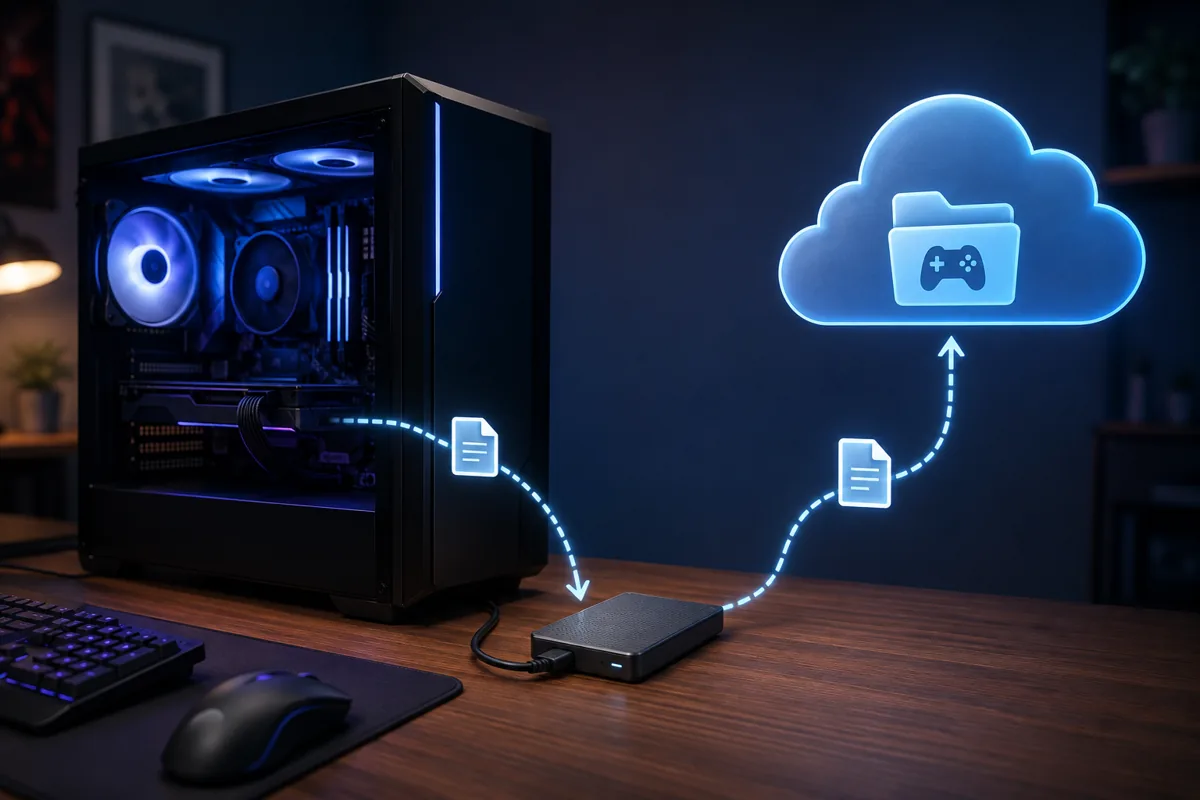
Back up your game saves by identifying where each game actually stores its save files, which is rarely in one universal location, then combining platform-provided cloud sync (Steam Cloud, Xbox/PC Game Pass, GOG Galaxy) with a periodic manual or scripted backup to external storage for anything cloud sync doesn’t cover. Relying on cloud sync alone leaves gaps for older titles, some AAA games with proprietary save systems, and any save data stored outside the specific folders a given sync service watches.
Owen Pritchard has recovered more “lost” saves from misunderstood folder locations than from genuine corruption on his diagnostics bench, since the far more common failure isn’t a technical disaster but simply not knowing where a specific game keeps its data before a reinstall or drive failure happens. This guide covers exactly where saves live, which cloud services actually cover what, and how to build a backup routine that doesn’t depend on remembering to do it manually every time.
As an Amazon Associate we earn from qualifying purchases at no extra cost to you.



Our Top Picks
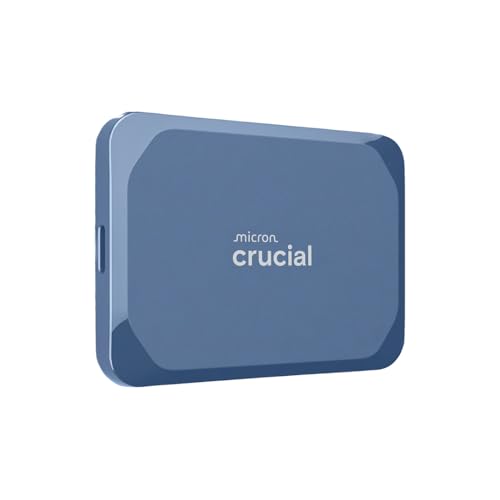
- Western Digital 4TB My Passport SSD External Portable4TB3.5 x 1.18 x 0.39 Inches0 PoundsCheck on Amazon
Top 3 picks at a glance
Why Game Save Backups Matter More Than Most Players Assume
A 100-plus hour save file represents real, irreplaceable time investment in a way most other PC data doesn’t; unlike a lost document or photo, a lost RPG or survival game save typically can’t be recreated except by replaying the entire game from the beginning, which is why the actual cost of a lost save is measured in hours of lost progress rather than just the inconvenience of a missing file.
Data loss scenarios are more common than players tend to assume until it happens to them. A Windows reinstall performed without first confirming save location backups, a failing or failed storage drive, an accidental deletion during a folder cleanup, or a cloud sync conflict that silently overwrites a newer local save with an older cloud version are all realistic, non-exotic scenarios that occur regularly, not edge cases limited to unusual circumstances.
Game publishers’ own save handling isn’t always reliable either; save corruption from an unexpected crash mid-write, a botched game update that changes save file format incompatibly with older saves, or a publisher’s own cloud service having an outage or account issue can all result in save loss even when the player did nothing wrong on their end, making an independent, player-controlled backup meaningfully more reliable than trusting any single point of failure, including official cloud saves alone.
The asymmetry between backup effort and potential loss is stark: a proper backup routine, once set up, takes essentially no ongoing effort thanks to automation covered later in this guide, while the alternative, discovering a lost save with no backup, can mean dozens or hundreds of hours of replaying content, assuming the player is even willing to start over at all rather than simply abandoning the game.
Understanding this asymmetry is why a proper backup approach is worth the modest setup time even for players who’ve never personally experienced a major save loss; the first loss is often the only one needed to make the case, but setting up backups proactively avoids needing that painful lesson in the first place.
Where Game Saves Actually Live On Windows
There is no single universal save location on Windows, which is the core reason manual backup approaches fail without first understanding where to look. The most common locations, in rough order of frequency across the broader PC game library, are Documents\My Games (used by a large number of titles, particularly those built on common engines like Unreal Engine with default save handling), AppData\Local and AppData\LocalLow (hidden by default, commonly used by Unity-engine games and many indie titles), AppData\Roaming (used by some older titles and specific publisher save systems), and a Saves or SaveGames subfolder directly inside the game’s own installation directory (less common on modern titles but still used by some, particularly older or simpler games).
To access the AppData folder, which is hidden by default in Windows File Explorer, type %appdata% directly into the File Explorer address bar to jump straight to AppData\Roaming, or %localappdata% for AppData\Local, both faster and more reliable than manually enabling hidden file visibility and navigating there through folder browsing.
Steam-specific games sometimes store saves inside the Steam installation’s userdata folder (typically at Steam\userdata\[your Steam ID]\[game’s App ID]\), which is the specific location Steam Cloud syncs from for supported titles, distinct from any separate save location the game might also use for local-only data or configuration files not covered by Steam Cloud.
Publisher-specific launchers (EA App, Ubisoft Connect, GOG Galaxy, Battle.net) each have their own conventions, and while many follow the general Documents or AppData patterns described above, some store saves in launcher-specific folders under AppData or Documents specifically named after the launcher rather than the game itself, worth checking if a search of the common locations doesn’t turn up the expected save files.
When a save location isn’t obvious from checking these common folders directly, searching the game’s specific save location through a quick search of the game’s title plus “save location” typically surfaces community-documented paths quickly, since this is one of the most commonly asked and answered questions in PC gaming communities for exactly the reason this section exists: there’s no universal answer, and every game needs to be checked individually at least once.
Cloud Save Services By Platform: What Each Actually Covers
The table below summarizes coverage and reliability characteristics of the major cloud save services available to PC gamers, useful for understanding which of your games are likely already covered versus which need manual backup attention.
| Service | Coverage | Key Limitation |
|---|---|---|
| Steam Cloud | Per-game opt-in, widely but not universally supported | Only works for games that specifically implement it; storage quota limits per game |
| Xbox/PC Game Pass Cloud Saves | Xbox-published and Play Anywhere titles | Limited to specific title list, not all PC games generally |
| GOG Galaxy Cloud Saves | Per-game opt-in on GOG-purchased titles | Smaller coverage than Steam given GOG’s smaller catalog and DRM-free focus |
| Ubisoft Connect Cloud Saves | Ubisoft-published titles specifically | Publisher-locked, no coverage for non-Ubisoft games |
| EA App Cloud Saves | EA-published titles specifically | Publisher-locked, occasional sync reliability issues reported historically |
The pattern across every service is the same structural limitation: coverage is per-game (requiring the developer to have implemented it) or per-publisher (limited to that specific storefront or publisher’s catalog), meaning no single cloud service provides comprehensive coverage across a typical player’s full, multi-storefront game library. This is the core reason a supplementary manual or scripted backup approach, covered in the next sections, remains necessary even for players who have every available cloud save option enabled.
Storage quota limits, typically modest (often under 1GB per game for Steam Cloud, for example), can cause sync failures or incomplete saves for games with unusually large save file sizes, particularly some simulation or sandbox titles that can generate save files well beyond typical quota limits, another gap manual backup covers that automatic cloud sync alone might silently fail to fully address.
It’s worth explicitly checking, on a per-game basis for titles you care most about, whether cloud save is actually enabled, since some services require an opt-in toggle in either the game’s own settings menu or the platform client’s settings rather than being enabled automatically by default, and confirming this for your most valuable saves takes a few minutes but closes a common, easily overlooked gap.
Manual Backup Methods: Folder Copies And Compressed Archives
The simplest manual backup method is periodically copying a game’s save folder, once located using the guidance from earlier in this guide, to a separate backup location (external drive, a dedicated backup folder on a secondary internal drive, or a cloud storage folder like OneDrive or Google Drive). This requires no special software and works for any game regardless of whether it supports official cloud saves.
Compressing the copied folder into a dated zip archive (naming the file with the game name and date, such as “EldenRing_Save_20260301.zip”) rather than simply overwriting a single backup folder repeatedly provides save history, letting you roll back to an earlier point if a more recent save becomes corrupted or if you want to revert an unwanted story decision or character build change made since the last known-good backup point.
A reasonable manual cadence for actively played games is a backup before any major milestone (before a difficult boss fight or story decision in games with meaningful consequences), plus a general weekly backup for ongoing progress protection, though this cadence obviously depends on how much play time and progress you’re comfortable potentially losing between backups for a given title.
Manual backup’s main weakness is reliability, since it depends entirely on remembering to actually do it consistently, and the games most likely to be forgotten are often the ones played casually or infrequently, which are exactly the saves most likely to be needed unexpectedly after a long gap when the player has less recent memory of exactly where things stood.
For players managing backups across many games, a simple spreadsheet or note tracking each game’s save location, once identified, saves significant repeated research time on future backup sessions and is worth the modest upfront investment of documenting each location as you go rather than re-searching it every time a backup is needed.
Automated Backup Tools And Scripts
Windows’ built-in Task Scheduler can automate a folder copy script to run on a recurring interval without any third-party software, using a simple batch file (a text file with a .bat extension containing xcopy or robocopy commands targeting your identified save folders) scheduled to run daily or weekly, removing the “remembering to do it” reliability problem inherent to manual backups entirely.
Robocopy specifically, built into Windows, is well suited for this since it supports mirroring a source folder to a destination efficiently, only copying changed files on subsequent runs rather than a full copy every time, which keeps automated backup runs fast even for players with many actively played games generating frequent save file changes.
Dedicated backup software (both general-purpose tools like the ones covered in cloning and backup guides, and some purpose-built game save managers) offer a more user-friendly interface than writing a batch script directly, including features like automatic detection of common save locations for popular games, versioned backup history, and scheduling through a graphical interface rather than Task Scheduler’s more technical configuration process.
Cloud sync folder integration is a middle-ground automation approach: placing your consolidated backup folder inside a OneDrive, Google Drive, or Dropbox-synced folder automatically pushes backups off-site to the cloud as soon as the local backup script runs, combining local automation with off-site redundancy without needing separate cloud upload steps, though this does introduce the sync-timing risk discussed in the FAQ about syncing active save files directly rather than periodic backup copies.
Whichever automation approach is chosen, it’s worth periodically verifying the automated backup is actually running and producing valid files, rather than assuming a script or tool configured once will continue working indefinitely without any failure; a quick monthly spot-check of backup file dates and sizes catches a silently broken automation before it matters.
External Drive, Cloud, Or NAS: Choosing Your Backup Destination
An external USB drive is the lowest-cost, simplest backup destination, requiring no ongoing subscription and providing fast local transfer speeds, but it shares a real weakness with the source PC itself: if both are in the same physical location, a house fire, theft, or major power surge event could destroy both the original saves and the only backup simultaneously, an important consideration for players who want genuine disaster-level protection rather than just protection from routine drive failure or accidental deletion.
Cloud storage (dedicated backup services or general-purpose sync folders like OneDrive, Google Drive, Dropbox) provides genuine off-site protection against local disasters and is accessible from any device with an internet connection, useful for players who switch between multiple PCs, but depends on internet connectivity for both backup and, more critically, restoration, and ongoing storage costs can add up for players backing up large save collections beyond a free tier’s typical limits.
A home NAS (network-attached storage) device offers a middle path: local speed and no ongoing subscription cost like an external drive, combined with the ability to configure remote access or cloud-sync integration for off-site protection if paired with a secondary backup destination, making it a reasonable option specifically for players who already have or are considering a NAS for broader home file backup purposes beyond just game saves.
The most resilient approach for players who genuinely can’t afford to lose specific high-value saves combines multiple destinations: a local external drive or NAS for fast, frequent backups, paired with a cloud destination updated less frequently for genuine off-site disaster protection, following the general backup industry principle of maintaining backups in at least two different physical locations rather than relying on any single destination.
For most casual to moderate players, a single reliable destination, whether cloud or external drive, meaningfully consulted and verified periodically, is a significant improvement over no backup strategy at all, and the multi-destination approach described above is worth reserving specifically for saves representing genuinely irreplaceable time investment rather than treating it as a requirement for every game in a library.
Handling Saves During A Fresh Windows Install Or PC Upgrade
Before any Windows reinstall, whether a clean install to fix system problems or a full PC upgrade involving a new drive, explicitly copy every identified save folder for games you care about to a separate drive or partition that will not be wiped during the reinstall process, treating this as a mandatory pre-reinstall checklist item rather than an optional nice-to-have.
For games with cloud save support already confirmed working, the cloud sync itself provides some protection during a reinstall, but it’s still worth manually confirming the specific save data has actually synced successfully before wiping the local drive, since discovering a sync failure only after the local copy is already gone eliminates the safety net the cloud backup was meant to provide.
After the reinstall completes and games are reinstalled, save files generally need to be manually copied back into the newly created (often empty, default) save folder locations before launching each game for the first time, or in the case of properly configured cloud saves, simply logging back into the relevant platform account and allowing sync to restore them automatically, though manually verifying this restoration completed correctly for high-value saves remains worthwhile rather than assuming success silently.
For a full PC upgrade involving a new drive rather than just a reinstall on the same drive, the same principle applies with an added consideration: confirm the new drive has sufficient space and the correct folder structure before restoring saves, since some games are sensitive to exact folder paths matching expectations and a restore to a slightly different path structure can occasionally cause a game not to recognize the restored saves correctly.
It’s worth treating any major PC change, not just a full reinstall, as a trigger to double-check backup status: a motherboard replacement, a major Windows feature update, or even a significant game update that changes save file format are all reasonable moments to confirm your backup routine is current and functioning before proceeding with the change.
Cross-Device Sync Pitfalls: Conflicts And Accidental Overwrites
Playing the same game across multiple devices (a desktop and a laptop, or a desktop and a Steam Deck) using cloud save sync introduces a specific risk: if the same save file is modified on two devices before a sync fully completes between them, most cloud save systems resolve this by simply keeping whichever version synced most recently, silently overwriting and losing progress made on the other device without any warning or merge attempt.
The practical mitigation is a simple habit: always allow a game to fully close and confirm sync completion (many platforms show a visible sync status indicator) before switching to play the same game on a different device, rather than assuming background sync has already caught up the moment you close the game window. Playing on a second device before the first device’s sync has genuinely finished is the single most common cause of cross-device save conflicts.
Some platforms and games handle this more gracefully than others, offering an explicit conflict resolution prompt showing both versions’ timestamps and letting the player choose which to keep, rather than silently resolving it automatically; checking whether your specific game and platform combination offers this safety net is worth knowing in advance rather than discovering the hard way which behavior applies.
For genuinely important saves being actively played across multiple devices, a manual pre-switch backup (copying the current save state to a dated archive, per the manual backup method covered earlier) before switching devices adds a recovery option even if the cloud sync itself resolves a conflict in the wrong direction, effectively adding a manual safety net around the automatic cloud system’s known weak point.
Handheld PC gaming devices running the same Steam or other library as a desktop are increasingly common sources of this exact conflict pattern, given how naturally players switch between a desktop session and picking the same game back up on a handheld shortly after, making this a particularly relevant consideration for players who’ve added a handheld gaming PC to a setup already including a desktop or laptop.
Emulator And Older Game Save Backups
Emulated and older PC game saves follow even less standardized conventions than modern titles, since emulators typically create their own save state and save file conventions independent of whatever save system the original game used, and different emulators for the same console or system often use entirely different folder structures and file formats from each other.
Most emulators store save data (both traditional in-game saves and emulator-specific “save states,” which capture an exact snapshot of system state rather than a game-designed save point) in a dedicated folder within the emulator’s own installation or configuration directory, commonly named Saves, SaveStates, or similar, and checking the specific emulator’s documentation is necessary since there’s no cross-emulator standard the way there’s at least rough consistency across many modern PC game engines.
Save states specifically deserve separate backup attention from traditional saves, since they’re often used for precise progress points in emulated games (particularly for older, harder titles without frequent native save points) and represent the same kind of time investment risk as a modern game’s traditional save file, despite being a technically different mechanism specific to emulation rather than the original game’s own design.
Older DOS and early Windows-era PC games, sometimes run through compatibility layers or dedicated tools for legacy software, frequently store saves directly within the game’s own installation folder rather than in any of the modern Windows-standard locations described earlier, making a direct check of the game’s install directory the most reliable first step for these older titles specifically.
Given the generally smaller and more scattered nature of emulator and legacy game communities compared to major modern titles, community wikis and forums dedicated to a specific emulator or game are often the most reliable source for confirming exact save file locations and any known backup quirks specific to that software, more so than general web searches that may surface outdated or platform-mismatched information.
Troubleshooting: Recovering A Corrupted Or Overwritten Save
If a save file appears corrupted (the game fails to load it, crashes specifically when attempting to load that save, or shows obviously wrong/garbled data), first check whether you have any prior backup, whether a manual dated archive, a cloud save version history if the specific service supports it, or a Windows File History/previous versions snapshot if that feature happens to be enabled on the relevant drive, before assuming the save is permanently unrecoverable.
Some cloud save services and platforms maintain limited version history beyond just the most recent sync, accessible through the platform’s own interface rather than a simple file browse; checking the specific service’s documentation for a “restore previous version” or similar feature is worth doing before concluding no recovery option exists, since this feature is sometimes present but not obviously advertised in the main interface.
Windows’ own File History or Previous Versions feature, if enabled on the drive containing your save folders (checkable by right-clicking the save folder and selecting “Restore previous versions” if available), can occasionally recover an earlier, uncorrupted version of a save file even without any dedicated game-save backup system in place, though this depends entirely on File History having been enabled and actively running before the corruption occurred.
If a save was overwritten by a newer save you didn’t intend to keep, rather than being technically corrupted, the same backup and version history sources apply, but recovery success depends entirely on whether a pre-overwrite version was captured somewhere before the overwrite happened; this scenario is precisely why a dated, versioned manual backup approach, rather than a single continuously-overwritten backup copy, provides real protection against this specific and common mistake.
Going forward after any recovery attempt, whether successful or not, treat the experience as the trigger to actually implement the backup routine described throughout this guide if it wasn’t already in place, since players who experience one save loss and don’t change their backup habits afterward are, unfortunately, statistically likely to experience it again with a different game down the line.
Frequently Asked Questions
Does Steam Cloud back up all my saves automatically?
No, Steam Cloud only backs up saves for games that specifically implement the feature, and while most modern titles support it, older games, some AAA releases with their own separate save systems, and many indie titles either don’t support it or store additional save data outside what Steam Cloud actually syncs.
Where do most PC game saves actually get stored?
Most saves live in one of a handful of common Windows locations depending on the game engine and publisher: Documents\My Games, AppData\Local or AppData\LocalLow, AppData\Roaming, or a folder inside the game’s own installation directory, and checking all of these is necessary since there’s no single universal location.
Is it safe to sync active game saves through a general cloud folder like OneDrive or Dropbox?
It can work but carries a real risk of save corruption if the game writes to the save file while a sync is mid-upload, or if the same save syncs from two devices near-simultaneously, so pairing general cloud sync with periodic manual snapshots is safer than relying on continuous sync alone for actively played saves.
What should I do with my save backups before reinstalling Windows?
Copy your full backed-up saves folder to an external drive or a separate physical partition/drive not being wiped during the reinstall, confirm the copy completed successfully by spot-checking a few files, and only then proceed with the reinstall, since a mid-reinstall failure with no separate backup location risks losing both the original saves and the only backup simultaneously.
Can I recover a save file that got overwritten by a newer, unwanted save?
Only if you have a prior backup or the game maintains its own save history/versioning feature, since an overwritten save file has no native undo at the file system level; this is precisely why a versioned or dated backup system, rather than a single always-current backup, is worth setting up before it’s needed.
For the external storage referenced throughout this guide, see our best SSD cloning tools roundup and best USB hubs for gaming setup for connecting multiple backup drives. Players setting up a NAS-based backup destination can check best network gear for gaming for compatible hardware, and best diagnostic tools for gaming PC covers monitoring software useful for confirming drive health before trusting it with irreplaceable save data.