Our Top Picks
 Acer 27in FHD 1920x1080 IPS 120Hz Gaming Monitor27-inch8.27 x 24.07 x 17.44 inches11 poundsCheck on Amazon
 Sceptre 27-inch Prime Gaming Monitor 100Hz 1ms DisplayPort277.66 x 24.13 x 17.21 Inches7.21 PoundsCheck on Amazon


Top 3 picks at a glance
The Short Answer
For the vast majority of gaming monitors on the market today, the standard VESA size is either 75 x 75 mm or 100 x 100 mm. These two configurations belong to the VESA MIS-D category, which is the universal standard for flat-panel displays weighing under 30.8 pounds (14 kg) and measuring between 12 and 32 inches diagonally.
If you own a standard 24-inch or 27-inch gaming monitor, you will almost certainly need a mount that supports a 100 x 100 mm pattern. Larger ultrawide displays (34 inches and above) or massive format gaming monitors (43 to 55 inches) often scale up to 200 x 100 mm or 200 x 200 mm patterns to safely distribute their heavier physical frames.
As an Amazon Associate we earn from qualifying purchases at no extra cost to you.
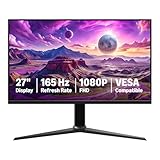


Standard Sizes
The Video Electronics Standards Association (VESA) established these hole patterns to ensure that any compliant monitor can attach securely to any compliant arm, wall mount, or desk stand. When shopping for an aftermarket arm or mounting bracket, you must match the pattern on the back of your monitor to the plate of the mount.
Below is a breakdown of the standard VESA sizes used for gaming monitors, including their physical measurements in both imperial and metric units, along with typical screen sizes and weight capacities.
| VESA Standard | Dimensions (Inches) | Dimensions (Centimeters) | Typical Gaming Monitor Sizes | Average Panel Weight Limit |
|---|---|---|---|---|
| 50 x 50 mm | 1.97 x 1.97 in | 5.0 x 5.0 cm | Small portable monitors (10″–15″) | Up to 8 lbs (3.6 kg) |
| 75 x 75 mm | 2.95 x 2.95 in | 7.5 x 7.5 cm | Compact monitors (19″–24″) | Up to 18 lbs (8.2 kg) |
| 100 x 100 mm | 3.94 x 3.94 in | 10.0 x 10.0 cm | Standard gaming monitors (24″–32″) | Up to 30 lbs (13.6 kg) |
| 200 x 100 mm | 7.87 x 3.94 in | 20.0 x 10.0 cm | Ultrawides & dual-mount setups (34″–38″) | Up to 50 lbs (22.7 kg) |
| 200 x 200 mm | 7.87 x 7.87 in | 20.0 x 20.0 cm | Large format displays & gaming TVs (40″+) | Up to 80 lbs (36.3 kg) |
Most premium aftermarket monitor arms come with a versatile “combo plate” that features pre-drilled holes for both 75 x 75 mm and 100 x 100 mm patterns. This design flexibility allows you to upgrade your gaming monitor down the line without needing to purchase an entirely new mounting system.
How to Measure Your Space
Before buying a new monitor arm, wall mount, or desk mount, you need to measure both your monitor and your physical workspace. Following these steps ensures you do not end up with an unstable desk or a monitor that sits too close to your face.
- Measure the VESA Pattern: Look at the back of your gaming monitor. Locate the four screw holes (they may be recessed or covered by the factory-installed desk stand). Using a ruler or tape measure, measure the distance from the center of one hole to the center of the next, both horizontally and vertically. Convert this measurement to millimeters (1 inch equals 25.4 millimeters) to find your pattern size.
- Check the Panel Weight: Look up the specifications of your monitor and find the weight without the stand. A standard 27-inch gaming monitor typically weighs between 8 and 14 pounds. This is critical because monitor arms have strict weight limits (usually between 15 and 33 pounds). Exceeding this limit will cause the arm to sag or droop.
- Measure Desk Thickness and Under-Desk Clearance: Most heavy-duty monitor arms use a C-clamp or a grommet mount. Measure the thickness of your desk. Standard C-clamps require a thickness of 0.4 to 3.2 inches. Also, peer under your desk to ensure there are no structural metal support bars within 4 inches of the edge that might block the clamp.
- Verify Cable Depth and Connector Placement: Measure the space behind your desk if it sits against a wall. Articulating monitor arms require 2 to 6 inches of clearance behind the desk to fold and adjust properly. Additionally, check if your monitor’s power and display ports point straight down or straight out the back. Outward-facing ports require extra clearance so the cables do not bend sharply against the mounting plate.
By Room or Use Case
Different setups require different mounting strategies. Ergonomics, room layout, and desk material all dictate which VESA configuration and mount type will serve you best.
Compact Bedroom or Dorm Setup
In a tight bedroom or shared dorm space, maximizing desk surface area is the primary goal. Smaller screens, such as the Sceptre New 22-Inch Gaming Monitor (E225W-FW144 Series, 2026 edition), are ideal here. These budget-friendly displays (typically priced between $60 and $75) usually feature a lightweight profile and a 75 x 75 mm VESA pattern. Mounting a compact 22-inch screen on a basic gas-spring single-arm mount frees up vital desk space for textbooks, keyboard layouts, and game controllers. Because these setups often utilize lightweight, hollow-core desks (like those made of honeycomb paperboard), a lighter monitor prevents the desk surface from warping under clamping pressure.
Standard Dedicated Gaming Room
A dedicated gaming room or home office setup typically revolves around one or two 27-inch monitors. Displays in this class—such as the Amazon Basics 27-inch Gaming Monitor (around $130), the Acer 27-inch FHD KB272 G0bi (around $99), or the Sceptre 27-inch Prime Gaming Monitor (E275W-FW100T Series, around $91)—almost exclusively utilize the 100 x 100 mm VESA standard.
These monitors draw around 20 to 35 watts of power and weigh between 9 and 13 pounds. For this use case, a dual-arm desktop mount is the gold standard. It allows you to align two 27-inch screens side-by-side, or orient one vertically for reading chat streams or coding while keeping the primary gaming screen centered at eye level.
Ultrawide and Simulation Setups
If you run a flight simulator, racing rig, or work with a 34-inch to 49-inch ultrawide monitor, standard desk arms will not suffice. Large ultrawide displays place immense rotational torque on the tilt joint of a monitor arm. For these setups, you need a heavy-duty mechanical spring arm specifically rated for 30 to 45 pounds. These displays often transition to a 200 x 100 mm VESA pattern. If you are mounting to a wall in a dedicated simulator room, ensure the mounting plate is anchored directly into a wooden wall stud rather than dry wall alone to prevent structural failure.
Common Sizing Mistakes
Even seasoned builders can make simple calculation errors when setting up a new monitor mount. Avoid these frequent pitfalls to keep your equipment safe:
- Weighing the Monitor with the Stand Installed: When reading spec sheets, manufacturers always list two weights: “with stand” and “without stand.” Always use the “without stand” weight when calculating if your VESA arm can support the display. The factory stand can add 3 to 6 pounds of unnecessary weight to your calculation.
- Ignoring Recessed VESA Cavities: Some gaming monitors place their VESA holes inside a deep circular or square recess where the stock stand clips in. A standard square 100 x 100 mm bracket on a monitor arm may be too wide to fit inside this recess. If this is the case, you must use plastic spacers (standoffs) and longer screws (often included in the box with the monitor or the mount) to flush-mount the plate.
- Using the Wrong Screw Length: VESA holes on monitors are shallow, typically requiring M4 screws that are 10mm to 12mm in length. Using screws that are too long can penetrate past the mounting bracket and permanently damage the internal circuit boards or panel layers of your monitor. Conversely, screws that are too short will not catch enough threads, risking a sudden fall.
- Clamping to Glass or Thin Engineered Wood Desks: High-tension C-clamps concentrate a massive amount of force on a small area. Clamping a heavy 27-inch monitor setup onto a tempered glass desk will shatter it. Similarly, clamping onto thin MDF or particleboard can cause the wood to crush over time. Use a steel reinforcement plate to distribute the clamping force across a larger surface area on these types of desks.
FAQ
Can I mount a gaming monitor that does not have VESA holes?
Yes, you can mount a non-VESA monitor by using a specialized non-VESA adapter kit. These kits consist of adjustable plastic arms or brackets that clamp onto the four outer corners of your monitor bezel, which then attach to a standard 75 x 75 mm or 100 x 100 mm VESA plate. However, this is only recommended for lightweight monitors under 15 pounds, as the brackets can block ports or buttons on certain models.
What is the difference between 75×75 and 100×100 VESA mounts?
The primary difference is the physical spacing between the screw holes. On a 75×75 mount, the holes are 75 millimeters (approx. 2.95 inches) apart. On a 100×100 mount, they are 100 millimeters (approx. 3.94 inches) apart. Most modern aftermarket mounting plates are built with a dual pattern layout that includes both sets of holes, meaning they can accommodate either size out of the box.
Do VESA mounts come with the correct screws?
Yes, almost all aftermarket monitor arms and wall mounts include a hardware packet containing various screw sizes, most commonly M4 screws in 12mm, 16mm, and 30mm lengths, along with plastic spacers. The monitor itself rarely comes with mounting screws unless it requires a proprietary adapter bracket. Always refer to your monitor’s manual to verify the correct screw thread depth before installation.
How much weight can a standard 100x100mm monitor arm hold?
A standard, entry-level gas-spring monitor arm designed for 100x100mm patterns typically supports between 4.4 and 19.8 pounds (2 to 9 kg). Premium, heavy-duty arms designed for larger gaming displays or ultrawides can support up to 33 to 40 pounds (15 to 18 kg). Always verify the specific weight capacity of the arm rather than relying solely on the diagonal screen size recommendation.
Related guides
- Best Gaming PC for Overwatch 2: Ten Prebuilts Matched to Your Monitor (2026)
- Best Gaming PC for Baldur’s Gate 3: Matching CPU, VRAM and Storage to the Game (2026)
- Best Gaming PC for Apex Legends: Which Listings Fit a High-Refresh Setup (2026)
- Best RTX 3060 Gaming PCs: Eight Prebuilt Listings Compared by CPU, RAM and Cooling (2026)