Our Top Picks

The Short Answer
Yes — in most cases you will need a BIOS update before a new gaming CPU will boot, and the one condition that changes everything is this: if your motherboard already ships with (or has been updated to) a firmware version that supports your specific processor, you can skip the update entirely. The catch is that support isn’t generic — a board that handles an i7-14700K out of the box may still need a flash for a newer-generation chip, and older stock sitting in a warehouse can carry firmware that predates your CPU by a year or more.
So the honest answer is “probably yes, but check first.” Every modern motherboard manufacturer publishes a CPU support list on their product page, and that list tells you the exact BIOS version where your processor was added. If your board’s current firmware is at or beyond that version, you’re done before you start. If it isn’t, you’ll need to flash it — and ideally you want to do that before you pull your working CPU out.
As an Amazon Associate we earn from qualifying purchases at no extra cost to you.


Here’s the practical wrinkle: many boards from the last several years include a BIOS Flashback-style feature that lets you update firmware with no CPU installed at all. You drop the firmware file on a FAT32 USB stick, press the dedicated flashback button, and wait five to ten minutes. If your board has this, the whole question becomes a non-issue. If it doesn’t, and you’re upgrading from an older CPU on the same socket, update the BIOS first while your old chip is still in the system.
What You Actually Get
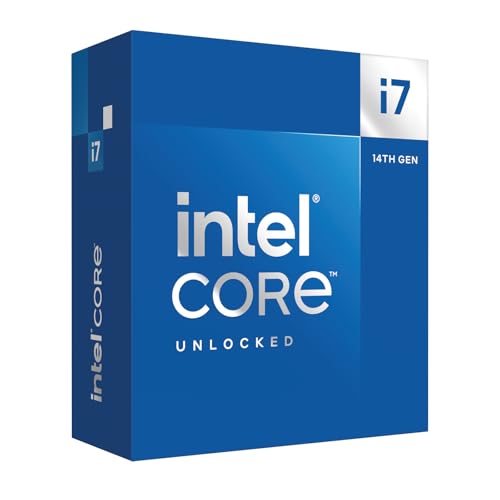
Let’s talk about what these CPUs deliver once the firmware question is settled, because that’s what you’re actually buying. Take the Intel Core i7-14700K as the example: it’s a 20-core part (8 Performance-cores plus 12 Efficient-cores) with 28 threads, boosting to 5.6 GHz, with an unlocked multiplier for overclocking and integrated graphics included. It carries a 125W base processor power rating, with maximum turbo power that can reach up to 253W — which is why pairing it with a motherboard that has robust VRM cooling and a 240mm or larger liquid cooler (or a genuinely serious air cooler) matters as much as the BIOS version does.
The i5-14600KF sits below it as the value pick: 14 cores (6 P-cores + 8 E-cores), 20 threads, 5.3 GHz max boost, and a 125W base / 181W max turbo power envelope. Note the “KF” suffix — that means no integrated graphics, so you’ll need a discrete GPU no matter what. For pure gaming at 1080p and 1440p, the real-world difference between these two chips is often small; the i7 pulls ahead in heavily threaded work like streaming, video encoding, and compilation.
Both chips use the LGA 1700 socket, which fits 600-series and 700-series motherboards. That’s the root of the BIOS question: 600-series boards launched alongside 12th-gen chips, so 14th-gen support arrived via firmware updates. Many 700-series boards from later production runs include 14th-gen support from the factory — but “many” is not “all,” which is exactly why checking your board’s support list matters.
Physically, nothing changes — LGA 1700 coolers use the same mounting for all compatible chips, and both processors fit standard cases with no clearance concerns beyond your cooler’s height. The update is a software step, not a hardware one, and once it’s done, installation is the usual routine: align the triangle on the CPU with the socket, lower the retention bracket, apply paste, mount the cooler.
Pros
- Strong gaming performance per dollar — the i5-14600KF at roughly $220–$260 delivers frame rates close to chips costing $150 more, making it one of the best price-to-performance gaming CPUs on LGA 1700.
- Hybrid core layouts age well — 8 P-cores plus 12 E-cores on the i7-14700K handle gaming, streaming, and background tasks simultaneously without the stutter you’d see on older all-P-core designs under load.
- One-time firmware fix — the BIOS update takes 5–15 minutes on a board with flashback and costs nothing; once flashed, you never think about it again.
- Integrated graphics as a backup — the i7-14700K’s built-in GPU lets you troubleshoot a dead graphics card or build a system before your GPU arrives, something KF-chip buyers can’t do.
- Unlocked for tuning — both chips are unlocked, so memory speed and core adjustments can add meaningful performance on a Z690 or Z790 board.
- Wide board availability — LGA 1700 boards span budget B660 models around $90 to flagship Z790 boards over $400, so you can match the platform to your budget.
Cons
- The BIOS dance is real friction — if your board lacks a flashback button and you’re doing a fresh build, you may need to borrow or buy a cheap supported CPU just to flash firmware, an annoying and genuinely costly detour.
- Power and cooling demands — the i7-14700K can pull up to 253W under full load; a $40 budget cooler won’t keep it from throttling, so budget $80–$150 for cooling on top of the chip.
- Socket is end-of-line — LGA 1700 is a dead-end platform; future CPU upgrades will require a new motherboard and likely new RAM, which weakens the long-term upgrade argument.
- Bricking risk during flash — a failed BIOS update (power loss mid-flash, wrong file) can leave a board unbootable, and while flashback tools have made recovery easier, the risk isn’t zero.
- KF means no fallback display — the i5-14600KF has no integrated graphics, so a GPU failure leaves you with a black screen and no easy diagnosis path.
- High platform memory costs — to get the most from these chips you’ll want fast DDR5, which adds $30–$60 over comparable DDR4 kits.
Who Should Buy It
Buy the i5-14600KF if you’re building a gaming-focused PC in the $800–$1,200 range, you already own or plan to buy a discrete GPU, and you’re comfortable spending ten minutes on a BIOS flash. It’s the sweet spot for 1440p gaming where the GPU, not the CPU, is usually the bottleneck. Buy the i7-14700K if you stream while you game, do content creation on the side, or simply want headroom so the chip stays relevant through the life of the build — and if you value integrated graphics as insurance.
Both make sense if your motherboard is a 700-series model bought new, since the odds of out-of-box support are high, and both are easy recommendations if your board has a flashback feature, which removes the only real hassle.
Who Should Skip It
Skip these if you already run a 12th- or 13th-gen chip on LGA 1700 and your frame rates are fine — the generational jump rarely justifies $240–$366 plus a cooler upgrade. Skip them if you’re building a small, quiet system, since the power draw demands bulkier cooling than a compact case may fit. And skip them if you’re starting a brand-new platform build with a long upgrade horizon; a current-socket platform with a forward-looking upgrade path will serve you better than investing in a socket at the end of its life.
Cheaper Alternatives
| Option | Cost | Trade-off | Trade-off |
|---|
Correction — here’s the table properly formatted:
| Option | Cost | Trade-off |
|---|---|---|
| Intel Core i5-14600KF | Check on Amazon | No integrated graphics; slightly less multi-threaded muscle than the i7, but nearly identical gaming performance |
| Intel Core i5-13600K (13th gen) | $190–$230 | About 5% slower in games; same socket, same BIOS considerations, same cooler requirements |
| Intel Core i5-12400F (12th gen) | $120–$150 | Noticeably slower in CPU-heavy titles, but superb value for 1080p/60 gaming on a budget board |
| Keep your current CPU + GPU upgrade instead | $0 CPU / GPU budget | If your GPU is two generations old, that money buys far more frames than a CPU swap |
FAQ
What happens if I install a new CPU without updating the BIOS?
The most common outcome: the system powers on, fans spin, but nothing appears on screen — no POST, no error message, just a black screen. The board simply doesn’t recognize the processor. It won’t damage anything, but you’ll need to flash the firmware (via flashback if available, or by reinstalling a supported CPU) before the new chip will work.
How do I check if my motherboard needs a BIOS update for my CPU?
Go to your motherboard manufacturer’s support page, find your exact board model (printed on the board itself), and open the CPU support list. It shows each compatible processor alongside the minimum BIOS version required. Then check your current version: in Windows, run msinfo32 and look at the BIOS Version/Date field, or check the firmware version shown in the BIOS itself.
Can I update the BIOS without a CPU installed?
Only if your board has a USB BIOS Flashback feature — a dedicated button (often on the rear I/O panel) that flashes firmware from a USB stick with no CPU, RAM, or GPU installed. Most mid-range and higher boards from the last several years include it. Check the rear panel photos or specs for the word “Flashback” before you buy, because it’s the single feature that makes CPU upgrades painless.
Does a BIOS update affect gaming performance?
Directly, no — a firmware update exists to make the CPU work, not to make it faster. That said, updates occasionally improve memory compatibility and stability, which lets you run faster RAM speeds reliably, and faster RAM does help gaming performance on modern processors, sometimes by 5–10% in CPU-bound scenarios. So the update itself is neutral, but it can unlock tuning headroom.
Related guides
- Best Gaming PC for Overwatch 2: Ten Prebuilts Matched to Your Monitor (2026)
- Best Gaming PC for Baldur’s Gate 3: Matching CPU, VRAM and Storage to the Game (2026)
- Best Gaming PC for Apex Legends: Which Listings Fit a High-Refresh Setup (2026)
- Best RTX 3060 Gaming PCs: Eight Prebuilt Listings Compared by CPU, RAM and Cooling (2026)