If you are building a home gaming setup in 2026, you have probably run into the same frustrating choice: do you turn on Vsync to get rid of screen tearing, or do you use a frame cap to keep things smooth without adding lag? Both tools aim to solve the same problem, which is how your PC or console matches its frame output to what your display can actually show, but they do it in very different ways. The real decision is not just about picture quality. It is about how your games feel to play every night, whether you notice that split-second delay between moving your mouse or controller and seeing the action on screen, and what kind of hardware you have in your living room or dedicated game room.
For a home setup, this choice also ties into your display. A living room projector or a big-screen TV behaves differently than a desktop monitor, and input lag matters a lot more when you are playing competitive shooters, fighting games, or anything where timing is everything. Understanding the trade-off between a clean, tear-free image and the lowest possible response time will help you get the most out of the gear you already own, without buying anything you do not need.
As an Amazon Associate we earn from qualifying purchases at no extra cost to you.



Our Top Picks


Top 3 picks at a glance
Quick Verdict
For the lowest input lag, a frame cap is almost always better than standard Vsync. A frame cap limits how many frames your GPU sends, which prevents tearing in many cases without forcing the GPU to wait for your display’s refresh cycle. Vsync completely eliminates tearing but does it by queuing frames, and that queue is what creates noticeable input delay.
Choose a frame cap if you care most about responsiveness and you have a modern GPU that can consistently hit your target frame rate. Choose Vsync if you cannot stand any tearing at all, you play mostly slower-paced single-player games, and you are not sensitive to a small amount of added delay. If your display supports adaptive sync like FreeSync or G-Sync, the best result in a home theater is often a frame cap set 2 to 3 frames below your display’s maximum refresh rate combined with adaptive sync enabled and Vsync off.
Side by Side
| Feature | Frame Cap | Vsync |
|---|---|---|
| Comfort (Feel While Playing) | More responsive and direct; mouse and controller inputs register faster, less floaty feeling | Smoother image but can feel heavy or delayed, especially in fast camera movement |
| Durability (Consistency) | Very stable if your PC can hold the cap; stutter appears only if performance drops below cap | Very stable image with no tearing, but stutter and lag spikes if frame rate dips below refresh rate |
| Price Range | Free, built into most GPUs and games; no extra hardware needed | Free, built into every game and GPU driver; no extra hardware needed |
| Maintenance | Set once in driver or in-game limiter; may need to adjust per game (e.g., 60, 120, or 141 fps) | Simple on/off toggle in game or control panel; no tuning required |
| Space Needed | No impact on room setup; works with any monitor, TV, or projector | No impact on room setup; works with any monitor, TV, or projector |
| Look (Visual Quality) | Greatly reduces tearing when capped correctly, but may still show minor tearing without adaptive sync | Perfectly clean, zero tearing when working as intended |
| Resale | No effect on hardware value | No effect on hardware value |
| Input Lag Added | Minimal, typically 5 to 15ms depending on cap method and GPU load | Higher, typically 20 to 50ms at 60Hz; roughly one full frame of delay or more |
| Best For | Competitive multiplayer, shooters, fighting and rhythm games where timing matters | Casual single-player, story-driven and cinematic games where visual perfection matters most |
Where Frame Cap Wins
A frame cap wins outright when input lag is your top priority. Unlike Vsync, which holds finished frames in a buffer until your display is ready to draw them, a limiter simply tells the GPU not to render beyond a certain speed. Because there is no waiting queue, the frame you see is always the most recent one available. That is why competitive players on 60Hz, 120Hz, and 144Hz displays cap their frames just below the refresh rate.
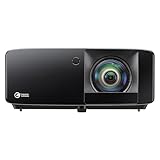
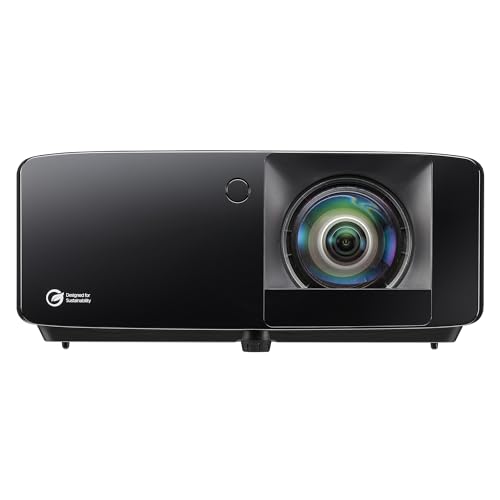
It is also more flexible for a home environment where you might share the big screen. Take a projector-based living room. A short throw laser projector like the Optoma GT2400HDR, which advertises low input lag gaming and puts out around 4,200 lumens, or the BenQ TH575i with its stated 16.7ms input lag at 1080p and 3800 lumens brightness, still benefits from a cap. Even on a 100 to 120 inch image from 4 to 6 feet away, capping at 60 fps for a 60Hz projector or 120 fps for a 120Hz projector keeps motion consistent without adding the extra buffer delay that Vsync introduces. On projectors, where the image is larger and any delay feels magnified, that responsiveness matters.
Frame capping also avoids the classic Vsync stutter problem. With Vsync on at 60Hz, if your system drops to 55 fps for a moment, Vsync will force it down to 30 fps to stay in sync, which creates a sudden judder. A cap at 60 fps with Vsync off lets the system fluctuate naturally between 55 and 60 fps with far less noticeable hitching. External limiters like those in NVIDIA Control Panel, AMD Adrenalin, or RTSS tend to be smoother than in-game limiters, and they give you precise control. Capping 2 to 4 fps below your refresh rate, for example 141 fps on a 144Hz display or 58 fps on a 60Hz display, is a common home setup trick to keep you inside the adaptive sync window at all times.
Finally, a frame cap can reduce power use, heat, and fan noise. An uncapped GPU running at 200 to 300 fps in a menu will draw 250 to 350 watts and spin loudly, heating up a small room. Capping to your display’s capability brings wattage down to the 120 to 180 watt range in many mid-range builds, which keeps a living room cooler and quieter.
Where Vsync for Input Lag in Gaming Wins
Vsync still has a clear purpose, and it is visual perfection. If seeing a single tear line across the middle of your screen ruins a game for you, Vsync is the only standard method that guarantees zero tearing without adaptive sync hardware. It locks your GPU output to your display’s refresh cycle so every frame is delivered whole. For slow-paced, cinematic games like turn-based RPGs, strategy titles, or story adventures where you are not flick-aiming or parrying on a precise frame, the added 20 to 50ms of delay is often hard to notice.
Vsync is also the simplest set-and-forget option. There is no need to test different caps per game or worry about which limiter is best. You flip it on in the game menu and you get a clean image. For a family living room where different people use the same PC or console on the same TV, that simplicity has real value. No one needs to tweak driver settings between sessions.
It can also be the right call on older or less powerful hardware. If your GPU cannot consistently stay above your display’s refresh rate, a frame cap alone will still show tearing whenever you exceed the cap momentarily. Vsync will at least keep the image intact, even if it means occasional judder. In that case, pairing Vsync with double or triple buffering is a compromise that prioritizes a stable picture over raw speed.
That said, if you do hate both tearing and lag, the modern answer is not plain Vsync. It is adaptive sync. With G-Sync or FreeSync enabled, you can use Vsync as a fallback that only engages when you exceed the refresh rate, but most home users get a better result by leaving standard Vsync off and using a low-lag cap instead.
Cost Over 5 Years
Neither option costs anything upfront. Both frame capping and Vsync are software features included free in every major GPU driver and in almost every PC game released in the last decade. Their long-term cost difference comes from energy use, noise, and wear on your home setup.
Running uncapped with Vsync off can push a gaming PC to its maximum power draw for hours. A typical mid-range desktop with a 65 to 125 watt CPU and a 200 to 300 watt GPU can draw 350 to 500 watts at the wall when uncapped. Capping frames to match your display, whether it is a 60Hz projector in the living room or a 144Hz monitor in a bedroom, often cuts average gaming power draw by 20 to 35 percent. Over 10 to 15 hours of gaming per week, that can save 150 to 300 kWh per year, or roughly $20 to $45 per year at average American electricity rates of around $0 to around $0 per kWh. Over five years, that is $100 to $225 in energy savings, plus less heat stress on fans and components.
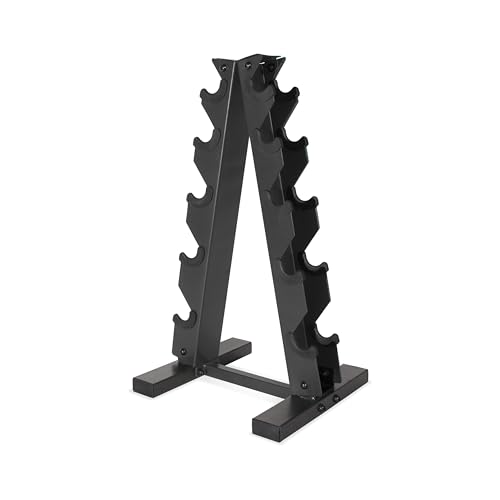
Vsync also saves power compared to uncapped, because it limits frames too, but it does so less efficiently when performance dips and it can cause the GPU to work in bursts. A steady cap is generally gentler on hardware over time and keeps a small room from getting uncomfortably warm. There is no subscription, no accessory to replace, and no impact on resale value for either method. If you are furnishing a room around your setup, think of the savings as part of the overall budget, just as you would weigh a around $39 CAP A-Frame Hex Dumbbell Rack that holds five pairs from 5 to 25 pounds and measures about 20 x 19 x 22 inches against a larger storage system, or a around $18 BOTVELA Men Adjustable Snapback Laser Cut Mesh Baseball Cap you might grab for everyday wear. The gaming setting itself is free, but the way you set it affects the total cost of running your home entertainment space.
Which One for Your Home
The best choice depends on your room, your household, and how you play. Here is how it breaks down by common home scenario.
Small Apartment
In a studio or one-bedroom where your gaming PC or console shares the living room, heat and noise matter as much as lag. Use a frame cap. Set it to match your TV or projector’s refresh rate, or 2 to 3 fps below it if you use FreeSync or G-Sync. You will get the lowest lag for competitive games at your desk, and you will keep wattage and fan noise down so the room stays comfortable. A quiet, capped system is far more livable when your couch is six feet from your PC.
Family with Kids or Pets
When multiple people use the same screen and no one wants to tweak settings, prioritize simplicity and a clean image. If your kids play mostly casual or cinematic games and are not sensitive to lag, Vsync on is the easiest way to avoid complaints about tearing. If you play competitive games after hours, create two profiles in your GPU control panel, one capped with Vsync off for your sessions and one with Vsync on for family use, so you do not have to change in-game menus every time.
Rental
Renters often cannot mount a dedicated gaming monitor and rely on the living room TV or a portable projector they can take with them when they move. Both the BenQ TH575i at around $649 and the larger Optoma GT2400HDR at around $1299 are popular in rentals because you get a big image without wall damage, but their 60Hz refresh makes lag more noticeable. In this setup, cap your frames to 60 fps or 58 fps and leave Vsync off. You will keep input delay as low as the projector allows, which is important when the throw distance is short and the image fills your field of view.
Long-Term Home
If you own your home and are building a dedicated theater or game room with a 120Hz or 144Hz display, invest the time to tune it once and enjoy it for years. Enable adaptive sync on your display, turn standard Vsync off, and set a driver-level frame cap 3 fps below your max refresh, such as 117 fps for 120Hz or 141 fps for 144Hz. This gives you tear-free, low-lag performance in almost every game. It is the most balanced long-term solution and it works across genres without constant adjustment.
FAQ
Does capping frames below my refresh rate actually lower input lag?
Yes, when done correctly. Capping prevents the GPU from building up a queue of extra frames that have to wait to be displayed. Without that queue, the frame you see is newer and your inputs feel more immediate. The lowest lag comes from a steady cap that your system can hold consistently, rather than an unstable uncapped frame rate that swings up and down.
Should I use Vsync if my monitor has FreeSync or G-Sync?
Usually no, not the standard in-game Vsync. Enable FreeSync or G-Sync on the display and in your GPU driver, then set a frame cap a few fps below your maximum refresh rate and leave Vsync off. This keeps you inside the adaptive sync range where tearing is already eliminated, without the extra buffer delay that Vsync adds. Some drivers offer a separate low-lag Vsync option for adaptive sync, which is different from the traditional toggle.
Why does Vsync feel worse at 60Hz than at 144Hz?
Because the time of one frame is longer at 60Hz. One frame at 60Hz takes about 16.7ms, while one frame at 144Hz takes about 6.9ms. If Vsync adds one frame of delay, that penalty is more than twice as noticeable at 60Hz. This is why projector and TV gamers, who are often locked to 60Hz, tend to prefer a frame cap for faster-feeling controls.
What frame cap should I set for a 60Hz TV or projector?
For the most responsive feel without adaptive sync, cap at 60 fps. If you have adaptive sync enabled, cap at 57 to 58 fps to stay inside its window and avoid ever hitting the Vsync limit. If your PC cannot hold 60 fps steady in a demanding game, cap lower at a stable value like 50 or 55 fps rather than letting it bounce. A stable lower cap feels smoother than an unstable higher one.
Related guides
- Best Gaming PC for Overwatch 2: Ten Prebuilts Matched to Your Monitor (2026)
- Best Gaming PC for Baldur’s Gate 3: Matching CPU, VRAM and Storage to the Game (2026)
- Best Gaming PC for Apex Legends: Which Listings Fit a High-Refresh Setup (2026)
- Best RTX 3060 Gaming PCs: Eight Prebuilt Listings Compared by CPU, RAM and Cooling (2026)