Our Top Picks
 AOC 27" Gaming Monitor QHD 260Hz Overclocked IPS27" 240Hz IPS7.46 x 24.17 x 17.7 InchesCheck on Amazon
 ASUS TUF Gaming VG27AQ3A 27 Inch 1440p 180Hz14.4" x 24.2" x 2.1"24.2 x 8.4 x 17.9 Inches10.1 poundsCheck on Amazon
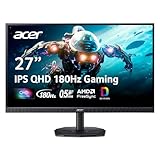
 Acer Nitro 27in QHD 2560x1440 IPS 180Hz Gaming27-inch8.28 x 24.2 x 18.14 inches12.1 poundsCheck on Amazon
 Acer Nitro 27in QHD 2560x1440 Curved 180Hz Gaming27-inch7.7 x 24.6 x 18.3 Inches8.6 poundsCheck on Amazon
Top 3 picks at a glance

The Short Answer
When deciding what monitor size for 1440p gaming is right for your home setup, the absolute sweet spot is 27 inches. At 27 inches, a 1440p (Quad HD, or 2560 x 1440 pixels) resolution delivers an ideal pixel density of approximately 109 pixels per inch (PPI). This level of density ensures that in-game text, UI elements, and textures look incredibly sharp and detailed without requiring any artificial Windows desktop scaling.
While 1440p monitors are also available in 32-inch and 34-inch ultrawide varieties, these larger form factors alter the visual experience and demand significantly more physical desk space. A 32-inch 1440p display drops the pixel density to about 92 PPI—the same density as a standard 24-inch 1080p screen—meaning you will need to sit further back to avoid seeing individual pixels. As we look ahead to 2026, the 27-inch 1440p monitor remains the industry standard for balancing high-speed gaming performance with practical desktop ergonomics.
As an Amazon Associate we earn from qualifying purchases at no extra cost to you.


Standard Sizes
Before purchasing a new display, you must understand the physical footprint it will occupy on your desk. The table below outlines the standard sizes available for 1440p gaming monitors, including their average physical dimensions, stand depths, and weights.
| Monitor Diagonal Size | Average Width (Inches / cm) | Average Height without Stand (Inches / cm) | Typical Stand Depth (Inches / cm) | Average Weight with Stand (lbs / kg) |
|---|---|---|---|---|
| 27-Inch (16:9 Flat) | 24.2″ / 61.5 cm | 14.2″ / 36.1 cm | 7.5″ to 9.5″ / 19 to 24 cm | 11 to 15 lbs / 5.0 to 6.8 kg |
| 27-Inch (16:9 Curved) | 24.1″ / 61.2 cm | 14.1″ / 35.8 cm | 8.0″ to 10.0″ / 20 to 25 cm | 11.5 to 15.5 lbs / 5.2 to 7.0 kg |
| 32-Inch (16:9 Flat) | 28.1″ / 71.4 cm | 16.5″ / 41.9 cm | 9.5″ to 11.5″ / 24 to 29 cm | 15 to 22 lbs / 6.8 to 10.0 kg |
| 34-Inch (21:9 Ultrawide) | 32.5″ / 82.6 cm | 14.5″ / 36.8 cm | 10.0″ to 12.5″ / 25 to 32 cm | 18 to 25 lbs / 8.2 to 11.3 kg |
How to Measure Your Space
A monitor that looks modest in a spacious electronics showroom can easily overwhelm a standard home office desk. Follow these step-by-step instructions to ensure your desk can comfortably accommodate your new 1440p gaming monitor:
- Step 1: Determine Your Desk Depth (Viewing Distance): Sit in your gaming chair and measure the distance from your eyes to the back edge of your desk. For a 27-inch 1440p monitor, you need a viewing distance of at least 20 to 30 inches (50 to 76 cm). If your desk is shallower than 24 inches (60 cm), a 27-inch screen with a wide stand may sit too close to your face, causing eye strain.
- Step 2: Measure Physical Width and Clearance: Use a tape measure to check the horizontal clearance on your desktop. A 27-inch monitor requires at least 24.5 inches of clear width. If you plan to place desktop speakers on either side, add another 8 to 12 inches of clearance.
- Step 3: Check Vertical Height under Shelving: If your desk features a built-in hutch, upper shelving, or is positioned under a low window sill, measure the vertical clearance. While a 27-inch panel is roughly 14.2 inches tall on its own, adding an adjustable ergonomic stand increases the total height to between 18 and 22 inches (45 to 56 cm).
- Step 4: Verify Desk Construction and Weight Capacity: Standard 1440p gaming monitors weigh between 11 and 22 lbs (5 to 10 kg). If you are using a glass desk, a hollow-core door desk, or a cheap particle-board standing desk, verify that the surface can handle the concentrated point-weight of the monitor’s stand or a clamp-on monitor arm.
By Room or Use Case
The Compact Bedroom Setup
In smaller spaces, such as a bedroom corner or a studio apartment, furniture footprint is your primary constraint. For these environments, a 27-inch flat 1440p monitor is the ideal choice. High-performance, budget-friendly options like the Acer Nitro 27-inch QHD Flat monitor (around $150) or the ASUS TUF Gaming VG27AQ3A ($199) fit beautifully on compact desks measuring 40 to 48 inches (101 to 122 cm) in width.
These flat displays can be pushed almost flush against a back wall, preserving valuable desktop real estate for your keyboard, mouse, and study materials. Additionally, at this scale, the monitor can easily pull double duty as a workstation for remote office tasks and a high-refresh-rate gaming hub.
The Dedicated Home Office and Gaming Room
If you have a dedicated room with a standard 60-inch by 30-inch (152 cm x 76 cm) executive or standing desk, you have more flexibility. Here, you can opt for premium 27-inch displays with robust ergonomic stands, such as the AOC 27-inch QHD G-SYNC monitor (around $160), which features a high-speed refresh rate. This environment also accommodates dual-monitor setups, where two 27-inch screens are mounted side-by-side on a heavy-duty dual desktop arm.
Alternatively, a 32-inch 1440p display is highly functional in a dedicated room if your desk depth is 30 inches or deeper. The larger physical screen size provides a more cinema-like experience for open-world RPGs and flight simulators, provided you can sit at least 3 feet (91 cm) away to maintain perceived image sharpness.
The Immersive Corner Setup
For corner desks or L-shaped workstations, curved monitors offer a distinct ergonomic advantage. A curved screen, such as the Acer Nitro 27-inch Curved 1440p monitor (around $160), matches the natural curvature of the human eye. This design brings the left and right edges of the display closer to your peripheral vision, reducing eye fatigue during long gaming sessions.
Curved monitors are particularly effective when tucked into the corner junction of an L-shaped desk. The curved shape utilizes the deep, diagonal corner space that often goes wasted with flat-panel displays, allowing you to maximize your usable desk surface.
Common Sizing Mistakes
Avoid these frequent pitfalls when purchasing and setting up a 1440p gaming monitor:
- Buying a 32-Inch Monitor for a Shallow Desk: Sitting too close to a 32-inch 1440p screen forces you to physically turn your head to see the minimap or UI elements in the corners, leading to neck strain. It also highlights the lower pixel density, making text appear blurry.
- Underestimating Stand Depth: Many modern gaming monitors feature wide, V-shaped tripod stands designed for stability. These stands can protrude up to 10 inches (25 cm) forward from the back of the panel. Always check the stand depth specification, or plan to use a VESA desk mount to reclaim your desk surface.
- Choosing 24 Inches for 1440p: While 24-inch 1440p monitors exist, the pixel density is so high (~122 PPI) that Windows UI elements and web browser text become microscopic. You will likely have to use 125% or 150% display scaling, which can cause compatibility and blurring issues in older software.
- Ignoring Power and Cable Management Footprints: High-refresh-rate 1440p monitors require active cooling and robust internal boards, pulling between 25W and 50W of power. Ensure your power strip has physical clearance for large external power bricks, and allow 3 to 4 inches of clearance behind the monitor for stiff DisplayPort and power cables.
FAQ
Is 32 inches too big for 1440p gaming?
For close-up desktop use (less than 30 inches away), yes, 32 inches is generally considered too large for 1440p. The pixel density drops to 92 PPI, which can make fine text look fuzzy and introduce a “screen-door” effect in bright game scenes. However, if your desk is deep enough to allow a viewing distance of 36 inches (91 cm) or more, a 32-inch 1440p display works well and offers excellent immersion.
Do I need a curved monitor for 27-inch 1440p gaming?
No, a curved screen is not strictly necessary at the 27-inch size. Because a 27-inch screen is relatively compact, you can easily view the entire panel without color shifting or edge distortion. However, if you prefer an wrap-around visual feel or sit very close to your screen, a gentle curve (such as 1500R) can be a comfortable stylistic choice.
How much desk depth do I need for a 27-inch monitor?
You should have a desk depth of at least 24 inches (60 cm). This allows roughly 2 to 3 inches of clearance behind the monitor for cables, 8 inches for the stand itself, and leaves you with 14 inches of space in front of the screen for your keyboard, wrist rest, and mousepad while maintaining an ergonomic viewing distance.
What are the power requirements and weight of typical 1440p screens?
A standard 27-inch 1440p gaming monitor typically draws between 25 and 45 watts of power during active gaming, though this can spike slightly if HDR (High Dynamic Range) is enabled at maximum brightness. Without the stand, the panel itself weighs around 8 to 11 lbs (3.6 to 5.0 kg), making it compatible with most standard, low-cost gas-spring monitor arms.
Related guides
- Best Gaming PC for Overwatch 2: Ten Prebuilts Matched to Your Monitor (2026)
- Best Gaming PC for Baldur’s Gate 3: Matching CPU, VRAM and Storage to the Game (2026)
- Best Gaming PC for Apex Legends: Which Listings Fit a High-Refresh Setup (2026)
- Best RTX 3060 Gaming PCs: Eight Prebuilt Listings Compared by CPU, RAM and Cooling (2026)