
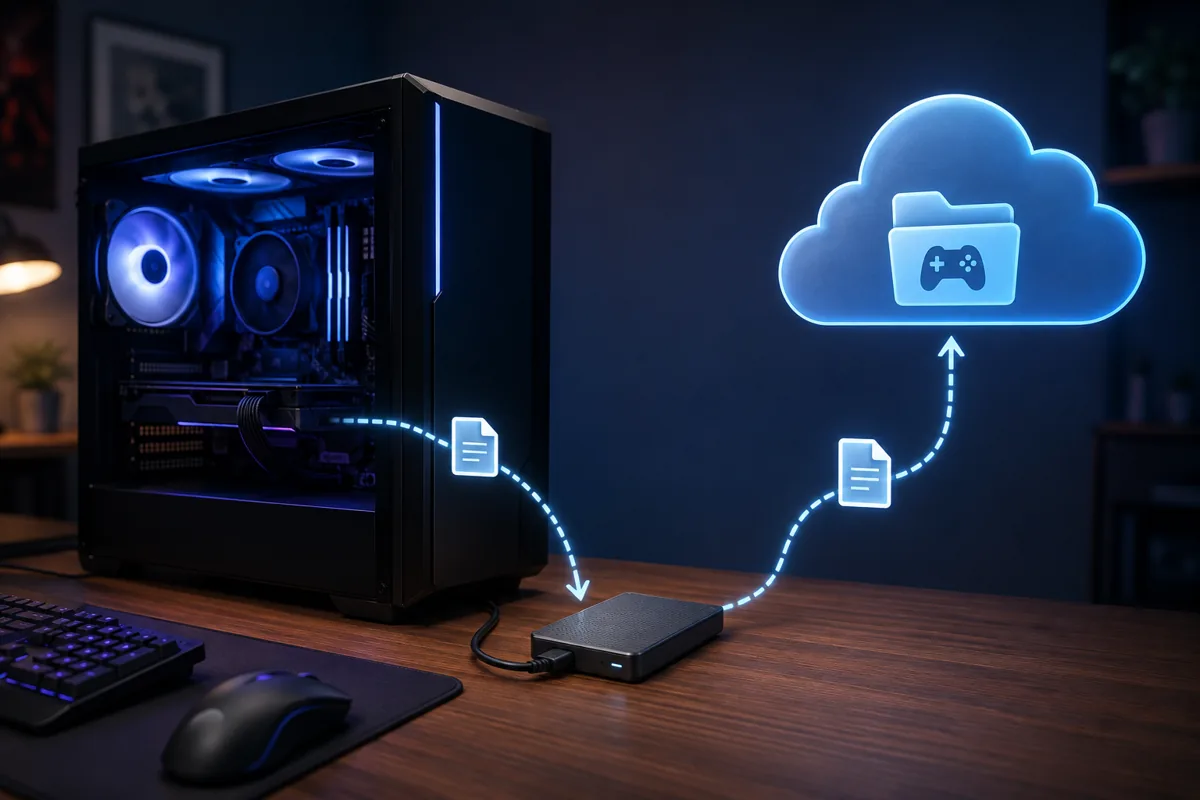
Storefront cloud saves are not backups, and that single misunderstanding is behind most lost progress. Steam, Epic Games Store and GOG Galaxy each sync only the files a developer explicitly registered with the platform, which routinely excludes mods, configuration files, control remaps and mod manager profiles, and the per-title quotas involved are measured in megabytes rather than gigabytes. Worse, sync is a mirror: a save that corrupts on your PC gets copied upward within seconds, replacing the good copy with the broken one.
The practical fix is layered and takes about ten minutes a week to maintain. Use a dedicated save manager such as Ludusavi to collect the correct files, have it write dated archives into a folder that a general cloud service already syncs, and keep an occasional copy on a drive that stays unplugged. This article covers what each layer catches, where saves actually live on Windows, and the situations where none of this helps.
As an Amazon Associate we earn from qualifying purchases at no extra cost to you.



Our Top Picks
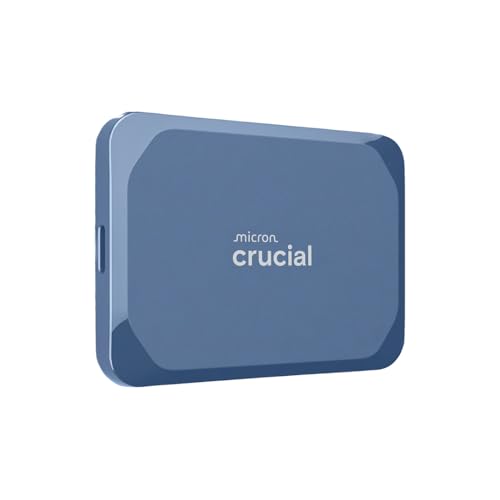
- Western Digital 4TB My Passport SSD External Portable4TB3.5 x 1.18 x 0.39 Inches0 PoundsCheck on Amazon
Top 3 picks at a glance
Short answer
Do not choose between a save manager and a cloud service; combine them. The save manager knows where files live and keeps versions, and the cloud service moves those archives off the machine. General sync tools alone will mirror corruption. Whole-machine backup services alone will catch everything but make single-game restores slow. If you only do one thing, install Ludusavi, point its backup folder inside your existing cloud drive, and schedule it weekly.
| Option | When it fits | Trade-off |
|---|---|---|
| Save manager (Ludusavi, GameSave Manager) | You want the right files, per game, with dated versions | Not off-site by itself; needs a cloud folder underneath |
| Consumer sync (OneDrive, Google Drive) | You already pay for storage and want off-site copies | Mirrors corruption; needs junctions to catch real save paths |
| Whole-machine backup (Backblaze) | You want everything covered without thinking about paths | Restores are slower; retention window limits how far back you go |
| Self-managed sync (Syncthing, rclone) | You want no quota, no subscription and full control | You own the reliability, the scheduling and the testing |
What storefront cloud saves actually cover
A storefront can only sync files it has been told about. Developers either register specific paths with the platform or call the platform’s storage functions from inside the game, and in both cases the file list is a deliberate choice made during development. Anything outside that list is invisible to the sync system no matter how important it is to your playthrough.
The predictable casualties are mods and everything around them. Mod loaders keep their own directories, mod managers keep profile databases elsewhere again, and heavily modded games often store hundreds of megabytes of load order and patch data that no storefront quota would accept. Configuration files with graphics presets and control remaps sit in the same blind spot, which is why a fresh install on a new PC downloads your progress but not the key bindings you spent an evening setting up.
Coverage also stops at the edge of the storefront. Games launched outside a client, titles added to a library as manual shortcuts, standalone launcher games and every emulator save state you have ever made are outside the system entirely. Older titles that predate cloud saves usually keep progress inside their own installation folder, where a reinstall or a file verification pass can remove it.
Finally, sync has no memory. It reflects the current state of a file, not its history. If a game writes a truncated save because it crashed during a write, or an autosave lands you in an unwinnable state, the platform faithfully copies that version upward and the previous one is gone. Our older walkthrough on backing up your game saves covers the manual version of this problem; what follows is how to automate it.
Where save files actually live on Windows
There is no single location, which is the root of the difficulty. Modern titles most often use a saved games directory inside your user profile, a My Games folder inside Documents, or one of the application data folders that Windows keeps hidden by default under roaming and local paths. Each of those is a legitimate convention, and different studios pick different ones.
Steam adds another pattern. Games using its storage system keep files in a userdata directory inside the Steam installation, organised by a numeric account identifier and then by a numeric application identifier per game. That structure matters when restoring, because dropping files into the wrong numeric folder produces a game that loads a blank profile and looks as if the backup failed.
Games distributed through the Microsoft Store, including PC titles from a console subscription, are the awkward case. They install into protected per-package directories that ordinary tools may not be able to read without adjusted permissions, and their save locations are less consistent than storefront-neutral releases. Assume these need checking individually rather than trusting a scan.
If you need to find a specific game’s files without guesswork, there is a reliable manual method: play for a minute, quit properly, then sort each candidate directory by modification date. The folder that changed in the last two minutes is the one you want. Doing this once for the three or four games you care most about is worth the effort, because those are exactly the ones an automated scan is most likely to miss.
What to protect besides the save file
A save file records where you are in a game. It rarely records how you play it. Control remaps, sensitivity values, key bindings and accessibility settings usually live in separate configuration files, and those are the settings that take an evening to rebuild and that nobody remembers until they are gone. Treat the whole configuration directory as part of the backup, not just the file with save in its name.
Mod setups deserve their own attention because they have three moving parts. There are the mod files themselves, the load order or profile database kept by whichever mod manager you use, and any patches or merged files generated locally. Restoring a save without the matching load order produces a game that either refuses to load or loads into a broken world, which is arguably worse than losing the save outright.
Photo mode shots, in-game screenshots and video captures are the opposite problem: they are worth keeping but they are large, and leaving them inside the archived folders inflates every backup you make. Move them to their own directory and back them up on a slower schedule.
Two more categories get forgotten regularly. Emulator saves and save states are entirely outside any storefront system, and they usually sit in the emulator’s own folder alongside its configuration. Launcher and overlay settings, including per-game performance profiles, sit somewhere else again. Neither is critical, but both are cheap to include once you know the paths.
The four kinds of tool, and what each is good at
A save manager is purpose-built. Ludusavi is open source, uses a community-maintained database of save paths covering a very large number of titles, scans your installed games, and produces per-game archives that can be restored individually. It keeps a configurable number of previous backups and lets you add paths by hand for anything it does not recognise. GameSave Manager is a long-running Windows alternative with its own large title database.
General cloud sync covers OneDrive, Google Drive and similar services. Their strength is that they are already installed, already paid for, and keep a window of file version history you can roll back through. Their weakness is that they sync a folder, and your saves are not in it. Bridging that gap means either moving the save folder and leaving a directory junction behind, or letting a save manager write archives into the synced folder instead, which is much safer.
Whole-machine backup services such as Backblaze take the opposite approach: they continuously back up the drive, so odd paths, registry-adjacent files and games you forgot you installed are all captured without configuration. The trade-offs are that restoring one game’s save from a full-disk backup is slower than opening a save manager, and the default retention window limits how far back you can reach, so check current terms if version depth matters to you.
Self-managed sync is the free tier of the same idea. Syncthing keeps folders in step between two machines you own, with no provider and no quota, which suits a household with a desktop and a laptop. rclone pushes a local folder to almost any cloud provider on a schedule you define. Both are dependable, and both put the responsibility for scheduling and verification on you.
Version history is the feature that decides everything
The failure people actually experience is rarely a dead drive. It is a save that turns out to be broken, a mod update that invalidates a character, or an autosave written into a state you cannot escape. In every one of those cases the file still exists and syncs perfectly. What you need is the version from before.
That is why a plain mirror is a weak backup. Any arrangement worth trusting keeps multiple dated copies, and a sensible starting point is five snapshots spanning roughly 30 days. Ludusavi handles this directly through its retention setting; consumer cloud services handle it through file version history, though the depth of that history varies by provider and plan.
Ransomware makes the same argument more forcefully. Encrypted files sync upward like any other change, so an off-site copy with no history is no protection at all. A copy on an external drive that spends most of its life unplugged is immune by virtue of being disconnected, which is why the old advice about one offline copy survives every change in cloud pricing.
Power loss is the third version-killer, and it is the one that produces genuinely corrupted files rather than merely unwanted ones. A machine that loses power mid-write can leave a save half-written and unreadable, which is one of several reasons our notes on choosing a UPS for a gaming PC treat clean shutdown as a data-integrity feature rather than a luxury.
How this routine is verified
Owen Pritchard, our technical guides editor with twelve years in the field, works from a diagnostics bench with POST cards, spare parts for swap-testing and multiple OS images, and the multiple-image part is what makes save testing meaningful. A backup that has never been restored onto a different Windows installation is a hypothesis, not a backup.
The check we run is deliberately unkind. Back up a game’s saves, then restore them onto a clean image where that game has been freshly installed and the storefront account is signed in, and see whether the game finds the progress. This exposes account-specific folder identifiers, files that live in a directory the backup tool never scanned, and saves tied to a machine or hardware identifier, none of which show up when you restore onto the same PC that made the backup.
We do not quote transfer speeds or upload times, because those depend entirely on your connection and the provider’s current infrastructure. What we will state is the structural point: tools that understand game save paths recover a single title faster than whole-disk services, and services that keep history recover from mistakes that mirrors cannot. If a drive is the thing you are worried about, that is a different job, and the tools in our roundup of SSD cloning software address it properly.
The ten-minute weekly routine
- Install Ludusavi and run its scan. Let it detect installed games and review the list, because that list is also a useful audit of which titles it does not know about.
- Set the backup destination to a folder that already lives inside your cloud-synced directory, so every archive it writes is copied off the machine automatically.
- Set retention to keep at least five previous backups. This is the setting that turns a mirror into something you can roll back through.
- Add missing games by hand. Use the modification-date method above to find their folders, then register those paths so future runs include them.
- Add the mod directories for any heavily modded game as extra paths. Storefront sync will never cover these, and they are usually what takes longest to rebuild.
- Schedule the backup weekly, and run it manually before any risky action such as a major mod update or a Windows reinstall.
- Test one restore. Restore a single game’s save into a renamed copy of its folder, launch, and confirm the progress appears. Do this once now and once after any change to the routine.
- Every few months, copy the whole backup folder onto an external drive and unplug it. That is the offline layer, and it takes two minutes.
When this approach does not work
Server-side progress is the largest exception. Massively multiplayer games, most live-service titles and anything where your character exists on the publisher’s servers store nothing meaningful on your PC. There is no file to back up, no restore to perform, and account security becomes the only protection that matters.
Console saves are outside this entirely. They live in the platform’s own ecosystem and are usually protected against copying, so the platform’s own cloud service is the only realistic option. The same limitation applies in a softer form to some PC titles distributed as store packages, where protected install locations block ordinary tools from reading save data.
Encrypted and hardware-bound saves defeat straightforward restores. A handful of games tie save files to an account identifier or a machine fingerprint, so the file copies perfectly and then refuses to load elsewhere. You cannot fix this from outside the game, and the only useful response is to know which of your titles behave this way before you need the backup.
Finally, a few older games keep progress or critical settings in the Windows registry rather than in files. A file-based backup misses them completely. Exporting the relevant registry branch is possible but fiddly, and a whole-machine backup service is a better fit if you have several such titles.
Troubleshooting
Symptom: the restore completes but the game shows no saves. The usual cause is an account-specific directory, most often the numeric account identifier Steam uses inside its userdata folder. Compare the folder name in the backup against the one on the current machine; if they differ, move the contents into the folder the current account actually uses rather than restoring the old folder alongside it.
Symptom: the restored save is replaced by an old one as soon as the game launches. Storefront cloud sync overwrote your file. Turn off cloud sync for that specific title in the client before restoring, restore, launch once so the game writes a fresh save from the restored data, then re-enable sync so the cloud copy is updated rather than the other way around.
Symptom: the game stalls or errors when saving after you moved the folder into a cloud drive. Online-only placeholder files are the likely cause. Mark the folder to stay available offline in the sync client’s settings, and confirm the files show as locally stored before playing again.
Symptom: duplicate files appear with conflict or conflicted copy in the name. Two machines wrote to the same synced folder, which happens when a desktop and a laptop are both running the same game. Stop syncing the live save folder and switch to archive-based backups instead, so each machine produces its own timestamped snapshot rather than fighting over one file.
Symptom: the backup tool finds nothing for a game you know stores saves locally. The path is non-standard or the title is a store package. Find the folder using the modification-date method, then add it manually. If the folder cannot be opened at all, that is a permissions issue on a protected package directory, and a whole-machine backup service is the practical workaround.
Symptom: the backup folder has grown to many gigabytes. Something large is inside a save directory, usually screenshots, video captures or a mod cache. Exclude those subfolders and the archive size drops sharply. If the growth is sudden and unexplained, checking drive health with the utilities in our guide to PC diagnostic tools is worth ten minutes before assuming the backup software is at fault.
Frequently asked questions
Do I still need a backup if my games already sync to the cloud?
Yes. Storefront cloud saves only cover the files a developer registered with the platform, and per-title quotas are usually measured in megabytes. Mods, configuration files, control remaps, mod manager profiles and screenshots are frequently left out, and games with no cloud support at all get nothing. Storefront sync is also a mirror rather than a backup, so a corrupted save can be copied upward before you notice anything is wrong.
What is the best cloud backup tool for game saves?
The most reliable arrangement is a dedicated save manager writing archives into a folder that a general cloud service already syncs. Ludusavi is the usual choice because it is open source, knows where thousands of games store their files, and keeps several dated copies. Point its backup folder at OneDrive, Google Drive or any synced directory and you get both correct paths and off-site storage without paying for a second product.
Can I just put my save folder in OneDrive or Google Drive?
You can, but not by dragging it. Games expect their saves at fixed paths, so moving the folder breaks them unless you leave a directory junction behind at the original location. It also creates a live mirror with no snapshot, meaning corruption propagates instantly. If you do use this method, keep the folder marked to stay available offline, because an online-only placeholder can stall a game mid-save.
How many copies of my game saves should I keep?
Three copies on two kinds of media with one off-site is the standard rule, and it adapts well here: the live save on your PC, an automated archive in a cloud-synced folder, and a quarterly copy onto an external drive that is unplugged the rest of the time. For versions, keeping at least five dated snapshots covering about 30 days catches the common case of a bad autosave you notice a week later.
Why did my restored save not load?
The usual cause is an account-specific folder. Steam stores some saves under a per-account numeric directory, and restoring into the wrong one leaves the game looking at an empty profile. The second most common cause is storefront cloud sync overwriting your restored file at launch, which is why you should disable cloud sync for that title, restore, launch once to confirm, then re-enable it.
Related guides
- Best Gaming PC for Overwatch 2: Ten Prebuilts Matched to Your Monitor (2026)
- Best Gaming PC for Baldur’s Gate 3: Matching CPU, VRAM and Storage to the Game (2026)
- Best Gaming PC for Apex Legends: Which Listings Fit a High-Refresh Setup (2026)
- Best RTX 3060 Gaming PCs: Eight Prebuilt Listings Compared by CPU, RAM and Cooling (2026)









