Our Top Picks


The Short Answer
Whether you need a GPU support bracket depends on a single key variable: the physical weight and length of your graphics card. If your graphics card weighs more than 2.5 pounds (1.1 kg) or extends beyond 10.5 inches (267 mm) in length, you need a GPU support bracket. Modern high-performance cards drawing 300W to 450W or more feature massive cooling blocks that easily weigh between 3.5 and 5.5 pounds. Suspended horizontally from a motherboard, this unmitigated downward weight creates mechanical torque, leading to noticeable structural sag, printed circuit board (PCB) flexing, and potential micro-fractures in the PCIe slot over time. Conversely, if you own a compact dual-fan card weighing under 2.0 pounds or utilize a vertical GPU mounting bracket, a support pillar is unnecessary.
What You Actually Get
A GPU support bracket is a dedicated structural balance device designed to neutralize the gravitational strain modern heatsinks exert on your desktop computer’s internal components. From an interior design and spatial arrangement perspective, a personal computer sits prominently on top of modern workstations and executive desks. Unintended structural slanting—commonly referred to in tech spaces as “GPU sag”—ruins the clean, parallel lines of a refined desk build while actively stressing internal architecture.
As an Amazon Associate we earn from qualifying purchases at no extra cost to you.

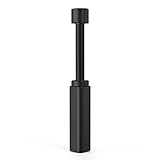
Mechanically, these brackets come in two primary forms: horizontal bracing arms that screw into the expansion slot covers of your computer chassis, and vertical telescopic pillars that rest on the power supply unit (PSU) shroud or case floor. Vertical telescopic pillars are among the most popular and reliable solutions. Constructed from anodized aluminum alloys, these pillars use a simple screw-jack mechanism that allows for millimeter-precise height adjustment within typical ranges, such as 70mm to 120mm or 74mm to 120mm.
Priced conservatively between $8 and $25, basic utility options like an adjustable stand with a magnetic non-slip base (often priced around $8) offer high functional value. The base incorporates a embedded magnet that firmly grips steel case floors, while rubber padding on both top and bottom contact points dampens fan vibrations and prevents surface scratching. By installing one, you effectively transfer the cantilevered load of a multi-pound GPU directly onto the rigid floor of your chassis, establishing total mechanical stability without relying on software, power cables, or complex installations.
Pros
- Prevents Irreversible PCB and Slot Damage: Elevates structural stress off the PCIe x16 slot, preventing cracked soldering joints, bent pins, and warped circuit boards over extended years of heat cycles.
- Restores Architectural Sightlines: Corrects drooping graphics cards to maintain clean, level horizontal alignment, elevating the visual presentation of glass-paneled desktop setups.
- Simple, Non-Invasive Installation: Requires zero tools or electrical wiring. Adjustment takes seconds by twisting the threaded column to the desired clearance height.
- High Cost-to-Protection Ratio: Protects graphics cards costing anywhere from $500 to over $1,500 for a minimal hardware investment ranging from $8 to $15.
- Vibration Isolation and Surface Protection: Magnetic bases combined with high-density EVA rubber padding prevent acoustic rattling and stop metal-on-metal scratching on delicate case interiors.
Cons
- Requires Dedicated Floor Clearance: Vertical pillar stands require a flat surface directly beneath the outer edge of the GPU, needing roughly 70mm to 120mm of vertical clearance above the PSU shroud.
- Potential Fan Interference: Incorrect placement can push rubber pads against rotating GPU fan blades or obstruct bottom-mounted case intake fans.
- Incompatible with Non-Magnetic Materials: Magnetic bases will not adhere to aluminum, tempered glass, or plastic lower case panels, relying entirely on friction and downward pressure.
- Visual Clutter in Minimalist Builds: Adds an extra vertical post inside the main chamber of the case, which some builders seeking absolute open-space aesthetics may dislike.
Who Should Buy It
You should buy a GPU support bracket if you are installing a modern 3-slot or 3.5-slot graphics card in a standard horizontal orientation. As graphics card coolers continue to expand in size heading into 2026, triple-fan cooling assemblies have become standard across upper-mid-range and flagship models. If your setup features a mid-tower or full-tower enclosure where the graphics card hangs freely above a steel PSU shroud, spending around $8 on an adjustable aluminum support stand is one of the most practical preventative maintenance decisions you can make. It is equally recommended for anyone who frequently moves their computer desk or travels with their PC, as physical movement amplifies kinetic force on unsupported PCIe slots.
Who Should Skip It
You can safely skip a GPU support bracket if your build utilizes a vertical mounting kit that positions the graphics card parallel to the motherboard via a riser cable. In this layout, the weight pushes straight down into dedicated chassis mounts rather than twisting the motherboard slot. Additionally, owners of compact, lower-wattage cards (such as dual-fan 115W to 160W GPUs under 9 inches long) do not generate enough cantilever torque to cause structural sagging. Finally, small form factor (SFF) mini-ITX cases rarely have the 70mm clearance height required beneath the card to fit a vertical support pillar.
Cheaper Alternatives
If you need to resolve GPU sag immediately without purchasing a dedicated aftermarket bracket, several functional alternatives exist across various price points and aesthetic trade-offs.
| Option | Cost | Trade-off |
|---|---|---|
| Included GPU Support Arm | around $0 (Free with select GPUs) | Often bulky, requires long rear slot screws, and can block adjacent PCIe slots. |
| Custom DIY Pillar (Lego / Wooden Dowel) | around $0 – around $2 | Lacks magnetic stability and rubber vibration dampening; lower aesthetic polish. |
| PCIe Slot Expansion Frame Arm | around $5 – around $12 | Relies on rear chassis metal strength, which can bend on budget PC cases. |
| Clear Monofilament / Fishing Line Support | around $0 – around $1 | Nearly invisible, but difficult to tie to precise tension and can slip over time. |
FAQ
Can GPU sag actually damage my motherboard or graphics card?
Yes. While minor sag of a few millimeters is primarily cosmetic, severe long-term sagging places constant mechanical stress on the PCIe x16 slot’s plastic housing and solder joints. Over time, thermal expansion and contraction combined with severe drooping can cause intermittent display disconnects, cracked PCB trace lines, or permanent slot detachment.
How high should I lift the GPU with a support bracket?
You should adjust the support bracket column until the graphics card is perfectly level with your desk surface and motherboard structure. Use a small pocket spirit level placed on the GPU backplate for precision. Never over-tighten or crank the bracket upward beyond horizontal, as pushing the card upward places stress on the top edge of the PCIe slot.
Will an around $8 GPU bracket work as well as expensive RGB brackets?
Yes. Mechanically, an entry-level around $8 metal pillar featuring a 70–120mm height range and a magnetic non-slip base offers identical structural load handling to $30–$50 illuminated acrylic or metal brackets. Premium brackets add custom lighting and aesthetic branding, but basic metal jack-screws provide equal physical protection.
Does a vertical GPU mount eliminate the need for a bracket?
Yes, a vertical GPU mounting kit eliminates the need for a traditional support pillar. By rotating the card 90 degrees, the weight of the heatsink rests vertically against the rear chassis frame or dedicated bottom support bracket, eliminating horizontal cantilever forces entirely.
Related guides
- Best Gaming PC for Overwatch 2: Ten Prebuilts Matched to Your Monitor (2026)
- Best Gaming PC for Baldur’s Gate 3: Matching CPU, VRAM and Storage to the Game (2026)
- Best Gaming PC for Apex Legends: Which Listings Fit a High-Refresh Setup (2026)
- Best RTX 3060 Gaming PCs: Eight Prebuilt Listings Compared by CPU, RAM and Cooling (2026)