Shopping for a gaming GPU in 2026, one spec keeps dominating forums and product pages: VRAM. It’s easy to see why. Games are eating memory faster than ever, and a card that felt comfortable two years ago can now stutter in modern titles. But most buyers get VRAM wrong in one of two directions — they either chase the biggest number on the box and overspend, or they buy a cheap 8GB card and wonder why texture quality tanks six months later.
The three most common mistakes:
As an Amazon Associate we earn from qualifying purchases at no extra cost to you.


- Buying VRAM in isolation. 8GB on a card with a narrow 128-bit bus and slow GDDR6 performs very differently than 8GB on a card with fast GDDR6X or large caches. Raw capacity is only part of the memory story.
- Assuming more VRAM equals more FPS. In most games at 1080p and 1440p, frame rates are GPU-compute-bound, not memory-bound. Extra VRAM mostly prevents stutter and texture downgrade, not slow frames.
- Ignoring resolution and target settings. A 16GB card is genuinely useful at 4K with ray tracing and high-resolution texture packs. At 1080p medium settings, that same capacity sits mostly idle.
This guide breaks down what actually matters when evaluating VRAM capacity, using real cards at real prices as reference points.
Our Top Picks
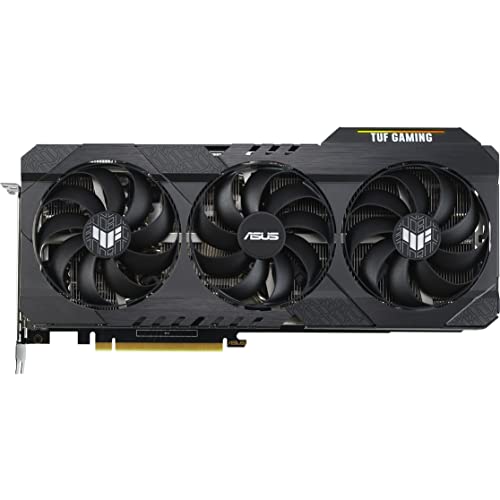 ASUS TUF Gaming NVIDIA GeForce RTX 3060 Ti2.1"x5.6"x11.8"11.85 x 5.63 x 1.73 inches2.5 PoundsCheck on Amazon


Top 3 picks at a glance
Decide These 3 Things First
1. Your target resolution and refresh rate. This is the single biggest VRAM decision. 1080p at 60–144Hz, 1440p high refresh, or 4K all place different demands on framebuffers. Playing at 1440p with Ultra textures typically consumes 10–12GB of VRAM in modern AAA titles; 4K with ray tracing can push past 14GB.
2. Your budget ceiling, realistically. Set a hard number before browsing. VRAM tiers roughly map to price: expect to pay around $430–$500 for a solid 8GB card like the Gigabyte RX 7600 Gaming OC at $455, $550–$600 for a better-balanced 8GB option like the ASUS TUF RTX 3060 Ti V2 at $575, and $830–$1,000 for 16GB class hardware like the ASRock RX 9070 XT at $839 or XFX RX 7900 GRE at $999.
3. How long you keep cards. If you upgrade every two years, 8GB is still workable at 1080p. If you keep a GPU four to five years, buy more VRAM than you need today — capacity requirements only go up, and VRAM is the spec that ages worst.
Match VRAM to Your Resolution
Use these as working minimums for modern AAA games at high/ultra settings:
- 1080p: 8GB is the practical floor. Titles like the heaviest current releases can exceed 8GB even at 1080p with ray tracing enabled, at which point performance degrades sharply rather than gracefully.
- 1440p: 10–12GB is the comfortable zone. 8GB works at high (not ultra) settings without ray tracing, but you’ll be turning texture quality down in new releases.
- 4K: 16GB is the realistic target. At this resolution, texture assets, render targets, and ray-tracing buffers stack up fast.
Note that esports titles (Counter-Strike, Valorant, League) use under 4GB even at high settings. If that’s your entire library, VRAM capacity barely matters — spend your budget on raw GPU speed instead.
Memory Bandwidth and Bus Width: Capacity’s Silent Partner
VRAM capacity tells you how much data fits; bandwidth tells you how fast the GPU can read it. A card can have plenty of memory and still choke on a narrow bus.
- The Gigabyte RX 7600 pairs its 8GB with a 128-bit bus and roughly 288 GB/s of bandwidth — adequate for 1080p, strained at 1440p ultra.
- The RX 7900 GRE’s 16GB rides a 256-bit bus at around 576 GB/s — double the bandwidth, which is why it holds up at 1440p and entry 4K.
- The RX 9070 XT moves to faster GDDR6 memory on a 256-bit bus, delivering roughly 640 GB/s, keeping its 16GB fed at high resolutions.
Rule of thumb: when comparing two cards with equal capacity, the one with higher bandwidth sustains high texture settings better. Also pay attention to cache — AMD’s large Infinity Cache effectively compensates for narrower buses by keeping frequently used data on-die.
Construction, Cooling, and Sustained Performance
VRAM chips are sensitive to heat. Sustained memory temperatures above roughly 90°C can trigger throttling, and long-term exposure accelerates degradation. This is where board construction matters:
- Fan count and heatsink mass: Triple-fan designs like the Gigabyte RX 7600 Gaming OC’s 3X WINDFORCE setup (card length around 282mm, dual 8-pin-free single 8-pin power draw of about 165W) give thermal headroom. Higher-end cards pulling 250–330W genuinely need two-slot-plus coolers with vapor chambers.
- Physical fit: Measure your case. Triple-fan cards commonly run 280–330mm long and 2.5–3 slots thick. The TUF-series cards are built with metal backplates and reinforced frames for rigidity.
- Power delivery: Budget 8GB cards run happily on a 550W PSU with one 8-pin connector. The RX 7900 GRE wants a 700W PSU with two 8-pin (or 12VHPWR) connectors; the RX 9070 XT recommends 750W. Underpowered setups cause shutdowns that look like GPU defects.
Performance Comfort: Tuning Settings to Your VRAM
Understanding which settings consume VRAM lets you stretch a smaller card further:
- Texture quality is the dominant VRAM consumer — dropping from Ultra to High can free 2–3GB with minimal visual loss.
- Ray tracing adds 1–3GB on top of raster workloads.
- Resolution scaling up (DLSS/Dynamic mode) increases framebuffer demand slightly while raising frame rates — often a good trade.
- Texture streaming / pool size settings in PC ports should be raised only if you have the headroom; forcing them past your capacity causes hitching.
An 8GB card like the RTX 3060 Ti V2 at 1080p ultra remains smooth because its GPU compute matches the resolution. Pushing that same card to 4K wastes its compute on texture pop-in and frame-time spikes — a resolution mismatch, not a bad card.
Price Tiers: What Each Dollar Buys
- Budget ($400–$500): 8GB GDDR6, 128-bit bus, ~160–170W. Example: Gigabyte RX 7600 Gaming OC at $455. Right for 1080p high-refresh esports and 60fps AAA at medium-high.
- Midrange ($550–$700): Still 8GB in many cases but on stronger silicon, or 10–12GB variants. Example: ASUS TUF RTX 3060 Ti V2 OC at $575. Best value for 1080p ultra / 1440p high.
- Upper midrange ($800–$900): 16GB with modern architecture. Example: ASRock RX 9070 XT Steel Legend at $839. The sweet spot for 1440p ultra with ray tracing and entry 4K.
- Enthusiast ($900–$1,100): 16GB with high clocks and bandwidth. Example: XFX RX 7900 GRE at $999. Headroom for 4K and multi-year longevity.
Warranty and Support
- Standard coverage: ASUS, Gigabyte, ASRock, and XFX typically carry 2–3 year warranties; ASUS doubled many TUF/ROG cards to 3 years with registration. Check whether the warranty follows the card or requires the original purchaser.
- Registration matters: Several manufacturers extend +1 year only if you register within 30 days of purchase. Do it the day the card arrives.
- RMA logistics: Prefer brands with local repair/advance-replacement programs. Cross-border RMA shipping on a 3-pound graphics card can cost $40–$80 and take weeks.
Delivery, Installation, and First Boot
GPUs ship in retail boxes weighing 2.5–4 pounds; inspect for crushed corners before signing. On install: ensure your PSU has the required connectors before ordering (adapter cables are not a long-term solution), mount the card in the top PCIe x16 slot, and connect required power for every 8-pin/12VHPWR connector — running a 300W card on one of two connectors triggers power-limit throttling. After first boot, update drivers, then check VRAM usage in your most-played title at your intended settings to confirm your capacity choice was right.
Spec Checklist
| Spec | Budget ($400–$550) | Mid ($550–$850) | Premium ($850–$1,100) |
|---|---|---|---|
| VRAM capacity | 8GB GDDR6 | 8–12GB | 16GB |
| Bus width / bandwidth | 128-bit / ~280–300 GB/s | 128–192-bit / ~360–450 GB/s | 256-bit / ~575–640 GB/s |
| Target resolution | 1080p | 1080p ultra / 1440p high | 1440p ultra / 4K |
| Board power | 160–170W | 170–250W | 250–330W |
| Recommended PSU | 550–600W | 650–700W | 750W+ |
| Cooling | 2–3 fans, 2–2.5 slots | 2–3 fans, 2.5 slots | 3 fans, 2.5–3.5 slots |
| Reference price | $455 (RX 7600 Gaming OC) | $575 (RTX 3060 Ti V2) | $839–$999 (RX 9070 XT / RX 7900 GRE) |
Red Flags
- Big VRAM, weak GPU: Cards pairing 16GB with entry-level silicon use memory capacity as a marketing hook. The compute can’t feed it at high resolutions.
- 8GB marketed as “4K ready”: No 8GB card handles 4K ultra in modern AAA titles without heavy stutter. Walk away.
- LR4/”lite hash rate” labels without context: Fine for gaming, but confirm you’re not paying mining-era stock prices.
- No-name brands with 1-year warranties and single-fan coolers on 250W+ chips — thermal and support risk.
- Bundled “OC” pricing premium over $50 for factory clocks that cost under 5% real-world performance versus stock models of the same chip.
- Used cards from mining farms with memory chips that ran hot for years — VRAM degradation doesn’t show up until it’s too late.
FAQ
Is 8GB of VRAM still enough in 2026?
For 1080p gaming at high settings, yes, with occasional texture compromises in the heaviest new releases. For 1440p and beyond, 8GB is increasingly the bottleneck. If you play a mix of esports and older titles, it remains fine; if you buy every AAA release at launch, budget for more.
Does more VRAM increase FPS?
Usually not directly. Once VRAM is sufficient for your resolution and settings, extra capacity adds nothing to frame rates. Extra VRAM prevents stutter, texture pop-in, and forced quality reductions — frame consistency rather than raw speed.
Should I choose 12GB at a lower GPU tier or 8GB at a higher tier?
Generally take the stronger GPU. Compute performance determines your frame rate ceiling, and the higher-tier card stays playable longer even as textures tighten. Only prioritize capacity over compute if you specifically play at 4K or mod heavily.
How much VRAM do I need for ray tracing?
Add roughly 1–3GB to your raster requirements. A comfortable ray-tracing experience at 1440p realistically wants 12–16GB; at 4K, 16GB is effectively mandatory since RT buffers scale with resolution.
Related guides
- Best Gaming PC for Overwatch 2: Ten Prebuilts Matched to Your Monitor (2026)
- Best Gaming PC for Baldur’s Gate 3: Matching CPU, VRAM and Storage to the Game (2026)
- Best Gaming PC for Apex Legends: Which Listings Fit a High-Refresh Setup (2026)
- Best RTX 3060 Gaming PCs: Eight Prebuilt Listings Compared by CPU, RAM and Cooling (2026)