Most gamers shopping for a new keyboard make the exact same mistake: they buy for the flashy RGB light show and ignore the actual engine under the hood. They pull a stunningly backlit keyboard out of the box, plug it in, and realize too late that the keys feel mushy, make a deafening racket that wakes up the entire house, or require so much force to press down that their fingers cramp after a two-hour session.
If you are tired of stiff keys, missed inputs during intense firefights, or buying a whole new deck just because a single key went bad, you need a systematic approach. This gaming keyboard buying guide switch types breakdown will cut through the marketing jargon and show you exactly what actually matters for your desk setup, your hands, and your budget.
As an Amazon Associate we earn from qualifying purchases at no extra cost to you.


Our Top Picks

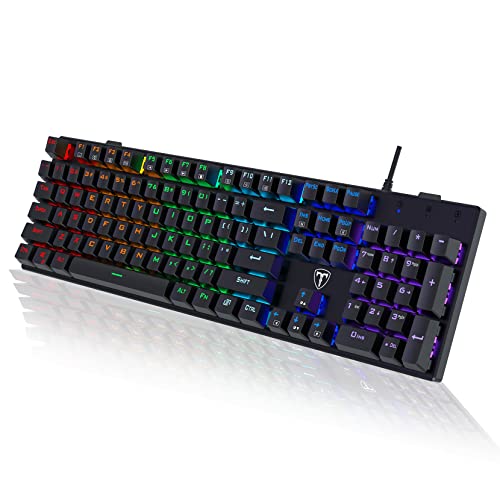


Top 3 picks at a glance
Decide These 3 Things First
Before you get lost in the weeds of mechanical actuation points and polling rates, you must lock down three fundamental elements of your keyboard architecture. Making these decisions first will instantly eliminate 80% of the options on the market, saving you hours of shopping fatigue.
- The Core Switch Style: Do you want smooth, silent speed (Linear), a physical bump you can feel (Tactile), or a loud, satisfying click (Clicky)? Your environment matters here—a clicky blue switch is great for a private gaming room but will get you banned from a shared living space or office.
- Hot-Swappable vs. Soldered PCB: A hot-swappable keyboard allows you to pull out switches and replace them without touching a soldering iron. If a switch dies, or if you want to swap out your WASD keys for a different feel, a hot-swappable board lets you do it in seconds. Soldered boards are permanent; if one switch breaks, the whole keyboard is essentially e-waste unless you are handy with a soldering iron.
- Form Factor (The Footprint): Do you actually use the number pad? If you play FPS games, you need maximum mouse space. Giving up the numpad for a tenkeyless (TKL) or a 60% board can instantly improve your gaming ergonomics by letting you position your mouse closer to your natural shoulder width.
1. Keyboard Size and Layout Dimensions
Desk real estate is a finite resource. Keyboard sizes are categorized by percentages relative to a standard 104-key layout. Choosing the wrong size can lead to cramped wrists or a mouse constantly banging into the side of your keyboard case.
Full-Size (100%): Measures roughly 17.3 to 18 inches (440mm to 457mm) in width and 5.5 inches (140mm) in depth. It includes the alphanumeric keys, function row, navigation cluster, and a dedicated number pad. It typically weighs around 2.2 to 3.0 pounds. This is best for gamers who also use their PC for data entry, accounting, or hotkey-heavy MMOs.
Tenkeyless (80% or TKL): Drops the number pad, shrinking the width to about 14 to 14.5 inches (355mm to 368mm). This is the sweet spot for general gaming, leaving roughly 3.5 inches of extra room for wide mouse sweeps. Weight drops to around 1.8 to 2.2 pounds.
Compact (75% or 60%): A 60% keyboard strips away the function row, arrow keys, and navigation cluster, measuring a tiny 11.5 inches (292mm) wide and weighing just 1.1 to 1.5 pounds. It is highly portable but requires learning functional layer shortcuts for basic tasks like arrow navigation. A 75% layout keeps the arrow keys and function row but squishes them together to save space, measuring around 12.5 inches (317mm) wide.
2. Keycap Materials and Legends
The plastic under your fingertips dictates how long your keyboard looks and feels premium. Cheap plastics wear down quickly, turning your keycaps into slick, greasy-looking surfaces.
ABS (Acrylonitrile Butadiene Styrene): Standard on budget models under $40. ABS keycaps are typically thin, with a wall thickness of 0.8mm to 1.0mm. Over time, the friction from your fingers wears down the texture, leaving a shiny spot. The legends (letters) on cheap ABS keycaps are often pad-printed or laser-etched, meaning they will wear off completely within a year of heavy use.
PBT (Polybutylene Terephthalate): The premium standard. PBT keycaps have a textured, matte finish that resists finger oils and never develops that cheap “shine.” Look for double-shot PBT keycaps with a wall thickness of 1.2mm to 1.5mm. Double-shot means the keycap is molded from two separate layers of plastic, meaning the letter is physically part of the keycap structure and can never wear off, even after millions of keystrokes.
3. Chassis Construction and Weight
A flimsy keyboard flexes when you press hard in the middle of an intense match, which ruins the typing feel and can damage the internal circuit board over time. Weight is your friend here; a heavier keyboard will not slide around your desk during rapid keystrokes.
Plastic Cases: Standard on boards under $50. While lightweight (often under 1.8 pounds), they can hollowly echo switch sounds. If you buy a plastic case, look for high-density ABS plastic with an integrated steel or aluminum plate inside to prevent flexing.
Aluminum Cases: Premium keyboards utilize aircraft-grade anodized aluminum (often 6000 or 7000 series) for the top plate or the entire chassis. This pushes the keyboard weight up to 2.5 to 4.5 pounds. This extra weight acts as an anchor, ensuring the keyboard stays firmly planted on your deskmat.
4. Ergonomics, Comfort, and Typing Angle
Repetitive strain injury (RSI) is a real threat for marathon gamers. Flat keyboards force your wrists to bend backward (extension), pinching nerves and straining tendons over time.
Typing Angle: Look for keyboards with two-stage adjustable feet. This allows you to toggle between angles of 4 degrees, 8 degrees, and sometimes 11 degrees. A steeper angle is not always better; keeping the keyboard flatter is actually healthier for your wrists unless you use a wrist rest.
Wrist Rests: A good wrist rest keeps your hands aligned with the keycaps. Look for a detachable wrist rest with a depth of at least 3 inches (76mm) and plush, high-density memory foam padding. Cheap, hard plastic wrist rests offer no real pressure relief and can actually worsen wrist strain by compressing the carpal tunnel.
5. Price Tiers and What You Get
Understanding what your money actually buys prevents you from overpaying for marketing gimmicks or underpaying for a board that will break in six months.
Budget Tier ($20 to $40): You will find wired, plastic-chassis mechanical keyboards using clone switches (like Outemu, Content, or Huano) rather than name-brand Cherry MX. They usually feature fixed-color LED backlighting (zones rather than per-key customization) and thin ABS keycaps. They are great entry points but lack long-term durability.
Mid-Range Tier ($50 to $120): This is the sweet spot for most gamers. You get hot-swappable PCBs, double-shot PBT keycaps, per-key RGB customization via software, and reputable switch brands (Gateron, Kailh, or Cherry). Aluminum top plates are common here, and many offer reliable 2.4GHz wireless connectivity.
Premium Tier ($130 to $250+): Expect full CNC-machined aluminum cases, gasket-mounted plates (which soften the typing impact and improve acoustics), wireless connectivity with sub-1ms latency, Hall-Effect magnetic switches (which allow you to customize the exact actuation point of every key from 0.1mm to 4.0mm), and premium sound-dampening foam layers inside the case.
6. Warranty and Lifespan Expectations
A keyboard is an investment. Mechanical switches are rated by the number of keystrokes they can survive before failing, and you want a warranty that protects you if a controller board dies early.
Switch Lifespan: Budget switches are typically rated for 50 million keystrokes. Premium switches (like Cherry MX or optical switches) are rated for 80 million to 100 million keystrokes. Magnetic switches can last even longer because they have no physical contact points to wear down.
Warranty Coverage: Budget brands offer a basic 90-day to 1-year warranty. Mid-range and premium brands typically offer a solid 2-year warranty. Always check if the warranty covers liquid spills; while many gaming keyboards claim “spill resistance” via drainage holes, very few manufacturers will actually replace a liquid-damaged board under warranty.
Spec Checklist
As we head into 2026, the trend has shifted heavily toward customization and repairability. Use this checklist to see where your prospective keyboard lands across the three main market segments.
| Feature | Budget ($20 – $40) | Mid-Range ($50 – $120) | Premium ($130 – $250+) |
|---|---|---|---|
| Outemu/Content Clones (Soldered) | Gateron/Kailh/Cherry (Hot-Swappable) | Magnetic (Hall-Effect) or Optical Custom Swappable | |
| Thin ABS (0.8mm) | Double-shot PBT (1.2mm) | Thick Double-shot PBT (1.5mm) | |
| ABS Plastic | ABS Plastic with Aluminum Top Plate | Full CNC-machined Aluminum | |
| Wired (Fixed Cable) | Wired (Detachable USB-C) or 2.4GHz Wireless | Tri-Mode (Wired, Low-Latency 2.4GHz, Bluetooth 5.0) | |
| 125Hz to 500Hz | 1000Hz (1ms response time) | 1000Hz to 8000Hz (0.125ms response time) | |
| None (Hollow sound) | Basic plate foam | Multi-layer Poron foam and silicone gaskets |
Red Flags
Avoid these common marketing traps and design flaws when shopping for your next board:
- “Mechanical-Feel” or “Membrane-Mechanical” Labels: These are overpriced rubber dome keyboards. They do not have individual mechanical switches, they feel mushy within months, and they cannot be repaired if a single key fails.
- Non-Standard Bottom Row Layouts: Some older designs use non-standard sizes for the Spacebar, Ctrl, and Alt keys. This makes it nearly impossible to buy custom aftermarket keycap sets later because standard sets won’t fit.
- Unspecified Latency on Wireless Models: If a wireless keyboard does not explicitly specify a 2.4GHz USB dongle connection with low latency (ideally under 2ms), it likely relies solely on Bluetooth. Bluetooth is fine for typing but has too much latency (often over 15ms) for fast-paced gaming.
- No Software-Free Controls: If a keyboard requires you to keep massive, bloated software running in the background just to keep your RGB lights from flashing a rainbow pattern, look elsewhere. Premium boards let you save profiles directly to the onboard memory.
FAQ
What is the difference between Red, Blue, and Brown switches?
Red switches are linear, meaning they press straight down smoothly without any tactile interruption; they are quiet and preferred for fast-paced gaming. Blue switches are clicky, providing a sharp tactile bump and a loud “click” sound when activated, making them great for typing but noisy. Brown switches are tactile, offering a subtle, quiet bump at the actuation point without the loud click, serving as a popular hybrid for both typing and gaming.
Are hot-swappable keyboards actually worth the extra money?
Yes. A hot-swappable keyboard extends the lifespan of your device indefinitely. If a single switch fails, you can replace it in 30 seconds with a cheap replacement switch rather than buying a completely new keyboard. It also allows you to customize your keyboard’s feel over time without buying new hardware.
Why is PBT plastic preferred over ABS plastic for gaming?
PBT plastic is much denser and more chemically resistant than ABS. It does not degrade or develop a shiny, greasy look from finger oils, and it has a textured feel that provides better grip during intense gaming sessions. It also produces a deeper, more satisfying sound profile when typing.
Can I use a wired gaming keyboard on both PC and console?
Most standard wired USB gaming keyboards will work plug-and-play on modern consoles (Xbox Series X/S and PlayStation 5) for games that support keyboard and mouse inputs. However, advanced software features like custom RGB profiles or macro keys usually require a PC to configure and save to the keyboard’s onboard memory first.
Related guides
- Best Gaming PC for Overwatch 2: Ten Prebuilts Matched to Your Monitor (2026)
- Best Gaming PC for Baldur’s Gate 3: Matching CPU, VRAM and Storage to the Game (2026)
- Best Gaming PC for Apex Legends: Which Listings Fit a High-Refresh Setup (2026)
- Best RTX 3060 Gaming PCs: Eight Prebuilt Listings Compared by CPU, RAM and Cooling (2026)