Time Machine is the one Mac feature people ignore until the day a laptop dies, and by then the only useful question is whether a recent backup exists. The drive you pick determines how painless that is. A slow, small, or flaky disk gets skipped, unplugged, or filled up, and a backup that quietly stops running is worse than none. The keyword here is specific: you need an external drive that macOS can use as a backup target, with enough room to hold weeks of history, not just a single snapshot of your files.
This guide is for Mac owners who want a dependable backup disk rather than a general-purpose flash stick, whether that means a student with a single laptop, a photographer with a growing library, or someone backing up a desktop Mac that rarely moves. We compare portable solid state drives against traditional spinning disks using only the details printed in each product title. Plan for a drive at least double the used space on your Mac, and read the format notes below before you plug anything in during 2026.
Our Top Picks

Top 3 picks at a glance
Quick Picks
As an Amazon Associate we earn from qualifying purchases at no extra cost to you.



| Product | Best for | Key spec from the title |
|---|---|---|
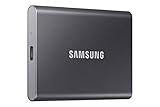
| Samsung T7 Portable SSD | Fast, compact backups for a single laptop | 1TB, USB 3.2 Gen 2, up to 1,050MB/s |
| WD My Passport SSD | Backups that need password protection | 1TB, hardware encryption, password protection |
| Seagate Backup Plus Slim for Mac | Plain Time Machine duty on a budget | 1TB HDD, USB 3.0, Time Machine compatible |
| SanDisk Extreme Portable SSD | Backups that travel in a bag | 1TB, up to 1050MB/s, IP65 water and dust resistance |
| WD_BLACK D10 Game Drive | Large libraries and long backup history | 8TB HDD, compatible with PC and Mac |
How to Choose
Capacity: size it for history, not for today
Time Machine keeps hourly, daily, and weekly snapshots until the disk fills, then removes the oldest. A drive barely larger than your Mac’s used storage will hold only a few days of history. As a rule of thumb, buy at least twice the used space on the Mac, and more if you edit photos or video. A 1TB disk suits a laptop with a few hundred gigabytes in use. A library-heavy desktop wants multiple terabytes, which is where the 8TB option earns its place. Remember that Time Machine also backs up system files and apps, so the footprint is larger than your documents folder alone suggests.
SSD or hard drive
Solid state drives are quiet, shock tolerant, and fast, and the first backup of a full Mac finishes sooner. Spinning drives cost less per terabyte and make sense for a stationary desk backup that runs overnight. Because Time Machine works in the background after the first pass, raw speed matters mostly for that initial backup and for restores. If the drive lives in a backpack, favor an SSD. If it sits behind a monitor, capacity for the money usually wins.
Ports, cables, and format
Look for USB 3.0 or USB 3.2 Gen 2 in the title, and confirm your Mac has a matching port or that a cable or adapter is included. Many newer Macs only offer USB-C, so a drive with a USB-A cable may need an adapter. Time Machine requires a macOS-compatible format; most Mac users reformat the drive with Disk Utility as APFS, which erases it, so do not put the only copy of anything on a new drive, and name the volume something obvious so you can tell it apart from other disks in Finder. Pre-formatted exFAT drives work for file transfer but should be reformatted before dedicated Time Machine use. If you also want to share the disk with a Windows PC, partition it so the backup volume stays separate from the shared one.
What to ignore, and where budget models cut corners
Ignore gaming branding and color names; they do not change backup behavior. Be skeptical of tiny capacities or very low-cost flash drives marketed for phones, because a backup disk below your Mac’s used space cannot do the job. Budget drives most often cut rugged housing, encryption features, and cable quality. If your backups hold client files or tax records, favor a model that lists encryption, or use the encrypted backup option inside Time Machine itself.
The 5 Best Options
Samsung T7 Portable SSD
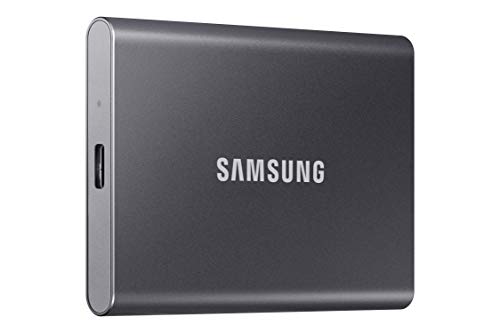
The T7 is a compact 1TB solid state drive with USB 3.2 Gen 2 and a listed speed of up to 1,050MB/s per the title. That speed helps shorten the first full backup and any large restore. It suits a single-laptop user who wants a small, fast disk that stays plugged in at a desk and travels when needed. Anyone with a large photo or video archive will outgrow 1TB quickly, and those users should look at a bigger capacity. It also suits students who want one drive for backups and for moving project files between machines.
- Strength: USB 3.2 Gen 2 with speeds up to 1,050MB/s.
- Strength: Solid state build with no moving parts.
- Trade-off: 1TB leaves limited history for a Mac with a full internal drive.
WD My Passport SSD
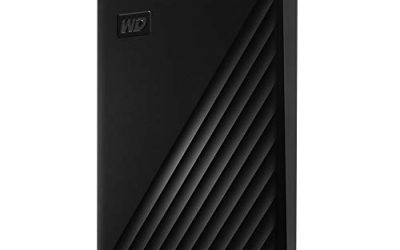
The My Passport SSD is a 1TB portable solid state drive that emphasizes protection: the title lists password protection with hardware encryption. For Time Machine that matters when the disk is carried between home and work or holds sensitive documents. Buyers who value a locked backup will like it. Those who never leave the house with their drive, or who want maximum capacity for the money, can skip the encryption premium and look at a larger spinning disk. Buyers should also remember that encryption protects the drive only if the password is stored somewhere safe.
- Strength: Hardware encryption with password protection.
- Strength: Portable solid state design described as sturdy and fast.
- Trade-off: The title lists no interface standard, so confirm the port type against your Mac.
Seagate Backup Plus Slim for Mac
This is the most purpose-built entry for the keyword. The title says 1TB external hard drive, USB 3.0, and Time Machine compatible, and it is branded for Mac. It fits someone who wants a straightforward, lower-cost backup target and does not care about peak speed. A traditional hard disk is slower and more sensitive to bumps, so people who move their backup drive often or need very fast restores should choose a solid state alternative. For an office desk or a bookshelf, though, the plain approach is perfectly adequate and easy to understand.
- Strength: Explicitly listed as Time Machine compatible.
- Strength: Hard drive construction, a budget-tier way to get 1TB.
- Trade-off: USB 3.0 and a spinning disk mean slower transfers than the SSDs here.
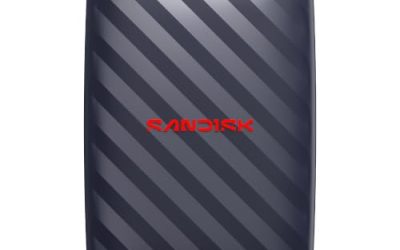
SanDisk Extreme Portable SSD
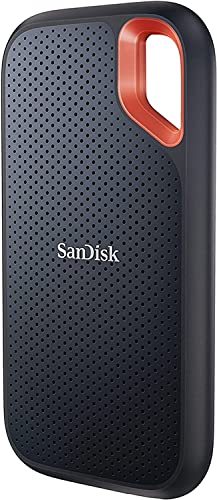
The SanDisk Extreme is a 1TB solid state drive with read speeds up to 1050MB/s. Its title highlights IP65 water and dust resistance and drop protection, though the title also marks it as an old model. It makes sense for a backup drive that rides in a camera bag, a backpack, or a field kit where rain and dust are realistic. Desk-bound users do not need the ruggedness, and buyers who want the newest generation should compare current listings before choosing. Treat the rugged rating as insurance for bad days, not as a license to be careless with the cable and connector.
- Strength: IP65 water and dust resistance.
- Strength: Read speeds up to 1050MB/s.
- Trade-off: Labeled an old model, so newer drives may offer more.
WD_BLACK D10 Game Drive
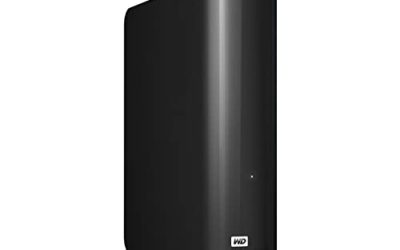
The D10 offers 8TB of hard drive capacity and works with PlayStation, Xbox, PC, and Mac, according to the title. That much room lets Time Machine keep a long run of history and handle a large library without pruning aggressively. It fits a desktop Mac user or a household backing up more than one machine’s worth of data. It is less appealing for travel, because the title describes a hard drive, and a gaming-oriented design may be bulkier than slim portables. Check the power and cable requirements against your desk setup before committing to a drive this large.
- Strength: 8TB capacity gives Time Machine a very long history.
- Strength: Works across Mac, PC, and consoles per the title.
- Trade-off: A spinning drive aimed at gamers is not the most travel-friendly choice.
Which One Fits Your Situation
You carry a MacBook and back up at a desk and on the go
The Samsung T7 is the practical pick. Its small solid state build and USB 3.2 Gen 2 speed make the first backup fast and the drive easy to carry. Pair it with a short, good-quality cable and a single labeled backup, and it becomes the kind of set-and-forget disk that quietly does its job for years.
You handle sensitive files
Choose the WD My Passport SSD. Hardware encryption and password protection add a layer that matters if the drive is ever lost, which is more likely with a portable disk.
You want a no-frills disk for a home desk
The Seagate Backup Plus Slim for Mac keeps things simple: 1TB, USB 3.0, and Time Machine compatibility stated up front. Speed is modest, but a nightly backup does not need more.
You shoot photos outdoors or manage a huge library
For field work, the SanDisk Extreme with its IP65 resistance suits a camera bag. For a large archive that sits on a desk, the WD_BLACK D10 8TB gives Time Machine far more room to keep history.
Common Mistakes
- Buying a drive the same size as the Mac’s internal storage, which leaves only a few days of backup history.
- Forgetting that reformatting erases the drive, then losing files that lived there.
- Ignoring the port type and discovering a USB-A cable will not plug into a USB-C-only Mac.
- Choosing a tiny flash drive designed for phones as a Time Machine disk.
- Leaving the backup disk permanently attached to a bag or desk with no second copy offsite or in the cloud.
Related guides
- Windows Macos Linux Gaming Performance Comparison Strengths Weaknesses
- Desktop Operating Systems Gaming Performance Strengths Weaknesses
- 5G Home Internet Wifi Modem Settings Low Latency Gaming
Frequently Asked Questions
Does the drive have to be labeled for Mac?
No. Any external drive that macOS can format will work as a Time Machine target. A Mac-branded listing, such as the Seagate Backup Plus Slim for Mac, simply states compatibility up front.
How much capacity do I need?
Aim for at least double the used space on your Mac. A laptop with a few hundred gigabytes in use is comfortable on 1TB, while a large photo or video library calls for several terabytes.
Is an SSD worth it for Time Machine?
It speeds up the first backup and full restores, and it tolerates bumps better. For an always-plugged-in desk backup, a hard drive delivers more capacity for the same spending tier.
Should I encrypt my backups?
If the drive leaves your home or holds private records, yes. You can use a drive with hardware encryption, such as the WD My Passport SSD, or turn on encryption inside Time Machine when you choose the disk.