
Answers first, since most people arriving at a page about comp setups either have one that is misbehaving or are about to buy one. If your machine feels slow, work through this order: thermals, then power and refresh-rate settings, then storage, then drivers, then memory capacity, and only then the graphics card.
If you are buying rather than fixing, the short recommendations are these. The best value in this comparison is the KOTIN Gaming PC Desktop, Ryzen 7 8700F, RTX 5060 Ti 8GB, 16GB DDR5, 1TB SSD at around $1,300, which puts a higher-tier GPU in your hands for around $3 more than the nearest machine with a weaker one. At the top end, the CyberPowerPC Gamer Xtreme VR Gaming PC, Intel Core i9-14900KF 3.2GHz, GeForce RTX 5070 12GB, 32GB DDR5, 2TB PCIe 4.0 SSD, WiFi Ready & Windows 11 Home (GXiVR8080A39) at around $2,000 is the cheapest of the three RTX 5070 machines here and the only one of them with 2TB of storage at that price, with a cooling caveat I will spell out. On a tight budget, the ZYNEEX Prebuilt Gaming Desktop PC, AMD Ryzen 5 5500, GeForce RTX 3050 6GB,16GB DDR4 3200MHz RAM, 1TB NVMe SSD, ARGB Air Cooling, Wi-Fi,Tower Computer for Gaming, Streaming, Editing at around $810 is a real gaming machine at 1080p, unlike the cheapest box in this list, which is not.
I am Owen Pritchard, Technical Guides Editor. Twelve years on a diagnostics bench — POST cards, a parts drawer for swap-testing, several OS images on labelled drives — has taught me that the difference between a good setup and a frustrating one is rarely the part everybody focuses on. It is usually a fit problem, a firmware problem or a settings problem. So the fixing half of this article comes before the buying half, because a significant number of people who think they need a new machine do not.
Our Top Picks


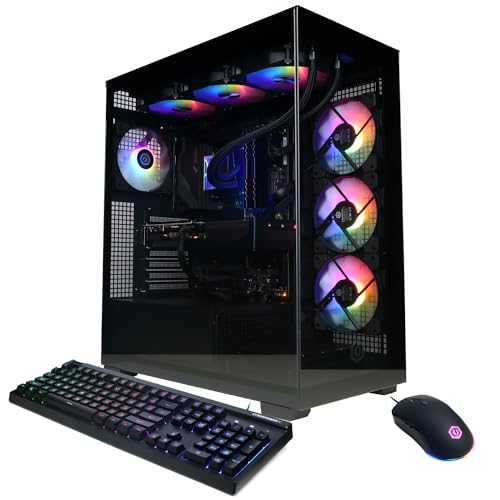

Top 3 picks at a glance
The five most likely causes of a sluggish setup, in order
As an Amazon Associate we earn from qualifying purchases at no extra cost to you.




1. Thermal throttling. This is first because it is by far the most common, and because it disguises itself as a hardware shortfall. A CPU that hits its temperature limit reduces clock speed to stay there. Frame rate drops, the machine feels inconsistent, and nothing in Task Manager looks obviously wrong. The tell is a clock speed that falls while temperature stays pinned at a flat ceiling. Causes, in the order I find them: dust in the heatsink fins, a case with intake but no exhaust, a cooler that was never properly seated, and dried-out thermal paste on a machine more than three or four years old.
2. Settings, not silicon. A monitor connected over HDMI and left at its default may well be running at 60Hz on a 144Hz panel. Windows may be on a power plan that caps processor state. The GPU control panel may be set to a global vertical sync override left over from an old troubleshooting session. Laptop-derived prebuilts sometimes ship with a manufacturer utility set to a quiet fan profile that caps performance out of the box. These cost nothing to check and account for a surprising number of “my new PC is slow” tickets.
3. Storage. A game installed on a mechanical drive on a machine whose boot drive is an SSD will stutter during asset streaming in a way that looks exactly like a GPU limitation. Similarly, an NVMe drive filled past roughly 90% loses a substantial fraction of its write performance because the drive runs out of fast pseudo-SLC cache. Check free space before you check anything expensive.
4. Drivers and firmware. Not the “reinstall your drivers” reflex, which is usually pointless, but two specific cases: a clean driver install after a GPU swap where the previous vendor’s software is still present, and a BIOS update where the board maker has published a fix that matters for your CPU. Intel’s 13th and 14th generation desktop chips are the obvious current example — there is a microcode update you want applied, and on a prebuilt you should verify the BIOS version rather than assume the builder flashed it. Our walkthrough on how to update graphics drivers safely covers the clean-install procedure without the usual folklore.
5. Memory capacity and configuration. Below 16GB, modern titles stutter regardless of GPU. Just as important, a machine running a single memory stick is operating in single-channel mode and losing a meaningful chunk of bandwidth. I have seen prebuilts shipped with 16GB as one module. Open the side panel and count the sticks; if there is one, adding a matched second is the cheapest performance upgrade available.
Only after all five of those do I look at the graphics card. If you want the long-form version of this triage with the specific tools and counters, it is in our guide on how to fix FPS drops in games.
Telling a tuning problem from a hardware problem in ten minutes
The bench method is comparison, not intuition. Pick one game, one scene you can return to reliably, and one set of settings. Run it three times: once as-is, once with the resolution dropped one step, once with the graphics preset dropped one step while the resolution stays where it was.
If dropping resolution gains a lot and dropping preset gains little, you are limited by the graphics card’s raw output. If the preset change moves the number more, you are limited by memory or by settings that hammer the CPU, such as crowd density and draw distance. If neither change does much of anything, the bottleneck is elsewhere entirely — the processor, the storage, or a throttling condition — and that is your cue to log temperatures and clocks rather than to keep fiddling with sliders.
Swap-testing is the other half of this and it is why my bench has a parts drawer. If you can borrow a known-good power supply, that is the single most valuable swap you can make, because a marginal PSU produces symptoms that look like everything else: random reboots under load, sudden frame drops, occasional black screens. Those symptoms lead people to buy graphics cards they did not need. If any of that sounds like your machine, read how to diagnose a failing power supply before you spend a penny on anything else.
Upgrade or replace: the arithmetic that decides it
The decision hinges on what your current platform can still accept. Add up the cost of the parts that would bring your machine to where you want it, then compare that against a whole new box, remembering that the new box comes with a warranty and an OS licence and that your old machine still has resale value.
An honest example. A machine with a competent quad-core or six-core processor, 16GB of memory and a weak graphics card is a good upgrade candidate — one part changes and the machine is transformed, assuming the power supply can feed the new card and the case can physically hold it. A machine with an older processor, DDR3 memory and a socket with no upgrade path is a bad candidate, because the graphics card you fit will be held back by everything around it and you will not be able to carry that card forward as easily as you think.
The rule I use: if fixing the machine requires changing the motherboard, you are not upgrading, you are building a new computer around a case and a drive. At that point price it as a new build or a prebuilt and make a clean decision. If you go the build route, our step-by-step gaming PC build guide covers the assembly order that avoids the usual rework.
Socket and clearance: the two things people get wrong most often
This is where I want to be careful, because the specific numbers change with every product and quoting them from memory is how people end up with a cooler that does not fit. So here are the principles, and the instruction to verify each one against the manufacturer’s own specification table.
Socket compatibility is two separate questions. The first is mechanical: will the processor physically drop into the socket? The second is electrical and firmware: will the board recognise and boot that processor? A chip can satisfy the first and fail the second, which is why board makers publish a CPU support list for each individual model, complete with the minimum BIOS version required for each chip. Find your board’s exact model number — it is printed on the board itself and usually reported by system information tools — and read that list before buying anything. If the required BIOS version is newer than what you have, check whether your board can flash without a working CPU installed, because that determines whether the upgrade is possible at all without borrowing a chip.
Cooler mounting is socket-specific and generation-specific. Different socket families use different mounting hole spacings and different retention mechanisms, and some sockets within the same brand changed spacing between generations while others did not. Cooler manufacturers publish a compatibility list naming every socket their bracket set supports, and many also sell upgrade brackets for sockets released after the cooler. Read that list rather than assuming, and if you are moving a cooler from an old build to a new board, check whether the bracket in the box covers the new socket.
Clearance is four measurements, all published in millimetres. Cooler height against the case’s stated maximum CPU cooler clearance. Graphics card length against the case’s stated maximum GPU length — and note that some cases quote a shorter figure when a front radiator or a front fan is installed. Radiator thickness plus fan thickness against the clearance at the top or front panel, which is often limited by motherboard components or by the drive cage. And memory module height against the overhang of a large air cooler, which is the one that catches people out because tall heatspreaders on memory kits and wide tower coolers are both common.
The reason I labour this is that every one of these is a hard physical fact published by the manufacturer, and every one of them is regularly guessed at instead. Ten minutes with two specification pages open side by side prevents the most expensive category of mistake in this hobby, which is the one that requires a return shipment.
A fifth measurement matters in small cases: power supply length. Compact chassis specify a maximum PSU depth, and a longer unit will fit physically while leaving no room to route the cables that come out of its front face. Add roughly 30 to 40 millimetres of bend radius to whatever the unit measures, and if the case is tight, look for a model with the connectors on a modular panel rather than a fixed harness.
Reading a prebuilt spec sheet: what is stated and what is left out
Prebuilt listings are precise about the parts that sell and vague about the parts that do not. The graphics card, the processor, the memory capacity and the drive size are always stated. Four things frequently are not, and all four affect how the machine performs and how long it lasts.
The power supply. Wattage is sometimes given, the efficiency rating and the manufacturer rarely are. A generic unit at the exact wattage the system draws leaves no headroom for a future GPU upgrade and tends to be the first part to age out.
The motherboard. Usually described only by chipset tier, if at all. This determines your memory speed support, your upgrade options, how many storage slots you have, and whether the VRM can sustain a high-power processor without throttling.
Memory configuration. “16GB” does not tell you whether that is one module or two. Two is what you want, for dual-channel bandwidth.
Cooling. “Air cooling” or “ARGB air cooling” describes the lighting more precisely than the heatsink. On machines with high-power processors this is the specification I would most like to see and least often do.
None of these omissions make a prebuilt a bad buy. They just mean the sensible thing to do on day one is open the side panel and look, so you know what you actually own.
The eight setups compared
| System | Processor | Graphics | Memory | Storage | Price |
|---|---|---|---|---|---|
| SHOWKINGS Prebuilt Gaming PC Desktop | Intel Core i5 up to 3.6GHz | R7 350 4G GDDR5 | Not stated | Not stated | Check on Amazon |
| ZYNEEX Prebuilt Gaming Desktop PC | Ryzen 5 5500 | RTX 3050 6GB | 16GB DDR4-3200 | 1TB NVMe | Check on Amazon |
| CyberPowerPC Gaming PC | Core i5-14400F | RTX 5060 8GB | Not stated | Not stated | Check on Amazon |
| KOTIN Gaming PC Desktop | Ryzen 7 8700F | RTX 5060 Ti 8GB | 16GB DDR5 | 1TB SSD | Check on Amazon |
| KOTIN Prebuilt Gaming PC | Ryzen 7 9700X | RTX 5060 Ti 8GB | 16GB DDR5 | 1TB SSD | Check on Amazon |
| CyberPowerPC Gamer Xtreme VR | Core i9-14900KF | RTX 5070 12GB | 32GB DDR5 | 2TB PCIe 4.0 | Check on Amazon |
| KOTIN Prebuilt Gaming PC | Ryzen 7 9700X | RTX 5070 12GB | 32GB DDR5 | 1TB SSD | Check on Amazon |
| msi Codex Z2 Gaming Desktop | R7-8700F | RTX 5070 | 32GB DDR5 | 2TB SSD | $2,059 |
Three things fall out of that table immediately. The two machines at almost exactly $1,300 differ by around $3 and by one GPU tier, which makes one of them an obvious pick and the other an obvious skip. The two Ryzen 7 machines with the same graphics card differ by $200 that buys you a newer processor and nothing else that a game will notice. And the three RTX 5070 machines span $79 in price while differing considerably in processor and storage, which is where the interesting reasoning lives.
The picks, and who should not buy each one
KOTIN Gaming PC Desktop, Ryzen 7 8700F, RTX 5060 Ti 8GB, 16GB DDR5, 1TB SSD
At around $1,300 this is the value pick of the comparison. The Ryzen 7 8700F is an eight-core, sixteen-thread part on the current AMD desktop socket, paired with a 5060 Ti rather than a plain 5060, 16GB of DDR5 and a 1TB drive. The socket matters as much as the chip: buying into the current AM5 platform means the board has a plausible upgrade path in a way that an older socket does not.
The eight cores are worth paying attention to if you stream or record while playing, because encoding and game logic compete for threads and that competition is where six-core machines start to feel uneven. The 8GB of video memory on the 5060 Ti is the honest limitation here — it is enough at 1080p and workable at 1440p with texture settings kept sensible, and it will be the first specification you notice ageing.
Who should skip it: anyone playing at 1440p with everything maxed or planning to move to a high-refresh ultrawide, because 8GB of video memory sets a ceiling that no amount of processor helps with. Skip it too if you want a machine that needs nothing on arrival — 16GB is the sensible minimum and you may want 32GB within a couple of years, so budget for that. And note the “F” in the processor name means there is no integrated graphics, so you have no fallback display output if the card ever fails.
CyberPowerPC Gamer Xtreme VR Gaming PC, Intel Core i9-14900KF 3.2GHz, GeForce RTX 5070 12GB, 32GB DDR5, 2TB PCIe 4.0 SSD, WiFi Ready & Windows 11 Home (GXiVR8080A39)
At around $2,000 this is the cheapest of the three RTX 5070 machines and the one with the most of everything else: 32GB of memory, a 2TB PCIe 4.0 drive, wireless, and a stated Windows 11 Home licence. On paper it is the strongest sheet in the comparison for the money, and the i9-14900KF is a genuinely fast processor for anything that scales with cores.
Two caveats, both important and both honest rather than theoretical. First, this class of Intel processor draws a great deal of power under sustained load and produces heat to match. The listing does not describe the cooler, and that is the specification I would want to know most. Open the panel on day one, see what is fitted, and log temperatures during a long session; if it is throttling, a better cooler is a modest cost against a two-thousand-dollar machine — but check the case’s cooler clearance figure before ordering one. Second, 13th and 14th generation Intel desktop chips had a well-documented stability issue addressed by a microcode update, so verify the BIOS version and update if the board maker has published a newer one.
Who should skip it: anyone who wants a quiet machine, or anyone in a small warm room. A high-power processor with an unspecified cooler is the least predictable acoustic proposition here. Skip it also if you do not need the core count — for gaming alone, this processor is more than the graphics card requires, and the money would be better spent on a higher GPU tier if one were available in your budget.
KOTIN Prebuilt Gaming PC RTX 5070 12GB, Ryzen 7 9700X, 32GB DDR5, 1TB SSD
At around $2,000 you get the same graphics card and memory capacity as the CyberPowerPC above, half the storage, and a Ryzen 7 9700X in place of the i9. That is a very different processor proposition: eight cores rather than a large hybrid core count, a much lower default power target, and correspondingly less heat to remove.
For gaming specifically, this trade is fine and arguably preferable. A 9700X will not bottleneck a 5070 at any resolution people actually play at, it runs cool enough that a modest cooler suffices, and the AM5 socket gives you a clearer upgrade path than the Intel platform it is competing with here. The 12GB of video memory on the 5070 is the meaningful step up from the 5060 Ti machines and is what makes 1440p comfortable.
Who should skip it: anyone who does heavy multi-threaded work alongside gaming — video encoding, large compiles, simulation — where the i9’s core count earns its keep. Skip it too if 1TB is not enough for you, because the CyberPowerPC gives you 2TB for $20 less; adding a second drive later is easy but it is still money and an afternoon.
msi Codex Z2 Gaming Desktop, AMD R7-8700F, RTX 5070, 32GB DDR5, 2TB SSD
At $2,059 this is the most expensive machine here and it carries the weakest processor of the three RTX 5070 builds. What it offers instead is the thing prebuilt buyers often actually want: a major-brand chassis and support operation, with the assembly quality, documentation and service process that implies.
That is a real value, and I am not dismissive of it. A branded system from a large manufacturer typically means a serviceable case layout, sensible cable routing, a support line that answers, and parts that are documented well enough that a repair three years from now is straightforward. Whether that is worth $59 to $79 over the alternatives is a judgement about how you feel regarding warranty claims, not about frame rates.
Who should skip it: anyone buying on specification per dollar. The 8700F is a capable chip but it is the least of the three here, and you are paying the highest price in the comparison for it. Skip it also if you intend to upgrade heavily, because branded prebuilts sometimes use chassis and power supply layouts that constrain what you can fit later — check the case’s clearance figures against any card or cooler you have in mind before you commit.
KOTIN Prebuilt Gaming PC Ryzen 7 9700X 16GB DDR5 RTX 5060 Ti 8GB 1TB SSD
At around $1,500 this is the same graphics card, the same memory capacity and the same storage as the around $1,300 KOTIN, with a Ryzen 7 9700X in place of the Ryzen 7 8700F. That is $200 for a processor upgrade on a machine whose limiting factor at gaming resolutions is the graphics card.
The 9700X is the better chip — newer architecture, better performance per clock, and it will hold its value longer. If you keep machines a long time and you do work that leans on the processor, the case for paying the difference is defensible. For gaming alone, the honest answer is that a 5060 Ti will be the constraint in nearly every scenario and the two machines will feel very similar.
Who should skip it: anyone whose priority is frames per dollar. Take the around $1,300 version and put the $200 towards memory or a second drive, or stretch to a 5070 machine instead. Skip it also if you were hoping the processor upgrade would help with the 8GB video memory limit — it will not, and video memory is what you will run into first.
CyberPowerPC Gaming PC, Intel Core i5-14400F, GeForce RTX 5060 8GB
At around $1,300 this is priced around $3 below the KOTIN machine that carries a 5060 Ti instead of a plain 5060, and that comparison is difficult for it. The i5-14400F is a sensible mainstream ten-core processor and CyberPowerPC is an established builder, so this is not a bad machine — it is a machine with an unfortunate neighbour on the price list.
The listing also omits memory and storage figures, which matters at this price. If it arrives with 16GB in a single module or with a small boot drive, the effective value shifts further. Check the full specification before ordering and open the panel on arrival to confirm what is actually installed.
Who should skip it: anyone comparing it directly against the KOTIN at around $1,300, unless you specifically want an Intel platform or you value the CyberPowerPC support arrangement at more than the GPU tier difference. Skip it too if you need a documented memory and storage configuration before you buy, because this listing does not give you one.
ZYNEEX Prebuilt Gaming Desktop PC, AMD Ryzen 5 5500, GeForce RTX 3050 6GB,16GB DDR4 3200MHz RAM, 1TB NVMe SSD, ARGB Air Cooling, Wi-Fi,Tower Computer for Gaming, Streaming, Editing
At around $810 this is the budget entry that is still a real gaming computer. The RTX 3050 6GB is a modest card, but it is a current-generation-feature card with hardware encoding and driver support, and it plays most things at 1080p at sensible settings. The 16GB of DDR4 and the 1TB NVMe drive are the right capacities rather than the minimum ones, which is not always true at this price.
Be clear-eyed about the platform, though. The Ryzen 5 5500 sits on the previous AMD socket and is limited to PCIe 3.0, which means a future high-end graphics card would be running on a slower interface than it expects. The socket itself is mature — plenty of processors exist for it, many of them cheap now — but it is a platform at the end of its life rather than the start.
Who should skip it: anyone playing at 1440p or above, or anyone who expects to fit a much stronger graphics card in two years, because the platform will hold it back and the power supply almost certainly will not accommodate it. Skip it also if you want longevity rather than immediate value — spending closer to $1,300 buys you a current socket and roughly twice the machine.
Prebuilt Gaming PC Desktop, Intel Core i5 up to 3.6GHz, R7 350 4G GDDR5
At around $360 this is the cheapest thing here and I am going to be direct: the graphics card is not a modern gaming part. An R7 350 with 4GB of GDDR5 belongs to a generation long past, and the 4GB figure describes capacity rather than capability. Capacity without the processing throughput behind it does not produce playable frame rates in current titles.
There is a use for a machine like this. As an office computer, a media box, a second machine for a child doing schoolwork, or a host for older and less demanding games, around $360 buys a functional desktop with a display output and a warranty. Framed that way it is fine. Framed as a gaming PC, it is not, and the listing’s own vagueness about memory and storage should tell you where the priorities lay.
Who should skip it: anyone who intends to play current games at all. Skip it also as an upgrade base — dropping a modern graphics card into a chassis like this runs straight into the power supply and clearance limits I described above, and by the time you have replaced the PSU and the card you have spent more than the ZYNEEX costs for a worse result. If around $360 is genuinely the budget, buy this for the non-gaming role and keep saving.
What builders cut to hit a price
Every prebuilt is an exercise in deciding where to save. The order in which builders make those cuts is remarkably consistent, and knowing it tells you what to inspect on arrival.
The power supply goes first, because buyers do not shop on it. Expect a unit sized close to the system’s actual draw with limited headroom. The motherboard is second — an entry chipset with fewer storage slots, fewer rear ports and a simpler power delivery stage. Cooling is third, which is why a high-power processor in a budget-oriented build is the combination I check most carefully. Case airflow is fourth, and it is often the cheapest thing to improve: adding one rear exhaust fan to a case that has intake but no outlet can move sustained temperatures meaningfully.
Memory configuration is the fifth cut and the sneakiest, because a single module gives the advertised capacity at lower cost while halving memory bandwidth. Storage is last, usually appearing as a smaller boot drive than the listing photo suggests.
None of this is dishonest. It is how a machine reaches a price point. It just means the first hour with a new prebuilt should be spent with the side panel off, writing down what is actually inside, so that when something needs attention in two years you already know what you are working with.
Upgrade headroom, box by box
Headroom is worth more than most buyers credit, because it determines whether the machine is a three-year purchase or a six-year one.
The AM5 machines — the two KOTIN builds and the msi — sit on AMD’s current socket, which means processor options exist above what they ship with and will continue to for some time. Whether any specific chip will work in any specific board is, again, a question for that board’s CPU support list rather than for general reasoning. The Intel LGA1700 machines are on a mature socket with a wide range of chips available but limited forward movement.
The ZYNEEX on the older AM4 socket has the most processor choice of any machine here in raw terms, since that platform spans many generations and prices on the used market have fallen a long way. What it lacks is interface headroom: PCIe 3.0 and DDR4 are the ceilings, and they are not moveable.
Memory headroom is simpler. Every machine listed with 16GB has room to double, provided the second pair of slots is free — which you confirm by looking, not by assuming. Storage headroom depends on how many drive slots the board provides, which prebuilt listings almost never state.
Setting up a new machine so it performs like its spec sheet
The first day matters. Take the side panel off and confirm the memory configuration, the cooler type and the power supply model, and photograph the inside so you have a record. Check the BIOS version against the board maker’s page and update if there is a published fix relevant to your processor. Enable the memory’s rated speed profile in firmware, because a kit left at its default JEDEC speed is running well below what you paid for.
In the OS: set the power plan appropriately, confirm the monitor is running at its rated refresh rate and over a cable capable of carrying it, and install the graphics driver directly from the vendor rather than relying on whatever shipped. Then run something demanding for twenty minutes and log temperatures and clocks so you have a baseline for the machine when it is clean and new. In two years, when it feels slower, that baseline is the difference between diagnosing the problem in ten minutes and guessing at it for a weekend.
One frequently skipped step: check where the machine physically sits. A tower pushed against a wall or standing on carpet is being starved of intake air, and that shows up as higher sustained temperatures and louder fans for no other reason. A few centimetres of clearance behind and beside the case is free performance.
The rest of the setup: power, network and desk
A computer setup is more than the box. Two supporting pieces deserve budget.
Power protection is the first. A desktop that loses mains power mid-write can corrupt a filesystem, and a machine on a circuit shared with a kettle or an air conditioner will see voltage sags that a marginal power supply handles badly. A modest battery backup covers both problems and gives you a clean shutdown window. Our comparison of the best UPS for a gaming PC covers sizing, which is mostly a matter of matching the unit’s rating to your system’s real draw with a margin.
The network is the second, and it is the most common source of a “slow setup” complaint that has nothing to do with the computer. Wireless on a congested band, in a room two floors from the router, produces latency spikes that feel exactly like a performance problem. A wired connection removes an entire class of complaint. If wiring is impractical, the answer is usually a better placed access point rather than a faster computer.
Desk ergonomics is the third and the one people regret ignoring. Monitor height at eye level, keyboard at elbow height, and enough depth that your forearms rest on the surface rather than hanging. None of this affects frame rates and all of it affects whether you enjoy a four-hour session.
What I would buy
If I had $1,300 to spend, the KOTIN with the 8700F and the 5060 Ti at around $1,300, without much hesitation. It is on the current AMD socket, it carries the better of the two GPUs available around that price, and the around $3 difference against the 5060 machine makes the comparison trivial.
If I had $2,000 and wanted the most machine, the CyberPowerPC Gamer Xtreme VR at around $2,000 — with the explicit plan to check the cooler and the BIOS version on day one, and to budget for a better cooler if the temperature log says so. If I wanted the least fuss for roughly the same money, the KOTIN 9700X with the 5070 at around $2,000, because a lower-power processor with a 5070 is the easier machine to keep cool and quiet.
If the budget is genuinely tight, the ZYNEEX at around $810 is a real 1080p gaming computer and the cheapest machine here that deserves the description. The around $360 box is not, and buying it hoping to upgrade later is the most expensive route to a gaming PC in this entire list.
And if you already own a machine that has started to feel slow, go back to the top of this article before you spend anything. All three are free to fix.
This guide covers one angle on the topic. For the full comparison, see our main guide: PC Setups for Gaming: Fix the Bottleneck First, Then Buy.
Frequently asked questions
How can I tell whether my monitor settings are limiting gaming performance?
Check whether the display is running at its intended refresh rate rather than a lower default. A monitor connected over HDMI may remain at 60Hz even when the panel supports 144Hz. Also inspect the Windows power plan, GPU control-panel vertical-sync setting, and any manufacturer utility that may be using a quiet fan profile.
What should I check before replacing a graphics card?
Check temperatures and clock speeds, display and power settings, storage free space, drivers and firmware, and memory configuration first. A processor that is thermally throttling, an almost-full NVMe drive, outdated firmware, or a single memory stick can all make a system feel slow without the graphics card being the cause.
Why can a game stutter even when the graphics card seems powerful enough?
The game may be installed on a mechanical drive while the boot drive is an SSD, causing asset-streaming stutter. An NVMe drive that is filled past roughly 90% can also lose substantial write performance. These storage conditions can resemble a graphics limitation, so check the game drive and available space before buying new hardware.
What does changing resolution versus graphics preset reveal about a bottleneck?
Dropping resolution tests the graphics card’s raw output, while lowering the graphics preset can reveal limitations from memory or CPU-heavy settings such as crowd density and draw distance. If neither change substantially affects performance, investigate the processor, storage, or throttling instead of continuing to adjust visual sliders.
Why is a second memory stick often recommended for a prebuilt?
A prebuilt may contain 16GB as one module, which leaves the system running in single-channel mode and reduces memory bandwidth. Opening the side panel and counting the sticks can reveal this configuration. If there is one, adding a matched second module is described as the cheapest performance upgrade available.
Related guides
- Best Gaming PC for Overwatch 2: Ten Prebuilts Matched to Your Monitor (2026)
- Best Gaming PC for Baldur’s Gate 3: Matching CPU, VRAM and Storage to the Game (2026)
- Best Gaming PC for Apex Legends: Which Listings Fit a High-Refresh Setup (2026)
- Best RTX 3060 Gaming PCs: Eight Prebuilt Listings Compared by CPU, RAM and Cooling (2026)









