Our Top Picks


The Short Answer
No, you do not strictly need a secondary monitor to stream on a PC, but you will almost certainly want one if you plan to broadcast on a regular basis. When asking yourself, “do i need a secondary monitor for pc streaming”, the deciding factor rests on this single condition: whether you prioritize real-time, seamless audience interaction over a completely uncluttered, single-focus workspace.
If you only plan to stream occasionally, playing casual games while using a phone or tablet to glance at your chat every few minutes, you can easily get by with a single display. However, the moment you transition to active broadcasting—where you must manage streaming software, monitor audio levels, adjust video inputs, and chat with viewers simultaneously without pausing your gameplay—a secondary screen becomes an invaluable workflow upgrade rather than a luxury.
As an Amazon Associate we earn from qualifying purchases at no extra cost to you.


What You Actually Get
Adding a second screen to your streaming setup completely changes how you interact with your digital workspace. On a single-monitor setup, your game takes up 100% of your visual field. If something goes wrong—such as your streaming software crashing, your microphone muting unexpectedly, or your webcam freezing—you will not know until a viewer points it out in chat, or until you manually tab out of your game, which disrupts your live broadcast.
A secondary monitor acts as your production control center. Typically, a streamer will run their main game on a high-refresh-rate primary monitor (usually 24 to 27 inches) directly in front of them. The secondary monitor, positioned to the left or right, displays your broadcasting software (like OBS Studio or Streamlabs), your live chat feed, and your audio mixer.
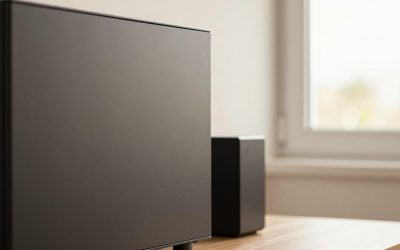
For example, if you are using a compact secondary screen like the WCV Portable Monitor (a 15.6-inch 1080P IPS display), you get a crisp, dedicated workspace that fits neatly on a smaller desk. Because it is ultra-slim, weighs only about 1.7 pounds, and draws a modest 5 to 10 watts of power via a single USB-C cable, it can sit right next to your keyboard on its built-in kickstand without requiring a bulky desk mount. On this secondary screen, you can arrange your chat window on one half and your OBS preview on the other. If you are using a high-quality webcam like the Logitech Brio 101 to capture your face in Full HD 1080p, you can easily monitor your camera framing and lighting on this second screen in real time, ensuring you never drift out of frame during high-energy gaming moments.
Ultimately, a second monitor gives you peace of mind. You can see your CPU usage, verify that your stream is running at a stable 60 frames per second, read and reply to direct messages, and moderate your community without ever interrupting the flow of your gameplay.
Pros
- Instant Audience Engagement: You can read and respond to chat messages the second they are sent, which is crucial for building a loyal community.
- Real-Time Stream Monitoring: You can keep an eye on dropped frames, stream bitrates, and audio levels to fix technical glitches before they ruin the broadcast.
- Seamless Scene Transitions: Easily switch between your “Just Chatting,” “Gameplay,” and “Be Right Back” scenes in OBS without minimizing your active game window.
- Enhanced Multitasking: Outside of streaming, a second screen boosts general productivity, allowing you to edit videos, write scripts, or watch content while keeping your primary screen clear.
- Flexible Layout Options: Modern secondary displays, especially lightweight portable models, can be oriented vertically, which is the absolute gold standard for reading rapidly scrolling chat feeds.
Cons
- Desk Space Requirements: A dual-monitor setup requires a wider desk. A standard 24-inch monitor needs about 22 inches of horizontal desk space, which can crowd smaller gaming setups.
- Minor System Performance Hit: Running a second display forces your graphics card to render extra pixels. While minimal, this can cause a drop of 2% to 5% in in-game frame rates on lower-end PCs.
- Increased Cable Clutter: Every traditional monitor requires its own power supply brick and a display cable (HDMI or DisplayPort), adding to the cable management challenge under your desk.
- Potential for Distraction: Having a bright screen with moving chat alerts, Discord notifications, and web browsers right in your peripheral vision can pull your focus away from competitive gameplay.
Who Should Buy It
You should invest in a secondary monitor if you are a variety streamer, a competitive gamer who interacts heavily with chat, or a content creator who plans to stream multiple times a week. If you find yourself constantly pressing “Alt-Tab” to check your stream status, or if you feel disconnected from your audience because you cannot read their messages in real time, a second screen will completely revolutionize your workflow. It is also an excellent buy for those with medium-to-large desks who want to maximize their general productivity when they are not broadcasting.
Who Should Skip It
You should skip the secondary monitor if you are an incredibly casual streamer who only broadcasts for close friends, or if you have a highly compact desk (under 40 inches wide) where adding another screen would leave no room for your mouse. If you are running on an entry-level gaming PC with an older graphics card and limited RAM, adding a second screen might push your system resources to their limit, causing game stuttering. In these scenarios, utilizing free software workarounds or a smartphone on a cheap stand is a much smarter, space-saving route.
Cheaper Alternatives
If you are not ready to commit to a traditional desktop monitor, there are several highly effective, cost-conscious ways to manage your stream layout. As we look at the evolving landscape of content creation heading into 2026, developers are making it easier than ever to utilize alternative screens and software-based solutions.
| Option | Cost Range | Trade-off |
|---|---|---|
| Smartphone or Tablet | $0 (Assuming you own one) | Very small screen size makes it difficult to read fast-moving chat or monitor detailed OBS stats. |
| Budget Portable Monitor (e.g., WCV 15.6″) | $35 – $50 | Smaller viewing area than a standard desktop monitor; relies on a kickstand rather than a robust VESA arm. |
| In-Game Chat Overlay Software | Free | Can block critical parts of your in-game HUD (Heads-Up Display) and sometimes causes game compatibility crashes. |
| Used Office Monitor (Thrift Store/Marketplace) | $15 – $30 | Typically bulky, offers poorer color accuracy, and may require cheap HDMI-to-DVI adapters to connect to modern GPUs. |
FAQ
Can I use my tablet or iPad as a secondary monitor for PC streaming?
Yes, you can. By using third-party software applications (many of which are free or cost under $10), you can turn an iPad or Android tablet into a fully functional secondary Windows display via a USB cable or Wi-Fi connection. While the screen size is smaller (typically 10 to 11 inches), it is more than adequate for displaying your streaming chat or monitoring a viewer count.
Will a secondary monitor decrease my gaming performance?
For most modern graphics cards, simply displaying a static window like chat or OBS on a second screen has a negligible impact on performance (usually less than a 3% drop in FPS). However, if you are running hardware-accelerated applications on your second screen—such as playing a high-definition video or running complex animations—you may experience minor frame drops in your main game.
Do I need a high-refresh-rate monitor for my second screen?
Absolutely not. While your main gaming monitor benefits greatly from high refresh rates (144Hz, 240Hz, or higher), your secondary monitor only needs to be a standard 60Hz panel. Its primary job is to display text and basic video feeds, so spending extra money on high-end gaming specs for a secondary chat reader is unnecessary.
Is a vertical or horizontal orientation better for a streaming monitor?
A vertical (portrait) orientation is highly recommended for secondary streaming screens. Because live chat feeds scroll vertically, a portrait monitor allows you to see significantly more chat history at a single glance. It also takes up much less horizontal desk space, making it easier to position alongside your main display.
Related guides
- Best Gaming PC for Overwatch 2: Ten Prebuilts Matched to Your Monitor (2026)
- Best Gaming PC for Baldur’s Gate 3: Matching CPU, VRAM and Storage to the Game (2026)
- Best Gaming PC for Apex Legends: Which Listings Fit a High-Refresh Setup (2026)
- Best RTX 3060 Gaming PCs: Eight Prebuilt Listings Compared by CPU, RAM and Cooling (2026)