
DNS (Domain Name System) translates a website or game server’s domain name into the IP address your PC actually connects to. Switching to a faster public DNS provider like Cloudflare or Google can speed up that lookup step, which shows up as quicker matchmaking searches, store pages, and patch downloads starting — but it does not reduce the ping you experience once you’re actually connected to a game server, since that’s governed by your network route, not DNS.
As an Amazon Associate we earn from qualifying purchases at no extra cost to you.
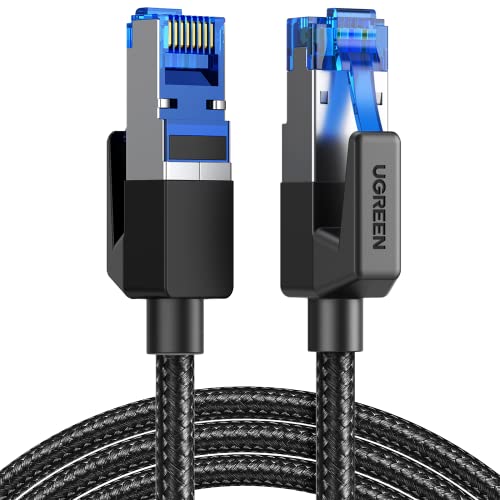


Our Top Picks
 TP-Link AX3000 WiFi 6 Router10.3 x 5.3 x 1.6 inches10.28 x 5.3 x 1.62 inches1.2 PoundsCheck on Amazon
Top 3 picks at a glance
Quick answer
Cloudflare’s 1.1.1.1 and Google’s 8.8.8.8 are the two most widely used public DNS options and both are free, fast, and simple to set up. Try one, run a comparison against your current DNS, and keep whichever tests faster on your specific connection — results vary by location and ISP more than by provider reputation.
As an Amazon Associate we earn from qualifying purchases at no extra cost to you.

| Provider | Primary DNS | Known for |
|---|---|---|
| Cloudflare | 1.1.1.1 | Speed-focused, privacy-focused |
| 8.8.8.8 | Wide availability, reliability | |
| Your ISP’s default | Varies | Sometimes fine, sometimes the slowest option |
What DNS does and doesn’t control
Every time your PC connects to a website, matchmaking service, or download server, it first needs to resolve that service’s domain name into an IP address, and DNS is the system responsible for that lookup. A slow DNS server adds delay to this lookup step, which is noticeable as a brief pause before a page or connection starts.
Once the lookup is done and your PC has the IP address, DNS is no longer involved in that connection at all. Your actual in-game ping is determined by the network path between your PC and the game server, which involves your ISP, internet backbone routing, and the game server’s own location — none of which DNS has any influence over.
This distinction matters because a lot of “DNS improves gaming” advice implies a ping reduction that isn’t accurate. The real, measurable benefit is in how quickly services that require repeated lookups — matchmaking, store fronts, patch servers — respond, not in your latency during an active match.
If your actual concern is high ping during matches rather than slow menus, our guide on reducing ping and latency covers the factors that do affect it directly, like your network route and connection type.
To put a rough number on the actual DNS-related time savings: a slow DNS lookup might add somewhere in the range of tens to a few hundred milliseconds to the very first connection to a given domain, while a fast public resolver often responds in the single-digit to low double-digit millisecond range for a cached or nearby query. This difference is typically only noticeable on the first lookup for a given service in a session, since your device and router both cache DNS results afterward — so the practical, felt benefit is concentrated in the first connection of a session rather than something you’d perceive continuously throughout play.
A common misunderstanding worth clearing up directly: some “gaming DNS” services marketed specifically at gamers imply they route your actual game traffic through faster paths, when in reality they’re still only performing the domain-to-IP lookup function like any other DNS provider — any claimed gaming benefit beyond faster lookups would have to come from a separate service, like a game-specific VPN or routing optimizer, which is a different product category entirely from DNS.
Cloudflare’s 1.1.1.1
Cloudflare’s public DNS resolver, at the address 1.1.1.1 (with 1.0.0.1 as a secondary), is built on Cloudflare’s global content delivery network infrastructure and is widely regarded as one of the fastest public DNS options available, backed by independent third-party speed testing that Cloudflare’s own site links to.
Cloudflare markets 1.1.1.1 with a specific privacy commitment, stating it doesn’t sell user browsing data and periodically undergoes independent audits of that claim — a differentiator worth knowing if privacy is part of your decision alongside speed.
Setup involves entering the IP addresses into your router’s or device’s DNS configuration fields, replacing whatever your ISP assigns automatically by default. Cloudflare also offers a dedicated app for more detailed configuration on individual devices if you don’t want to change settings at the router level.
Cloudflare’s network has a large number of points of presence globally, which is part of why it tends to test well across different regions rather than favoring users in one specific part of the world.
Cloudflare also offers a DNS-over-HTTPS and DNS-over-TLS option for users who want their DNS queries encrypted in transit, which prevents your ISP or anyone on the network path from easily reading which domains you’re looking up. This is a separate configuration step from simply entering the standard DNS IP addresses and typically requires either a supported browser setting or a dedicated app, so it’s worth treating as an optional additional step rather than something that happens automatically just by entering 1.1.1.1 as your DNS server.
Google’s 8.8.8.8
Google’s Public DNS, at 8.8.8.8 (with 8.8.4.4 as a secondary), was one of the earliest widely adopted public DNS services and remains a reliable, well-established option backed by Google’s global infrastructure.
Reliability and uptime are Google’s DNS’s main strengths — its scale and redundancy make outages rare, which matters if you’re prioritizing consistency over squeezing out every last millisecond of lookup speed.
Speed comparisons between Google and Cloudflare’s DNS vary by test methodology and location, and neither has a consistent, universal lead — this is worth testing on your own connection rather than assuming one is definitively faster based on general reputation.
Setup is functionally identical to any other public DNS provider: entering the IP addresses in your router or device’s network settings in place of your ISP’s automatically assigned values.
Because of Google’s scale, 8.8.8.8 also tends to be a safe, low-friction default recommendation in troubleshooting guides and community forums specifically because it’s one of the most universally recognized and tested public options — if you’re looking for the DNS provider least likely to be blocked or behave unexpectedly on an unfamiliar network (a hotel Wi-Fi, a friend’s network with unusual router configuration), Google’s is a reasonable default to fall back on for that reason alone, separate from any raw speed comparison.
Your ISP’s default DNS: when it’s actually fine
Not every ISP’s default DNS is slow — some run well-provisioned, geographically close DNS infrastructure that performs comparably to or better than a public alternative for users in that specific region, particularly for connections to services also hosted close to that region.
The main downside of sticking with ISP-default DNS isn’t necessarily speed, but occasionally features like DNS-based advertising injection or search redirect pages on failed lookups, which some ISPs use as a monetization method and which a public DNS provider typically doesn’t do.
If your current setup already feels fast and pages load without noticeable delay, switching DNS providers is unlikely to produce a dramatic, noticeable change — it’s a low-risk experiment worth trying, not a guaranteed fix for a different underlying problem.
Running a side-by-side comparison using a DNS benchmarking tool, rather than switching based on reputation alone, gives you an actual answer for your specific connection instead of a generic recommendation.
A sign your ISP’s DNS is genuinely underperforming rather than just different: if a DNS benchmarking tool consistently shows your ISP’s resolver responding noticeably slower — commonly cited as a difference of tens of milliseconds or more on average across repeated queries — than both Cloudflare and Google from the same network at the same time, that’s a meaningful, reproducible signal worth acting on rather than a one-off fluctuation you might otherwise dismiss.
Setting DNS at the router vs. per device
Changing DNS settings within your router’s admin panel applies the change to every device connected to that network automatically, which is the more convenient option if you want a consistent DNS setup across your whole household without configuring each device individually.
Setting DNS on an individual device — through that device’s network adapter settings — only affects that one device, leaving everything else on the router’s default. This is useful if you want to test a DNS change on your gaming PC specifically before committing to a network-wide change.
Router configuration interfaces vary significantly by manufacturer and model, so the exact location of the DNS settings field differs — look for a WAN or internet connection settings section, as that’s where most consumer routers place DNS configuration, rather than following a specific universal menu path.
If your router doesn’t expose manual DNS configuration at all (some ISP-provided modems restrict this), setting DNS at the device level is the fallback option, though it means repeating the configuration on every device you want it applied to.
A practical middle ground worth considering if you have a mix of devices with different needs: set your preferred DNS provider at the router level as the household default, then override it on a specific device only if that device needs different behavior — this avoids the maintenance burden of manually configuring every phone, laptop, and console individually while still allowing exceptions where they matter.
DNS and connection stability for online games
A DNS lookup failure or timeout can cause a game or launcher to fail to connect entirely, which is sometimes mistaken for a server outage or a game-specific bug when it’s actually a DNS resolution problem on the player’s end. Switching DNS providers temporarily is a reasonable diagnostic step if a specific game or launcher won’t connect while everything else online works fine.
Some games and launchers cache DNS lookups for a period of time, meaning a DNS change may not take effect immediately within that specific application even after your system-wide DNS has updated. Restarting the affected application, or the whole PC, after a DNS change ensures the new settings are actually being used.
If DNS-related connection failures are frequent and switching providers doesn’t help, the underlying issue is more likely with your broader network setup or ISP connection rather than DNS specifically, and troubleshooting the network path — check our guide to network gear for gaming — is the more productive next step.
A specific failure pattern worth recognizing: if a game or launcher fails to connect but a web browser on the same device loads pages normally at the same time, that’s a strong sign the problem is specific to that application’s own connection handling rather than DNS or your network broadly, since a true DNS or network-wide failure would typically affect the browser too. In that case, checking the specific game’s known issues or server status is a more direct path than continuing to change DNS settings.
When changing DNS won’t fix your real problem
If you’re experiencing high or inconsistent ping during actual matches, DNS is not the cause and switching providers won’t resolve it — that’s a routing and connection-quality issue, covered separately in our guide on reducing ping and latency.
If download speeds for game patches are slow, that’s typically a bandwidth or server-load issue on the download source’s end, not a DNS lookup speed issue, since DNS only affects the initial connection setup, not the sustained transfer speed afterward.
If an entire game platform or service is down for everyone, no DNS change on your end will restore access — check the service’s official status page before spending time troubleshooting your own network configuration.
Troubleshooting DNS changes
Websites stopped loading after changing DNS: double-check the IP address was entered correctly, since a typo in the DNS address field is the most common cause of this. Reverting to automatic/ISP-default DNS immediately restores normal function while you fix the entry.
Some sites load but others don’t: this can indicate the new DNS provider is experiencing a partial outage or regional issue. Testing with a second public DNS provider helps confirm whether the problem is DNS-specific or something else on your network.
Change doesn’t seem to have taken effect: clearing your device’s local DNS cache and restarting the affected application or browser often resolves this, since cached lookups from before the change can persist temporarily.
Router won’t accept custom DNS settings: some ISP-locked routers restrict this option. Setting DNS at the individual device level instead, or checking whether your router has an alternate firmware or settings mode that unlocks the option, are the two workarounds.
Speed didn’t noticeably improve after switching: this likely means your original DNS wasn’t the bottleneck to begin with — revisit whether the actual issue is ping, bandwidth, or something else in your connection rather than continuing to test DNS providers.
Frequently asked questions
Will changing my DNS server lower my in-game ping?
No, not directly. DNS only translates domain names to IP addresses during connection setup; once you’re connected to a game server, your ping is determined by your route to that server’s IP, which DNS doesn’t control.
What does changing DNS actually improve for gaming, then?
Faster DNS resolution can speed up matchmaking lookups, patch download initiation, store page loading, and other steps that happen before or between actual gameplay, since those involve looking up domain names repeatedly.
Is a faster DNS server worth switching to if my ISP’s DNS already works fine?
If pages and games already load without noticeable delay, the gain from switching is likely to be small. It’s a low-risk, low-cost change to test, but don’t expect it to fix an underlying connection or ping problem.
Do I need to change DNS on my router or on each device?
Setting it on the router applies it to every device on your network automatically, while setting it per-device only affects that one device. Router-level changes are more convenient if you want the change network-wide.
Can a bad DNS change break my internet connection?
It can cause sites to fail to load if the DNS server address is entered incorrectly or the chosen provider has an outage, but reverting to your previous DNS settings or your ISP’s default immediately restores normal function.
Related guides
- Best Gaming PC for Overwatch 2: Ten Prebuilts Matched to Your Monitor (2026)
- Best Gaming PC for Baldur’s Gate 3: Matching CPU, VRAM and Storage to the Game (2026)
- Best Gaming PC for Apex Legends: Which Listings Fit a High-Refresh Setup (2026)
- Best RTX 3060 Gaming PCs: Eight Prebuilt Listings Compared by CPU, RAM and Cooling (2026)









