
Here is the answer before the reasoning, because most people reading this have a decision to make rather than an afternoon to spend. Before you order any prebuilt gaming PC, get five numbers: the clear length available for a graphics card, the power supply’s wattage and its PCIe connector count, the maximum cooler height, the socket designation, and the number of memory slots with how many are occupied. Those five figures determine what the machine can become. The specification bullets on the listing determine only what it is on delivery day.
The complaints are rarely about the parts that came in the box. They are about the part someone tried to add afterwards and could not, or about a machine that turned out to have no room left in any direction. Physical fit and platform compatibility cause more wasted money in this category than component quality ever has.
Our Top Picks



Top 3 picks at a glance
The check order, ranked by how often each one is the actual wall
As an Amazon Associate we earn from qualifying purchases at no extra cost to you.




Working through problems in frequency order beats working through them in the order they occur to you. From my own notes on prebuilt upgrade attempts that failed, the ranking runs like this: graphics card clearance first, power supply connectors and capacity second, cooler height and socket brackets third, memory configuration fourth, and case airflow fifth. Everything else combined is smaller than any one of those.
Note the shape they share. In each case there is a published maximum and a component dimension, and the mistake is comparing them directly without subtracting whatever already occupies the space. That is the entire class of error. Learn to subtract before you compare and four of the five stop being possible.
Failure one: graphics card clearance, and the upgrade you cannot make
Top of the list, and the reason is that card length has grown faster than case interiors have.
Case specifications quote a maximum card length that describes an unobstructed front bay. Put a 120 mm fan in the front and roughly 25 to 30 mm of that allowance disappears. Put a radiator with fans there and 50 to 60 mm disappears. A chassis advertising 330 mm of clearance behaves like a 270 mm chassis once it is populated, and plenty of current three-fan cards run past 320 mm.
Two dimensions get overlooked alongside length. Height, meaning the distance from the slot to the side panel, matters because power connectors sit on the card’s top edge and a connector plus its cable bend can add 15 to 35 mm of required space. Thickness in slots matters because cards occupying two and a half or three slots will cover expansion slots you may be relying on for a capture card or a network card.
The method, stated as a principle rather than a promise about any specific machine: take the case maker’s published maximum, subtract the measured depth of anything mounted in the front, subtract 10 mm for working room, and compare the remainder against the card maker’s published length. Take both figures from the manufacturers’ own specification tables for the exact model numbers involved, because retail listings routinely inherit dimensions from a sibling product. If the two numbers land within 10 mm of each other, treat it as a fail rather than a near miss.
Failure two: the power supply, and why wattage is the easier half
Second most common, and it has two independent parts that people tend to collapse into one.
Capacity is the part everybody checks. Size the unit so the whole system’s sustained draw sits well below the rating, with real headroom for transient spikes, which on modern cards can be brief and substantial. A unit running near its ceiling produces the load-correlated instability described in our guide to diagnosing a failing power supply: reboots during combat, black screens that recover, crashes that only appear once the machine has been working hard.
Connectors are the part that actually stops upgrades. A supply with plenty of wattage and the wrong PCIe connector count cannot feed the card you want, and the newer high-power connector standards have their own cable and bend-radius requirements that adapters do not always satisfy cleanly. Count what the card needs, count what the supply provides, and confirm they match before ordering anything.
Form factor is the third element and the one that ends the conversation early on compact machines. ATX, SFX, and SFX-L are physically different, and a case built for one will not take another. Some prebuilts also use proprietary supply shapes or non-standard motherboard power headers, which means replacing the unit is not a matter of buying any retail supply. If long-term upgrading matters to you, confirm the machine uses a standard form factor before you buy it, because that single fact decides whether the chassis has a future.
Failure three: cooler height and the socket bracket
Third, and the one discovered latest, usually when a side panel refuses to close.
Air cooler height against the case’s stated maximum is a direct comparison and is usually reliable. What makes it unreliable is everything adjacent. Memory modules with tall heat spreaders can foul a cooler’s fan, forcing the fan up its mounting clips and adding 5 to 15 mm to the working height. Some tower coolers overhang the top expansion slot or the nearest memory slot by design. A second fan on the exhaust side can meet the rear case fan.
Liquid coolers replace the height question with a thickness question: radiator plus fans against the clearance at the mounting position, and tubing exit direction against the orientation you intend. Neither is difficult, but both need the manufacturer’s numbers rather than a guess from photographs.
Then the bracket, which is where socket compatibility actually lives. A cooler that lists support for a socket may not ship the bracket for it in the retail box, and what ships in that box changes over a product’s life. Work from the socket designation on the motherboard maker’s specification page, find the same designation on the cooler maker’s compatibility list, and confirm separately that the bracket is included rather than merely available. Those are three confirmations, and skipping any one of them is where the afternoon goes wrong. If you are doing this work yourself, our beginner toolkit guide covers what you genuinely need in hand first, and our paste walkthrough covers the remount properly.
Failure four: memory slots, channels, and the headroom you were sold
Fourth, and unlike the others this one costs performance quietly rather than blocking an upgrade outright.
Count the slots and count how many are filled. A machine advertising 16 GB might be two 8 GB modules across two slots, leaving two free, or one 16 GB module leaving three free, or two 8 GB modules on a board that only has two slots, leaving no room at all. Those three situations have very different futures, and none of them is stated in a headline specification.
Single-module configurations also give up bandwidth, because desktop platforms in this class expect memory populated across two channels. The fix is inexpensive when slots are free and impossible when they are not, which is exactly why the slot count belongs in your five numbers.
Type and speed follow the same principle as everything else here: the two current DDR generations are not interchangeable and are physically keyed to prevent the mistake, and the speeds a board actually validates are listed on that board’s memory support page. Check it there rather than assuming a kit’s rated figure will be honoured.
Failure five: airflow, the front panel, and what the photographs hide
Last on the list, and the one that produces a machine which works perfectly on day one and disappoints six months later.
Look for how many fans are actually installed rather than how many positions exist. A case with seven mounting points and two fans is a two-fan case. Look at whether the front panel is a solid decorative facade with narrow side intakes or a genuinely open mesh, because a restrictive front turns a well-specified machine into a warm one under sustained load. Look at whether a front-mounted radiator, if present, is drawing air across the graphics card or exhausting into it.
Then plan for maintenance, since intake filters clog and a machine standing on carpet clogs fastest. The gradual decline that follows, where clock speeds settle lower after ten minutes of play, is covered in detail in our overheating guide, and it is the most common reason a prebuilt feels slower in its second year than its first.
Read the specification table, not the marketing bullet
Every check above resolves to the same habit, so it is worth stating on its own.
Before ordering, open a plain document and write down, for each part of the machine you care about: the case’s maximum card length, maximum cooler height, supported power supply form factors, and installed fan count; the card’s length, height, slot thickness, and required power connectors; the cooler’s height, socket list, bracket contents, and memory clearance; the board’s socket designation, memory type, slot count, and supported speeds; the supply’s form factor, rating, and connector count.
Take every figure from the manufacturer’s own specification page for the exact model number. Retail listings are excellent for price and availability and unreliable for dimensions, since one listing often spans several variants with genuinely different measurements. Where a manufacturer does not publish a figure, treat it as unknown rather than assuming a typical value; on prebuilts in particular, the power supply and the case are frequently vendor-specific parts with no public spec sheet at all, and that absence is itself information about the machine’s upgrade prospects.
Then read your list against itself, subtracting rather than comparing. Fifteen minutes of that eliminates the two most expensive mistakes in this hobby. If you have never assembled a machine and want to understand what these figures describe physically, our build walkthrough covers the assembly order in which each clearance becomes visible.
How I assess a prebuilt on the bench
My procedure is deliberately unglamorous. I take the side panel off before I run anything, because the interior answers questions the listing does not. I read the power supply label for its true rating, its efficiency certification, and its connector complement. I count installed fans and note their direction, since I regularly find machines with every fan exhausting because nobody checked the arrows. I count memory modules and which slots they sit in. I measure the clear space in front of the card with a tape.
Then I install a clean OS image from my own media rather than trusting the shipped install, run a twenty-minute thermal soak before recording anything, and take the median of three runs.
Where a specification is not published for a given machine, I say so rather than filling the gap, and the correct action in those cases is to ask the vendor for the figure before ordering.
The eight builds, rated on what they let you change later
These are ordered by price. Each entry covers what the configuration is good for now and, more usefully, where its clearance and platform limits sit.
Prebuilt Gaming PC Desktop, Intel Core i5 up to 3.6GHz, R7 350 4G GDDR5
At roughly $360 this is the budget entry, and the graphics part is the figure that decides everything. The R7 350 is an entry-level card by any modern measure. It will handle older titles, esports staples at reduced settings, emulation, and general desktop work at 1080p. It will not run current AAA releases at playable frame rates, and no settings adjustment changes that.
Its real value is as a platform. A working Core i5 machine with a case and a Windows install for under four hundred dollars is a reasonable base if you intend to add a card. That intention is exactly why the five numbers matter here more than anywhere else in this list. Before counting on an upgrade, establish the supply’s rating and whether it has any PCIe connector at all, since budget machines in this bracket frequently ship units in the 300 watt region with none. Establish the clear card length. Establish whether the case is a standard tower or a compact chassis that limits card height as well as length.
Buy it if you want a cheap functioning box now with a card planned and you have verified those figures with the seller. Skip it if you expect modern games out of the crate.
ZYNEEX Prebuilt Gaming Desktop PC, AMD Ryzen 5 5500, GeForce RTX 3050 6GB,16GB DDR4 3200MHz RAM, 1TB NVMe SSD, ARGB Air Cooling, Wi-Fi,Tower Computer for Gaming, Streaming, Editing
Around $810 and the first machine here that plays current games without qualification, provided the target is 1080p. The RTX 3050 with 6 GB is an entry gaming card rather than a midrange one, so expect medium settings in demanding titles and comfortable high settings in competitive and older ones.
The supporting specification is sensible for the price. A 1 TB NVMe drive is the right capacity, and 16 GB of DDR4 at 3200 is the correct pairing for this platform. The listing names air cooling explicitly, which is worth knowing since it tells you the cooler height question is live if you ever want something quieter.
The point to establish before buying is the memory arrangement: 16 GB can be one module or two, and the slot count differs between boards. Ask, or open the panel on arrival. The 6 GB frame buffer is the medium-term constraint, since texture settings in newer releases are where 6 GB runs out first, and the symptom is hitching rather than a lower average frame rate.
Buy it as an affordable current-generation 1080p machine. Skip it if 1440p is the goal, or if you want long GPU headroom rather than a card you will want to replace in a couple of years.
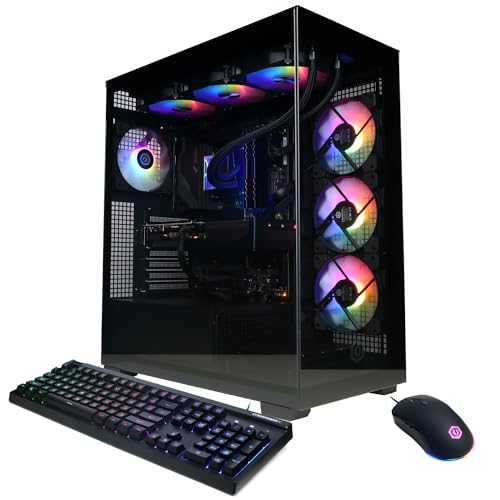
CyberPowerPC Gaming PC, Intel Core i5-14400F, GeForce RTX 5060 8GB
At about $1,300 this is a balanced 1080p high-refresh machine. The i5-14400F is a sensible partner for an RTX 5060 rather than an extravagant one: you are not paying for processor you cannot use, and the card is not being starved either. That balance is worth more than it sounds, because lopsided configurations produce uneven frame times that feel worse than a lower steady number.
The 8 GB frame buffer is the honest limitation, and it is the same story as everywhere else in that class. At 1080p it is a non-issue today. At 1440p with high textures, several recent releases will exhaust it, and the tell is sudden hitching as assets swap rather than a smoothly lower frame rate.
CyberPowerPC machines generally use standard components in standard cases, which is genuinely relevant to this article: standard form factors mean a future supply or cooler swap is a normal retail purchase rather than a hunt for a proprietary part. Confirm that for the specific model you are ordering, since the range is broad.
Buy it for 1080p at high refresh with a straightforward upgrade path. Skip it if you have a 1440p panel and no appetite for texture compromises.
KOTIN Gaming PC Desktop, Ryzen 7 8700F, RTX 5060 Ti 8GB, 16GB DDR5, 1TB SSD
Around $1,300 and effectively the same money as the CyberPowerPC above with the trade run in a different direction: a stronger processor and a step up to the 5060 Ti, against 16 GB of memory rather than more.
The 5060 Ti is the natural card for a 1080p 144 Hz panel or an entry 1440p one, and a Ryzen 7 in front of it leaves plenty of processor headroom for streaming or background work while playing. DDR5 at 16 GB is adequate today and is the specification most likely to want attention first, which brings the slot count back into focus: two slots filled with two modules means an upgrade requires replacing rather than adding.
The 8 GB buffer caveat applies again. Between this and the CyberPowerPC, the deciding question is whether you value processor headroom for multitasking and streaming, or whether you prefer the more widely serviced brand with more predictable parts standardisation.
Buy it for 1080p high refresh with room to stream. Skip it if you want the memory or storage headroom that the machines a tier up provide.
KOTIN Prebuilt Gaming PC Ryzen 7 9700X 16GB DDR5 RTX 5060 Ti 8GB 1TB SSD
At roughly $1,500, this pairs a current-generation Ryzen 7 9700X with the same RTX 5060 Ti and 16 GB of DDR5. Two hundred dollars over the 8700F configuration buys you the newer processor generation and the platform longevity that comes with it.
Whether that is money well spent depends entirely on your games. In titles limited by the graphics card, which is most of them at 1440p, the two machines will land close together and the extra spend buys little immediate benefit. In simulation, strategy, and heavily populated online titles, where the processor sets the ceiling, the newer chip earns its difference, and it shows up in the 1 percent lows rather than the average, which is the number you actually feel.
The configuration is somewhat unbalanced in the other direction from the budget machines: a strong modern processor in front of an 8 GB card. That is not a criticism if you plan to keep the machine a long time and replace the card mid-life, which is a perfectly sound strategy. It does put the graphics clearance and power connector questions squarely on your list before you buy.
Buy it if you play CPU-heavy games or intend a card upgrade later. Skip it if your library is graphically demanding but processor-light, since the 8700F machine gets you similar results for less.
CyberPowerPC Gamer Xtreme VR Gaming PC, Intel Core i9-14900KF 3.2GHz, GeForce RTX 5070 12GB, 32GB DDR5, 2TB PCIe 4.0 SSD, WiFi Ready & Windows 11 Home (GXiVR8080A39)
At about $2,000 this is the most processor-heavy machine in the group. An i9-14900KF with 32 GB of DDR5 and a 2 TB drive is a specification that suits people whose machine does more than play games: video editing, heavy streaming, virtual machines, large compilations.
The RTX 5070 with 12 GB is the meaningful step up from the 8 GB cards below it, and 12 GB is enough to stop being the constraint at 1440p in the way 8 GB is. Paired with this processor, the machine is comfortably a 1440p high-refresh build.
Two practical points. A high-end Intel processor in this class needs genuine cooling to hold its clocks under sustained load, so establish what cooler is fitted and what the case’s maximum height is, since that determines whether you can improve it. And the 32 GB of memory is very likely two 16 GB modules; confirm the slot count, because four slots with two free is a different machine in three years than two slots fully populated.
Buy it if the machine works as well as plays. Skip it if it only plays, since a large part of the price is processor capability that games will not use.
KOTIN Prebuilt Gaming PC RTX 5070 12GB, Ryzen 7 9700X, 32GB DDR5, 1TB SSD
Around $2,000 and, on paper, the most sensibly balanced high-tier machine here. A current-generation Ryzen 7, an RTX 5070 with 12 GB, and 32 GB of DDR5 is a configuration with no obvious weak link for 1440p gaming, and no obvious money spent on capability that games cannot use.
Against the CyberPowerPC at almost identical money, the comparison is clean: this trades a large amount of processor capability and 1 TB of storage for a more efficient, cooler-running platform. For gaming specifically, this is the better balance. For mixed production work, the i9 machine is the better tool. That is genuinely the whole decision.
The 1 TB drive is the item to plan around. Two large modern installations will fill a substantial share of it, and a nearly full drive brings its own slowdowns. Establish whether the board has a second M.2 slot free, because adding a drive is trivial when it does and a cloning exercise when it does not; our roundup of SSD cloning tools covers the latter without a full reinstall.
Buy it as a 1440p gaming machine with a long life ahead of it. Skip it if you need heavy multi-threaded production performance.
msi Codex Z2 Gaming Desktop, AMD R7-8700F, RTX 5070, 32GB DDR5, 2TB SSD
At roughly $2,059 this is the most expensive entry, and what you are paying for beyond the components is a machine from a major manufacturer with documented specifications, which in the context of this article is worth something concrete.
The configuration is strong: an RTX 5070, 32 GB of DDR5, and a 2 TB drive covers 1440p gaming comfortably with storage headroom that most of this group lacks. The R7-8700F is a capable processor, though a generation behind the 9700X in the KOTIN machine at similar money, which is the main argument against it on a pure specification comparison.
The argument for it is the thing this guide has been about throughout. Established manufacturers publish specification tables for their chassis and generally use standard component form factors, which means the clearance questions have published answers instead of requiring an email to a seller. That does not automatically make it the better buy, and it is worth verifying rather than assuming for any specific model, but a machine whose dimensions you can look up before ordering is a machine you can plan around.
Buy it if documented specifications and storage capacity matter to you. Skip it if you would rather put the difference toward a better monitor, which for most people watching this price bracket is the stronger move.
Side-by-side comparison
| Build | Price | Processor | Graphics | Memory / storage | Best panel | Main limitation |
|---|---|---|---|---|---|---|
| msi Codex Z2 | Check on Amazon | R7-8700F | RTX 5070 | 32GB DDR5 / 2TB | 1440p high refresh | Previous-generation CPU at top price |
| KOTIN RTX 5070 / Ryzen 7 9700X | Check on Amazon | Ryzen 7 9700X | RTX 5070 12GB | 32GB DDR5 / 1TB | 1440p high refresh | 1TB fills fast; check spare M.2 |
| CyberPowerPC Gamer Xtreme VR | Check on Amazon | Core i9-14900KF | RTX 5070 12GB | 32GB DDR5 / 2TB | 1440p high refresh | CPU capability games will not use |
| KOTIN Ryzen 7 9700X / RTX 5060 Ti | Check on Amazon | Ryzen 7 9700X | RTX 5060 Ti 8GB | 16GB DDR5 / 1TB | 1080p 144Hz, entry 1440p | Strong CPU in front of an 8GB card |
| KOTIN Ryzen 7 8700F / RTX 5060 Ti | Check on Amazon | Ryzen 7 8700F | RTX 5060 Ti 8GB | 16GB DDR5 / 1TB | 1080p 144Hz | 8GB buffer at 1440p textures |
| CyberPowerPC Core i5-14400F / RTX 5060 | Check on Amazon | Core i5-14400F | RTX 5060 8GB | Check listing | 1080p 144Hz | 8GB buffer; least CPU headroom of its tier |
| ZYNEEX Ryzen 5 5500 / RTX 3050 | Check on Amazon | Ryzen 5 5500 | RTX 3050 6GB | 16GB DDR4 / 1TB | 1080p 60Hz, medium settings | 6GB buffer limits texture settings |
| Prebuilt Core i5 / R7 350 | Check on Amazon | Core i5 | R7 350 4GB | Check listing | 1080p, older titles only | Entry card; verify PSU before upgrading |
Read the “best panel” column first. A mismatch there wastes more money than any specification difference between two adjacent rows, and it is the mistake I see most often at every price point in this table.
An upgrade order for after the machine arrives
Assuming you have the machine and want to improve it, this is the sequence that produces the most benefit per dollar, and it deliberately puts the expensive parts last.
First, open the side panel and record the five numbers from the top of this guide. Everything after this depends on them, and it takes ten minutes.
Second, fix memory configuration if it is single-module and slots are free. It is the cheapest meaningful gain available on a budget prebuilt.
Third, address airflow: add an intake fan if positions are empty, confirm fan directions, and get the machine off carpet if it is standing on it. Free or nearly free, and it protects everything else.
Fourth, add storage if the drive is under half a terabyte or already near full. A second drive in a spare M.2 slot is a fifteen-minute job.
Fifth, replace peripherals if they came bundled, since input devices affect how the machine feels far more directly than most internal parts.
Sixth, and only after the clearance and connector checks confirm it is possible, upgrade the graphics card. This is the largest single gain and the one most likely to be blocked, which is exactly why it belongs at the end rather than the beginning. If you plan to do the work yourself, our tools roundup covers what is worth owning and what will sit in a drawer.
What I would actually buy
Match the machine to the panel and the workload, then verify the five numbers before ordering. If you play at 1080p and want the most current-generation capability for the money, the Ryzen 7 8700F configuration with the 5060 Ti is the value point of this group. If you play at 1440p and the machine is for gaming, the KOTIN 9700X with the 5070 is the cleanest balance here. If the machine also earns its keep with production work, the CyberPowerPC i9 build is the right tool despite games not using most of that processor. If you want documented specifications and storage headroom above all, the msi Codex Z2 is the safe choice, and if the budget is genuinely tight, the ZYNEEX gets you into current-generation gaming for about eight hundred dollars.
None of that changes the actual argument of this guide. Every one of these machines is a chassis you will live inside for several years, and the specification that determines how those years go is not the one printed largest on the listing. It is the clear space in front of the card, the connectors hanging off the power supply, the height above the socket, the empty memory slots, and the fans that are installed rather than merely accommodated. Get those five figures from the manufacturers’ own tables before any money changes hands, and the upgrade you want in two years will be a purchase rather than a return.
Frequently asked questions
What information should I request from the seller before buying a prebuilt?
Request the exact graphics-card clearance, power-supply wattage, PCIe connector count, power-supply form factor, maximum cooler height, motherboard socket designation, memory-slot count, and occupied memory slots. These details reveal whether the machine can accept likely upgrades. Manufacturer specification tables for the exact model numbers are more reliable than inherited retail-listing dimensions or marketing bullets.
How can I tell whether a future graphics-card upgrade will fit?
Subtract the measured depth of anything mounted in the front from the case’s published maximum card length, then subtract working room. Compare that remainder with the graphics card maker’s published length. Also check card height, connector bend space, and slot thickness, because a card can fit in length while blocking expansion slots or preventing the side panel from closing.
Why might a high-wattage power supply still prevent a graphics-card upgrade?
Wattage alone does not confirm compatibility. The power supply must provide the PCIe connector count required by the graphics card, and the connectors must meet the card’s cable and bend-radius requirements. The supply’s form factor also matters: ATX, SFX, and SFX-L are physically different, while some prebuilts use proprietary supplies or non-standard motherboard power headers.
What should I check if I want to replace the stock CPU cooler?
Check the motherboard’s socket designation, the cooler’s compatibility list, and whether the required mounting bracket is included. Then compare cooler height with the case’s stated maximum, allowing for tall memory modules and fan movement. Liquid coolers require checking radiator-and-fan thickness at the intended mounting position, along with the tubing exit direction.
Can I determine whether a prebuilt uses dual-channel memory from its advertised capacity?
No. The advertised capacity does not reveal how many memory modules are installed or how many slots the motherboard has. The machine might use one module or two, and a single-module configuration gives up bandwidth on desktop platforms designed for two channels. Check the occupied slots, total slots, memory type, and the board’s validated speed support.
Related guides
- Best Gaming PC for Overwatch 2: Ten Prebuilts Matched to Your Monitor (2026)
- Best Gaming PC for Baldur’s Gate 3: Matching CPU, VRAM and Storage to the Game (2026)
- Best Gaming PC for Apex Legends: Which Listings Fit a High-Refresh Setup (2026)
- Best RTX 3060 Gaming PCs: Eight Prebuilt Listings Compared by CPU, RAM and Cooling (2026)









