
Start here, because this is the fix for most of the complaints that arrive at my bench: open your display settings and confirm the refresh rate is set to the panel’s maximum, then confirm the video cable runs from the graphics card, not from the motherboard’s video output. Those two settings account for more “my gaming PC setup feels bad” tickets than any hardware fault I diagnose, and both take under a minute.
I am Owen Pritchard. Twelve years of writing technical guides, and a bench that exists to answer one question quickly: is this a hardware problem or not? I keep POST cards, a drawer of known-good spare parts for swap testing, and several operating system images on separate drives so I can boot a suspect machine into a clean environment and see whether a problem follows the hardware or stays with the software. That method is the whole reason this article is ordered the way it is.
Most guides to gaming PC setups begin with a shopping list. That is the wrong end. If your current machine is underperforming, buying a new one before you understand why is how people end up spending $1,500 to fix a $0 configuration error. So: diagnosis first, ordered by how often each cause turns out to be the real one. Hardware recommendations after, for readers who genuinely have hit the limits of what they own.
Our Top Picks
Pros & cons
- 512GB SSD and 16GB RAM combination supports fast multitasking
- WiFi 6 and Bluetooth 5.0 are built in without extra adapters
- 1-year parts and labor warranty includes lifetime tech support
- 512GB SSD capacity fills up quickly with modern game libraries
- Radeon RX 580 8G is an older-generation graphics card
 SAAV CORE Prebuilt Gaming PC Bundle Desktop Tower3050 | Ryzen 5 | 16GB12 x 14 x 14 InchesCheck on Amazon



Top 3 picks at a glance

The fault list, ordered by how often it is actually the cause
As an Amazon Associate we earn from qualifying purchases at no extra cost to you.





This ordering comes from my own ticket history rather than from theory. Work down it. Do not skip ahead because a step sounds too simple – the simple ones are at the top precisely because they are usually right.
1. Refresh rate set to 60 Hz on a high-refresh panel. Windows regularly defaults to the lowest advertised mode. A 165 Hz monitor running at 60 Hz throws away roughly two thirds of the frames the machine produces, and it feels like input lag rather than like a display setting.
2. Display cable in the motherboard instead of the graphics card. The machine boots, the desktop looks normal, and games run on integrated graphics at a fraction of the speed. The give-away is that the graphics card’s fans never spin up under load.
3. The wrong power plan or a laptop-style power limit. A balanced plan that parks cores aggressively can cost noticeable frame time consistency. Our notes on optimising Windows for gaming performance cover the settings that actually change behaviour and the ones that are placebo.
4. Memory running at its default speed with no profile enabled. DDR5 kits sold as 6000 MT/s boot at a slow JEDEC default until you enable the profile in firmware.
5. Thermal throttling. A CPU that boosts for 90 seconds and then settles 700 MHz lower produces exactly the “it gets worse after a while” complaint. Watch clocks and temperature during a long session rather than during a two-minute benchmark. If temperature climbs and clocks fall together, that is your answer, and the overheating fixes come before any purchase.
6. Storage that stalls. A game installed on a mechanical drive will stutter as it streams assets in, however fast the rest of the machine is. This looks like a graphics problem and is not one.
7. Background software. Overlays, capture tools, RGB suites and launcher clients each cost a little. Together they can cost a lot. Boot once with everything disabled and compare.
8. Driver state. Not “drivers are old” as a reflex, but a genuinely broken install after a failed update. A clean reinstall is a twenty-minute test that either fixes it or eliminates it.
9. Power delivery. A tired or undersized power supply produces crashes under load, not slowness, so it sits low on this list for performance complaints and high on the list for stability ones.
10. Actual hardware limits. Only when the nine above are clear does “you need a faster machine” become the honest answer.
How to confirm each cause in under ten minutes
Guessing is expensive. Measuring is not.
For refresh rate and cable: open display settings, read the advertised refresh, set it to maximum. Then load a game and watch whether the graphics card fans spin. Silent fans under load means the card is idle and something else is rendering.
For memory: check the reported memory speed in a system information tool. If a kit sold at 6000 reports 4800, the profile is off.
For thermals: log CPU package temperature and clock speed for a fifteen-minute session. Sustained temperature near the chip’s ceiling with clocks stepping down is throttling. Temperature that spikes and recovers is normal behaviour.
For storage: note which drive the game lives on and check whether stutter correlates with new areas loading rather than with visual complexity.
For frame pacing generally: average frame rate hides the problem. Watch the one percent low figure and the frame time graph. A machine averaging 120 fps with regular 40 ms spikes feels worse than one holding a steady 75. This is the measurement most people never take, and it explains most disagreements about whether a machine is “fast”.
If you are chasing responsiveness rather than raw numbers, our guide to reducing input lag in Windows covers the chain from mouse poll to photons on screen, which is a different problem from frame rate and needs different fixes.
Clearance and socket compatibility, before you change any part
If diagnosis says you genuinely need new hardware, the next place builds fail is physical fit. Two principles, and then a rule.
Socket compatibility is decided by firmware as often as by the socket itself. A processor can be mechanically correct for the socket and still refuse to boot because the board shipped with firmware predating that chip. Before you buy a CPU for an existing machine, find the board’s own compatibility list on the manufacturer’s site, note the minimum firmware version for that chip, and check whether the board can be updated without a working CPU installed. That single check is the difference between a simple upgrade and a stalled build.
Clearance is a stack of measurements, not one number. The recurring collisions I see in prebuilt cases: a replacement air cooler that is taller than the side panel allows; memory with tall heat spreaders that fouls the cooler’s fan; a three-slot graphics card that lands on the front drive cage; a radiator plus fans that will not clear the top of the board.
The rule: write down four figures before you order anything – maximum cooler height for the case, maximum graphics card length and thickness for the case, memory height clearance for the cooler, and the board’s own clearance diagram. All four are published by their manufacturers. A retail listing’s compatibility claim is not a substitute for the maker’s specification table, and cross-checking them takes about five minutes.
What separates a $420 setup from a $2,000 one
Spending more does not improve everything evenly. Here is where the money actually lands, in order of effect on how a machine feels in games.
Graphics card, by a distance. At 1080p a card of the RTX 3050 or RX 550 class is doing a different job from a 5060 Ti or a 5070. This is the component that decides your settings ceiling.
Memory capacity, up to a point. 16 GB is the working minimum for current titles alongside a browser and a chat client. 32 GB helps in simulation games and in anything you also stream or record. Beyond 32 GB, gaming returns approach nothing.
Storage type. NVMe versus mechanical is a night-and-day difference in loading and streaming. NVMe generation is a rounding error by comparison.
CPU, in specific genres. Strategy, simulation and competitive shooters at high refresh are CPU-bound. Most single-player action games are not, and a mid-range chip will keep pace with a much dearer one.
Everything else. Case lighting, fan count and cable sleeving change how the machine looks and sounds, not how it plays. That is a legitimate thing to buy – just know which budget line it comes from.
The prebuilt setups compared
The eight machines below span roughly $420 to $2,000. The table sorts them by price so you can see the shape of the market rather than the marketing.
| Setup | Price | CPU | Graphics | Memory | Realistic target |
|---|---|---|---|---|---|
| ZER-LON Prebuilt | Check on Amazon | Core i5 | RX 550 4GB | Not stated | Older and esports titles, 1080p low |
| STGAubron Desktop | Check on Amazon | Core i7 | RX 580 8GB | 16 GB | 1080p medium in most titles |
| YAWYORE R5 5600GT | Check on Amazon | Ryzen 5 5600GT | Integrated | 16 GB | Light gaming, upgrade base |
| ZYNEEX Prebuilt | Check on Amazon | Ryzen 5 5500 | RTX 3050 6GB | 16 GB | 1080p high, entry ray tracing |
| YAWYORE RTX 5060 | Check on Amazon | Ryzen 7 5700X | RTX 5060 | Not stated | 1080p high refresh, 1440p medium |
| CyberPowerPC | Check on Amazon | Ryzen 7 8700F | RTX 5060 Ti 8GB | Not stated | 1440p high |
| SAAV CORE bundle | Check on Amazon | Ryzen 5 5500 | RTX 3050 6GB | 16 GB | 1080p high, plus two monitors |
| KOTIN RTX 5070 | Check on Amazon | Ryzen 7 9700X | RTX 5070 12GB | 32 GB | 1440p high refresh, 4K with upscaling |
Read that table for the relationship between price and graphics tier rather than for the absolute figures. Two entries break the pattern badly, and I will name them below rather than leave you to work it out.
KOTIN Prebuilt Gaming PC RTX 5070 12GB, Ryzen 7 9700X, 32GB DDR5, 1TB SSD
The most coherent machine here. A current-generation eight-core CPU, a 12 GB card, 32 GB of DDR5 and an NVMe drive is a balanced parts list with no obvious weak link, which is unusual at any price in prebuilt form. The 9700X in particular is an efficient chip – my logs on that class of processor sit near 90 to 105 W package power under a gaming load, which means a modest cooler keeps it in check and the machine stays quiet.
The target this hits: 1440p at high refresh with settings high, and 4K playable with upscaling enabled. 12 GB of graphics memory is the figure that matters most for longevity, since texture settings are what fall over first when memory runs short.
Who should not buy it: anyone playing at 1080p on a 60 Hz panel. You would be paying $2,000 for frames your display cannot show. Buy a monitor first in that case.
SAAV CORE Prebuilt Gaming PC Bundle Desktop Tower AMD Ryzen 5 5500 GeForce RTX 3050 6GB GDDR6 Dual Curved 24in Monitors 16GB DDR4 512GB NVMe SSD WiFi 6 Windows 11 Black RGB Computer PC Gaming
This is a bundle, and bundles need reading carefully. You get a complete desk setup out of one box: tower, two curved 24-inch monitors, and the peripherals implied by the package. The tower itself is an entry-level machine – a Ryzen 5 5500 with an RTX 3050 6 GB and 16 GB of DDR4 is roughly the same silicon as the ZYNEEX below, which sells for around $810.
So the honest framing is that you are paying about $960 above the equivalent tower for two monitors and the convenience of a single purchase. That can be a fair deal if you value not having to research displays, and a poor one if you would rather buy the tower and choose your own panels, since two competent 24-inch gaming monitors do not usually cost that much.
One practical note on dual-monitor setups: driving a second panel with video playing costs a small slice of graphics memory, and a 6 GB card has less of that to spare than most. Also plan your power – two panels, a tower and peripherals want a properly rated outlet strip, which is why we wrote up power strips for gaming setups.
Who should not buy it: anyone who already owns a monitor, and anyone comfortable buying two components separately.
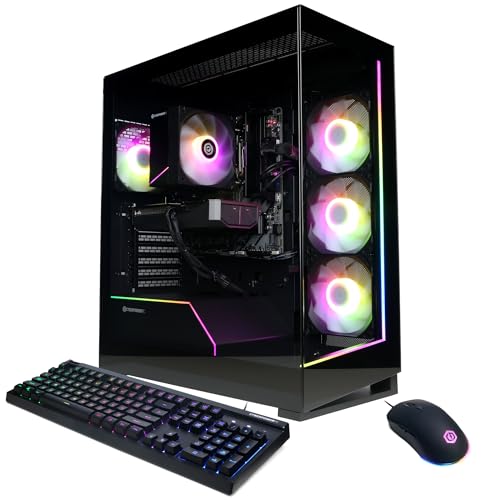
CyberPowerPC Gaming PC, AMD Ryzen 7 8700F, GeForce RTX 5060 Ti 8GB
The best-balanced machine in the middle of this group. The 8700F is an eight-core part without integrated graphics, which is a sensible saving in a machine that ships with a discrete card, and the 5060 Ti is a genuine 1440p-capable graphics card rather than a 1080p card with an ambitious name.
CyberPowerPC is also the only established system builder in this comparison, and that matters for the parts nobody lists: power supply quality, case airflow and cable routing. Those three decide whether a machine is still stable and quiet after two years.
The reservation is the 8 GB frame buffer. At 1440p with textures at maximum, 8 GB is the constraint you will meet first, and it is not upgradeable. Plan on turning textures down one notch in the heaviest titles rather than expecting maximum settings throughout.
Who should not buy it: anyone whose main titles are known texture-memory hogs, and anyone gaming at 4K.
YAWYORE Gaming PC, AMD Ryzen 7 5700X, GeForce RTX 5060 Desktop Computer
A current graphics card paired with a previous-generation CPU, which is a rational way to hit a price. The 5700X is an eight-core chip that remains perfectly capable in games, and pairing it with an RTX 5060 puts the money where it changes frame rate.
The listing does not state memory capacity or storage, and that omission is the thing to resolve before ordering. In machines at this price the usual configuration is 16 GB with a 1 TB NVMe drive, but “usual” is not a specification. Ask the seller, or read the full detail page rather than the title.
Expect comfortable 1080p at high refresh and 1440p at medium to high settings. That is a good place for most people to land, and it is roughly $700 cheaper than the KOTIN machine above.
Who should not buy it: anyone who needs the specification confirmed in writing before purchase, unless the seller provides it.
ZYNEEX Prebuilt Gaming Desktop PC, AMD Ryzen 5 5500, GeForce RTX 3050 6GB,16GB DDR4 3200MHz RAM, 1TB NVMe SSD, ARGB Air Cooling, Wi-Fi,Tower Computer for Gaming, Streaming, Editing
The most completely specified listing in the group, and that alone earns it credit. Every figure a buyer needs is stated: CPU, graphics card and memory size, memory capacity and speed, storage type and capacity, cooling type and networking.
What it delivers is solid 1080p gaming at high settings in most titles, with the 3050 handling light ray tracing if you accept upscaling. The 1 TB NVMe drive is the right size, because a 512 GB drive fills up after four modern installs. DDR4 at 3200 is the correct pairing for this platform.
It is also the machine in this group I would most readily recommend to someone buying their first desktop, because nothing on the list is a surprise and the price is honest for the parts.
Who should not buy it: anyone targeting 1440p, and anyone who intends to upgrade the graphics card later without also replacing the power supply – check that rating before you plan an upgrade path.
YAWYORE Gaming PC Desktop Computer AMD R5 5600GT 16GB 1TB NVMe Towers WiFi
The important detail is what is missing: there is no discrete graphics card. The 5600GT is a processor with integrated graphics, and the machine runs games on that. For older titles, esports and anything undemanding, it works. For current releases at high settings, it does not, and no amount of settings tuning changes that.
Framed correctly, this is a competent general-purpose desktop with 16 GB of memory and a 1 TB NVMe drive that happens to play light games, and it is a reasonable upgrade base: add a graphics card later and you have a proper gaming machine. Framed incorrectly – as a $660 gaming PC – it will disappoint.
If you buy it as an upgrade base, confirm the power supply wattage and connector types first. That is the component that decides which cards you can add, and it is the one most often left off these listings.
Who should not buy it: anyone expecting to play current AAA titles out of the box.
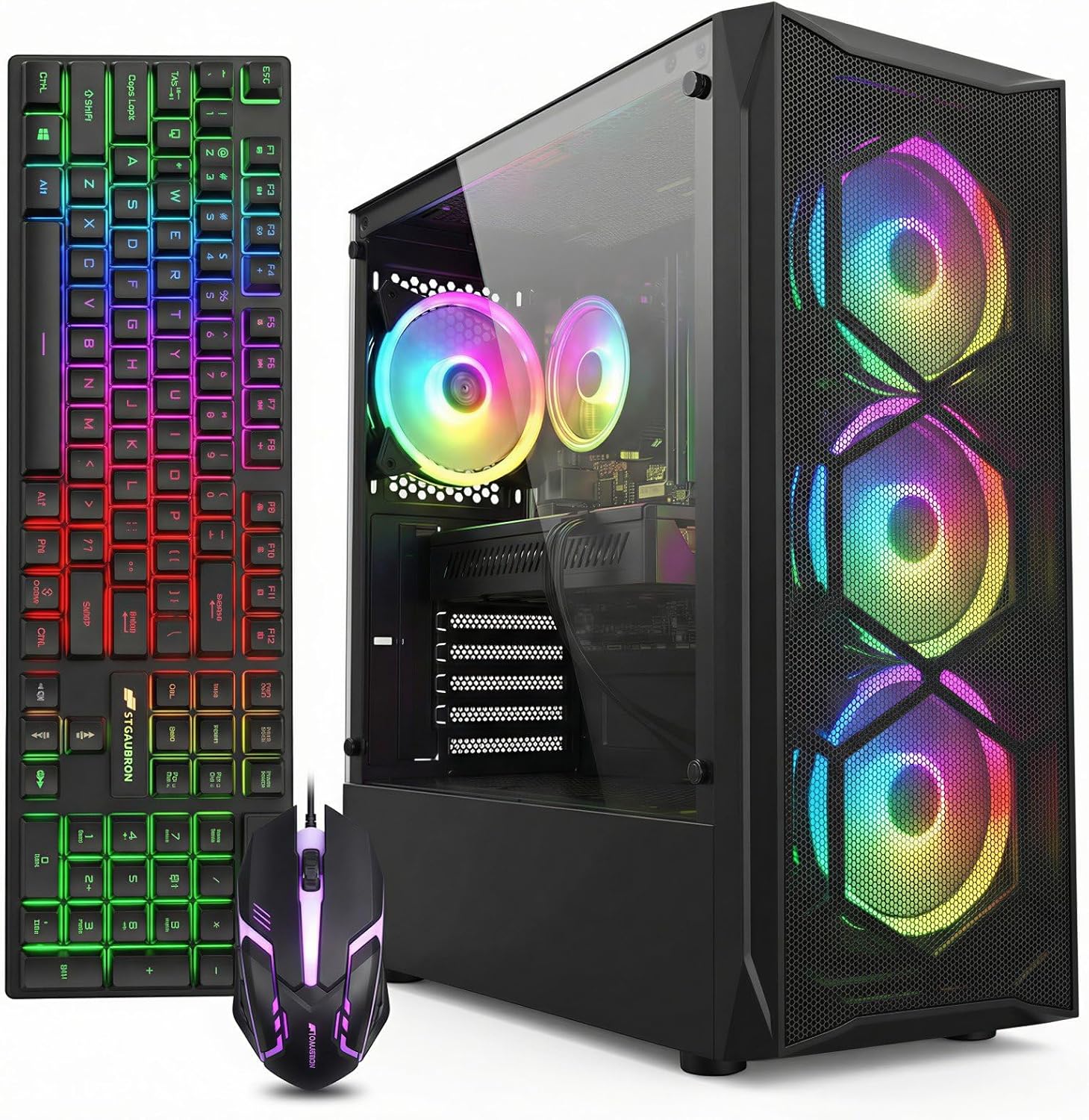
STGAubron Gaming PC Desktop,Core I7,RX 580 8G,16G RAM,512G SSD
Older parts assembled sensibly for the money. The RX 580 with 8 GB is a card several generations old, and it remains genuinely usable at 1080p because 8 GB of memory ages better than raw shader count. Paired with a Core i7 and 16 GB of system memory, this plays most things at medium settings and plays esports titles very comfortably.
Two caveats. Power draw on that generation of card is high relative to its performance – budget for a machine that runs warmer and louder than a modern equivalent, which makes case airflow worth checking. And the 512 GB drive is small by current standards; two large installs will fill it.
At around $500 it is the cheapest machine here I would call a real gaming PC rather than a machine that runs games.
Who should not buy it: anyone who cares about power efficiency or noise, and anyone who plays titles that require current graphics feature sets.
ZER-LON Prebuilt Gaming PC Desktop, Core I5 up to 3.6 GHz, RX 550 4GB GDDR5
The entry point, and it needs an honest description. The RX 550 with 4 GB is a low-power card designed for display output and light workloads rather than for current games. Paired with a Core i5, it will run older titles and popular esports games at 1080p with settings reduced, and it will struggle with anything recent and demanding.
There is a real use case here: a first machine for a younger player, a second machine for a household, or a desktop that mostly does schoolwork and occasionally plays something undemanding. At around $420 it is priced for that role.
What I would not do is buy it expecting to upgrade the graphics card later. Machines at this price generally ship with power supplies sized precisely for the parts installed, and the upgrade cost lands on top of the purchase.
Who should not buy it: anyone whose games list includes a current AAA release. Save for the $500 tier instead, where the graphics card changes category.
The upgrade order that actually helps
If you already own a machine and want it to feel better, this is the sequence with the best return per pound spent.
First, fix the free things. Refresh rate, cable, memory profile, power plan, background software. Nothing on this page is worth buying until those are correct.
Second, storage. Moving your most-played game from a mechanical drive to an NVMe drive removes a class of stutter entirely and costs less than any other component here.
Third, memory to 32 GB if you are at 16 GB and play simulation or heavily modded games, or if you stream.
Fourth, cooling. A better cooler or two more case fans buys back the clock speed throttling was taking. This is the cheapest performance you can buy on a hot-running machine.
Fifth, the graphics card – but check the power supply rating and the physical clearance before you commit, since a card upgrade that also forces a power supply and a case is three purchases pretending to be one.
Last, the CPU and board. This is a platform change, and it usually means new memory too. Do it when the machine is genuinely a generation behind, not because a benchmark chart looked persuasive.
Setup mistakes that survive any budget
A few habits cost people performance regardless of what they spent.
Putting the tower on carpet. Bottom-mounted power supply intakes choke, the supply runs hot, and its fan runs loud. A hard surface or a stand fixes it for nothing.
Filters nobody cleans. Dust filters work, which is why they clog. A blocked front filter can cost 8 to 12 degrees Celsius on component temperatures over a year of neglect, and that shows up as throttling long before anyone thinks to look.
Chasing maximum settings. The step from high to ultra frequently costs 20 to 30 percent of your frame rate for differences you cannot see in motion. Shadows and volumetric effects are the usual culprits.
Ignoring frame pacing. Two machines with identical average frame rates can feel completely different. If yours feels inconsistent, look at frame times and at the specific causes of fps drops rather than assuming you need more hardware.
Skipping surge and power quality. A machine that reboots during storms is not a faulty machine, and the fix is at the wall rather than inside the case.
The parts prebuilt listings never name
Every machine above is described by CPU, graphics card, memory and storage. Those four are the marketing. Three unnamed components decide whether the machine is still good in two years, and you can usually find out about all three before you buy.
The power supply. A listing that names the graphics card but not the supply is telling you where the savings were made. What I look for on a bench: the wattage, the efficiency rating, and whether the connectors match what a future graphics card would need. An undersized or low-quality supply produces crashes under load rather than slowness, which is why builders misdiagnose it as a driver problem for months. If the listing is silent, ask the seller for the model name and look it up. A machine that shuts down mid-match is not fixed by settings, and my walkthrough on diagnosing a failing power supply exists because this failure mode is so consistently misread.
Case airflow. Front panels with glass across the intake look excellent and starve the machine. The number that matters is not fan count but whether cool air has an unobstructed path in at the front and a clear exit at the top or rear. Look at the product photographs for intake area, not for lighting.
The storage controller and drive class. “1TB SSD” covers everything from a fast NVMe drive to a slow DRAM-less one that collapses under sustained writes. For gaming the difference shows up when a large update installs while you are playing, rather than in benchmarks. It is not a reason to reject a machine, but it is a reason not to pay a premium for a stated capacity alone.
There is a fourth item worth a moment: warranty and support. A machine from an established builder comes with an accountable route when something fails in month seven. A machine from a marketplace assembler may not, and the components inside may carry their own individual warranties that you would have to claim separately. That is a real difference in value that never appears next to the graphics card name.
Where this leaves you
If your existing gaming PC setup disappoints you, work the fault list from the top. In my experience the majority of those complaints are resolved before step five, without spending anything, and the people who buy first often carry the same misconfiguration onto the new machine and stay disappointed.
If you have genuinely reached the limit of what you own, the shape of this market is simple: about $500 buys real 1080p gaming, about $800 buys 1080p at high settings with modern features, about $1,300 buys high refresh and entry-level 1440p, and about $2,000 buys 1440p at high refresh with headroom. The bundles that break that pattern are paying for monitors, not for performance. Know which one you are buying.
This guide covers one angle on the topic. For the full comparison, see our main guide: PC Setups for Gaming: Fix the Bottleneck First, Then Buy.
Related guides
- Best Gaming PC for Overwatch 2: Ten Prebuilts Matched to Your Monitor (2026)
- Best Gaming PC for Baldur’s Gate 3: Matching CPU, VRAM and Storage to the Game (2026)
- Best Gaming PC for Apex Legends: Which Listings Fit a High-Refresh Setup (2026)
- Best RTX 3060 Gaming PCs: Eight Prebuilt Listings Compared by CPU, RAM and Cooling (2026)









