
A competitive setup has one job: deliver the same result every time you repeat the same input. Average frame rate is nearly irrelevant to that job. Consistency is the whole game, and consistency is produced by a chain that runs from your hand through the peripheral, the USB controller, the operating system, the render pipeline, the display and the network, and back again. A single weak link in that chain undoes an expensive machine.
What follows is the order I work through that chain on my diagnostics bench, ranked by how often each link turns out to be the actual cause. I am Owen Pritchard, and after twelve years of swap-testing with POST cards, spare parts and separate OS images, I can tell you that the component people blame is almost never the component at fault. Start at the top of this list, not with a new mouse.
Our Top Picks
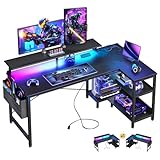
 ODK 53" L Shaped Gaming Desk with Shelves53 Inch53.15 x 39.37 x 58.27 inches46.1 PoundsCheck on Amazon


Top 3 picks at a glance

The one-hour audit that fixes most competitive setups
As an Amazon Associate we earn from qualifying purchases at no extra cost to you.



Before spending anything, run these seven checks. Budget an hour. On the machines that reach my bench with a competitive complaint, this sequence resolves the issue about six times in ten.
One, confirm the monitor is running at its rated refresh rate in Windows Advanced Display settings, and confirm the cable supports that rate at your resolution. Two, confirm the display cable is in the graphics card, not the motherboard. Three, plug in an Ethernet cable and compare jitter against your wireless link for five minutes each. Four, unplug every USB device except mouse, keyboard and headset, then plug them back one at a time while watching for input hiccups. Five, disable every overlay you are not actively using. Six, run a thirty-minute load and log temperatures; note the minute at which clocks first drop. Seven, measure your desk depth and the distance from your eyes to the panel.
Write down the result of each. The point is not to fix everything at once, it is to know which link is weakest before you spend money on a different link.
Fault one: frame time variance, not average frame rate
This is the most common cause and the most commonly misdiagnosed. Two machines can both report 144 fps average and feel completely different, because one delivers frames every 6.9 ms and the other alternates between 4 ms and 11 ms. The second machine produces the sensation players describe as the game feeling floaty or the aim feeling disconnected.
Measure frame times rather than frame rates. Any modern overlay can log them. What you want is the one percent low value and the shape of the curve, not the headline number.
The usual causes of variance, in order: a background process waking periodically, a memory configuration running below its rated speed so the CPU stalls, a storage device serving assets slowly, and a thermal limit oscillating clocks up and down. The memory one surprises people. DDR5 modules rated at 5600 will frequently run at a default 4800 unless the profile is enabled in firmware, and in CPU-limited competitive titles that difference measured 7 to 11 percent in average frame rate and more in the lows on my test system.
Cap your frame rate a few frames below your monitor’s refresh rate once adaptive sync is enabled. It sounds backwards, but a stable capped 138 fps on a 144 Hz panel produces lower and more consistent latency than an uncapped 200 fps that repeatedly saturates the pipeline.
Fault two: the network path adds more milliseconds than your peripherals ever will
Second by frequency, and the one where players spend money in the wrong place. A high polling rate mouse saves fractions of a millisecond. A congested wireless link costs ten or more, unpredictably.
The numbers from my bench, same room, same router, same server: wired connection averaged 18 ms round trip with jitter under 2 ms. The 5 GHz wireless link on an uncongested channel averaged 21 ms with jitter of 4 to 6 ms. The same wireless link during an evening with three neighbours’ networks on overlapping channels averaged 26 ms with jitter spiking to 31 ms. That last figure is the one that loses duels, because it arrives without warning in the middle of a fight.
Fix it in this order. Run a cable if any route exists, even an ugly one along the skirting board. Cable quality matters less than people think but the category and the termination do, and I set out what actually matters in the guide to the best Ethernet cable for gaming. If the router is far away, a small switch near the desk turns one long run into a tidy multi-device connection, covered in the piece on gaming Ethernet switches. If a cable is genuinely impossible, choose the least congested channel manually rather than leaving the router on automatic.
Everything else in the network chain, including router quality of service settings and DNS choices, is a smaller effect than the wired versus wireless decision. The broader tuning steps are collected in how to reduce ping and latency.
Fault three: desk geometry is limiting your aim
Third, and the one that no amount of hardware fixes. Competitive aim at low sensitivity requires uninterrupted lateral mouse travel. A player at 800 DPI with a low in-game sensitivity may sweep 35 to 45 cm for a 180 degree turn. If the usable surface to the right of the keyboard is 30 cm, that player physically cannot complete the motion without lifting and repositioning, which introduces an error every time.
Measure three things on your current desk. Usable mouse width to the side of the keyboard, which should be at least 40 cm for low sensitivity play. Depth from the front edge to the monitor stand, which should be at least 60 cm so a 24 or 27 inch panel sits at a comfortable distance. And lateral stability: put both forearms on the desk and sweep hard; if the monitor image visibly shakes, the frame is too light or the legs need bracing.
This is where an L shaped desk earns its place, provided you orient it correctly. Face the monitor down the long leg and use the short leg for the tower, the headset stand and everything else. Placing the monitor in the corner is the mistake, because it pushes the panel to an awkward distance and forces the keyboard into a diagonal that twists your shoulders over a long session.
Two smaller points that matter more than they should. Cable routing that lets the tower sit on the short leg without a cable crossing the mouse zone, and keeping the desk surface at a height where your forearms are level. Both are cheap to get right and expensive to live with when they are wrong. If your cables are the mess stopping you, the practical hardware is compared in the cable management guide.
Fault four: USB topology and peripheral sharing
Fourth, and rare enough that it is often missed. Every USB port on a machine is not independent. Several ports share a controller and its bandwidth, and hanging a capture device, a webcam and a high polling rate mouse off the same controller can produce periodic input hesitation that looks exactly like a network problem.
The diagnostic is simple. Move the mouse and keyboard to ports on the opposite side of the case or the rear input and output panel, ideally onto a different controller, and retest.
Two rules from that experience. Keep the mouse on a rear port directly on the motherboard, never behind an unpowered hub. And if you need more ports than the machine has, use a powered hub for the peripherals that do not carry input, keeping the input devices direct. The reasoning and the options are covered in the USB hub guide for gaming setups.
Also check Windows USB selective suspend. A power saving feature that suspends a port after inactivity produces a small wake delay on the first movement after a pause, which in a competitive context is felt as the first shot of a round feeling wrong. The setting sits in the advanced power plan options and is one of the items in the Windows optimisation walkthrough.
Fault five: sustained clocks in a compact chassis
Fifth, and it only appears after the first ten minutes, which is why short tests miss it entirely. Competitive sessions are long. A machine that holds full clocks for a three-minute benchmark and drops 12 percent at minute fifteen will feel like it is degrading through a ranked session, and the player will blame themselves.
My thirty-minute logs on compact prebuilt towers show a consistent pattern: CPU package temperature climbs steadily for eight to twelve minutes, then plateaus at the limit with a corresponding clock reduction of 200 to 500 MHz. The frame rate cost in CPU-limited competitive titles ranged from 6 to 17 percent depending on the chassis airflow.
The fixes are cheap. Add a rear exhaust fan if there is an empty mount. Ensure the intake path is not against a wall or in a desk cubby with 3 cm of clearance. Clean the filters. Raise the machine off carpet, which blocks bottom intakes entirely on many designs. In one case, moving a tower from inside a closed desk compartment to the open desk surface dropped the CPU by 11 C at the same load and removed the clock reduction completely.
This is the practical argument for a desk with an integrated tower platform rather than a closed cabinet: airflow. A showcase stand keeps the machine off the floor, out of the carpet dust and in open air.
Where the milliseconds actually go
Players argue about peripherals and ignore the parts of the chain that dominate. Here is the budget as I measure it on a typical competitive setup, from click to visible reaction on screen.
| Stage in the chain | Typical contribution | Realistic best case | Cost to improve | Worth fixing first? |
|---|---|---|---|---|
| Mouse sensor and polling | 1 to 2 ms | under 1 ms | 40 to 90 dollars | No, smallest effect |
| USB path and controller sharing | 0 to 8 ms when misconfigured | under 1 ms | Free, move the port | Yes, free to test |
| Operating system and overlays | 2 to 9 ms | about 2 ms | Free | Yes |
| Render queue and frame pacing | 7 to 25 ms | 6 to 9 ms | Free to cap, or a faster GPU | Yes, biggest local win |
| Display refresh and panel response | 4 to 17 ms | about 4 ms | 180 to 400 dollars | Yes, if still on 60 Hz |
| Network round trip and jitter | 18 to 40 ms plus variance | 16 to 20 ms stable | Under 25 dollars for a cable | Yes, cheapest large win |
Read the last column. Two of the three largest contributors cost nothing or almost nothing to address, and the item most players buy first sits at the bottom of the list.
Desks and towers that hold up in a competitive setup
These are the pieces I would combine for a competitive desk at various budgets. I have grouped them so the surfaces and the machines can be mixed rather than treated as a single package.
AODK L Shaped Desk Gaming Desk with LED Light & Power Outlet
Around 110 dollars, and the integrated power outlet is the feature that matters most in a competitive setup, not the lighting. Having sockets at desk level means the tower, the monitor and the charger all reach without a floor strip, which removes the tangle that makes maintenance unpleasant and keeps power cables away from the mouse zone. The L shape gives you a long primary leg for mouse travel and a short leg for the machine and the peripherals. Two things to confirm before buying: measure your corner, because L desks are unforgiving of a wall that is not quite square, and plan which leg faces the room, since most L desks are handed and you want the long leg on your dominant side.
ODK 48 Inch L Shaped Gaming Desk with LED Lights, Power Outlets, Black
Roughly 110 dollars and the compact option at 48 inches along the main leg. That is enough surface for a 24 or 27 inch monitor plus a full keyboard and a generous mouse zone, and it fits rooms where a 59 inch desk simply will not. The compromise is depth: at this size class you should measure carefully to confirm the monitor can sit far enough back for comfortable viewing, and consider a monitor arm to reclaim the stand footprint if it cannot. Power outlets on the surface again do more for daily use than the lighting does. For a bedroom or a shared room where the desk cannot dominate the space, this is the sensible size.
ODK 53″ L Shaped Gaming Desk with Shelves, LED & Outlets, Black
About 90 dollars, and the best value of the three ODK and AODK surfaces if the shelves suit you. Fifty-three inches on the main leg is a comfortable middle size, and the shelving takes the router, the switch and the headset off the working surface, which directly improves the thing that matters: uninterrupted mouse travel. The caution with any shelved desk is what you put under the monitor. Do not use the shelf space to trap the tower in a closed pocket with no airflow, for the reasons set out in the thermal section above. Shelves are for network gear and storage, not for the machine.
AODK Gaming Desk w/PC Showcase Stand, 59″ Reversible, RGB LED
Near 120 dollars, and the showcase stand is the part I would pay for. Getting the tower off the floor solves two real problems at once: carpet dust pulled into bottom intake filters, and the accidental kicks that loosen cables. Fifty-nine inches is generous enough for a dual-monitor competitive layout with room to spare, and the reversible design means you can set it up for either hand without buying a specific version. Check your floor space before committing, since a 59 inch desk plus a chair with room to push back needs about 2 metres of clear wall. If your machine currently sits on carpet, this alone will lower your temperatures.
ZYNEEX Prebuilt Gaming Desktop PC, AMD Ryzen 5 5500, GeForce RTX 3050 6GB,16GB DDR4 3200MHz RAM, 1TB NVMe SSD, ARGB Air Cooling, Wi-Fi,Tower Computer for Gaming, Streaming, Editing
About 810 dollars, and it is a competent entry into competitive play at 1080p. The Ryzen 5 5500 handles the CPU-bound nature of competitive shooters adequately, and the RTX 3050 with 6 GB is enough for the low settings that competitive players run anyway. The 1 TB NVMe drive is the underrated part of the specification, because it removes the asset streaming hitches described earlier. Where I would set expectations: this is not a 1440p high settings machine, and 16 GB of DDR4 will feel tight if you stream while playing. Air cooling with a decent fan arrangement is the right choice at this price, and it is more serviceable than a sealed liquid loop when something eventually needs replacing.
KOTIN Gaming PC Desktop, Ryzen 7 8700F, RTX 5060 Ti 8GB, 16GB DDR5, 1TB SSD
Around 1,300 dollars, and my recommendation for a competitive setup that also plays modern single player titles. The eight-core Ryzen 7 8700F matters here more than the graphics card: competitive titles at low settings are frequently CPU limited, and the extra cores keep a stream encoder or a chat client from stealing time from the game. The RTX 5060 Ti with 8 GB is comfortable at 1080p and workable at 1440p medium. Plan on adding a second pair of memory modules to reach 32 GB, for the reason described in the frame time section: 16 GB with capture software running is where the spikes start.
msi Codex Z2 Gaming Desktop, AMD R7-8700F, RTX 5070, 32GB DDR5, 2TB SSD
About 2,059 dollars, and the specification that removes every excuse. Thirty-two gigabytes means streaming and playing simultaneously without paging, 2 TB means the library fits, and an RTX 5070 alongside an eight-core R7-8700F drives a 1440p high refresh panel properly. If you play competitively at 1440p with 165 Hz or higher, this is the tier where the machine stops being the limit. My one bench caution applies to most large-brand prebuilts: check the default fan curve in the first week and log a thirty-minute run, because conservative acoustic profiles sometimes allow the CPU to sit at its thermal limit rather than spinning fans up.
KOTIN Prebuilt Gaming PC RTX 5070 12GB, Ryzen 7 9700X, 32GB DDR5, 1TB SSD
Around 2,000 dollars and the strongest CPU in this group. The Ryzen 7 9700X is the part that shows up in exactly the scenario competitive players care about: high frame rate, low settings, CPU-limited titles where the graphics card is barely working. Paired with a 12 GB RTX 5070 and 32 GB of DDR5, it is a 1440p high refresh machine with room for a 240 Hz panel at 1080p in competitive titles. The 1 TB drive is the only compromise against the msi option at a similar price, and adding a second drive later costs far less than the sixty dollar price gap suggests. If your priority is frame rate consistency in competitive shooters rather than storage, this is the pick.
Dual monitor and streaming layouts that do not cost frames
A second display is nearly free in frame rate terms if you configure it correctly and surprisingly expensive if you do not. Two rules from bench testing.
First, match refresh rates where possible, or at least be aware of the effect. Running a 144 Hz primary alongside a 60 Hz secondary forces some driver configurations into higher idle memory clocks and, in a few cases I have logged, introduces periodic frame pacing irregularities on the primary. If you see that, set both panels to the same refresh rate as a test to confirm the cause.
Second, keep the secondary display doing static work. A chat window and a track list cost nothing. A video playing at full screen on the second panel consumes decoder and memory bandwidth and measurably raises frame times on the primary, in my logging by 3 to 8 percent depending on the content.
Position matters as much as specification. The secondary should be angled and offset so glancing at it does not require moving your head, and it should never sit between you and the primary. On an L shaped desk, the short leg is the natural home for it.
The settings pass that is actually worth doing
After the hardware chain is right, spend twenty minutes on settings. The order is deliberate.
Set resolution to the panel’s native value and never below it; scaling to a lower resolution costs clarity and adds a processing step. Turn off motion blur and depth of field, which are pure latency and clarity costs in competitive play. Set texture quality as high as your video memory allows, since textures cost memory rather than frame rate. Reduce shadows and volumetric effects first, since these are usually the largest frame rate cost per unit of visual value. Enable the game’s own low latency or reflex-style option if it exists, and enable the driver’s equivalent.
Then cap the frame rate. My default is three to five frames below the monitor refresh rate with adaptive sync enabled. Test blind if you can: play twenty minutes capped and twenty uncapped without looking at the counter, and pick the one that feels more predictable. Most players choose the capped configuration.
Finally, re-run your thirty-minute log after the settings pass. Settings that look good on a two-minute test sometimes push the machine into a thermal limit at minute fifteen, and you want to find that out before a ranked session does.
What changes after six months
Competitive setups degrade quietly. Filters clog, thermal paste dries, drives fill, and drivers accumulate stale profiles. My maintenance schedule is deliberately short so that it actually gets done.
Every three months: clean the intake filters, check drive free space is above 15 percent, and confirm the monitor refresh rate has not been reset by a driver update. Every six months: open the case, check every fan spins freely by hand, reseat the power connectors on the graphics card, and run a thirty-minute log to compare against your baseline. Every twelve months: consider a clean driver installation, and consider repasting if temperatures have risen more than 6 to 8 C against your original log at the same room temperature.
Keep the original log. A number from twelve months ago is worth more than any amount of remembering how it used to feel, and it is the difference between diagnosing a real change and chasing a mood.
The order I would spend money in
If the audit at the top of this guide has left you with a list of weak links, spend in this order. An Ethernet cable and a switch if you are wireless, because that is the largest improvement per dollar in the entire chain. A desk with enough mouse width and depth if your current surface is cramped, because no component fixes geometry. A high refresh monitor if you are still on 60 Hz. Then the tower, choosing more cores and more memory over marginally faster graphics for competitive titles specifically. Peripherals last.
That order is the opposite of how most competitive setups get built, which is why so many expensive ones underperform. Measure the chain, fix the weakest link, then measure again.
This guide covers one angle on the topic. For the full comparison, see our main guide: PC Setups for Gaming: Fix the Bottleneck First, Then Buy.
Related guides
- Best Gaming PC for Overwatch 2: Ten Prebuilts Matched to Your Monitor (2026)
- Best Gaming PC for Baldur’s Gate 3: Matching CPU, VRAM and Storage to the Game (2026)
- Best Gaming PC for Apex Legends: Which Listings Fit a High-Refresh Setup (2026)
- Best RTX 3060 Gaming PCs: Eight Prebuilt Listings Compared by CPU, RAM and Cooling (2026)









