
Every generation of AMD chipset produces the same wave of support questions, and this one is no exception. Somebody buys a board because the model number looked close enough to the one in a build video, then discovers the memory kit is not on the support list, or that filling the fifth M.2 slot quietly turned off two SATA ports, or that the board they ordered is not even the right socket. I run a diagnostics bench with POST cards, a drawer of spare parts for swap-testing and several OS images, and after twelve years I can tell you that motherboard returns are almost never about performance. They are about fit.
So this is a fit-first look at the ROG Strix X870E-E Gaming WiFi and the boards sitting either side of it. Recommendations come first, the reasoning follows, and for every pick I have said plainly who should not buy it.
Our Top Picks
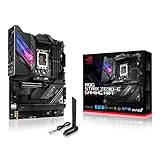
 ASUS ROG Strix X870E-E Gaming WiFi AMD AM5X870E-E|M.2x53.4 x 14.4 x 11.1 inches5.3 PoundsCheck on Amazon
 ASUS ROG STRIX X870-I GAMING WIFI AMD AM5Mini ITX|M.2x2|WiFi711.5 x 9 x 4.5 inches3.92 poundsCheck on Amazon
 ASUS TUF Gaming X870-PLUS WiFi AMD AM5 X870ATX|M.2x4|WiFi72.7 x 13.9 x 10.8 Inches2 poundsCheck on Amazon


Top 3 picks at a glance
The short answer, by build type
As an Amazon Associate we earn from qualifying purchases at no extra cost to you.


Building a single-GPU gaming PC with two drives: buy the TUF Gaming X870-PLUS WiFi at around $230 or the ROG Strix X870-A Gaming WiFi at around $270. You will not see a frame rate difference against the flagship, and the money is better spent on the GPU. This is the recommendation that fits most readers.
Building a machine that games and does sustained production work: the ROG Strix X870E-E Gaming WiFi is the right call, and the listing at around $330 is the one to watch rather than the $395 or $599 entries for the same family. Five M.2 slots and an 18+2+2 power stage array are real advantages once you are running long all-core loads and a large storage array.
Building small form factor: the ROG STRIX X870-I GAMING WIFI at around $380 is the only mini-ITX option here, and ITX always carries a price premium. Buy it because you need the footprint, not because the number is higher.
Building on Intel: none of the above. The Z690 board in this group is a different socket entirely, covered further down as a warning rather than a recommendation.
Decide these five things before you look at any board
Price comparisons between motherboards are meaningless until you have answered these questions, because the answers eliminate most of the list for you.
How many M.2 drives will you run, realistically, in three years? Not how many you would like. Most gaming builds settle at two: a fast boot drive and a large game drive. If that is you, four-slot boards are already generous and five-slot boards are a waste. If you edit video or keep a scratch drive plus an archive drive, the extra slots change your build.
Do you need USB4 or Thunderbolt-class external bandwidth? This is the cleanest dividing line in the current lineup. External high-speed docks, fast external SSD enclosures and some capture workflows genuinely need it. Nothing in gaming does. Be honest about which camp you are in, because USB4 is a chunk of the price premium on the higher boards.
What is your CPU’s sustained power draw, not its peak? Power stage counts matter for long all-core loads, not for gaming. A mid-tier Ryzen chip in a gaming workload does not stress a 16+2+2 array. A top-tier chip running renders for hours does, and that is when the heavier VRM and better heatsinking on the flagship start earning their keep through lower VRM temperatures and more consistent clocks.
What case are you using and what is inside it already? Board choice is constrained by physical reality more than by features. ATX versus mini-ITX is obvious. Less obvious is the interaction between tall memory, a large air cooler and the top M.2 heatsink, which I cover in its own section below.
How long do you plan to keep the platform? AM5 has had a long life, which is a genuine argument for spending a little more on a board you will carry across a CPU upgrade. It is not an argument for spending three hundred dollars more. Buy one tier above your immediate needs, not three.
The compatibility mistakes that cause returns
I want to spend real time here because this is where money actually gets lost, and it is the part most reviews skip.
Socket confusion. AM5 boards take AM5 processors. LGA 1700 boards take the Intel generations they were built for. The naming across brands is close enough that mistakes happen weekly, and the ROG Strix line spans both platforms with almost identical styling and naming patterns. Before you check out, read the socket line in the specification table on the manufacturer’s own product page, not the listing title.
Memory support. AM5 is DDR5 only. DDR4 kits do not fit, they are not compatible with an adapter, and the slot is keyed to prevent it. Beyond that, not every DDR5 kit runs at its rated speed on every board with every CPU. The qualified vendor list on the board’s support page is the document that matters, and checking it takes two minutes. If your kit is not on it, that does not guarantee failure, but it does mean you should be prepared to run it at a lower speed or adjust timings manually.
BIOS revision. A board manufactured earlier in a platform’s life may ship with firmware that predates your CPU. These boards include flashback support, which lets you update firmware with no CPU or memory installed using a USB stick in a designated port. It is a genuinely useful feature and it is the reason I rarely worry about BIOS revisions on this family of boards, but you should know the procedure before you need it, not during a failed first boot.
M.2 slot sharing. This is the subtle one. On most modern boards, only some M.2 slots connect directly to the CPU; the rest share chipset lanes, and populating them can disable SATA ports or downshift a PCIe slot. The board manual contains a table showing exactly which combinations conflict. Read it before you plan your storage, because discovering the conflict after everything is installed means pulling the cooler and the GPU to get at the slots again.
Front panel and case connector mismatch. USB 20Gbps front headers are not universal on cases, and a case with only USB 3.0 front ports gains nothing from a board with a high-speed front header. Match the board to the case you own, or accept that a feature you paid for will sit unused.
Clearance: the measurement people skip
Clearance problems are the hardest to predict from a listing and the most annoying to discover mid-build, so treat this as a checklist rather than a discussion.
The recurring conflicts on ATX AM5 boards are, roughly in order of frequency: a large air cooler overhanging the first memory slot, the cooler’s fan colliding with tall RGB memory heat spreaders, a top M.2 heatsink sitting under the graphics card and being awkward to reach, and the graphics card’s backplate pressing against a vertically mounted connector.
The correct method is boring and it works. Take the cooler manufacturer’s stated maximum memory height clearance figure. Take the memory kit’s stated height. Compare them. Take the case manufacturer’s stated maximum CPU cooler height. Compare it to the cooler’s stated height. Take the case’s stated maximum GPU length and compare it to the card’s length including its power connector orientation. Four comparisons, all from published specification tables, all done before anything is ordered.
I deliberately do not quote clearance numbers for specific board and cooler combinations, because they vary by revision and because a number I give you from memory is worth less than the number on the manufacturer’s page today. Get them from the source. If a spec table does not list the dimension you need, that absence is itself information, and I would treat it as a reason to pick a product that documents itself properly.
One more physical note that catches people: the quick-release mechanisms on the current ROG Strix boards make GPU removal much easier than the old latch under a long card, which matters more than it sounds if you swap cards often or if your case has limited access. If you have ever fought a latch you could not see, you know why this feature exists. It is also worth knowing about if you are troubleshooting, since a card that will not seat properly is a common cause of the fault covered in the guide on what to do when a GPU is not detected.
The boards, one by one, with the case against each
ASUS ROG Strix X870E-E Gaming WiFi AMD AM5 X870 ATX Motherboard 18+2+2 Power Stages, Dynamic OC Switcher, Core Flex, DDR5 AEMP, WiFi 7, 5X M.2, PCIe® 5.0, Q-Release Slim, USB4®, AI OCing & Networking
Listed at $395, this is the fully specified flagship configuration: an 18+2+2 power stage arrangement, five M.2 slots, PCIe 5.0, Wi-Fi 7, USB4 and the slim quick-release GPU mechanism.
The case for it is straightforward. If you are running a high core count Ryzen part under sustained load, the heavier power delivery array and the larger heatsink mass keep VRM temperatures lower, and lower VRM temperatures mean the board is not a limiting factor when the CPU wants to hold boost clocks through a long render. Five M.2 slots means a boot drive, a game drive, a scratch drive and archive storage without a single adapter card. USB4 covers external docks and fast enclosures.
The case against it is equally straightforward, and it is the price. At $395 you are paying about $165 more than the TUF board for capabilities that a gaming-only build will never touch. In games, with the same CPU, GPU and memory, the difference against a mid-tier X870 board is inside the run-to-run variance of a benchmark loop.
Who should not buy this: gamers with a single GPU and two drives; anyone who does not own a USB4 device and has no plan to buy one; anyone who found the same board family listed cheaper, which as of this list you can, because a second X870E-E listing sits at around $330 further down. Check both before ordering.
ASUS ROG Strix X870-A Gaming WiFi AMD AM5 X870 ATX Motherboard 16+2+2 Power Stages, Dynamic OC Switcher, Core Flex, DDR5 AEMP, WiFi 7, 4X M.2, PCIe® 5.0, Q-Release Slim, USB4®, AI OCing & Networking
At around $270 this is the value pick within the ROG Strix range, and for most readers of this article it is the board I would actually buy. The step down from the X870E-E is 16+2+2 power stages instead of 18+2+2, and four M.2 slots instead of five. Wi-Fi 7, PCIe 5.0, USB4 and the quick-release GPU mechanism all carry over.
Sixteen power stages plus the auxiliary phases is more than sufficient for any current mainstream Ryzen gaming chip. Four M.2 slots is more storage capability than the vast majority of builds will use in the lifetime of the platform. What you give up, in practice, is headroom you were unlikely to reach.
The X870-A also tends to be the one people pick for lighter-coloured builds, which is a real consideration if you have already committed to a colour scheme in the case and cooler. Aesthetics are a legitimate reason to choose between two boards that perform identically.
Who should not buy this: anyone who genuinely needs five M.2 slots, since adding drives later via adapter cards costs PCIe lanes you would rather give the GPU; anyone running a top-tier chip in sustained all-core production work where the flagship’s VRM headroom has measurable value; and anyone who can find the X870E-E at around $330, because a fifty-five dollar gap for a genuine tier upgrade is a reasonable trade.
ASUS ROG Strix X870E-E Gaming WiFi – AMD Ryzen AM5 X870E ATX Gaming Motherboards (DDR5, 18+2+2 DrMOS, 5 x M.2, PCIe 5.0, WiFi 7, USB4 Type-C C, USB 20Gbps Type-C up to 30W, HDMI, Aura Sync RGB)
Same board family as the first entry, listed at around $330, with the specification stated as X870E, 18+2+2 DrMOS, five M.2 slots, PCIe 5.0, Wi-Fi 7, USB4 Type-C, a USB 20Gbps Type-C port supporting up to 30W of power delivery, HDMI output and Aura Sync lighting.
This is the listing I would point people at if they have decided on the flagship tier, purely because around $330 against $395 for the same described feature set is a meaningful saving on identical capability. That 30W USB-C power delivery figure is also worth calling out, because it is enough to keep a phone or a controller charging properly from the front panel rather than trickling, which is a small quality-of-life thing that people notice daily.
The standard caution applies to any situation where near-identical boards appear at different prices: confirm the exact model designation, the revision and the included accessories on the seller’s specification block before ordering, since bundles and revisions differ and the difference is not always in the title. Two minutes of verification protects a sixty-five dollar saving.
Who should not buy this: anyone whose build is single GPU, two drives and no USB4 devices, because you are still paying flagship money for unused capability; and anyone who cannot confirm the exact revision from the listing, in which case pay the extra for a listing that documents itself.
ASUS X870E-E ROG Strix Gaming R2/USBC Card WiFi 7 (802.11be) LAN 100/1000/2500/5000Mbps AMD AM5 ATX Motherboard
Listed at $599, this is the R2 variant with a USB-C card, Wi-Fi 7 to the 802.11be standard and wired networking supporting 100, 1000, 2500 and 5000 Mbps rates. The 5 Gbps wired capability is the specification that separates it from everything else in this group, since the rest sit at 2.5 Gbps.
Who benefits from 5 Gbps wired networking? Almost nobody with a domestic internet connection. Where it matters is on a local network moving large files to a NAS, and only if the NAS and the switch also support the rate. That is a three-part requirement, and if any part is missing you get 2.5 Gbps, which every other board here already provides.
For online gaming specifically, none of this affects latency. Latency is a function of routing and your connection, not of local link rate, and the practical fixes are covered in the guide on reducing ping and latency. A faster network port will not lower your ping by a single millisecond.
Who should not buy this: gamers, comprehensively. At $599 this is roughly $270 above another listing describing the same X870E-E family, for a wired networking upgrade that requires matching hardware elsewhere on your network to do anything at all. Buy it only if you have a documented 5 Gbps local file transfer workflow and the switch and NAS to match.
ASUS ROG STRIX X870-I GAMING WIFI AMD AM5 X870 Mini ITX motherboard 10+2+1 power stages, Dynamic OC Switcher, Core Flex, DDR5 AEMP, WiFi7, 2x M.2, PCIe®5.0, Q-Release Slim, USB4, AI OCing & Networking
The only mini-ITX board in this group, at around $380, with 10+2+1 power stages, two M.2 slots, PCIe 5.0, Wi-Fi 7, USB4 and the quick-release mechanism.
ITX is a footprint decision and the price reflects manufacturing complexity, not performance. Ten power stages on an ITX board is a strong arrangement for the format, and two M.2 slots is standard for the size. The board keeps USB4 and Wi-Fi 7, which is genuinely notable, since small builds are exactly where external expansion via a single high-bandwidth port makes the most sense.
The practical warnings for ITX are all thermal and physical. Small cases restrict cooler height and GPU length far more aggressively than ATX cases, VRM temperatures run higher because there is less board area for heatsinking, and cable routing takes considerably longer. Plan the build around the case specification sheet from the start, and expect assembly to take roughly twice as long as an ATX build. First-time builders should read through the step-by-step build guide before attempting an ITX assembly, because the order of operations matters much more when there is no room to reach past a component.
Who should not buy this: anyone building in an ATX or micro-ATX case, since you would pay a size premium for no benefit; anyone who wants more than two M.2 drives; anyone running a top-tier chip in sustained heavy loads, where the larger ATX boards have a real thermal advantage; and first-time builders, honestly, because ITX is a poor place to learn.
ASUS TUF Gaming X870-PLUS WiFi AMD AM5 X870 ATX Motherboard, 16+2+1, 80A SPS Power Stages, DDR5, PCIe 5.0 Ready, Four M.2 Slots, Wi-Fi 7, 2.5Gb LAN, HDMI, USB4® 40Gbps, SATA 6 Gbps, USB 20Gbps Type-C
At around $230 this is the cheapest board in the group and, for a straightforward gaming build, the best value on the list. The specification reads 16+2+1 with 80A SPS power stages, four M.2 slots, PCIe 5.0 readiness, Wi-Fi 7, 2.5 Gb wired networking, USB4 at 40 Gbps and a USB 20 Gbps Type-C port.
Look closely at what is actually missing against the $395 flagship. You lose one M.2 slot, two power stages, some heatsink mass, and the ROG feature layer around tuning and lighting. You keep USB4 at full 40 Gbps, Wi-Fi 7, PCIe 5.0 and four M.2 slots. For a build with one graphics card and two drives, that is a rounding error in capability against a $165 saving.
Fewer tuning features means fewer settings to misconfigure, and the boards tend to be forgiving about memory. If you want a machine that boots and stays out of your way, that is a feature.
Who should not buy this: people who want extensive manual tuning controls and the wider ROG BIOS feature set; anyone needing five M.2 slots; anyone building a showpiece where the lighting and heatsink design matter to them, which is a legitimate preference even if it is not a performance one.
ASUS ROG Strix X870-A Gaming WiFi AMD Motherboard, 16+2 Power Supply Stage, DDR5 Slot, Four M.2 Slots, PCIe 5.0, Next Generation GPU, WiFi 7, USB 20Gbps with PD 3.0 up to 30W, Aura Sync
A second X870-A listing at around $310, described with a 16+2 power stage arrangement, DDR5, four M.2 slots, PCIe 5.0, Wi-Fi 7, USB 20 Gbps with Power Delivery 3.0 up to 30W and Aura Sync lighting.
The straightforward observation: this is $35 more than the other X870-A listing at around $270, for a board described in nearly the same terms. When two listings for the same model differ on price, the reasons are usually stock, bundle contents, revision or seller. None of those justify a premium unless the bundle contains something you want.
Check the described power stage arrangement carefully between listings too. Descriptions in this family vary between 16+2+2 and 16+2 phrasing, and while that difference may simply be how the auxiliary phases were counted in the copy, it is exactly the sort of detail worth confirming against the manufacturer’s own specification page for the model and revision you are buying.
Who should not buy this: anyone who can get the around $270 X870-A listing, which is the same board tier for less; and anyone considering the around $330 X870E-E, since twenty dollars more buys a genuine step up in M.2 count and power delivery.
ASUS ROG Strix Z690-E Gaming WiFi 6E LGA 1700(Intel 12th Gen) ATX Gaming Motherboard(PCIe 5.0,DDR5,2.5 Gb LAN,Thunderbolt 4,5xM.2,1xPCIe 5.0 M.2,ROG Hyper M.2 Card,Front Panel USB 3.2 Gen 2×2 Type-C)
This board appears in searches for the X870-E because of the shared ROG Strix naming, and it is the most expensive mistake available in this list. It is an LGA 1700 board for Intel processors, at around $250, with PCIe 5.0, DDR5, 2.5 Gb wired networking, Thunderbolt 4, five M.2 slots including a PCIe 5.0 slot, a ROG Hyper M.2 card and a front panel USB 3.2 Gen 2×2 Type-C header.
On its own terms it is a capable board. Thunderbolt 4 and five M.2 slots including the Hyper card is a strong storage and expansion package, and the bundled card is a real accessory with resale value. If you are building an Intel machine on that socket generation, it is worth considering on the merits.
But it will not accept a Ryzen processor, no adapter exists, and the mounting hardware, socket and firmware are all different. If you arrived here searching for an AM5 board, close this listing. I have had two boards come across my bench in the past year that were bought purely on a name resemblance, and in both cases the return window had closed by the time the owner worked out what had happened.
Who should not buy this: anyone building an AMD system, without exception. Also anyone building a new Intel machine on a current generation, since this is an older platform and the CPU you want probably does not fit it either. Verify the socket, then verify it again.
The full comparison
| Board | Price | Socket | Form factor | Power stages | M.2 slots | Best for |
|---|---|---|---|---|---|---|
| ROG Strix X870E-E Gaming WiFi | $395 | AM5 | ATX | 18+2+2 | 5 | Mixed gaming and production |
| ROG Strix X870-A Gaming WiFi | Check on Amazon | AM5 | ATX | 16+2+2 | 4 | Best all-round ROG pick |
| ROG Strix X870E-E Gaming WiFi (X870E listing) | Check on Amazon | AM5 | ATX | 18+2+2 | 5 | Flagship features for less |
| X870E-E ROG Strix Gaming R2/USBC Card | $599 | AM5 | ATX | Not stated | Not stated | 5 Gbps local networking only |
| ROG STRIX X870-I GAMING WIFI | Check on Amazon | AM5 | Mini ITX | 10+2+1 | 2 | Small form factor builds |
| TUF Gaming X870-PLUS WiFi | Check on Amazon | AM5 | ATX | 16+2+1 | 4 | Best value for gaming |
| ROG Strix X870-A Gaming WiFi (second listing) | Check on Amazon | AM5 | ATX | 16+2 | 4 | Only if cheaper listing is out of stock |
| ROG Strix Z690-E Gaming WiFi 6E | Check on Amazon | LGA 1700 | ATX | Not stated | 5 | Intel builds only, not AM5 |
Where a listing does not state a figure, I have left the cell as not stated rather than guessing. A specification I cannot source is worth nothing to you, and the manufacturer’s product page for the exact revision is the document to trust.
What the money actually buys above $230
Going from the TUF board to the flagship costs $165 at list prices. Here is what that buys, in the order I would rank the value.
First, the fifth M.2 slot and the storage flexibility around it. This is the most concrete difference and the easiest to evaluate, because you either need it or you do not.
Second, VRM headroom and heatsink mass. Real, measurable under sustained all-core load, and invisible in gaming. If your workload is renders, compiles or encodes that run for hours, this matters. If it is games, it does not.
Third, the tuning and firmware feature layer. The ROG BIOS offers more granular control than the TUF equivalent. That is worth money to enthusiasts who will use it and worth nothing to people who set memory to its rated profile and never open the BIOS again. Be honest about which you are.
Fourth, build quality details: connector reinforcement, heatsink finish, lighting integration, bundled accessories. These are legitimate, they are just not performance.
What the money does not buy is frame rate. With the same CPU, GPU and memory running at the same speed, motherboard choice within a chipset family does not produce a meaningful gaming difference. Anyone who tells you otherwise is selling something.
A build order that avoids the usual problems
Since most of the failures I see are procedural rather than component faults, here is the sequence that avoids them.
Check the CPU support list on the manufacturer’s page for your exact board before ordering. Check the memory qualified vendor list for your exact kit. Order, then inspect the board out of the box for bent socket pins under good light before anything else is installed, because that inspection has to happen while a return is still simple.
Install the CPU, cooler mounting hardware and memory with the board out of the case on the box, then do a bench post with the GPU connected before final assembly. This takes fifteen extra minutes and it has saved me entire evenings. Diagnosing a no-post inside a finished case is significantly harder than diagnosing it on a desk.
Once it posts, set the memory profile, boot into the operating system, then install drivers. Chipset drivers first, then graphics. The correct approach to graphics drivers, including clean installation when upgrading between vendors, is covered in the guide on updating graphics drivers safely.
Only then start cable management and put the side panel on. Every step you do before confirming a successful boot is a step you may have to undo.
Who should buy nothing right now
Two groups. First, anyone on a working AM5 board who is upgrading only for USB4 or Wi-Fi 7. Both are available as add-in cards or adapters for a fraction of a new board, and swapping a motherboard means reinstalling or repairing an operating system that was configured for different hardware.
Second, anyone whose real bottleneck is elsewhere. If frame rates are the complaint, the board is almost never the answer. Check thermals, check whether the GPU is actually seated in the top PCIe slot, check that memory is running at its rated profile rather than a conservative default, and check that a power supply is not sagging under load. That last one is under-diagnosed and the symptoms mimic other faults closely; the guide on diagnosing a failing power supply
Final picks
For most people reading this, the TUF Gaming X870-PLUS WiFi at around $230 is the correct board, and I would not feel any hesitation putting a top-tier gaming CPU on it. It has USB4, Wi-Fi 7, four M.2 slots and a power arrangement with headroom to spare for gaming loads.
If you want the ROG feature set without flagship pricing, the ROG Strix X870-A Gaming WiFi at around $270 is the pick, and I would ignore the around $310 listing for the same tier unless the cheaper one is unavailable.
If you genuinely need five M.2 slots and stronger power delivery for sustained production work, take the X870E-E at around $330 rather than $395, after confirming the model and revision on the seller’s specification block.
If you are building small, the X870-I at around $380 is your only option here and it is a good one, provided you have measured your case.
And whatever you choose, read the socket line before you check out. Twelve years of bench work has taught me that the most expensive motherboard mistake is never the one where somebody bought too little board. It is the one where they bought the wrong platform entirely.
Related guides
- Best Gaming PC for Overwatch 2: Ten Prebuilts Matched to Your Monitor (2026)
- Best Gaming PC for Baldur’s Gate 3: Matching CPU, VRAM and Storage to the Game (2026)
- Best Gaming PC for Apex Legends: Which Listings Fit a High-Refresh Setup (2026)
- Best RTX 3060 Gaming PCs: Eight Prebuilt Listings Compared by CPU, RAM and Cooling (2026)









