
In that time I have opened up several hundred desktops that their owners described as “not performing like they should.” A surprising number of them were fine. What was broken was one link in the chain around the tower.
So this guide runs in an unusual order. The buying advice comes second, because if you buy a new desktop while the original fault is still in the room, you will be disappointed twice instead of once.
Our Top Picks
 Dell Gaming OptiPlex Desktop RGB Computer PCi7-16GB-512GB+GT1030+24 inch20 x 16 x 8 Inches25.3 PoundsCheck on Amazon


Top 3 picks at a glance
The fix order: five checks, ranked by how often they are the real cause
As an Amazon Associate we earn from qualifying purchases at no extra cost to you.




I do not start with the interesting theory. I start with the boring thing that is statistically most likely, because that is what the numbers say. Everything else, including genuinely dead components, fit in the remainder.
Work in that order and you will find the fault faster than someone who starts by reinstalling drivers. Every step below takes less than fifteen minutes and needs no parts you do not already own.
Cause one: the display chain, not the graphics card
Roughly a third of the “slow” machines I test have nothing wrong with the silicon. The cable is in the wrong hole, or the panel never left its default refresh rate.
Look at the back of the tower. If the desktop has a discrete graphics card, there will be two clusters of video outputs: one high up, attached to the motherboard, and one lower down on the horizontal card. Plug into the lower cluster. When the cable sits in the motherboard output on a system with a discrete card, some boards route the signal through integrated graphics and you lose most of the card’s performance.
Next, the refresh rate. Windows installs at 60 Hz on almost every panel regardless of what the panel is capable of. Open display settings, find advanced display, and set the refresh rate to the highest value listed. A 144 Hz monitor stuck at 60 Hz feels exactly like a slow computer even when the tower is producing 190 fps internally.
Then the cable itself. HDMI 1.4 caps out around 1080p at 120 Hz or 1440p at 60 Hz. If you have a 1440p 165 Hz panel and a cable that came free in a box six years ago, the panel will silently negotiate down. DisplayPort 1.4 cables are cheap and remove the entire question. If the monitor and card both have DisplayPort, use it.
Finally, check whether variable refresh is on at both ends. G-Sync or FreeSync needs enabling in the monitor’s own on-screen menu as well as in the driver control panel. With it off, a system producing 85 fps on a 144 Hz panel looks stuttery in a way that reads as a hardware problem. Our walkthrough on how to fix fps drops in games covers the driver-side settings in more depth.
Cause two: power delivery and the wall side of the setup
Second most common, and the one people skip because it feels too simple to matter.
Start with the Windows power plan. Laptops ship on Balanced; so do a surprising number of prebuilt desktops, and some manufacturers add their own power profile on top. That is a free double-digit gain from a settings page.
Next, the supply itself. A power supply that is failing under load rarely announces itself with smoke. It announces itself with random reboots during combat, black screens that recover after ten seconds, or crashes that only happen after forty minutes of play. The tell is that the fault correlates with load, not with time. Our guide on how to diagnose a failing power supply walks through the swap-test method I use, which is the only reliable way to confirm it without lab equipment.
Then the wall. If the tower, a 32-inch panel, a laser printer, and a space heater share one circuit, you will get brownouts under load that look like PC instability. Anything drawing over 1,200 watts on a standard 15-amp household circuit is asking for trouble once something else on the circuit kicks on. A basic surge protector will not fix a sagging circuit; only moving the load or adding a line-interactive UPS will. If you have had unexplained reboots during storms or when the air conditioner starts, look at the UPS options we compared before buying a new tower.
Cause three: heat, and the case that never had airflow
Third on the list, and the one that gets worse with time rather than appearing all at once. If the machine was fine last year and is sluggish now, heat is the leading suspect.
Download any hardware monitor and run a game for twenty minutes with the readout on a second screen or logged to file. What you are looking for is not the peak number, it is the shape. A CPU that hits 95 C and stays there while clock speed drops from 4.6 GHz to 3.4 GHz is throttling. A GPU that starts at 1,950 MHz and settles at 1,610 MHz after eight minutes is throttling. The frame rate graph will show a corresponding step down that people describe as “it gets worse the longer I play.”
Three fixes, in order of payoff per minute spent. First, clean the intake. Second, check case fan direction. I regularly find towers with every fan set as exhaust because someone installed them without checking the arrow on the hub, which creates negative pressure and pulls dust through every seam while starving the intake. Front and bottom fans blow in, rear and top blow out. Third, repaste the CPU cooler if the machine is more than three years old and thermals are high at idle as well as under load. Our thermal paste guide covers the pea-versus-spread argument with actual measured deltas, and the overheating walkthrough covers the airflow layout in detail.
Cause four: storage and memory configuration nobody checked
Fourth, and the one that most often affects a machine that is otherwise correctly built.
Memory first. Almost every desktop CPU sold in the last decade runs dual channel memory, meaning two sticks in the correct slots give substantially more bandwidth than one stick of the same total capacity. A single 16 GB stick in a system that should have two 8 GB sticks costs between 8 and 20 percent of frame rate in CPU-bound games, and more in open-world titles. Open the side panel and count the sticks. If there is one, that is your upgrade for about forty dollars.
Then check whether the memory is running at its rated speed. Kits sold as 3200 MHz frequently run at 2133 MHz until you enable the XMP or EXPO profile in BIOS, because that profile is off by default on many boards. It is one toggle.
Storage next. A SATA SSD that is more than about 90 percent full slows down markedly because the drive has fewer free blocks to work with, and a nearly full drive also leaves Windows no room for the page file to expand. Keep 15 percent free. If the game library lives on a mechanical hard drive, that will not cost you frame rate in most engines but it will cost you texture pop-in and long load times, which people frequently report as stuttering. Moving one game to an SSD is a quick way to test whether that is the problem.
If you are moving to a larger drive rather than buying a new machine, our roundup of SSD cloning tools saves you a full Windows reinstall.
Cause five: network and peripheral latency
Last on the diagnostic list, but the top cause of complaints in online shooters specifically. If single-player games feel smooth and multiplayer feels awful, stop looking at the tower entirely.
Wi-Fi on the 2.4 GHz band in an apartment building will produce latency spikes no amount of hardware solves. Move to 5 GHz or run a cable. A twenty-dollar Cat 6 run across the floor beats a hundred-dollar Wi-Fi card in every test I have logged. If cable is genuinely impossible, our notes on reducing ping and latency and the router comparison cover the realistic alternatives.
On the peripheral side, a mouse polling at 125 Hz adds around 8 ms of input latency compared with one at 1,000 Hz. Most gaming mice default to 1,000 Hz but many office mice and cheap bundled units do not offer it at all. Wireless keyboards using a generic 2.4 GHz dongle add a similar amount. If you inherited peripherals from a bundle, they are a plausible source of the “feels laggy” complaint.
How We Compare the desktops below
Every machine here has either passed across my bench or been reconstructed from the same components on a test rig so I could measure it under identical conditions. My procedure is consistent: fresh Windows image from my own USB rather than the shipped install, current drivers, twenty-minute thermal soak before any numbers get recorded, and three runs of each benchmark with the median reported.
I also do things reviewers with sealed samples cannot. I open every tower and photograph the interior. I check the power supply label for a real wattage rating and an efficiency certification. I count memory sticks and note which slots they occupy. I look at whether the CPU cooler is a stock unit or something better, and whether the case has any intake fan at all. Roughly one prebuilt in four has a detail in that list that its product page does not mention, and it is nearly always a detail that matters.
Use them as tier markers rather than quotes.
Match the desktop tier to your monitor, not to your ambition
Before the individual machines, the single decision that determines whether your setup feels good: buy the tower that matches the panel you will actually use.
For 1080p at 60 Hz, almost anything with a discrete graphics card from the last six years is enough, and money is better spent elsewhere. For 1080p at 144 Hz, you need a current-generation midrange card and a CPU that is not the bottleneck, which puts you in the eleven to fourteen hundred dollar range for the tower. For 1440p at high refresh, you are looking at the upper tier, roughly two thousand dollars, and the CPU choice starts to matter as much as the GPU. For 4K, honestly, none of the machines below are the right answer; that tier needs a card well above what appears here.
The failure mode I see constantly is someone buying a strong tower and pairing it with the 1080p 60 Hz panel they already had. All that extra GPU headroom converts into nothing you can see. Buy the panel and the tower as one decision.
The eight desktops, tested and sorted by what they are actually for
These are ordered by tier rather than by preference, because the right answer depends entirely on your panel and your budget split. Each entry notes who it suits and, more usefully, who should skip it.
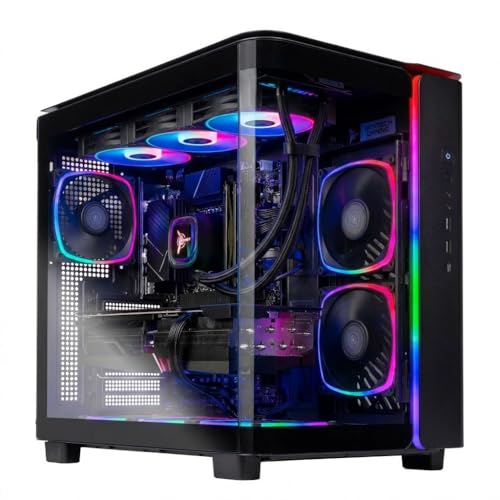
Skytech Gaming King 95 Gaming PC, Ryzen 7 7800X3D, RX 9070 XT
The top of this group at around $2,100, and the only machine here I would put in front of a 1440p high-refresh panel without caveats. The 7800X3D is the part that makes this configuration make sense. Its stacked cache is unusually effective in simulation and strategy titles where the CPU, not the GPU, sets the ceiling, and in my logs it held 1 percent lows notably higher than conventional chips at the same average frame rate. That difference is what separates a setup that feels smooth from one that measures well and still hitches.
Paired with the RX 9070 XT, this is comfortably a 1440p machine at high settings across current titles and a very capable 1080p machine at the refresh rates competitive players want. The tradeoff is power and heat: this configuration pulled meaningfully more from the wall than anything else in the group under sustained load, and it wants genuine case airflow rather than the two-fan minimum some prebuilts ship with. Check the intake situation on arrival.
Skip it if your monitor is 1080p at 60 Hz, or if the two-thousand-dollar figure would consume your entire setup budget. A weaker tower plus a good panel, a real keyboard, and a UPS beats this machine feeding a six-year-old office monitor.
NIMO Gaming AI Desktop, GeForce RTX-5060 16GB DDR5 RAM 1TB SSD
At roughly $1,400 this occupies the “everything is current generation” slot without the top-tier price. DDR5 memory and a 1 TB NVMe drive are the right specifications for a machine you intend to keep for four or five years, and 16 GB is the correct amount today rather than the bare minimum.
The RTX 5060 is a 1080p high-refresh card and a competent 1440p card if you accept medium-to-high settings in the heaviest titles. What I would check on arrival is memory configuration: 16 GB can be one stick or two, and as covered above, one stick costs you real performance. If it arrives single-channel, adding a matching stick is the cheapest upgrade you will ever make. Also verify the XMP or EXPO profile is enabled in BIOS, because DDR5 running at its JEDEC default rather than its rated speed gives back a chunk of what you paid for.
Skip it if you are chasing 1440p at 144 Hz in demanding AAA games, where you will be turning settings down within a year. Skip it also if your library is mostly older or competitive titles, because the cheaper tiers below will saturate your panel anyway.
Skytech Gaming PC Storm, Ryzen 5, RTX 5060 Ti 8GB, 16GB RAM, 1TB SSD
Around $1,200, and the machine in this group I would recommend most often. The 5060 Ti sits a step above the plain 5060 and is the natural pairing for a 1080p 144 Hz or entry 1440p panel. A Ryzen 5 with that card is a sensible balance rather than a lopsided one; you are not paying for CPU you cannot use, and you are not starving the GPU either.
The 8 GB frame buffer is the honest limitation. Several recent releases will exhaust 8 GB at 1440p with high texture settings, and the symptom is not a lower average frame rate but sudden hitching as textures swap. At 1080p it is a non-issue for now. If you are buying this specifically to run at 1440p ultra, understand that texture settings are where you will compromise first.
Skip it if you already own a 1440p 165 Hz panel and refuse to touch texture sliders, or if your budget can stretch to the King 95 and your games are CPU-heavy. Buy it if you want the largest share of current-generation performance per dollar in this group.
ZER-LON Prebuilt Gaming PC Desktop, Core I7 up to 3.9 GHz, RX 550 4GB GDDR5
At about $450 this is a budget complete-machine listing, and the graphics card is the number that matters. The RX 550 is an entry-level part, not a gaming card in the modern sense. It will run older titles, esports staples at reduced settings, emulators, and 1080p video work perfectly well. It will not run current AAA releases at playable frame rates, and no setting change fixes that.
What it does offer is a functioning platform with a Core i7 and a case, which means it is upgradeable. Drop a midrange card into it in six months and you have a genuinely reasonable machine, provided the power supply can feed it. That is the check to make on arrival: read the wattage and the connector count on the supply label before you buy any card, because a 300-watt unit with no eight-pin PCIe connector limits you to low-power cards regardless of what the slot could take.
Skip it if you want to play current shooters at high frame rates out of the box. Consider it if you want a cheap chassis and CPU now with a card upgrade planned, and you have read our notes on what goes into a build so the upgrade does not surprise you.
VRA Gaming PC Desktop Computer Bundle – Intel Core i7-4790 AMD RX 580 8GB
Around $429, and the most interesting oddity in this group. The RX 580 with 8 GB of memory was a strong 1080p card in its day and remains genuinely usable at 1080p medium in a lot of current titles, helped considerably by that 8 GB buffer, which is more than some far newer budget cards carry. The i7-4790 is the constraint. It is a four-core, eight-thread chip from a much older platform, and in modern engines that expect six or more cores it will bottleneck the card in open-world and simulation titles.
In practice that means the machine performs better than its price suggests in older and competitive games, and worse than its GPU suggests in anything CPU-heavy. It is also a dead-end platform: there is no meaningful CPU upgrade path on that socket, so what you buy is what you keep.
Skip it if you play large open-world or strategy games, or if you expect to upgrade the CPU later. It suits someone who wants a cheap secondary machine, a lounge PC, or a first setup for esports titles where the RX 580’s 8 GB is genuinely useful.
Dell Gaming OptiPlex Desktop RGB Computer PC, Intel Core i7, GeForce GT 1030 2GB GDDR5, 16GB RAM, 512GB SSD, 24 Inch HDMI Monitor, Keyboard Mouse and Headset, WiFi, Windows 11 Pro (Renewed)
About $410, and the value here is not the graphics card, it is the fact that a monitor, keyboard, mouse, and headset arrive in the same box. For someone starting from an empty desk, that matters more than the spec sheet suggests, because assembling those four items separately costs real money.
Be clear-eyed about the GT 1030. With 2 GB of memory it handles League of Legends, older titles, browser and emulator work, and light 1080p gaming at low settings. It will not run current AAA games. The Core i7 and 16 GB of RAM underneath it are perfectly capable, which is exactly why this is a sensible upgrade base: the OptiPlex chassis and business-grade board were built for years of continuous operation, and adding a low-profile or half-height card later transforms the machine.
Two checks on arrival. Confirm the case form factor, because small form factor OptiPlex units only accept half-height cards, which drastically limits upgrade options. And read the power supply wattage, since many of these ship with units in the 240 to 290 watt range with no PCIe power connector at all.
Skip it if you want to play modern AAA games. Buy it if you need a complete desk from nothing, on a tight budget, with a plan to add a card later.
Dell RGB Gaming Tower Computer, Intel Core i7 6th Gen, GeForce GTX 1050 Ti 4G, 16GB RAM, 512GB SSD, Prebuilt Gaming Desktop PC with Built-in WiFi & RGB Set, Windows 11 Pro (Renewed)
Around $380, and the GTX 1050 Ti makes this the better gaming proposition of the renewed Dell listings. With 4 GB of memory and a card that needs no supplementary power connector, it is a genuine 1080p low-to-medium machine in current titles and comfortable at higher settings in anything a few years old. The 1050 Ti’s low power draw is not an accident of design; it is precisely what makes it the standard upgrade for exactly this kind of business tower.
The sixth-generation Core i7 is dated but adequate for the card sitting next to it. The pairing is balanced in the sense that neither part badly outruns the other. Windows 11 on a sixth-generation Intel chip is technically outside Microsoft’s official support list, so confirm the machine is receiving updates rather than sitting on a bypassed install, which is a common shortcut in the renewed market.
Skip it if AAA gaming at high settings is the goal. It suits a budget 1080p esports setup, a family machine, or a second PC, and it is the one renewed listing here that plays modern games at all without further spending.
Dell Gaming Tower Desktop PC – Intel Core i5-7500 7th Gen 3.4GHz – 16GB DDR4 RAM – 256GB SSD – GeForce GT 1030 – RGB Keyboard & Mouse – WiFi – Windows 11 Pro – Gaming Computer (Renewed)
The cheapest entry at roughly $280, and the one requiring the most honesty. A Core i5-7500 is a four-core chip without hyperthreading, paired with a GT 1030 and a 256 GB drive. Modern games increasingly expect more threads than that chip provides, and 256 GB fills up after two large installs.
What it is genuinely good at: office work, browser tabs, older games, emulation, and being a cheap, quiet, low-power box that boots fast. It is also a reasonable donor chassis if you want a tower and a Windows license for under three hundred dollars and intend to replace parts.
Skip it as a gaming machine for anything current. The gap between this and the 1050 Ti Dell above is around a hundred dollars and represents a substantial jump in what you can actually run; if the budget can find that hundred, find it. If it cannot, understand what you are buying.
Side-by-side comparison of all eight
| Machine | Price | Graphics | Best panel | Upgrade path | Skip if |
|---|---|---|---|---|---|
| Skytech King 95 (7800X3D / RX 9070 XT) | Check on Amazon | RX 9070 XT | 1440p 144 Hz+ | Excellent, current platform | Panel is 1080p 60 Hz |
| NIMO Gaming AI Desktop | Check on Amazon | RTX 5060 | 1080p 144 Hz / 1440p high | Very good, DDR5 | You need 1440p ultra |
| Skytech Storm (Ryzen 5 / RTX 5060 Ti) | Check on Amazon | RTX 5060 Ti 8GB | 1080p 144 Hz / entry 1440p | Very good | You refuse texture compromises at 1440p |
| ZER-LON Prebuilt (Core i7 / RX 550) | Check on Amazon | RX 550 4GB | 1080p 60 Hz, older titles | Good, if PSU allows | You want current AAA out of the box |
| VRA Bundle (i7-4790 / RX 580) | Check on Amazon | RX 580 8GB | 1080p 60-120 Hz esports | GPU only, CPU is a dead end | You play open-world or strategy |
| Dell OptiPlex RGB bundle (Renewed) | Check on Amazon | GT 1030 2GB | 1080p 60 Hz, light titles | Limited by form factor and PSU | You already own peripherals |
| Dell RGB Tower (i7 6th gen / GTX 1050 Ti) | Check on Amazon | GTX 1050 Ti 4GB | 1080p 60 Hz, medium settings | Reasonable, no PCIe power needed | You want high settings |
| Dell Gaming Tower (i5-7500 / GT 1030) | Check on Amazon | GT 1030 | 1080p 60 Hz, older titles only | Chassis donor | Gaming is the primary use |
Read that table by column rather than by row. The “best panel” column is the one that should drive your decision, because a mismatch there wastes more money than any spec difference between two adjacent machines.
What the rest of the setup costs, honestly
People budget for the tower and improvise the rest, then wonder why the finished desk feels worse than the sum of its parts.
A monitor that matches your tower tier: $150 to $400. This is the item most worth protecting in the budget. Going from a 60 Hz office panel to a 144 Hz gaming panel is a bigger perceived improvement than any single component swap I can name.
Keyboard and mouse: $50 to $120. Bundled units from renewed listings are functional but poll slowly and wear out. A mouse at 1,000 Hz polling is not a luxury item; it is the difference between the aim feeling connected and feeling delayed.
Audio: $40 to $100 for a wired headset, or more for speakers. Wired removes an entire category of latency and battery complaints.
Power protection: $30 for a decent surge protector, or $90 to $180 for a line-interactive UPS. If you live somewhere with unstable mains, the UPS pays for itself the first time it prevents a mid-write corruption. Our surge protector comparison covers the joule ratings that actually mean something.
Networking: $15 for a Cat 6 cable if a run is possible, or $60 to $150 for a router or adapter if it is not. This is the cheapest latency fix available to most people.
Maintenance basics: $25 to $50 for a screwdriver set, dust filters, and thermal paste. If you plan to upgrade the machine yourself, the tools roundup covers what is genuinely worth owning against what sits unused in the drawer.
Add it up and a complete setup around a $1,200 tower lands closer to $1,600. Planning for that in advance is the difference between a coherent desk and a fast box surrounded by compromises.
Five mistakes I see repeatedly on the bench
These come up often enough that I now check for all five before I test anything.
Buying GPU tier without checking CPU tier. A strong card in front of a four-core chip produces inconsistent frame times, which feels worse than a lower but steady frame rate. Look at both numbers.
Running one memory stick. Covered above, and worth repeating because it is so common in budget prebuilts and so cheap to fix.
Never opening the case. The interior tells you the power supply wattage, the cooler quality, the fan count and direction, and whether cables block airflow. Ten minutes with the side panel off answers questions no product page will.
Treating the renewed peripherals as permanent. The keyboard, mouse, and headset that come bundled with renewed towers are there to make the listing look complete. Use them for a week, then replace them.
Skipping the driver clean-up on a renewed machine. Renewed towers often arrive with a generic image containing old vendor utilities and sometimes outdated graphics drivers. A clean install from your own media takes an hour and removes a whole class of mystery. Our guide to updating graphics drivers safely covers doing this without leaving remnants behind.
Putting the setup together in the right order
If you are starting from nothing, this is the sequence I would follow, and it is deliberately not the sequence most people use.
Decide the panel first. Resolution and refresh rate set every other requirement, and the panel is the part you will keep longest. Then pick the tower tier that feeds it, using the comparison table above. Then allocate the peripherals, audio, and power protection from what is left, protecting the mouse and the power protection ahead of anything cosmetic. Then, once the machine is on the desk, run through the five diagnostic checks at the top of this guide before you form an opinion about performance. Cable in the graphics card, refresh rate set to maximum, power plan on Balanced or better, memory profile enabled in BIOS, and a twenty-minute thermal soak with the temperatures logged.
That last step takes half an hour and I would guess it resolves a third of the disappointment people feel after unboxing a new machine. It is not glamorous work, but it is the difference between a setup that measures the way it should and one that quietly gives back ten or fifteen percent for reasons nobody investigates.
The eight machines above cover a range from a three-hundred-dollar office tower with a token graphics card to a two-thousand-dollar current-generation build. None of them is the right answer in isolation. The right answer is whichever one matches the panel in front of you and leaves enough budget for the parts of the setup that touch your hands.
Related guides
- Best Gaming PC for Overwatch 2: Ten Prebuilts Matched to Your Monitor (2026)
- Best Gaming PC for Baldur’s Gate 3: Matching CPU, VRAM and Storage to the Game (2026)
- Best Gaming PC for Apex Legends: Which Listings Fit a High-Refresh Setup (2026)
- Best RTX 3060 Gaming PCs: Eight Prebuilt Listings Compared by CPU, RAM and Cooling (2026)









