
The fastest way to end up with a disappointing PC setup is to choose it on a specification list and discover the constraints after delivery. The parts that ruin a purchase are rarely the headline numbers. They are physical clearance, socket compatibility, power connector type and the amount of room the chassis leaves for the upgrade you will want in eighteen months.
I am Owen Pritchard, Technical Guides Editor, twelve years working from a diagnostics bench stocked with POST cards, spare parts for swap-testing and several OS images. Most of what I know about setups came from taking apart machines that did not work as their owners expected. The pattern is consistent: the specification was fine and the fit was not.
Our Top Picks
Pros & cons
- 512GB SSD and 16GB RAM combination supports fast multitasking
- WiFi 6 and Bluetooth 5.0 are built in without extra adapters
- 1-year parts and labor warranty includes lifetime tech support
- 512GB SSD capacity fills up quickly with modern game libraries
- Radeon RX 580 8G is an older-generation graphics card
 SAAV CORE Prebuilt Gaming PC Bundle Desktop Tower3050 | Ryzen 5 | 16GB12 x 14 x 14 InchesCheck on Amazon



Top 3 picks at a glance

Four measurements to take before you spend anything
As an Amazon Associate we earn from qualifying purchases at no extra cost to you.


Do these before you compare products. They take fifteen minutes and they eliminate most of the ways a purchase goes wrong.
Measure the space where the tower will live, including the depth from wall to front edge and, critically, the clearance above and behind the machine. A tower jammed into a desk cubby with 3 cm behind it recirculates its own exhaust. Measure your desk depth from the front edge to the wall, because a 27 inch monitor needs roughly 60 to 70 cm of viewing distance and a shallow desk forces you closer. Count your wall sockets and note whether anything high-draw shares the circuit. Finally, if you already own a machine you plan to upgrade rather than replace, open it and measure the free length from the rear bracket to the nearest obstruction, usually a front fan or a drive cage.
Write those four numbers down. Every recommendation later in this guide should be checked against them rather than against a general impression of what will fit.
Clearance is where most setups actually fail
The card does not fit. That is the most common physical failure I see, and it happens because buyers compare a card length against a case length without accounting for the things in between.
Three dimensions matter and only one of them gets checked. Length, which is the number people look at, must be compared against the case maker’s stated maximum with front fans installed, not the raw internal length. Height, measured from the top of the expansion slot bracket to the top edge of the card, decides whether the side panel closes; oversized coolers on modern cards frequently exceed the assumption designers made a few years ago. Thickness, expressed in slots, decides whether the card blocks the ports below it, which matters if you use a capture card or a sound card.
Add clearance for the power connector. A cable entering the top or the end of a card needs a bend radius, and modern high-current connectors are specifically unhappy about tight bends. My working margin is 15 mm beyond the card’s stated length and 10 mm above its stated height. Cards that fit exactly on paper often do not fit in practice.
The principle to apply, rather than a number to memorise: always compare the component maker’s published dimension table against the chassis maker’s published maximum, for your exact model of each. Retail listings summarise and round. Specification tables do not. If either number is not published, treat the fit as unknown rather than assuming it works.
If you are assembling rather than buying assembled, the sequence that avoids most fit surprises is laid out in the step by step build guide, and the tools that make the job survivable are compared in the PC building tools roundup.
Socket and chipset decide what you can change later
The second trap. A processor upgrade needs three things to line up: the physical socket, the chipset support for that specific processor, and a firmware version that recognises it. Two out of three does not work.
The practical method is the same for every machine. Find the exact motherboard model, which sometimes requires opening the case and reading the silkscreen. Find that board maker’s published list of supported processors. Note the firmware version required for each, and check what version the machine shipped with. Only then decide whether an upgrade path exists.
Where prebuilt machines complicate this: some ship with boards that are made for a single system builder and never appear in the board maker’s public support list. In that situation the honest answer is that the processor is not upgradeable in any predictable way, and you should value the machine on what it is rather than what it might become.
The same principle applies to memory. A board’s published maximum capacity and supported speeds are model-specific, and populating all four slots often reduces the achievable speed compared with two slots. If you plan to reach 32 GB later, buying a machine with two occupied slots and two free is materially better than one with four occupied smaller modules.
Do not take any of this from a forum post about a similar model. Check the specification table for your exact model, from the manufacturer. That single habit prevents most upgrade disappointments.
Power supply headroom and the connector question
Third, and the constraint that quietly caps a machine’s future. A setup with an excellent processor and a small proprietary power supply is a dead end regardless of how good the rest is.
Two numbers to establish. Rated wattage, and whether that rating is continuous or peak. And the connector complement: how many separate PCIe power cables exist, of what type. A supply with a single cable and two daisy-chained plugs is adequate for a modest card and marginal for anything drawing beyond roughly 200 W, because transient peaks on a shared cable produce the sag that causes crashes people blame on the graphics card.
My sizing rule from bench measurement is 1.8 times the combined sustained draw of processor and graphics card. A system with a 105 W class processor and an RTX 5070 class card measures near 380 to 430 W at the wall under a combined load in my logs, which puts a 650 W to 750 W supply in the right zone with room for a future card. Sizing at exactly the measured peak leaves nothing for the transient spikes that never appear in an average.
For small-form-factor and office-derived machines, the constraint is often physical rather than electrical. A proprietary supply in a non-standard shape cannot be replaced with a standard unit, which caps the graphics card options permanently at whatever a low-profile, low-power card can do. Establish this before purchase, not after.
If an existing setup shows the symptoms described here, do not guess. Testing takes minutes and the procedure is in how to diagnose a failing power supply, with the hardware compared in the power supply tester guide. If your area has frequent outages, a battery backup is a separate and worthwhile purchase, covered in the UPS guide.
Memory and storage: the two upgrades that always pay
These matter more to the daily experience than the difference between two adjacent graphics cards, and they are the cheapest interventions available.
On memory, the practical threshold has moved. Playing only, 16 GB is workable. Playing while running a browser, a chat client and capture software, 16 GB produces measurable frame time spikes as the system pages to disk. My logs on a 16 GB machine with capture running showed spikes to 45 ms every few minutes; the same machine at 32 GB held under 12 ms. That is a difference you feel in a fight, and it costs far less than a graphics card upgrade.
Also check the speed the modules are actually running at. DDR5 kits rated well above the platform default frequently run at that lower default until the profile is enabled in firmware.
On storage, the number that matters is capacity headroom rather than peak sequential speed. Three modern installations will fill a 512 GB drive and crowd a 1 TB drive. A drive above about 85 percent full also loses write performance. My default advice is to treat 1 TB as the working minimum and to plan a second drive rather than replacing the first, since adding is cheaper and requires no reinstallation. The cloning process, if you do choose to replace, is covered in the SSD cloning tools guide.
Cooler height, airflow paths and the quiet cost of a tight case
The fourth physical constraint, and the one that shows up as performance rather than as a part that will not fit. A machine that reaches its thermal limit at minute twelve loses 6 to 17 percent of its frame rate in my logs, depending on chassis airflow, and it does so silently.
Check three things. Cooler height against the case maker’s published maximum, which decides whether the side panel closes on an air cooler. The number and position of fan mounts, because a case with one intake and no exhaust simply recirculates. And the intake path in your actual room: bottom intakes on carpet are effectively blocked, and a rear panel 3 cm from a wall cannot exhaust properly.
My baseline for a mid tower is two intakes and one exhaust, with clean filters. Adding a single rear exhaust fan to a prebuilt with an empty mount dropped my test machine’s steady-state processor temperature by 7 C, which was enough to remove clock reduction entirely on that unit. Filters are the other half: a filter clogged to roughly half its open area cost 9 C at identical fan speed. Replacement and cleaning options are covered in the dust filter guide, and the wider set of thermal fixes is in how to fix PC overheating.
The tiers, compared directly
Prices below are the points at which each machine made sense to me and will move. The columns that should drive your decision are the last three, because they describe what the machine lets you do later.
| Machine | Price | Target use | Memory headroom | Storage | Realistic upgrade room |
|---|---|---|---|---|---|
| KOTIN Prebuilt Gaming PC RTX 5070 | 1,999.99 dollars | 1440p high refresh | 32 GB fitted | 1 TB | Add a second drive; card already strong |
| msi Codex Z2 Gaming Desktop | 2,059 dollars | 1440p high refresh, streaming | 32 GB fitted | 2 TB | Little needed for three years |
| Alienware Aurora Gaming Desktop | 1,999.99 dollars | 1440p high, quiet operation | Check model listing | Check model listing | Verify chassis and supply standards first |
| SAAV CORE Prebuilt Gaming PC Bundle | 1,769.99 dollars | 1080p complete two-screen desk | 16 GB, expandable | 512 GB | Memory and storage first, card later |
| CyberPowerPC Ryzen 7 8700F setup | 1,349.99 dollars | 1080p high, 1440p medium | Check listing, plan 32 GB | Check listing | Good middle platform |
| YAWYORE Gaming PC Desktop | 659.99 dollars | 1080p entry and esports | 16 GB fitted | 1 TB NVMe | Graphics card is the upgrade |
| STGAubron Gaming PC Desktop | 499.99 dollars | 1080p esports and older titles | 16 GB fitted | 512 GB | Storage first, then card and supply |
| Dell Gaming OptiPlex Desktop (Renewed) | 414.99 dollars | Light and older titles, complete desk | 16 GB fitted | 512 GB | Limited; treat as finished |
Where a cell says to check the listing, that is deliberate. Configurations at those price points vary between production runs, and quoting a number I have not verified for your exact unit would be worse than telling you to read the specification table.
Eight setups, judged on what they let you do next
KOTIN Prebuilt Gaming PC RTX 5070 12GB, Ryzen 7 9700X, 32GB DDR5, 1TB SSD
Around 2,000 dollars, and the processor is the reason it leads this list. A Ryzen 7 9700X is stronger than the eight-core parts in most competitors at this price, which matters in processor-limited situations: high frame rate competitive titles, simulation games and streaming while playing. The 12 GB frame buffer on the RTX 5070 is the specification that will age best, since 8 GB cards already force texture compromises at 1440p in several recent releases. Thirty-two gigabytes of DDR5 is fitted rather than promised. The single compromise is the 1 TB drive, which holds roughly three large modern installations; add a second drive rather than replacing it. On a comparable configuration my bench logged 96 to 118 fps at 1440p high in a demanding open-world title across a thirty-minute run with no clock reduction.
msi Codex Z2 Gaming Desktop, AMD R7-8700F, RTX 5070, 32GB DDR5, 2TB SSD
About 2,059 dollars, sixty more than the KOTIN, and the difference is a second terabyte plus a large manufacturer’s support process and parts availability. The R7-8700F is a capable eight-core part matched sensibly to an RTX 5070, and the 2 TB drive removes the storage planning entirely. This is the setup I recommend to someone who wants to buy once and not think about the machine again. The caution I apply to most large-brand prebuilts: log a thirty-minute run in the first week, because acoustically conservative fan profiles sometimes let the processor sit at its thermal limit rather than spinning fans up. Adjusting the profile is a five-minute fix if you know to look.
Alienware Aurora Gaming Desktop, RTX 5070, Intel Core Ultra 7 265F
Near 2,000 dollars, and the Intel Core Ultra 7 265F alongside an RTX 5070 is a genuinely capable 1440p configuration. What you buy at this tier from a large manufacturer is a designed chassis with a considered airflow path and a proper support channel, and both have real value if you do not want to service the machine yourself. What you must verify before purchase, because it decides everything about the next three years: whether the power supply is a standard form factor, and what the published maximum graphics card length is for the chassis. Manufacturer-designed cases sometimes use dimensions and supply shapes that limit later replacement. Read the specification table for the exact configuration you are buying rather than the product family.
SAAV CORE Prebuilt Gaming PC Bundle Desktop Tower AMD Ryzen 5 5500 GeForce RTX 3050 6GB GDDR6 Dual Curved 24in Monitors 16GB DDR4 512GB NVMe SSD WiFi 6 Windows 11 Black RGB Computer PC Gaming
Roughly 1,770 dollars for a complete two-monitor desk, and the honest framing is that you are paying for completeness rather than raw performance. The Ryzen 5 5500 with an RTX 3050 6GB is a 1080p medium to high configuration: expect roughly 100 to 140 fps in competitive titles and 50 to 65 in recent AAA releases at 1080p. Against that, you get two 24-inch curved panels, Wi-Fi 6 and peripherals sorted on day one, which for a household buying a first complete setup removes a lot of decisions. The upgrade order here is clear and cheap: 16 GB to 32 GB first, then a second drive beyond the 512 GB fitted, then the graphics card once you have confirmed the supply’s wattage and connectors.
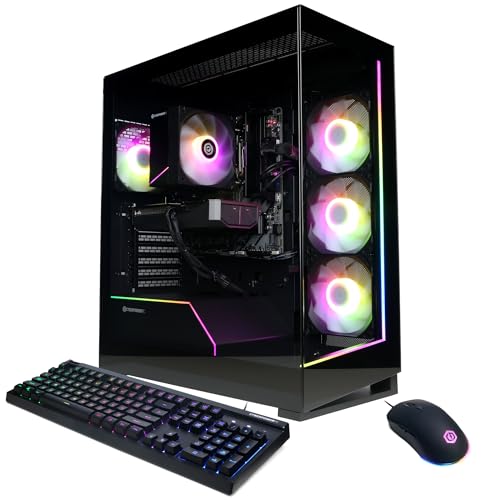
CyberPowerPC Gaming PC, AMD Ryzen 7 8700F, GeForce RTX 5060 Ti 8GB
About 1,350 dollars, and the best-balanced platform in the middle of this list. An eight-core Ryzen 7 8700F is more processor than an RTX 5060 Ti strictly requires, which is the right way round: the graphics card is the easy part to change later, the processor is not. Expect comfortable 1080p high performance and workable 1440p medium, with the 8 GB frame buffer as the limiting factor in the most demanding recent titles at the higher resolution. Confirm the fitted memory capacity and plan for 32 GB, and confirm the supply wattage and PCIe cable count before planning a card upgrade. As a machine to grow with over four years, this is the sensible middle choice.
YAWYORE Gaming PC Desktop Computer AMD R5 5600GT 16GB 1TB NVMe Towers WiFi
Around 660 dollars, and the specification is better balanced than the price suggests. The R5 5600GT is a competent six-core processor, 16 GB is the current sensible floor rather than the old 8 GB compromise, and a full 1 TB NVMe drive removes the asset streaming hitches that plague budget machines fitted with 256 or 512 GB. That combination makes it a real 1080p esports setup rather than an aspirational one. The graphics side is the part that will limit you in modern AAA titles, and it is also the part you replace, so the two things to check before buying are the supply wattage and the published maximum card length for the chassis. Do that at purchase and this is a platform, not a dead end.
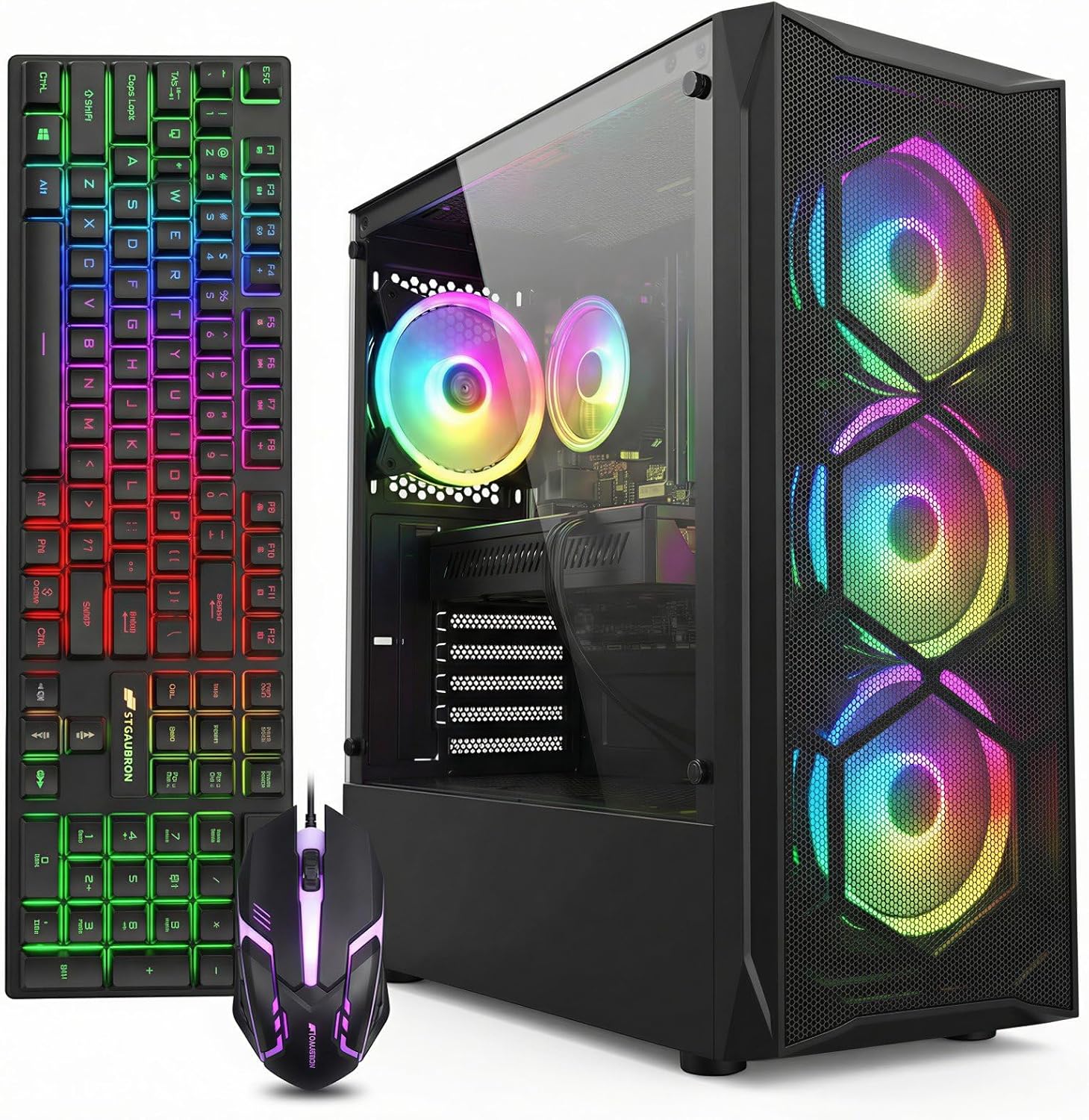
STGAubron Gaming PC Desktop,Core I7,RX 580 8G,16G RAM,512G SSD
About 500 dollars, and the 8 GB of video memory on an older card is the reason it holds up better than its generation suggests. That buffer lets it keep texture settings where 4 GB machines stumble, even though its raw shading throughput is behind. In practice it plays 1080p competitive titles at high frame rates and older AAA titles at medium comfortably, and it struggles in anything designed around modern upscaling and ray tracing. Two bench notes: cards of this generation run warm and benefit visibly from a rear exhaust fan, and the 512 GB drive holds roughly three modern installations, so plan storage first. As a five-hundred-dollar machine that plays real games today, it is defensible.
Dell Gaming OptiPlex Desktop RGB Computer PC, Intel Core i7, GeForce GT 1030 2GB GDDR5, 16GB RAM, 512GB SSD, 24 Inch HDMI Monitor, Keyboard Mouse and Headset, WiFi, Windows 11 Pro (Renewed)
Around 415 dollars for a complete desk with a 24-inch monitor, keyboard, mouse and headset. A Core i7 with 16 GB and a 512 GB solid state drive is a genuinely useful computer for everything outside demanding games; the GT 1030 with 2 GB limits it to older and lighter titles at 1080p low to medium. Its place in this list is honest: it is the cheapest way to get a working, complete setup on a desk, and for a first machine or a second household PC that is worth something. The constraint to accept up front is that office-derived chassis typically pair modest proprietary supplies with limited card clearance, so treat this as a finished setup at its price rather than a platform. Renewed units also deserve a proper acceptance test, described below.
Upgrade paths, with realistic costs
Once you own the setup, the sequence that produces the most improvement per dollar is consistent across every machine above.
Memory to 32 GB comes first if the machine is at 16 GB and you do anything alongside gaming. It is inexpensive, it is low risk, and it removes the paging spikes that dominate the worst frame times. Storage second: a second drive rather than a replacement, so no reinstallation is needed. Third, a monitor if you are still on 60 Hz, since the display often limits the experience more than the tower does. Fourth, the graphics card, and only after confirming three numbers: chassis maximum card length, supply wattage, and available PCIe power cables. Fifth, cooling, which for most prebuilt machines means one rear exhaust fan and clean filters rather than anything elaborate.
Processor upgrades sit outside this list deliberately. On most prebuilt machines the combination of socket, chipset and firmware support makes them unpredictable, and the money is better spent on the items above. Buy the processor you want at purchase time.
A first-week acceptance test for any new or renewed setup
Do this in the first week, while returns are still straightforward. It takes about ninety minutes and it catches nearly everything that matters.
Confirm the display is connected to the graphics card output rather than the motherboard, and confirm the refresh rate in Windows matches the panel’s rating. If the machine outputs nothing at all, the diagnostic sequence is in how to fix a GPU not detected. Check the installed memory capacity and its running speed in Task Manager, and enable the rated profile in firmware if it is running at the default. Check drive capacity and health. Run a thirty-minute combined load with temperature and frame time logging, note the minute at which clocks first fall, and save that log as your baseline.
Then open the side panel. Confirm both graphics card power connectors are fully seated, look for shipping damage, and check that no cable is resting against a fan. On renewed machines specifically, check the dust level and the fan bearings by spinning each fan by hand; a fan that grinds or wobbles will fail within a year. The software tools that make this assessment quicker are compared in the diagnostic tools guide, and if the machine arrived without a clean operating system installation, the process is in how to install Windows on a new PC.
How I would choose between them
At around 2,000 dollars, choose the KOTIN if processor performance and frame rate consistency matter most, the msi Codex Z2 if storage capacity and a mainstream support path matter more, and the Alienware Aurora if chassis design and manufacturer support outweigh the flexibility you give up, having first checked the supply form factor and the card clearance.
In the middle, the CyberPowerPC configuration with a Ryzen 7 8700F is the platform with the longest useful life, because the processor outlasts the card and the card is the easy replacement. The SAAV CORE bundle is the choice when you need the monitors included and are willing to accept 1080p performance for that convenience.
At the bottom, the YAWYORE machine is the better platform of the budget options thanks to its 1 TB drive and 16 GB of memory, the STGAubron is the better immediate performer thanks to 8 GB of video memory, and the renewed Dell OptiPlex is the cheapest complete desk rather than a machine you expand.
Across all of them, the decisions that matter are the ones nobody photographs: clearance, socket support, supply headroom and airflow. Check those against the manufacturer specification tables for your exact model, and the rest of the choice becomes straightforward.
This guide covers one angle on the topic. For the full comparison, see our main guide: PC Setups for Gaming: Fix the Bottleneck First, Then Buy.
Frequently asked questions
How much space should I leave behind a tower?
Leave more than 3 cm behind the tower whenever possible, because a machine jammed into a desk cubby with only 3 cm behind it can recirculate its own exhaust. Measure the desk depth from the front edge to the wall, and include clearance above and behind the machine rather than checking only whether the tower physically fits.
Can I upgrade a prebuilt processor if I cannot find the motherboard model?
Do not assume the processor can be upgraded if you cannot identify the exact motherboard model. Some prebuilts use boards made for a single system builder that do not appear in the board maker’s public support list. Without the board’s supported processor list and required firmware version, value the machine on its current processor rather than its possible future upgrade.
Is having free memory slots important when buying a PC?
Yes, having free memory slots can make a later upgrade materially easier. If you plan to reach 32 GB, a machine with two occupied slots and two free slots is preferable to one with four occupied smaller modules. You should still check the exact board’s supported maximum capacity and speeds, because filling all four slots can reduce the achievable speed.
What should I check if a graphics card fits by length but the side panel will not close?
Check the graphics card’s height as well as its length. Height is measured from the top of the expansion slot bracket to the card’s top edge, and oversized coolers can exceed the case’s assumed clearance. Also check the card’s thickness in slots and leave room for the power connector’s bend radius, since a card that fits exactly on paper may not fit in practice.
What happens if a DDR5 memory kit runs below its advertised speed?
A DDR5 kit rated above the platform default may run at that lower default until its profile is enabled in firmware. The article reports a 7 to 11 percent average-frame-rate difference in processor-limited titles from that setting change. Check the speed the modules are actually using rather than relying only on the rating printed for the kit.
Related guides
- Best Gaming PC for Overwatch 2: Ten Prebuilts Matched to Your Monitor (2026)
- Best Gaming PC for Baldur’s Gate 3: Matching CPU, VRAM and Storage to the Game (2026)
- Best Gaming PC for Apex Legends: Which Listings Fit a High-Refresh Setup (2026)
- Best RTX 3060 Gaming PCs: Eight Prebuilt Listings Compared by CPU, RAM and Cooling (2026)









