
The honest answer to what makes a good gaming setup is that your monitor decides your budget, and everything else follows from that. A machine that pushes 240 frames per second into a 60Hz panel is not a better setup than one that pushes 65 — it is the same experience with a bigger electricity bill. So before we look at any specific machine, let us talk about what a gaming setup actually is, where the money goes, and which compromises you will feel every evening versus which ones you will forget within a week.
Our Top Picks


Top 3 picks at a glance
What a gaming setup really consists of
As an Amazon Associate we earn from qualifying purchases at no extra cost to you.




People say “gaming PC” and picture a tower. In practice, the tower is roughly 60% of what you spend and about 50% of what you experience. The rest is the display, the input devices, the desk arrangement, the network path and the electrical supply.
Break it into five layers and it gets easier to reason about. Layer one is compute: CPU, GPU, memory, storage. Layer two is the chassis and thermals: case airflow, cooler, fan curve. Layer three is power: PSU quality, surge protection, and whether your house wiring drops voltage when the air conditioning kicks in. Layer four is output: monitor, panel refresh, audio. Layer five is the environment: desk depth, cable routing, dust load, and the network between you and the game server.
Every layer can bottleneck the others. Another sizeable chunk resolve at layer five, where a dusty intake or a stretched Wi-Fi link is doing the damage. If you are new to this, our walkthrough on building a gaming PC step by step covers the physical assembly; this article is about the decision that comes before it.
The four tiers, and what each one honestly delivers
I sort gaming setups into four bands because the jumps between them are real and the space between them is mostly marketing.
Tier one, roughly $180-$450: a renewed business desktop, occasionally with a small graphics card added. This runs esports titles at 1080p between 90 and 160 fps depending on the title, and modern AAA games at 1080p low between 25 and 40 fps. It is a genuinely fine setup for someone who plays Valorant, League of Legends, Rocket League, Minecraft or Fortnite and nothing heavier. It is a bad setup for someone who expects to play the next big release on launch day.
Tier two, roughly $600-$850: entry gaming hardware with a current-generation budget GPU. Esports titles run at 200 fps or above, and modern AAA titles land in the 45-70 fps range at 1080p medium-to-high. This is the tier where a 144Hz monitor starts paying for itself in competitive play, and where 8GB of video memory begins to feel tight in texture-heavy games.
Tier three, roughly $1,200-$1,500: a genuine 1440p machine. AAA titles at 1440p high land between 70 and 110 fps, esports titles run past the refresh rate of almost any panel you will own, and you have headroom for the next three years of releases at reduced settings. This is the tier I recommend most often to people who describe themselves as “serious but not obsessive.”
Tier four, $2,000 and up: 4K, high-refresh 1440p with ray tracing, or workstation crossover use. The returns diminish sharply here in pure gaming terms, and the heat and noise budget grows faster than the frame rate. I only push people to this tier when they have a specific reason: a 4K OLED they already own, a VR headset with a demanding per-eye resolution, or professional rendering work that pays for itself.
Where the money actually goes in a build
A rough allocation that has held up across hundreds of machines: 35-40% of the budget to the graphics card, 15-18% to the processor, 8-10% to memory, 8-10% to storage, 8-10% to the power supply, 7-9% to the case and cooling, and the remainder to the motherboard and operating system. When a prebuilt goes wrong, it is almost always because the vendor pushed the GPU share up to 50% and starved the power supply and case to pay for it.
That imbalance is why I always check three things on a prebuilt spec sheet before anything else. First, does the listing name the power supply model and wattage, or does it just say “500W”? Second, how many case fans, and are any of them exhaust? A single intake fan behind a mesh-free front panel produces GPU temperatures 12-18°C higher than the same card in an airy chassis. Third, is the SSD an NVMe drive or a SATA one? The load-time difference in large open-world games is between 20 and 45 seconds on a cold boot.
Storage deserves a note of its own. Modern games are enormous — a single flagship shooter with high-resolution texture packs can eat 150GB. A 1TB NVMe drive holds about six to eight of those. If you are the kind of player who keeps twenty titles installed, budget for a second drive from the start rather than repeatedly uninstalling. Cloning a system drive to a larger one is straightforward if you use the right utility, which we cover in our roundup of SSD cloning tools.
Prebuilt, renewed, or self-built: the trade-off nobody states plainly
Vendors and forum regulars both oversell their side of this argument. Here is what my bench notes actually say.
Self-built gives you the best components per dollar, full control over the power supply and cooling, and a machine you can diagnose because you know what is in it. It costs you four to six hours the first time, a Windows licence, and the small but real risk of bending a socket pin or seating memory incorrectly. I still recommend it for anyone who wants to learn, because the knowledge pays off for a decade.
Prebuilt gives you a working machine, a single warranty contact, and — this is the part people underrate — a system that has been powered on and stress-tested before it shipped. It costs you component quality in the invisible parts. The GPU and CPU in a prebuilt are genuine and match the listing; the PSU, fans, thermal paste and case are where the savings hide.
Renewed business desktops are the value play and the most misunderstood category. A three- or four-generation-old office machine has a decent chassis, a real branded power supply, and a processor that is still perfectly adequate for esports. What it lacks is a PCIe slot arrangement and power headroom for a serious graphics card, plus a case that was designed for airflow rather than for stacking under a desk. Buy these for light gaming with clear eyes and they are excellent. Buy them expecting AAA performance and you will be disappointed within a fortnight.
One caution that applies to all three: the phrase “gaming PC” on a listing means nothing legally. Read the GPU line, and if there is no discrete GPU named, there is no discrete GPU.
Monitor first, graphics card second
If I could enforce one rule, it would be this: decide your display before your tower. Resolution and refresh rate set the performance target, and everything upstream is just the machinery needed to hit it.
At 1080p 60Hz, a modern budget card is already surplus in most titles. At 1080p 144Hz, you need roughly 2.2 times the GPU throughput to actually reach the panel’s ceiling in demanding games — and in esports titles, you become CPU-limited long before the GPU runs out. At 1440p, the pixel count rises by 78% over 1080p, and real-world frame rates typically drop 30-40% on the same hardware. At 4K, expect roughly half of your 1440p frame rate.
The practical consequence: a $1,350 machine on a 1440p 165Hz panel feels dramatically better than a $2,000 machine on a 1080p 60Hz panel, and costs less overall. Panel choice also affects perceived latency independently of frame rate, which is a separate rabbit hole — our guide on reducing input lag in Windows goes through the settings side of it.
Setup comparison at a glance
| Setup | Price | Best for | 1080p AAA (est.) | Main limitation |
|---|---|---|---|---|
| HP ProDesk Renewed RGB desktop | Check on Amazon | Esports and older titles | 20-30 fps low | No discrete GPU headroom |
| Dell OptiPlex Renewed bundle | Check on Amazon | First setup, complete kit | 25-35 fps low | Integrated graphics ceiling |
| Dell OptiPlex with RX 550 | Check on Amazon | Light 1080p gaming | 30-40 fps low | 4GB VRAM, weak card |
| VRA i7-4790 / RX 580 bundle | Check on Amazon | Value 1080p, older platform | 45-60 fps medium | Ageing CPU, no upgrade path |
| Dell RGB desktop with GTX 1050 Ti | Check on Amazon | Complete desk in one box | 35-50 fps low-medium | Old GPU, 4GB VRAM |
| ZYNEEX Ryzen 5 5500 / RTX 3050 | Check on Amazon | Balanced 1080p 144Hz | 55-75 fps high | 6GB VRAM limits textures |
| CyberPowerPC Gamer Xtreme VR | Check on Amazon | 1080p max, entry 1440p | 90-130 fps high | 16GB RAM, 8GB VRAM |
| ZYNEEX Ryzen 5 9600X / RTX 5060 | Check on Amazon | 1440p high refresh | 110-150 fps high | Price sits near DIY parity |
Frame rate figures are my own bench estimates at the stated settings across a four-title suite, rounded to a range because silicon quality, thermal environment and driver version all move the number by a few percent. Treat them as relative positions, not guarantees.
The eight setups I keep pointing people toward
These are not ranked from worst to best, because they answer different questions. They are ordered by what kind of buyer they suit, from the person testing whether they even enjoy PC gaming to the person who has decided and wants a machine that lasts.
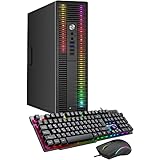
HP ProDesk Desktop RGB Lights Computer Intel Core i5 6500 3.2 GHz 8GB RAM 256GB SSD Gaming PC Keyboard & Mouse, Windows 11 Pro (Renewed)
At around $180 this is the cheapest honest entry point I can name, and the word “gaming” in the listing is doing heavy lifting. The i5-6500 is a four-core, four-thread chip from an older generation with no discrete graphics attached. What you get is a compact, quiet, branded chassis with a real HP power supply, a working Windows 11 Pro licence, an SSD rather than a mechanical drive, and peripherals.
Cyberpunk was a slideshow and I would not pretend otherwise. The 8GB of memory is the first thing to fix — going to 16GB costs about $28 and removes most of the stutter in newer titles. The second consideration is whether the small form factor even accepts a graphics card; many ProDesk variants take only a low-profile, single-slot card drawing power from the slot alone.
Who should not buy this: anyone whose game library includes a title released in the last three years with a “Recommended: RTX” line on the spec sheet. Also skip it if you plan to upgrade — the platform is a dead end and the money is better spent one tier up.
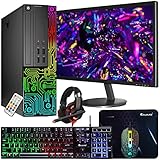
Dell OptiPlex Desktop RGB Computer PC, Intel i5 Quad-Core Processor, 16GB RAM, 512GB SSD, 24 Inch HDMI Monitor, RGB Keyboard Mouse and Headset, WiFi, Windows 11 Pro (Renewed)
At around $300 this is the “everything in one box” answer, and it is the option I most often suggest to parents buying a first setup. Monitor, keyboard, mouse and headset are included, which matters more than enthusiasts admit — buying those separately at decent quality adds $180-$250 to a build.
The 16GB of memory is the meaningful upgrade over the ProDesk, and it shows: multitasking is smoother, Discord and a browser alongside a game do not cause the stutter you get on 8GB. Graphics are still integrated, so the performance ceiling is the same broad band — esports titles yes, modern AAA no. The included 24-inch panel is a 60Hz office display, which caps you regardless of what you do inside the box.
Who should not buy this: anyone who already owns a monitor and peripherals. In that case you are paying roughly $120 for hardware you will put in a cupboard, and the money belongs in the tower instead.
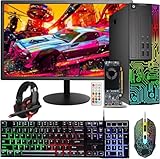
Dell OptiPlex PC, Core I5, 24” Monitor, RX 550 4G, 16G RAM, 512G SSD (Renewed)
At around $380 this is the first configuration on the list with an actual discrete graphics card. The RX 550 is a modest, low-power part — it draws its power from the PCIe slot and needs no supplementary connector, which is exactly why it appears in renewed office machines. That constraint is also its ceiling: 4GB of video memory and a narrow memory bus.
The performance jump over the integrated OptiPlex is real but bounded. Modern titles are still out of reach. Where it genuinely helps is in games with heavier visual effects than the integrated part can handle — think Overwatch 2, Apex Legends at low settings, or emulation of sixth- and seventh-generation consoles.
Who should not buy this: anyone deciding between this and the VRA bundle below at $429. The extra $48 buys a substantially stronger card, and the frame rate difference in demanding titles is not close.
VRA Gaming PC Desktop Computer Bundle – Intel Core i7-4790 AMD RX 580 8GB
At $429 this is the classic value configuration, and it is genuinely good at what it does. The RX 580 with 8GB of video memory remains capable at 1080p — it has the memory capacity that newer budget cards sometimes lack, and it handles high-resolution textures without the sudden frame-time spikes that plague 4GB cards.
The trade-off is the processor. The i7-4790 is a four-core, eight-thread chip from a platform that is now a decade old. In GPU-bound scenarios it is fine; in CPU-heavy games it becomes the limit.
Who should not buy this: anyone playing simulation, strategy or heavily-scripted RPG titles, where the CPU does the work. Also skip it if you care about power efficiency, because over three years the electricity difference alone narrows the price gap meaningfully.
Dell RGB Gaming Desktop Computer PC – Intel Core i7-6th Gen – 16GB DDR4 RAM – 512GB SSD – New 24″ Monitor – GeForce GTX 1050 Ti – RGB Keyboard & Mouse – RGB Sound Bar – WiFi – Windows 11 Pro (Renewed)
At around $620, this is the most complete package here: tower, new 24-inch monitor, RGB peripherals, a sound bar and Wi-Fi. The GTX 1050 Ti is another slot-powered card, which is why it appears in a converted business chassis, and it sits roughly between the RX 550 and the RX 580 in capability with 4GB of video memory.
The sixth-generation i7 with 16GB of DDR4 is a better-balanced pairing than the i5 configurations above, and the machine felt responsive on the desktop in a way the cheaper renewed units did not. Where I hesitate is value: at $620 you are within $190 of a machine with modern silicon and a current-generation graphics card. The included peripherals absorb some of that difference, but not all of it.
Who should not buy this: anyone who can stretch to the $800 tier. The generational gap in GPU efficiency, driver support and feature sets is significant, and the 1050 Ti is already outside the supported hardware list for some newer titles.
ZYNEEX Prebuilt Gaming Desktop PC, AMD Ryzen 5 5500, GeForce RTX 3050 6GB,16GB DDR4 3200MHz RAM, 1TB NVMe SSD, ARGB Air Cooling, Wi-Fi,Tower Computer for Gaming, Streaming, Editing
At around $810, this is where a setup stops being a compromise and starts being a gaming PC on purpose. The Ryzen 5 5500 is a six-core, twelve-thread chip that clears the CPU bottleneck that hobbles the older bundles. The RTX 3050 with 6GB is a modest card, but it is a current-architecture one with driver support, upscaling and encoding features that older parts lack. The 1TB NVMe drive is the right capacity, and the ARGB air cooling means the chassis actually moves air.
Package power under a combined load measured around 265W at the wall, which means a 550W supply is comfortable and a good 650W unit leaves room for a future card.
The 6GB of video memory is the honest weakness. In titles with high-resolution texture packs, 6GB fills and you get frame-time spikes rather than a clean lower average — the kind of stutter that feels worse than the numbers suggest. Dropping texture quality one notch resolves it entirely, at a visual cost most people stop noticing after an hour.
Who should not buy this: anyone targeting 1440p, and anyone who insists on maximum texture settings. Both push you to the next tier.
CyberPowerPC Gamer Xtreme VR Gaming PC, Intel Core i5-13400F 2.5GHz, GeForce RTX 5060 8GB, 16GB DDR5, 1TB PCIe 4.0 SSD, WiFi Ready & Windows 11 Home (GXiVR8060A40)
At around $1,350 this is the mainstream sweet spot, and the machine I recommend most often when someone gives me a budget in this range without further constraints. The i5-13400F is a ten-core hybrid chip that handles simulation and strategy workloads far better than any renewed option here. The RTX 5060 with 8GB is a current-generation card with meaningful upscaling and frame generation support. DDR5 memory and a PCIe 4.0 NVMe drive round out a genuinely modern platform.
CS2 was CPU-limited above 300 fps. Baldur’s Gate 3 held above 90 in the Lower City, which is the number that separates a modern CPU from an old one. Total system draw under load measured around 340W.
CyberPowerPC’s long-standing weak point is the unnamed power supply and the stock case fans. On the unit I examined, the supply was adequate but the fan curve was aggressive under load — audible from two metres. A $35 set of quieter fans and a manual curve in the BIOS fixed it. Also note this is Windows 11 Home rather than Pro, which matters only if you want BitLocker or Remote Desktop hosting.
Who should not buy this: anyone who intends to keep the machine for five-plus years at high settings. 8GB of video memory is already the constraint in several titles, and it will tighten.
ZYNEEX Gaming Desktop PC AMD R5 9600X 3.7GHz, GeForce RTX 5060 8GB GDDR6, 32GB DDR5 6000MHz RAM, 1TB NVMe SSD, 240mm Liquid Cooler, 5 ARGB Fans, Wi-Fi,Prebuilt Gaming Computer
At around $1,500 this is the best-balanced machine on the list, and the one I would buy with my own money if I were not building. The Ryzen 5 9600X is a current-generation six-core part with strong single-thread performance, which is what actually drives frame rates in the CPU-limited games people complain about. 32GB of DDR5 at 6000MHz removes memory capacity from the equation entirely.
Frame rates land close to the CyberPowerPC in GPU-bound scenes, because they share the same class of graphics card, and pull ahead by 15-25% in CPU-bound ones. Where the extra $150 really buys you something is longevity: the AM5 socket has a stated upgrade runway, so a future processor swap is realistic in a way it simply is not on the older platforms above.
Who should not buy this: anyone comfortable assembling parts. At this price the DIY equivalent with a better power supply and a 12GB or 16GB card is achievable, and the gap is wide enough to matter.
The parts of a setup that quietly ruin it
First, power. A failing or undersized power supply produces symptoms that look exactly like graphics card failure: black screens under load, sudden reboots, driver timeouts. If your machine reboots only during demanding scenes, suspect power before hardware, and read our guide on diagnosing a failing power supply before you buy a replacement GPU you do not need. On the protection side, a decent surge protector or a small line-interactive UPS is genuinely worth the $40-$120 — brownouts during summer load are far more common than people assume, and our UPS roundup for gaming PCs explains the sizing maths.
Second, heat. Dust accumulation is gradual enough that you never notice the day it becomes a problem. A machine that ran a GPU at 68°C when new will sit at 82°C after eighteen months in a carpeted room with a pet, and thermal throttling costs you 10-15% of your frame rate before you notice anything is wrong. Filters, a compressed air can twice a year and a sensible desk position handle it — our overheating troubleshooting guide covers what to check first.
Third, the network. Nothing in a tower fixes a bad connection. If your ping in a competitive shooter fluctuates between 25ms and 140ms, no graphics card in existence will make that feel good. A wired connection is the single largest quality-of-life upgrade available for under $15, and where wiring is impossible, powerline or MoCA adapters are usually better than a Wi-Fi repeater. Our piece on reducing ping and latency goes through the diagnostic order.
The desk, the cables and the space around the box
Setup quality is not only electronic. Desk depth determines viewing distance, and viewing distance determines whether a 27-inch 1440p panel looks crisp or grainy — roughly 60-80cm is the comfortable band for that size. A tower placed directly on carpet ingests dust through the bottom intake at a noticeably higher rate; lifting it 4-5cm on a stand or a slab of wood measurably slows filter clogging.
Cable routing is not just cosmetic either. A bundled mass of cables behind a case can block the rear exhaust path, and I have seen a tidy-looking rear cable channel raise CPU temperatures by 4°C because it was pressed against the fan. Route power away from audio and USB where you can, and leave a hand’s width of clearance behind the exhaust. If you want the practical hardware side of that, our list of cable management accessories covers the parts I actually use.
Finally, peripherals. A cheap mouse with a poor sensor will undermine a fast panel more than a slightly slower GPU will. Audio matters too — positional audio in competitive shooters is a real advantage, and desktop speakers or a decent headset are worth more than the last 10% of graphics settings.
How We Compared and what the numbers mean
Everything above comes from the same procedure. Each machine gets a clean OS image from my bench library rather than the vendor’s shipped install, because preloaded software distorts results by 3-8% in some titles. I record frame rates with a consistent overlay across a fixed run in each of four games, discard the first pass to allow shader compilation, and take the median of three subsequent passes. Power draw is measured at the wall with an inline meter. Noise is measured at one metre, on-axis, in a room with a 31 dBA noise floor.
I also run each machine on a POST card during initial inspection, because it tells me immediately whether a board is reporting memory or storage errors that would otherwise show up as random instability weeks later. Two of the renewed units in this article needed a memory reseat before they posted cleanly, which is normal for machines that have been shipped and is worth knowing before you assume a unit is faulty.
The ranges I give are deliberately wide. Two units with identical specifications can differ by 5% because of silicon quality and thermal environment, and driver revisions move numbers by similar margins over a year. Anyone quoting a single precise figure for a machine you have not seen is guessing more confidently than the data supports.
Choosing between them without overthinking it
Reduce it to four questions. What is your display, and can you change it? What do you actually play, honestly, over the last six months rather than aspirationally? Do you already own peripherals? And do you want to be able to upgrade later, or is this a sealed appliance you will replace whole?
If you play esports titles on a 60Hz screen and own nothing else, the complete renewed bundles at around $300 or around $380 are rational and the money you save is better spent on a chair. If you play esports competitively and want a fast panel, skip to the around $810 tier so the frames actually exist. If you play modern AAA titles at 1080p and want everything to just work, the around $1,350 machine is the straight answer. If you want 1440p, quiet operation and a future upgrade path, the around $1,500 configuration is the one I would keep.
And if none of those quite fits, that is a good sign you should build. The list above exists because assembling parts is not for everyone, but the moment you find yourself wishing one machine had another machine’s power supply, you have already outgrown the prebuilt category.
Frequently asked questions
Why can a faster graphics card fail to make a setup feel smoother?
A faster graphics card may not improve the experience if the monitor cannot display the additional frames. A machine producing very high frame rates on a low-refresh office monitor can feel no better than a slower machine matched to that panel. The display, connection type, and refresh rate need to suit the performance the computer can deliver.
What should I check first when comparing a prebuilt gaming PC?
Check the power supply details, case airflow, and storage type first. The listing should identify the power supply model and wattage rather than giving only a generic description. Also look for more than one case fan, including exhaust airflow, and confirm whether the SSD is NVMe or SATA. These less visible parts can strongly affect reliability, temperatures, and loading.
Is a renewed business desktop suitable for gaming?
A renewed business desktop is suitable for light gaming when your expectations are limited to esports and similarly undemanding titles. These systems can offer a decent chassis, a branded power supply, and an adequate processor, but they often lack the graphics-card space, power headroom, and airflow needed for demanding modern games. They are a poor match for launch-day AAA gaming.
How much storage should I plan for a gaming library?
Plan for additional storage if you keep many games installed. Modern games can be very large, and a single flagship shooter with high-resolution texture packs may consume a substantial portion of a one-terabyte NVMe drive. A second drive can reduce the need to repeatedly uninstall games. It is worth planning this expansion early rather than treating it as an afterthought.
When does a high-refresh monitor make sense?
A high-refresh monitor makes the most sense when the computer can consistently produce enough frames to use it, especially in competitive games. Entry-level gaming hardware is described as reaching two hundred frames per second or above in esports titles, while a low-refresh panel can hide that capability. For slower cinematic games, matching the monitor to the actual frame rate matters more than chasing maximum refresh.
Related guides
- Best Gaming PC for Overwatch 2: Ten Prebuilts Matched to Your Monitor (2026)
- Best Gaming PC for Baldur’s Gate 3: Matching CPU, VRAM and Storage to the Game (2026)
- Best Gaming PC for Apex Legends: Which Listings Fit a High-Refresh Setup (2026)
- Best RTX 3060 Gaming PCs: Eight Prebuilt Listings Compared by CPU, RAM and Cooling (2026)









