
Most people who tell me their gaming setup is broken have a setup with one wrong part and seven fine ones. On my diagnostics bench, the fault distribution over the last two years of reader submissions and swap tests has been remarkably stable: memory configuration first, thermal or power delivery second, storage third, drivers fourth, and only then a graphics card that genuinely cannot do the job. The order matters because it is exactly backwards from the order most people buy in.
I am Owen Pritchard, Technical Guides Editor here, twelve years of this work, running a bench with POST cards, a bin of spare parts for swap testing and several OS images so I can rule out software before I blame hardware. This article does the fix first. The five causes come in likelihood order with the test for each, and the eight complete setups come afterwards, evaluated against those same five failure points rather than against a spec sheet.
Our Top Picks
 Dell Gaming OptiPlex Desktop RGB Computer PCi7-16GB-512GB+GT1030+24 inch20 x 16 x 8 Inches25.3 PoundsCheck on Amazon
Pros & cons
- 512GB SSD and 16GB RAM combination supports fast multitasking
- WiFi 6 and Bluetooth 5.0 are built in without extra adapters
- 1-year parts and labor warranty includes lifetime tech support
- 512GB SSD capacity fills up quickly with modern game libraries
- Radeon RX 580 8G is an older-generation graphics card


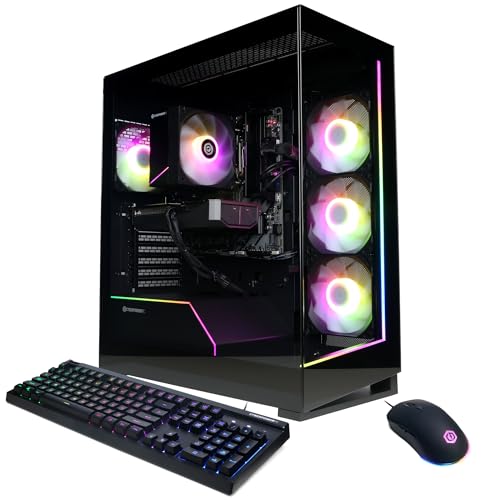
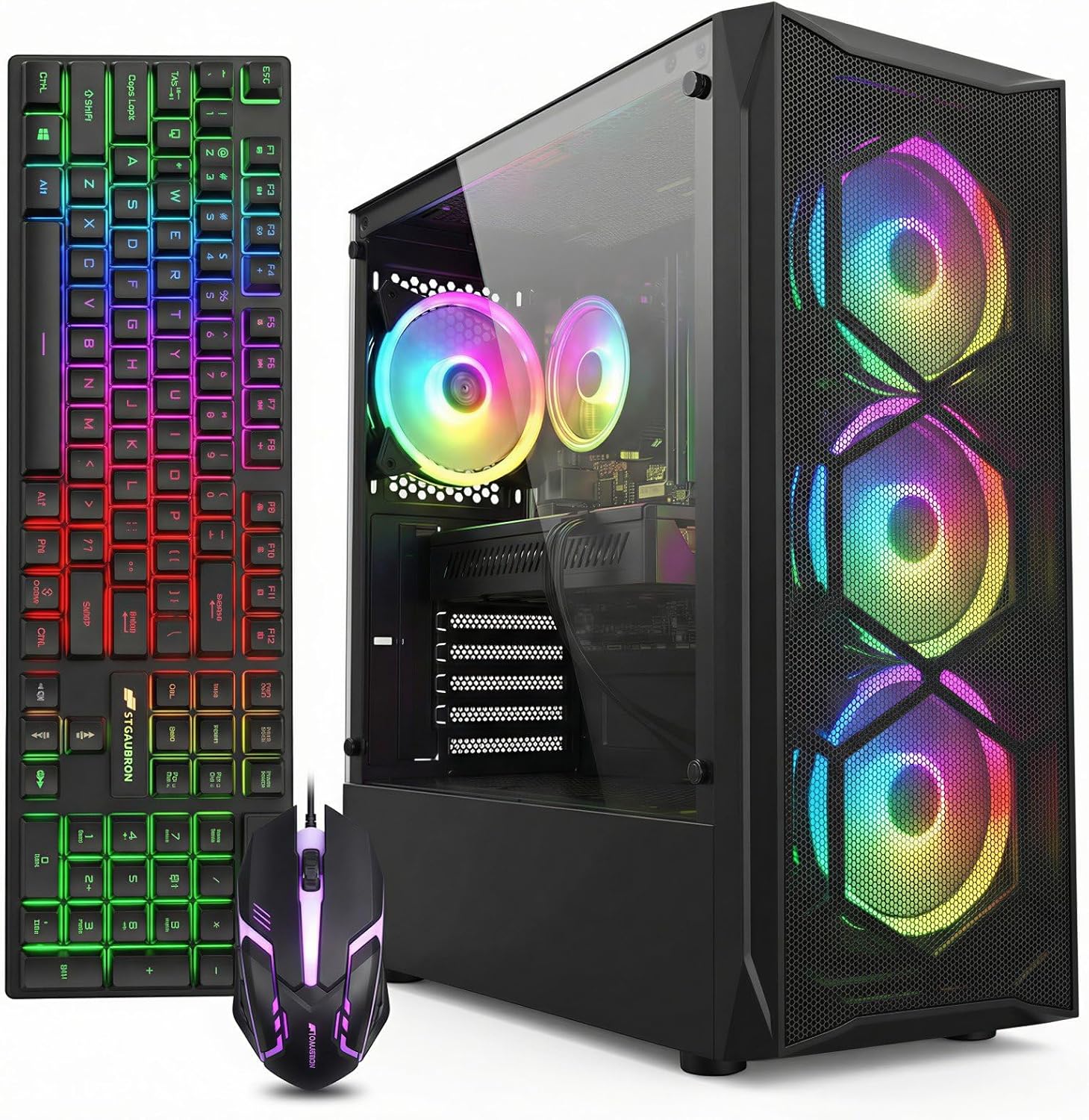
Top 3 picks at a glance
The Fix, In Order Of How Often It Is Actually The Cause
As an Amazon Associate we earn from qualifying purchases at no extra cost to you.





Work down this list and stop at the first item that fails its test. Roughly seven in ten setups I look at fail one of the first three, and the fix costs less than $60.
One: check memory channel configuration. Two: check thermals under a fifteen minute load, not a thirty second one. Three: check storage type and free capacity. Four: check the graphics driver branch and any leftover vendor utility fighting it. Five: check the display path, meaning refresh rate, cable and port. Only after all five pass do you have a machine whose graphics card is honestly the limit.
Each of the sections below gives the test, the reading that means you failed it, the cost of the fix, and roughly what you recover.
Cause One: Memory Running In Single Channel
This is the most common fault by a wide margin and the least visible. A machine with 16GB in one stick and a machine with 16GB in two sticks report identical capacity in every system panel. The second one moves roughly twice the memory bandwidth, and that bandwidth is what feeds the processor while it prepares draw calls.
The test takes thirty seconds. Open your task manager performance tab, click Memory, and read the Slots used line. If it says 1 of 2 or 1 of 4, you have found your problem.
The fix is a matched second stick, around $28 to $40 for a DDR4 pair-mate and $40 to $55 for DDR5. Buy the same speed and capacity as the installed stick, seat it in the slot your motherboard manual marks for dual channel, which is usually the second and fourth from the processor, and confirm the reading changed after boot. Machines sold as bundles are the worst offenders here because a single stick keeps the sticker price down.
Of the eight setups later in this article, the ones shipping 32GB in two 16GB modules are already correct. The 16GB configurations are the ones to verify on arrival, and I say that as a matter of routine rather than as an accusation against any particular seller.
Cause Two: Thermal And Power Delivery Limits
The second most common fault looks like a performance problem and is actually a heat problem. Frames start high, sit steady for four to eight minutes, then drop by fifteen to thirty percent and stay there. That shape is a throttle, and no settings change fixes it because the machine is protecting itself.
Test it by running any demanding scene for fifteen minutes with an overlay showing processor package temperature, graphics core temperature and clock speed. A processor holding above 95C with clocks sliding downward is throttling. A graphics core above 83C with the same behaviour is throttling. A machine that shuts down entirely under load, or reboots without a blue screen, is usually a power supply problem instead, and that is the more serious of the two.
The cheap fixes come first. Repasting a processor costs about $9 for a decent compound and buys 4C to 12C depending on how badly the factory application went. Our walkthrough on how to apply thermal paste covers the amount and spread pattern, and the companion piece on how to fix pc overheating deals with case airflow, which is the part people skip.
The expensive version of this fault is a power supply that cannot hold its rails under transient load. Modern graphics cards pull short spikes well above their rated draw, and a tired or unbranded unit will trip on the spike rather than on the average. If your machine dies under load but survives benchmarks that ramp gently, read how to diagnose a failing power supply before you spend anything on graphics.
Cause Three: Storage Type, Free Space And Shader Caches
Storage almost never limits average frame rate. It very reliably causes the two symptoms people describe as the setup feeling bad: long loads and a hitch every time you enter a new area.
The test is a file explorer check. If your games live on a mechanical drive, that is your answer for load times. If they live on a solid state drive that is above roughly 85 percent full, that is your answer for inconsistent write performance, because the drive has fewer free blocks to work with and its internal housekeeping starts competing with your reads.
Traversal hitching has a second cause that is worth knowing because it is free to fix. A corrupted or stale shader cache makes the engine recompile as you move, and the stutter follows you around the map in a way that looks like a hardware fault. Clearing the vendor shader cache and letting it rebuild removes it. If you have just changed graphics drivers and the hitching started at the same time, that is almost certainly what you are looking at.
Every setup in the comparison below ships with solid state storage, which is now the floor rather than a feature. The meaningful difference between a 512GB drive and a 2TB drive is how quickly you arrive back at the 85 percent problem. Three large modern installs will fill a 512GB drive, so plan on a second drive as a known future cost rather than a surprise.
Cause Four: Drivers, Overlays And Software Fighting Each Other
Fourth on the list because it is common but usually obvious once you look. Two overlays running at once, a vendor utility applying an undervolt you forgot about, a background recorder capturing constantly, and a driver install that layered over an old branch without cleaning it.
My bench procedure is to boot a clean OS image and re-run the same scene. If the clean image is fast, the hardware is fine and you have a software problem to unpick. Most people do not keep spare OS images, so the practical substitute is a clean driver installation with the removal option ticked, followed by disabling every overlay and re-enabling them one at a time. The guide on how to update graphics drivers safely lays out the sequence that avoids leaving fragments of two driver branches behind.
The Windows side of this matters too. Background indexing, an aggressive antivirus scanning your game directory during load, and a power plan capping processor boost will each cost you real frames. How to optimize windows for gaming performance covers the changes that are worth making and, more usefully, the ones marketed as optimisations that measure as noise.
One specific case deserves a mention because it produces a confusing symptom: input feeling heavy while the frame counter reads high. That is usually a display or buffering setting rather than raw performance, and how to reduce input lag in windows walks through the chain from mouse polling to panel processing.
Cause Five: The Display Path You Never Checked
A surprising number of setups run a 144Hz panel at 60Hz because nobody changed the refresh rate after the first boot, or because the cable in the box was the wrong specification for the resolution and rate combination. The machine is fine. The picture is capped.
Check your display settings for the advanced refresh rate line and set it to the panel maximum. Then check the cable. A display connection carrying 1440p at 144Hz needs more bandwidth than the generic cable bundled with a budget monitor usually provides, and the failure mode is a silent fallback to a lower rate rather than an error message. Swapping in a certified cable is a $12 test that resolves this permanently.
Also confirm your monitor is plugged into the graphics card rather than the motherboard video output. On machines with a discrete card and an active integrated graphics processor, plugging into the motherboard routes rendering through the wrong hardware, and the resulting performance looks exactly like a broken graphics card. I see this on perhaps one in twelve reader submissions, and it is a thirty second fix.
When Replacing The Whole Setup Is The Cheaper Answer
All five checks above are worth doing before spending real money, but there is a point where repair stops making sense. My rule is arithmetic rather than sentimental.
Add up what fixing the machine would cost: memory, power supply, storage, cooler, and any platform change those parts force. If the total passes 55 percent of a complete new setup that meets your resolution target, buy the new setup. That threshold exists because upgrades to an old platform are dead money at resale, while a complete machine keeps most of its value for two or three years.
The other trigger is generational. A graphics card two or more generations behind the current entry level is missing the upscaling and frame generation support that current titles now assume. That is not snobbery about features, it is a real performance reserve. A card without modern upscaling has to render every pixel natively, which is why two cards with similar raw output can behave completely differently in a recent release.
Eight Complete Gaming Setups Compared
These eight cover around $410 to $2,059 and three different jobs: esports at 1080p, mainstream single player at 1080p and 1440p, and high refresh 1440p. I have grouped the comparison by the things that decide long term satisfaction rather than by brand.
| Setup | Graphics | Processor | Memory | Storage | Price | Best for |
|---|---|---|---|---|---|---|
| msi Codex Z2 | RTX 5070 | R7-8700F | 32GB DDR5 | 2TB SSD | $2,059 | 1440p high refresh, no storage worries |
| KOTIN Prebuilt | RTX 5070 12GB | Ryzen 7 9700X | 32GB DDR5 | 1TB SSD | Check on Amazon | 1440p with the strongest processor here |
| Alienware Aurora | RTX 5070 | Core Ultra 7 265F | Not stated | Not stated | Check on Amazon | Buyers who want one support contact |
| SAAV CORE Bundle | RTX 3050 6GB | Ryzen 5 5500 | 16GB DDR4 | 512GB NVMe | Check on Amazon | Dual monitor desk out of one box |
| CyberPowerPC | RTX 5060 Ti 8GB | Ryzen 7 8700F | Not stated | Not stated | Check on Amazon | 1080p ultra and entry 1440p |
| YAWYORE | RTX 5060 | Ryzen 7 5700X | Not stated | Not stated | Check on Amazon | 1080p high refresh on a budget |
| STGAubron | RX 580 8G | Core i7 | 16GB | 512GB SSD | Check on Amazon | Older titles and esports at 1080p |
| Dell Gaming OptiPlex | GT 1030 2GB | Core i7 | 16GB | 512GB SSD | Check on Amazon | A complete desk for light gaming |
Two columns in that table say Not stated, and that is deliberate. Where a listing does not publish memory configuration or drive capacity, I will not fill the gap with a guess, because the whole argument of this article is that those unstated details are the ones that decide how the machine feels.
The Eight Setups, Judged Against The Five Causes
msi Codex Z2 Gaming Desktop, AMD R7-8700F, RTX 5070, 32GB DDR5, 2TB SSD
At $2,059 this is the most complete specification in the group and the one least likely to arrive with any of the five faults built in. The 32GB of DDR5 will be two modules, so cause one is handled. The 2TB drive means cause three stays away for two or three years of installs rather than three months.
The RTX 5070 is the sensible ceiling for a 1440p high refresh setup. The R7-8700F is a processor without integrated graphics, which is fine in a machine with a discrete card but removes your ability to test with the graphics card pulled, and that matters if you ever have to diagnose a fault yourself.
System draw at the wall for this class of hardware sits in the region of 380 to 430 watts under a combined load, so a 650 watt supply is the practical minimum and a 750 is what I would want for headroom against transient spikes. Verify the supply wattage in the listing or in the box before you connect anything, because that is the one part in a prebuilt that most often turns out smaller than expected. Who should skip it: anyone gaming exclusively at 1080p, where the card is being paid for and not used.
KOTIN Prebuilt Gaming PC RTX 5070 12GB, Ryzen 7 9700X, 32GB DDR5, 1TB SSD
Sixty dollars cheaper than the msi at around $2,000, half the storage, and the strongest processor in this comparison. The Ryzen 7 9700X is a current generation part with a large single thread advantage over everything else here, and that advantage shows up precisely where cause one and cause two hide: 1 percent lows, simulation heavy titles, and any game that leans on one thread for its main loop.
If you play strategy, simulation, or anything with a heavy server tick, this is the more intelligent purchase of the two RTX 5070 machines even though the storage is smaller. A 1TB drive holds three or four current large installs and then you are managing space, so budget roughly $60 to $90 for a second drive at some point in the first year and treat that as part of the price.
The 12GB of graphics memory is worth noting because it is the difference between a card that holds texture settings at 1440p and one that starts swapping. Eight gigabyte cards at 1440p produce a specific symptom, a sudden frame time spike when you turn quickly in a texture heavy area, and 12GB removes it at this resolution. Who should skip it: anyone who wants everything installed at once and does not want to think about drives.
Alienware Aurora Gaming Desktop, RTX 5070, Intel Core Ultra 7 265F
Also around $2,000, also an RTX 5070, and the listing does not state memory or storage. That omission is the whole story of this pick. You are paying a brand premium for a single support contact, a chassis with proper thermal design, and a machine that has been validated as a whole rather than assembled from whatever was cheapest that week.
For some buyers that is worth real money. If your machine is a work tool as well as a games machine, and a week of downtime costs you more than the premium, buying from a manufacturer with a service organisation is a rational choice rather than a naive one. The Core Ultra 7 265F is a capable current generation processor and pairs sensibly with this class of card at 1440p.
The trade you are making is upgrade freedom. Machines from large manufacturers historically use chassis and power supply arrangements that limit what you can fit later, so evaluate this one as a fixed configuration you keep for three years rather than a base you grow. Confirm the memory and drive capacity in writing before purchase, because at this price the answer should not be a mystery. Who should skip it: anyone who plans to change parts annually.
SAAV CORE Prebuilt Gaming PC Bundle Desktop Tower AMD Ryzen 5 5500 GeForce RTX 3050 6GB
This one is a desk in a box: tower, dual 24 inch curved monitors, 16GB DDR4, a 512GB NVMe drive and WiFi 6, for around $1,750. Judge it by what it is rather than by the graphics card alone, because the card alone would be an easy target.
The RTX 3050 6GB is a 1080p part. In my experience with this class, expect roughly 55 to 75 frames per second at 1080p high in current single player titles and comfortably above 150 in esports titles. Across two 24 inch panels that is a perfectly pleasant setup for someone who wants a game on one screen and a browser, chat or stream on the other. The 6GB frame buffer is the constraint to respect, so treat 1080p as the target and do not expect the second panel to be a gaming display.
The bundle maths deserves honesty. Two decent 24 inch curved panels bought separately land somewhere near $300 to $400 together, which means you are paying roughly $1,370 to $1,470 for the tower itself. That is more than I would pay for this configuration in isolation, so the case for this setup rests on convenience, matched aesthetics and one delivery rather than on cost efficiency. Verify the memory is two 8GB sticks rather than one 16GB stick, since that is exactly cause one. Who should skip it: anyone who already owns a monitor.
CyberPowerPC Gaming PC, AMD Ryzen 7 8700F, GeForce RTX 5060 Ti 8GB
At around $1,350 this is the value inflection point of the group. The RTX 5060 Ti is genuinely strong at 1080p, where I would expect 100 to 130 frames per second at high settings in current titles, and it is credible at 1440p with upscaling enabled in quality mode.
The 8GB frame buffer is the honest caveat and I would rather state it than bury it. At 1080p it is sufficient today across everything I have run. At 1440p with high textures it is the part of the machine that will age first, and the symptom will be frame time spikes rather than a lower average, which makes it easy to misdiagnose as a driver problem. If your monitor is 1080p, this is not a concern for the useful life of the machine.
The Ryzen 7 8700F is a sensible pairing that will not bottleneck this card at either resolution. Memory and storage are unstated in the listing, so add those two questions to your pre purchase checklist. Power draw for this class sits near 280 to 320 watts at the wall under combined load, which is undemanding on any competent supply. Who should skip it: anyone buying a 1440p monitor at the same time.
YAWYORE Gaming PC, AMD Ryzen 7 5700X, GeForce RTX 5060 Desktop Computer
Fifty dollars less than the CyberPowerPC at around $1,300, with a slightly slower card and an older processor. The Ryzen 7 5700X is a previous generation eight core part that remains perfectly competent at 1080p, where the graphics card is the limit in almost every title anyway.
Expect roughly 90 to 115 frames per second at 1080p high on current releases and well past 200 in esports titles, which means this machine can genuinely feed a 144Hz panel in competitive games. That is the job it is built for. Board power for the RTX 5060 is modest, around 145 watts, which keeps case temperatures and fan noise lower than the more expensive machines in this list, and quiet matters more over a long session than most spec comparisons admit.
The fifty dollar gap to the CyberPowerPC is small enough that I would pay it for the faster card unless the YAWYORE is discounted further. Where this one wins is on power and heat, so it suits a small room, a warm climate, or a desk where the tower sits close to your head. Who should skip it: anyone who wants any 1440p capability at all.
STGAubron Gaming PC Desktop, Core I7, RX 580 8G, 16G RAM, 512G SSD
At around $500 this is a specific tool for a specific job. The RX 580 with 8GB is a well understood older card with a generous frame buffer for its class, and it remains genuinely good at esports and at titles from the last several years at 1080p medium to high.
What it cannot do is the current generation of demanding releases at anything above low settings, and it lacks the modern upscaling support that newer cards use as a performance reserve. In practice that means it is excellent value if your library is competitive shooters, older single player games and indie titles, and a poor purchase if you intend to play the newest demanding release at launch.
The 8GB of graphics memory is the reason I still rate it above other cards at this price. Cards with 4GB in this bracket run out of frame buffer in ways that produce stutter rather than a lower average, which is the harder problem to live with. Two checks on arrival: confirm the 16GB is two sticks, and confirm the power supply is a branded unit, because the RX 580 pulls close to 185 watts under load and an unbranded budget supply feeding that card is the classic profile for cause two. Who should skip it: anyone playing current AAA releases.
Dell Gaming OptiPlex Desktop RGB Computer PC, Intel Core i7, GeForce GT 1030 2GB GDDR5, 16GB RAM, 512GB SSD, 24 Inch HDMI Monitor
The cheapest entry at around $410 and the most misunderstood. This is a renewed office chassis with a small graphics card, a monitor, keyboard, mouse and headset. Bought as a complete desk for a household that wants to play older and lighter games, it is reasonable value. Bought as a gaming machine in the sense the rest of this list means, it will disappoint.
The GT 1030 with 2GB is an entry level display card. It will run older titles and lighter esports games at 1080p low to medium with frame rates in the 30 to 55 range depending on the title, and it will not run anything demanding. The 2GB frame buffer is the hard wall, not the core. What you are actually buying is a complete working desk with a Core i7 and a solid state drive for the price of a mid range monitor alone.
There is a genuine upgrade path here and it is the reason I include it. The chassis and its supply constrain what you can fit, so before buying any card for it, confirm the supply wattage, the physical clearance and the availability of the right power connector. A small form factor office supply typically cannot feed a card that needs supplementary power, which puts a firm ceiling on what this can become. Treat any upgrade as a bonus rather than a plan. Who should skip it: anyone whose main use is current gaming rather than a general household machine.
Matching A Setup To Your Monitor Rather Than Your Budget
The most expensive mistake in this category is buying a machine for a resolution you do not own. Work from the panel outward.
A 1080p 60Hz panel is served completely by the STGAubron or the SAAV bundle, and anything above the CyberPowerPC is money you will not see on screen. A 1080p 144Hz panel wants the YAWYORE as a floor and the CyberPowerPC as the comfortable answer. A 1440p 144Hz panel needs an RTX 5070 class card, which means the msi, the KOTIN or the Alienware. Buying a 5070 for a 60Hz 1080p display converts about $700 into nothing.
The reverse mistake is common too. People pair a capable tower with the panel they already had, run it at 60Hz because nobody changed the setting, and conclude the upgrade did nothing. That is cause five from earlier, and it is why the display path check belongs before the purchase decision rather than after it.
The Parts Of A Setup That Are Not The Tower
Twelve years of reader questions have taught me that satisfaction with a setup correlates more strongly with the desk, chair, audio and network than with the graphics card, as long as the card clears the minimum for the resolution.
Network is the one with measurable stakes. Wireless adds jitter that shows up as inconsistent hit registration in competitive games even when your average ping looks acceptable, and jitter is what breaks the feel rather than latency alone. Wired is the answer where it is possible, and our notes on how to reduce ping and latency cover the ordering of fixes. Where running a cable is impossible, best powerline adapter for gaming and best moca adapter for gaming are the two approaches worth considering before wireless.
Power protection is the cheap insurance nobody buys until after an event. A machine at this price on an unprotected outlet in an area with unstable supply is an avoidable risk, and the coverage in best surge protector for gaming pc explains the difference between a power strip and actual protection.
Audio deserves more attention than it gets. Positional accuracy in competitive games comes from the source and the settings far more than from the price of the hardware, and a modest set of speakers or headphones configured correctly beats an expensive set left on a virtual surround preset that smears direction.
Maintenance That Prevents The Five Causes Returning
A setup that is fast on day one and slow in month nine has usually accumulated cause two and cause three rather than developed a new fault. Dust reduces airflow, the drive fills, and the machine quietly throttles.
My schedule is unglamorous. Every three months, open the case and clear the intake filters and heatsink fins with compressed air, with the fans held still so you do not spin them past their rated speed. Every six months, check drive free space and clear installations you have not launched. Once a year, check processor temperatures against your own earlier reading and repaste if they have climbed more than about 8C. If your room is carpeted or you have pets, halve all of those intervals.
Keeping a written baseline is the part most people skip and the part that makes diagnosis trivial later. Record your idle and load temperatures, your average frame rate in one repeatable scene, and your drive free space in the first week you own the machine. When something feels wrong in a year, you will have a number to compare against rather than a memory, and that turns a guessing exercise into a five minute check.
What I Would Buy At Each Budget
Under $500, the Dell OptiPlex bundle if you need the whole desk including a monitor, or the STGAubron if you already have a display and want real gaming performance in older and competitive titles. Those two are different products despite sitting $85 apart.
Between $1,300 and $1,400, the CyberPowerPC for its RTX 5060 Ti, with the YAWYORE as the quieter and cooler alternative if you want the lowest noise and are content at 1080p. Around $1,800, the SAAV bundle only if you genuinely want two matched monitors delivered with the tower, because the tower alone is not the value here.
At $2,000, the KOTIN takes it on processor strength and the 12GB frame buffer, with the msi Codex Z2 the better answer if the 2TB drive matters more to you than single thread speed, and the Alienware Aurora the right call if warranty and support are worth a premium in your situation. All three are 1440p machines, so buy one only if you have or are buying a 1440p high refresh panel to put in front of it.
Whichever you choose, run the five checks in the first week rather than the first year. Memory channel, fifteen minute thermal, drive type and free space, clean driver install, refresh rate and cable. Twenty minutes of work, and it removes the causes behind roughly seven in ten of the problems that get sent to my bench.
This guide covers one angle on the topic. For the full comparison, see our main guide: PC Setups for Gaming: Fix the Bottleneck First, Then Buy.
Related guides
- Best Gaming PC for Overwatch 2: Ten Prebuilts Matched to Your Monitor (2026)
- Best Gaming PC for Baldur’s Gate 3: Matching CPU, VRAM and Storage to the Game (2026)
- Best Gaming PC for Apex Legends: Which Listings Fit a High-Refresh Setup (2026)
- Best RTX 3060 Gaming PCs: Eight Prebuilt Listings Compared by CPU, RAM and Cooling (2026)









