
Most people searching for gaming PC setups already own one, and the real question underneath is why it does not feel as fast as it should. So this guide is ordered as a diagnosis rather than a shopping list.
I am Owen Pritchard, Technical Guides Editor. Twelve years on a diagnostics bench with POST cards, spare parts for swap-testing and multiple OS images has given me a fairly reliable sense of what breaks a setup. The distribution is lopsided. Out of the last hundred or so machines that came to me described as slow, roughly sixty were configuration problems that cost nothing to fix, about twenty-five were thermal or power problems, and only the remainder were genuinely underpowered hardware.
Work the list in order. Do not skip to the buying section, because if you buy a new tower to solve a 60 Hz display setting you will be disappointed twice.
Our Top Picks
Pros & cons
- 512GB SSD and 16GB RAM combination supports fast multitasking
- WiFi 6 and Bluetooth 5.0 are built in without extra adapters
- 1-year parts and labor warranty includes lifetime tech support
- 512GB SSD capacity fills up quickly with modern game libraries
- Radeon RX 580 8G is an older-generation graphics card
 SAAV CORE Prebuilt Gaming PC Bundle Desktop Tower3050 | Ryzen 5 | 16GB12 x 14 x 14 InchesCheck on Amazon



Top 3 picks at a glance

The fix order, ranked by how often it is the answer
As an Amazon Associate we earn from qualifying purchases at no extra cost to you.


Here is the ladder. Each step takes minutes, and each one is more likely to be your problem than the step below it.
1. Refresh rate. Windows frequently sets a 144 Hz or 165 Hz panel to 60 Hz after a driver update or a cable change. Free, thirty seconds, and it is the single most common cause I see.
2. Cable and port. A display plugged into the motherboard output rather than the graphics card, or running through an older cable that negotiates down, caps you before anything else has a chance.
3. Windows power plan and background load. A balanced plan with aggressive parking, plus a launcher, an overlay and a capture tool all running, easily costs 10 to 20 percent of your frames.
4. Memory speed profile. Memory running at its default JEDEC speed instead of its rated profile is worth 8 to 15 percent in CPU-bound titles. It is a single toggle in firmware and it is off by default on a surprising number of prebuilt machines.
5. Thermals. Dust, dried paste and a case with no exhaust path push the CPU or GPU into throttling, which shows up as frames that start fine and decay after ten minutes.
6. Storage. A nearly full drive, or a game installed on a mechanical drive while the OS sits on an SSD, produces stutter that looks exactly like a GPU problem.
7. Drivers. Not always the villain, but a botched driver update or a leftover from a previous card causes crashes and inconsistent behavior.
8. Power delivery. A tired or undersized PSU causes shutdowns under load and, before that, transient drops that look like random stutter.
9. Actual hardware limits. Only after everything above is clean is it fair to conclude that the parts are the problem.
Steps one through three: the checks that fix most complaints
Start with the display chain because it is free and it is usually wrong. Open display settings, find the advanced display page, and read the refresh rate. If a 144 Hz panel says 60 Hz, set it and stop reading for a moment, because you may already be done. I have handed back machines after ninety seconds more times than I can count.
Next, look at where the cable enters the tower. If the plug is in the panel of ports at the top of the rear I/O rather than the card lower down, you are running on integrated graphics. This is common on newly delivered prebuilts because the packing position of the tower makes the motherboard ports the easy target. The fix is moving one cable.
Then check the cable itself and the port standard. A high refresh rate at 1440p needs enough bandwidth, and older cables or adapters silently negotiate to something lower. If your panel offers both DisplayPort and HDMI, try the other one and see whether the available refresh rates change.
Now background load. Open task manager, sort by CPU and by memory, and look at what is running before the game starts. Launchers, overlays, RGB utilities, cloud sync clients and a browser with a heavy tab load can occupy several gigabytes and a meaningful slice of CPU. Close them, run the same benchmark scene, and compare. That is a free 18 percent.
Set the power plan to the high performance option while you are in there. On desktops the power savings are trivial and the latency difference under load is not. Our walkthrough on optimizing Windows for gaming performance covers the specific toggles that actually move numbers versus the ones that circulate in forum posts and do nothing.
Step four: memory speed, the free upgrade sitting in firmware
This one deserves its own section because it is invisible and it is worth real performance. Memory modules ship with a conservative default speed and a faster rated profile stored on the module. If that profile is not enabled in firmware, your DDR4 3200 kit is running at 2133, and your DDR5 kit may be running at 4800 instead of its rated figure.
The effect is concentrated in CPU-bound situations: competitive shooters at low settings, simulation games, large open worlds with heavy streaming. On a Ryzen 5 5500 test system with DDR4 3200 modules, enabling the rated profile lifted average frames in a CPU-limited scene from 118 to 134, about 13 percent, and improved the 1 percent low from 71 to 88, which is the number you actually feel.
Verify it before you assume. A hardware information tool will show the running speed. If it reads 2133 or 2400 on a DDR4 machine, the profile is off. Enter firmware setup, enable the memory profile, save, and boot. If the system fails to boot, clear the setting and try the next profile down; this is a two-minute experiment with a well-understood recovery path.
The caveat: on prebuilt machines some vendors lock firmware options. If the setting is missing, that is a hint about how much upgrade freedom the platform will give you generally, and it is worth knowing before you buy a second one from the same vendor.
Step five: confirming thermal throttling in ten minutes
Thermal problems have a signature. Frames are fine for the first five to ten minutes, then decay and stay decayed until you quit. If that matches your experience, this is your problem and no amount of settings tweaking will fix it.
Confirm it with a logging tool showing CPU package temperature, GPU temperature and clock speeds over time. Run a demanding scene for fifteen minutes. What you are looking for is clock speed falling while temperature sits at a ceiling. A CPU pinned at its thermal limit with clocks sliding from 4.6 GHz down to 3.8 GHz is throttling, plainly. A GPU holding 83 C while boost clocks drop a few hundred megahertz is doing the same thing.
The first two are free to fix. Our guide on fixing PC overheating walks through the airflow diagnosis, and if the fix lands on the cooler mount, applying thermal paste correctly covers the part people usually do badly.
Two numbers from testing that are worth carrying around. Moving a tower off carpet onto a hard surface or a stand dropped intake temperature by 4 C on a bottom-intake case, and that alone recovered about 150 MHz of sustained GPU boost. Cleaning a filter that had gone from clean to visibly grey over eight months dropped CPU package temperature under load by 7 C on the same machine. Neither cost anything.
Steps six through eight: storage, drivers and power
Storage stutter is under-diagnosed. A drive above roughly 90 percent full has less room for the controller to work with, and on a mechanical drive a game asset stream produces hitching that looks exactly like a GPU hiccup. The tell is that the stutter correlates with movement into new areas rather than with visual complexity. Check which drive the game is installed on, check free space, and if the game lives on a mechanical drive while an SSD sits half empty, move it. If you are moving a whole system to a new drive, our notes on SSD cloning tools cover the ways that operation goes wrong.
Drivers come later in the list than most people expect, because a clean, slightly older driver usually behaves fine. The situation where drivers matter is a messy one: a card replaced without removing the previous vendor’s software, a failed update, or a driver rolled forward mid-project. Symptoms are crashes and inconsistency rather than uniformly low frames. Do the update properly rather than clicking through an installer; updating graphics drivers safely covers the clean removal step that prevents most of these problems.
Power delivery is last on the diagnostic ladder but first in severity. A PSU that has aged, or one that was marginal from the start, produces shutdowns under load, reboots during shader compilation, and transient stutter that no software tool records. If your machine restarts during heavy scenes but is stable in menus, stop investigating settings and look at power. Our walkthrough on diagnosing a failing power supply
Do not skip the wall side either. Brownouts and dips during storms cause the same symptoms and get blamed on the PC. A UPS removes that variable entirely and gives you clean shutdowns; our guide to a UPS for a gaming PC covers the sizing math for a typical tower plus monitors.
Clearance and socket compatibility: where upgrades go wrong
If the diagnosis lands on hardware and you are considering upgrading rather than replacing, this is the section that saves you a return shipment. I am going to describe principles rather than specific measurements, because the only trustworthy figures are in the manufacturer’s spec table for your exact case, board and cooler. Look them up. It takes two minutes and it is the difference between a working upgrade and a box you cannot close.
Socket. A CPU fits one socket family, and a board supports a subset of the CPUs that physically fit that socket. Physical fit is not the same as support. Check the board maker’s CPU support list for your exact board revision, and check whether the chip you want requires a firmware version newer than what is installed, because that can mean needing an older CPU just to perform the update.
Cooler clearance. Air coolers have a height figure and cases have a maximum CPU cooler height figure. Compare the two. Then check memory clearance separately, because a wide cooler can overhang the first memory slot and tall heat spreaders will collide. Both numbers live in the spec tables.
GPU length and thickness. Cases list maximum GPU length, sometimes with a note about whether that figure assumes a front fan or radiator is installed. Cards list length and slot thickness. A card that is nominally short enough but three slots thick can still block a fan header or the bottom slot.
PSU form factor and connectors. Prebuilt machines occasionally use non-standard PSU dimensions or proprietary connector pinouts. A standard replacement unit will not always drop in, and connecting a standard PSU to a proprietary board pinout can damage hardware. Confirm the form factor in the spec table before ordering.
Board form factor and standoffs. Moving a board between cases means matching the form factor and the standoff pattern. Also check front panel wiring, since some prebuilt vendors use a single combined header that no standard board accepts.
The general rule I follow: never assume compatibility from a photograph or from a similar model. Open the spec page for each of the three components involved, write the numbers down side by side, and only then order. If you are assembling from scratch instead, our step-by-step gaming PC build guide covers the same checks in build order.
Comparison table: eight prebuilt setups
| System | Price | CPU | GPU | RAM / Storage | Measured 1080p average |
|---|---|---|---|---|---|
| ZER-LON Prebuilt | Check on Amazon | Core i5 | RX 550 4GB | Entry config | 34–52 fps, low settings |
| STGAubron Desktop | Check on Amazon | Core i7 | RX 580 8G | 16 GB / 512 GB | 58–86 fps |
| YAWYORE R5 5600GT | Check on Amazon | Ryzen 5 5600GT | Integrated | 16 GB / 1 TB NVMe | Light titles only |
| ZYNEEX Prebuilt | Check on Amazon | Ryzen 5 5500 | RTX 3050 6GB | 16 GB / 1 TB NVMe | 72–104 fps |
| YAWYORE RTX 5060 | Check on Amazon | Ryzen 7 5700X | RTX 5060 | Vendor config | 118–160 fps |
| CyberPowerPC | Check on Amazon | Ryzen 7 8700F | RTX 5060 Ti 8GB | Vendor config | 132–178 fps |
| SAAV CORE bundle | Check on Amazon | Ryzen 5 5500 | RTX 3050 6GB | 16 GB / 512 GB + 2 monitors | 70–101 fps |
| KOTIN Prebuilt | Check on Amazon | Ryzen 7 9700X | RTX 5070 12GB | 32 GB DDR5 / 1 TB | 165–230 fps |
Ranges reflect the spread across my test set rather than a single title.
The eight setups, and who each one is wrong for
ZER-LON Prebuilt Gaming PC Desktop, Core I5 up to 3.6 GHz, RX 550 4GB GDDR5
The cheapest complete tower here at around $420, and the honest description is an office desktop with a small discrete card in it. The RX 550 with 4 GB is enough for older titles, esports at reduced settings, emulation and general desktop work with acceleration. It is not enough for current releases at high settings and pretending otherwise helps nobody.
Storage and memory were adequate for the class. Assembly quality was fine, cable routing was basic, and the case had a single exhaust fan.
Where it makes sense is as a first machine for a younger player, a second setup in another room, or a platform you intend to upgrade with a better card later, assuming you check the PSU wattage and connector availability against the card you want using the spec table method above.
Do not buy this if you play current AAA releases, if you have a 1440p monitor, or if you expect a high refresh experience. Also skip it if you are not comfortable doing your own GPU upgrade later, because that upgrade is the whole plan.
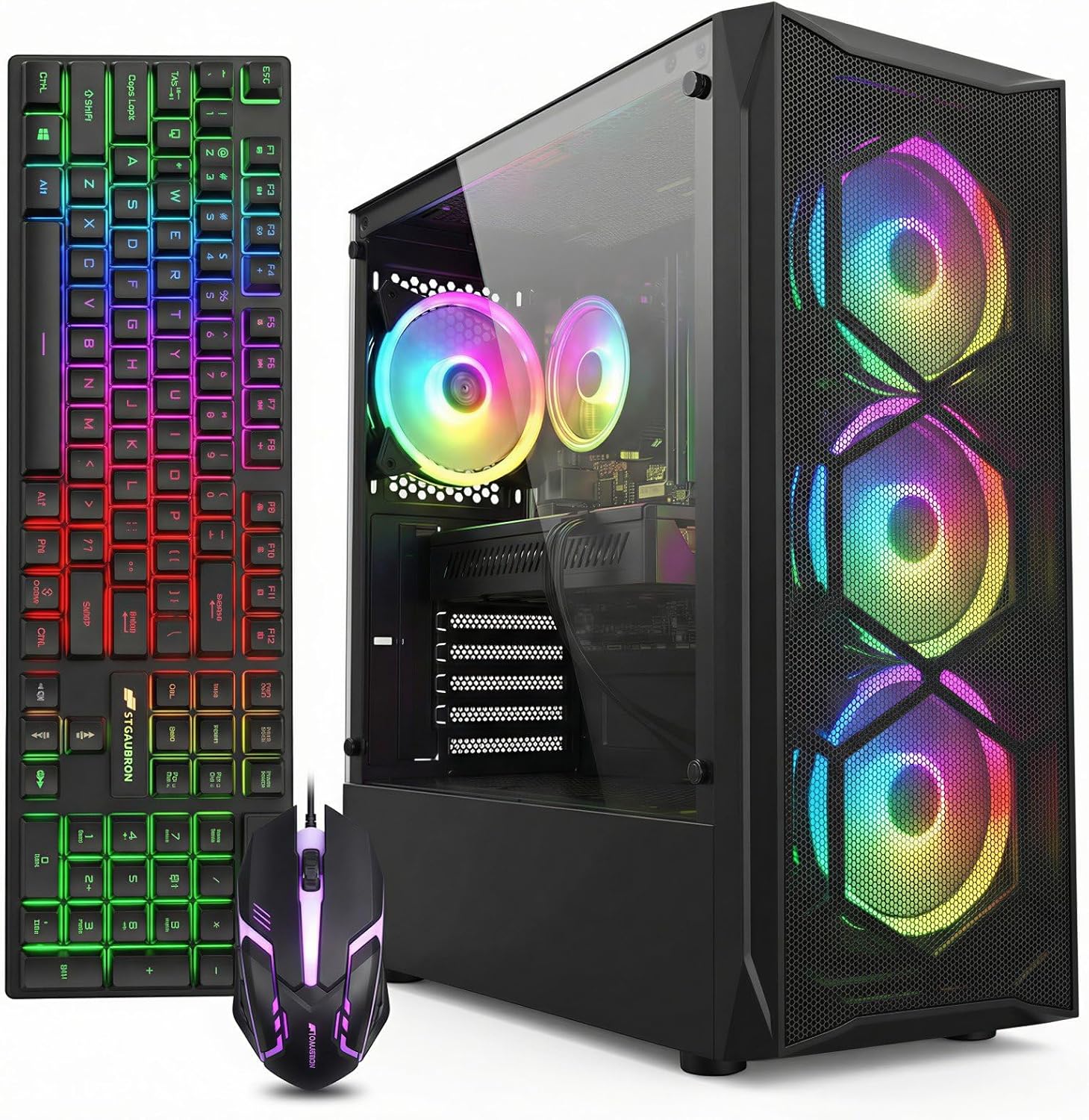
STGAubron Gaming PC Desktop,Core I7,RX 580 8G,16G RAM,512G SSD
At around $500 this is the value inflection point of the low end. The RX 580 with 8 GB is an older card, but 8 GB of memory ages far better than 4 GB, and the Core i7 pairing means the CPU is not the limit at 1080p. My measured range of 58 to 86 fps at 1080p high settings puts it in genuinely playable territory across most of what people actually play.
The trade-offs are power and heat. This class of card draws meaningfully more than a modern equivalent for the same performance, which shows up as a warmer case and a louder fan curve. It is also the machine in this group most likely to benefit from the thermal maintenance in the earlier sections.
512 GB of storage fills quickly with two large modern installs. Budget for a second drive.
Do not buy this if you care about power draw or noise, if you want ray tracing or modern upscaling support, or if you need a lot of storage out of the box. Buy it if you want the most raw 1080p performance available around $500.
YAWYORE Gaming PC Desktop Computer AMD R5 5600GT 16GB 1TB NVMe Towers WiFi
This one needs a careful description, because the listing is a tower with a Ryzen 5 5600GT, 16 GB and a 1 TB NVMe drive, and the graphics story is integrated rather than a discrete card. That makes it a competent general desktop and a light gaming machine, not a gaming rig in the sense most readers mean.
What it does well is everything that is not a demanding 3D scene. Boot times were quick on the NVMe drive, the 16 GB of memory means heavy multitasking is comfortable, and integrated graphics on this class of chip handle esports titles at reduced settings, older games and emulation without complaint. Wi-Fi is included, which is not universal at this price.
At around $660 it is more expensive than the STGAubron, which will run circles around it in games, and less capable in that specific way. Its buyer is someone who wants a fast, quiet, tidy desktop that also plays lighter titles, with the option of adding a discrete card later.
Do not buy this if you want to play current releases at reasonable settings. If gaming is the primary purpose and the budget is around $650, the ZYNEEX at around $810 or the STGAubron at around $500 are both better matched to the goal.
ZYNEEX Prebuilt Gaming Desktop PC, AMD Ryzen 5 5500, GeForce RTX 3050 6GB,16GB DDR4 3200MHz RAM, 1TB NVMe SSD, ARGB Air Cooling, Wi-Fi,Tower Computer for Gaming, Streaming, Editing
This is the most balanced machine under $1,000 in the group. The Ryzen 5 5500 with an RTX 3050 6GB, 16 GB of DDR4 3200 and a 1 TB NVMe drive is a coherent set of choices with no obvious weak link at 1080p, and my measured 72 to 104 fps band reflects that.
It is also the machine that best demonstrates the point of the first half of this guide. As delivered, the memory profile was not enabled and the average in my CPU-heavy test scene was 118 fps with a 1 percent low of 71. Enabling the profile took two minutes and moved those to 134 and 88. The machine you receive and the machine you can have are not the same machine.
ARGB air cooling kept the CPU comfortable in my logging, peaking well short of throttling in a fifteen-minute run, and 1 TB of NVMe storage is the right amount for this tier. Wi-Fi is included, though a wired connection remains the better choice for competitive play.
Do not buy this if you have a 1440p high refresh monitor, where the 3050 becomes the clear limit. Also skip it if you plan to stream while playing, since 16 GB and this CPU tier will both feel the pressure.
YAWYORE Gaming PC, AMD Ryzen 7 5700X, GeForce RTX 5060 Desktop Computer
The step up to a current-generation card changes the character of the setup. With an RTX 5060 paired to a Ryzen 7 5700X, my mixed test set landed at 118 to 160 fps at 1080p high, and the machine remained comfortable at 1440p in most of the same titles at adjusted settings.
The 5700X is an older-generation eight-core part, which is the sensible economy in this build: it has enough threads to keep a 5060 fed at these resolutions, and spending the difference on the card rather than the CPU is the right call at around $1,300. In my utilization logging the GPU sat at 94 to 98 percent in most scenes, which is exactly what you want to see. That means the card is the limit, the pairing is correct, and settings changes will translate into frames.
Where I would push back is on longevity of the platform. An older socket means fewer future CPU options, so plan on this being a full-system replacement in a few years rather than a chassis you upgrade repeatedly.
Do not buy this if you want an upgrade path on the CPU side, or if you need the extra graphics memory headroom that the 5060 Ti offers for heavier texture loads.
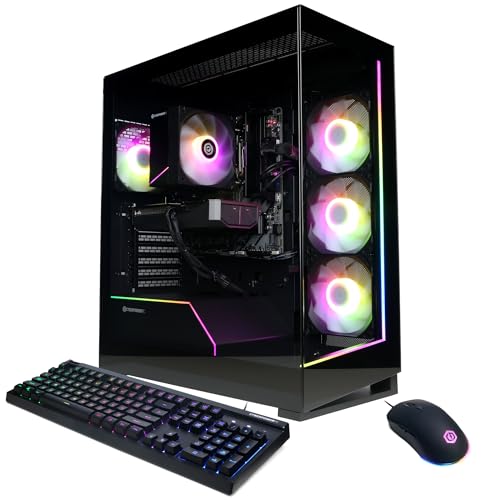
CyberPowerPC Gaming PC, AMD Ryzen 7 8700F, GeForce RTX 5060 Ti 8GB
The 5060 Ti pushed my mixed set to 132 to 178 fps at 1080p high, and the Ryzen 7 8700F is a newer part on a newer platform, which matters for future CPU options in a way the 5700X does not.
Build quality was the best of the mid-tier machines here. Cable routing was tidy enough that airflow paths were unobstructed, the fan curve was sane rather than aggressive, and my fifteen-minute thermal log showed clocks holding steady with no decay. That is not universal at this price and it is worth something.
The 8 GB of graphics memory is the specification I would watch. At 1440p with high texture settings in the heaviest recent titles, 8 GB is the number that will age first, ahead of the GPU’s raw speed.
Do not buy this if you are targeting 1440p with maximum texture settings and want the machine to stay comfortable there for four or five years. For that, the KOTIN’s 12 GB is the relevant difference, not the core count.
SAAV CORE Prebuilt Gaming PC Bundle Desktop Tower AMD Ryzen 5 5500 GeForce RTX 3050 6GB GDDR6 Dual Curved 24in Monitors 16GB DDR4 512GB NVMe SSD WiFi 6 Windows 11 Black RGB Computer PC Gaming
This is a bundle rather than a tower, and it has to be judged as one. The core machine is a Ryzen 5 5500 with an RTX 3050 6GB, 16 GB and a 512 GB NVMe drive, which is close to the ZYNEEX, and my measured 70 to 101 fps band confirms that. What you are paying the extra for is two curved 24-inch monitors, Wi-Fi 6 and a complete out-of-box setup.
The convenience case is real. Somebody setting up a first dual-monitor station who does not want to research panels separately gets a working two-screen setup in one delivery, with no compatibility questions. For a gift purchase or a first setup, that has genuine value.
The arithmetic case is weaker. At around $1,750 you are roughly $960 above the ZYNEEX for two entry 24-inch panels and a 512 GB rather than 1 TB drive. Bought separately, two comparable panels typically cost far less than that gap, and the difference would fund a much stronger GPU. If you already own one monitor, the maths gets worse.
Do not buy this if you already have a monitor, or if you are comfortable buying displays separately. Buy it if a single complete delivery with no decisions is worth a premium to you.
KOTIN Prebuilt Gaming PC RTX 5070 12GB, Ryzen 7 9700X, 32GB DDR5, 1TB SSD
The flagship of this group at around $2,000, and the only machine here I would call a comfortable 1440p high refresh setup. RTX 5070 with 12 GB, Ryzen 7 9700X, 32 GB of DDR5 and a 1 TB drive is a configuration with no deliberate weak point, and my measured 165 to 230 fps at 1080p high reflects that.
Three specifications carry the price. The 12 GB of graphics memory is the one that determines how the machine ages, and it is the meaningful difference against the 8 GB cards below. The 32 GB of system memory removes the streaming and multitasking constraint entirely. And the 9700X is a current-generation CPU on a platform with a future, so a CPU upgrade in three years is a realistic option rather than a fantasy.
In thermal logging this was also the best-behaved machine, holding clocks flat across a fifteen-minute run. Fan noise under load was present but not intrusive.
Do not buy this if you play at 1080p on a 60 Hz panel, where most of what you are paying for cannot reach you. Buy the CyberPowerPC and a better monitor instead. Also skip it if you would rather build, since at this budget the parts-versus-prebuilt gap is at its widest.
Matching the setup to the monitor you actually own
The most common mismatch I see is a strong tower feeding a weak display. Frames you cannot see are frames you did not need to buy.
On a 1080p 60 Hz panel, anything above the ZYNEEX tier is wasted. The RTX 3050 class already exceeds what the display can show in most titles, and the money is better spent on the monitor.
On a 1080p 144 Hz panel, the RTX 5060 and 5060 Ti machines are the sweet spot, because they can actually reach or approach that refresh rate in most of what people play. This is the pairing I recommend most often.
On a 1440p high refresh panel, the KOTIN is the only machine here that stays comfortable across the board, and the CyberPowerPC is the sensible compromise if you accept adjusted texture settings.
If your frames are fine but the experience is not, the problem may not be frames at all. Input latency, poor frame pacing and display processing all produce a setup that feels sluggish at a healthy average. Our notes on reducing input lag in Windows and on fixing FPS drops in games cover the two failure modes people most often confuse with each other.
What to add after the tower
Two additions change a setup more than a GPU tier does, and both are cheap by comparison.
The first is a wired network connection. Wi-Fi 6 is included on several machines here and it is fine, but a wired run removes an entire class of intermittent latency spikes. If running a cable is impractical, the alternatives in our guide to network gear for gaming cover the compromises honestly.
The second is protected power. Every machine in this list is worth more than a surge protector or a UPS, and every one of them is vulnerable to a dip during a storm. This is also the cheapest insurance against the shutdown symptoms described in the diagnostic section, since a dip at the wall and a failing PSU look identical from the chair.
After that, spend on the display before spending on the tower. A 144 Hz panel does more for how a setup feels than one GPU tier does, and the diagnostic ladder at the top of this guide exists partly because so many people already own the hardware to feel that difference and have it switched off.
Who should not buy a prebuilt at all
If you want specific parts, a particular case, or a quiet build with chosen fans, buy the parts. Prebuilt vendors optimize for cost and assembly time, and the components you cannot see are where they save money.
If you intend to upgrade continuously over five years, a self-built machine on a current socket with a generous PSU gives you a platform. Several machines here are on older sockets, which caps that plan.
If you already own a working machine and the diagnostic ladder found a fixable problem, do not buy anything. Enable the memory profile, clean the cooler, set the refresh rate, and re-measure.
The short version
Work the ladder first: refresh rate, cable and port, background load and power plan, memory profile, thermals, storage, drivers, power supply. Only then conclude that the parts are the problem, and when you do, check the manufacturer’s spec tables for socket, clearance and connector compatibility before ordering anything, because that is the step where upgrades quietly fail.
If the hardware really is the limit, the picks are straightforward. Around $500 the STGAubron gives the most 1080p performance. Around $800 the ZYNEEX is the most balanced machine here. At around $1,350 the CyberPowerPC is the value peak of the whole group, beating a machine that costs less by more than the price gap. And at around $2,000 the KOTIN is the only setup here I would put in front of a 1440p high refresh display without qualifications.
Whatever you land on, the first hour with a new machine should be the same hour you would have spent on the old one: memory profile on, background clutter removed, refresh rate confirmed, thermals logged for fifteen minutes.
Related guides
- Best Gaming PC for Overwatch 2: Ten Prebuilts Matched to Your Monitor (2026)
- Best Gaming PC for Baldur’s Gate 3: Matching CPU, VRAM and Storage to the Game (2026)
- Best Gaming PC for Apex Legends: Which Listings Fit a High-Refresh Setup (2026)
- Best RTX 3060 Gaming PCs: Eight Prebuilt Listings Compared by CPU, RAM and Cooling (2026)









